
Do Shared Photo Albums Use iCloud Storage? Here’s What You Need to Know
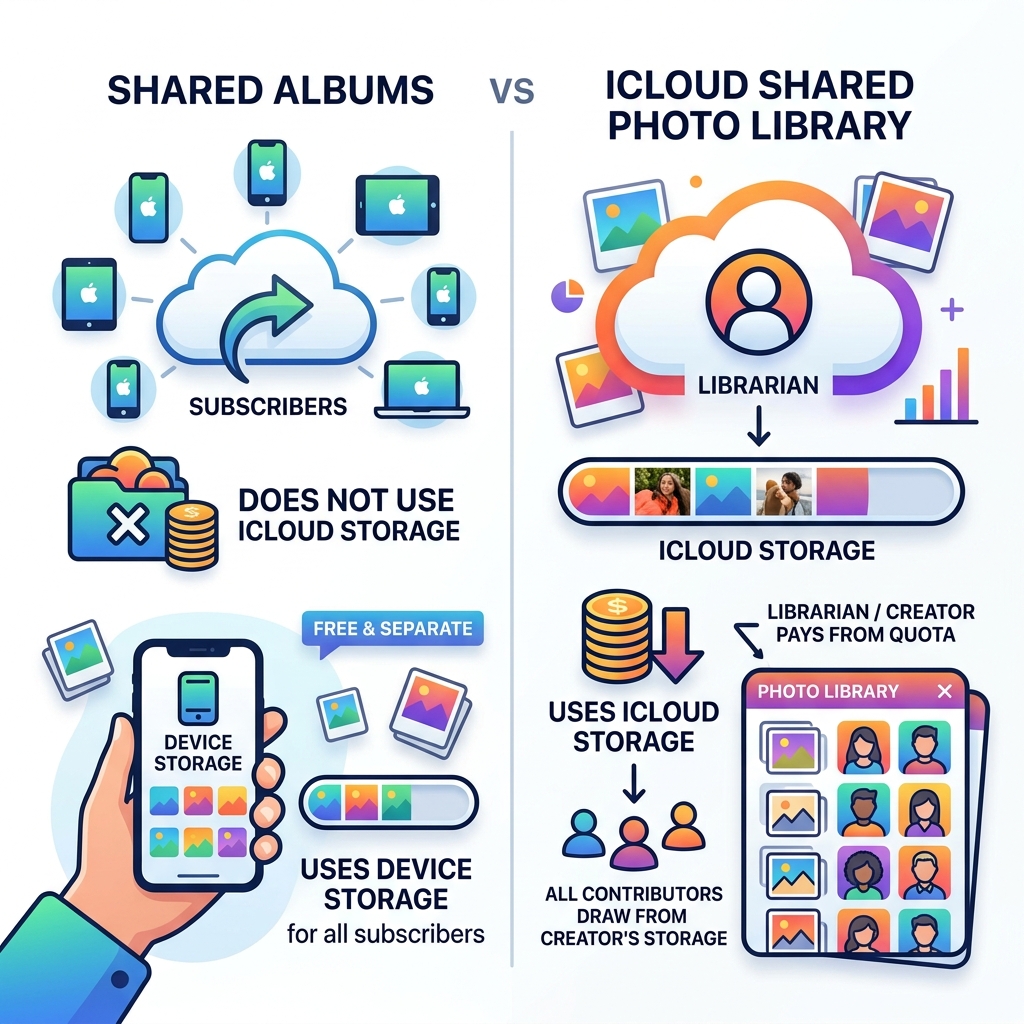
Do shared photo albums use iCloud storage? The short answer depends on which sharing feature you’re using — and Apple has two very different ones.
Here’s the quick breakdown:
| Feature | Uses Your iCloud Storage? | Who Pays the Storage Cost? |
|---|---|---|
| Shared Albums | No | Nobody — it’s free, separate storage |
| iCloud Shared Photo Library | Yes | The library creator pays from their quota |
So if you’ve been worried that sharing photos with friends and family is quietly eating into your 5GB free iCloud plan, you can relax — at least when it comes to Shared Albums.
But there’s more to the story. Shared Albums don’t count against your iCloud quota, but they do download to your subscribers’ iPhones, which means they take up device storage instead. And the newer iCloud Shared Photo Library works completely differently, pulling directly from the creator’s iCloud plan.
Getting these two features mixed up is extremely common — and it can lead to real storage headaches if you’re not sure which one you’re using.
Do Shared Photo Albums Use iCloud Storage? Understanding the Basics
When we talk about Apple’s ecosystem, the word “iCloud” gets thrown around a lot. It is essentially your digital locker in the sky, holding everything from your WhatsApp backups to that accidental burst of 47 photos of your cat. Most users start with a free 5GB plan, which fills up faster than a stadium at a Taylor Swift concert.
Because space is at such a premium, many of us hesitate to hit that “Share” button. We wonder: do shared photo albums use iCloud storage and will they push us over the limit into the dreaded “Storage Full” notification territory?
To manage your digital life effectively, you need to understand the mechanics of Apple Photos. Your primary iCloud Photo Library is where your high-resolution originals live. This definitely counts against your quota. However, Apple designed “Shared Albums” (formerly known as iCloud Photo Sharing) as a separate service. It operates on its own set of rules and, more importantly, its own dedicated server space. For more help on keeping your cloud lean, check out our Top Tips for Effective Cloud Storage Management.
How shared albums impact your iCloud storage
Here is the best news you’ll hear all day: Shared Albums do not count against your iCloud storage.
Apple provides this as a “zero-count” storage feature. Whether you have the free 5GB plan or the massive 2TB iCloud+ tier, the photos and videos you upload to a Shared Album do not eat into that number. They are stored in a special section of Apple’s servers that is completely separate from your personal quota.
However, “free” doesn’t mean “infinite.” To keep the service running smoothly, Apple imposes a few ground rules:
- Item Limit: Each individual shared album can hold a maximum of 5,000 photos and videos.
- Album Count: You can own or subscribe to a maximum of 200 shared albums.
- Upload Limits: There are limits on how many items you can upload per hour (1,000) and per day (10,000) across all your shared albums.
If you find that your device is still feeling sluggish despite these freebies, you might be confusing iCloud storage with local memory. Users often ask, Does Shared albums take up memory?, and the answer is a resounding yes—but on your phone, not in the cloud. If you are looking to tidy up your digital life, our guide on Decluttering Cloud Storage: Step-by-Step can help you identify what is actually taking up space.
Why iCloud Shared Photo Library uses the creator’s storage
Now, let’s talk about the newer, more sophisticated sibling: the iCloud Shared Photo Library. Introduced with iOS 16.1, this feature is designed for families or very close groups (up to six people total).
Unlike Shared Albums, the iCloud Shared Photo Library does use iCloud storage. But here is the catch: it only uses the storage of the library creator.
If you are the “host” who sets up the Shared Library, every photo added by you—and every photo added by your five participants—comes out of your iCloud plan. The participants get a “free ride” in terms of cloud storage; they can see and contribute thousands of photos without it touching their own personal iCloud quota. This makes it one of the most Efficient Strategies for Organizing Large Media Libraries for families, provided the head of the household has a large enough storage plan.
Shared Albums vs. iCloud Shared Photo Library: Key Differences
Understanding which tool to use is half the battle. While they both allow you to share photos, they serve very different purposes. Shared Albums are like a digital bulletin board for a party or a vacation. iCloud Shared Photo Library is more like a shared family photo album that sits on the coffee table—everyone has equal rights to move, edit, or delete photos.
| Feature | Shared Albums | iCloud Shared Photo Library |
|---|---|---|
| Storage Source | Free (Doesn’t count) | Creator’s iCloud Plan |
| Max Participants | 100 people | 6 people total |
| Max Items | 5,000 per album | Unlimited (based on storage) |
| Photo Resolution | Reduced (2048px) | Full Resolution |
| Video Resolution | 720p (Max 15 mins) | Full Resolution (up to 4K) |
| Editing Rights | Add/Comment only | Full Edit/Delete for all |
As you can see, the iCloud Shared Photo Library is a much more powerful tool, but it requires someone to foot the bill for the storage. For a deep dive into setting this up, see the official guide on How to use iCloud Shared Photo Library on iPhone or iPad – Apple Support (BY). If you’re still weighing your options, our article on Organizing Photos on Smartphone and Cloud offers a broader perspective on managing your media.
Does Joining a Shared Album Take Up Space on Your iPhone?
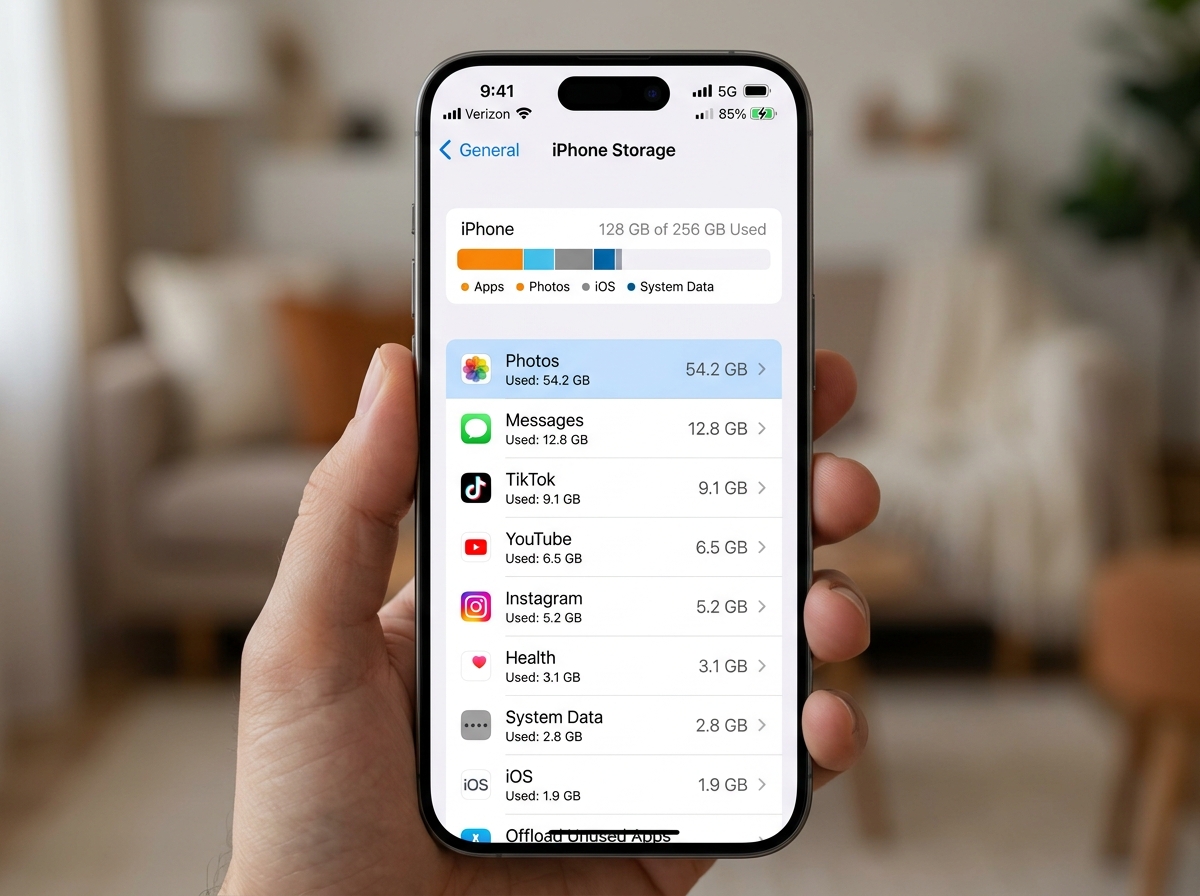
This is where the “free” storage of Shared Albums gets a little tricky. While the photos don’t count against your cloud limit, they absolutely take up space on your physical device.
When you join a Shared Album, your iPhone or iPad creates a local cache (a “mirror”) of those photos so you can view them quickly without waiting for them to download from the internet every time. This is why you can still see shared album photos while in Airplane Mode!
However, Apple is clever about how it handles this local storage:
- Downsized Images: The photos stored on your device from a Shared Album are not the full-resolution originals. They are compressed to 2048 pixels on the long edge.
- Smaller Footprint: Because they are compressed, they take up significantly less space than a photo you took with your own camera. A library of 1,000 shared photos might only take up a few hundred megabytes, whereas 1,000 of your own photos could easily take up several gigabytes.
- Optimization: If your iPhone runs very low on space, it will automatically clear the cache of shared photos you haven’t looked at in a while.
Even with this optimization, if you join dozens of shared albums, your “System Data” or “Photos” storage on your iPhone will grow. If you’re struggling with a “Storage Almost Full” message on your phone, you might want to check out the Best Photo Organizing Apps for iPhone to help manage the clutter. We also have a Reducing Digital Storage Overload: A Simple Guide for Beginners that explains how to balance local and cloud space.
Technical Limitations and Resolution Specs for Shared Content
To keep Shared Albums free and fast, Apple has implemented some specific technical boundaries. If you are a professional photographer or a 4K video enthusiast, these limits are important to keep in mind.
- Photo Resolution: Photos are scaled down to a maximum of 2048 pixels on the long edge. The only exception is panoramic photos, which can be up to 5400 pixels wide.
- Video Quality: Videos are delivered at a maximum resolution of 720p. If you upload a stunning 4K video of your baby’s first steps, your friends in the Shared Album will see a slightly grainier version.
- Video Length: You can only share videos up to 15 minutes long in a Shared Album.
- File Formats: Shared Albums support most standard formats (HEIF, JPEG, RAW, PNG, GIF, TIFF) and video types (HEVC, MP4, QuickTime).
- Daily Limits: You can’t spam your friends! Apple limits you to 10,000 total uploads per day across all shared albums to prevent abuse of the service.
- Subscriber Limits: You can invite up to 100 people to a single Shared Album.
For more details on these specifications, you can visit How to use Shared Albums in Photos on your iPhone, iPad, or Apple Vision Pro – Apple Support (AM). If you’re worried about who can see your shared content, our Tips for Safe Online File Sharing provides excellent advice on maintaining your privacy.
Frequently Asked Questions about Shared Photo Storage
Do shared photo albums use iCloud storage if I am just a participant?
If you are just a participant (meaning someone else created the album and invited you), Shared Albums do not use your iCloud storage. You can join as many as you like without worrying about your 5GB or 50GB plan.
However, if you are a participant in an iCloud Shared Photo Library, the rules are the same: it only counts against the creator’s storage. You are essentially a guest in their digital house. You can learn more about managing these invitations at Create and manage shared albums in Photos on iCloud.com.
Do photos in a Shared Library create duplicates?
One of the best features of the newer iCloud Shared Photo Library is that it doesn’t create duplicates. When you move a photo from your Personal Library to the Shared Library, it is moved, not copied.
This is great for storage efficiency because you aren’t paying for the same photo twice. However, it does mean the photo “disappears” from your private view unless you have the “Both Libraries” view toggled on. If you’re worried about messy libraries, our guide on Deleting Duplicate Files Quickly can help you keep things streamlined.
What happens if the Shared Library creator runs out of space?
If the creator of an iCloud Shared Photo Library hits their storage limit, the library essentially “freezes.”
- No New Content: No one (neither the creator nor the participants) can add new photos or videos to the shared library.
- Syncing Stops: Any edits made to existing photos, such as cropping or adding filters, will not sync across devices.
- Metadata Issues: Favoriting a photo or changing its caption will also stop syncing.
To fix this, the creator must either delete some content or upgrade their iCloud+ plan. For those who prefer to keep their storage minimal rather than paying for more, we recommend looking at Cloud Storage Apps for Digital Minimalists.
Conclusion
At Tamba Tech, we know how stressful those “Storage Full” pop-ups can be. To summarize: do shared photo albums use icloud storage? If you are using standard Shared Albums, the answer is a happy no. They are a fantastic, free way to share memories without spending a dime on extra cloud space. Just remember that they will take up a little bit of room on your iPhone’s physical memory.
If you are using the iCloud Shared Photo Library, the storage comes out of the creator’s pocket. It’s a premium experience with full-resolution photos, but it requires a bit more management.
By understanding these differences, you can share your favorite moments with confidence. For more guides on mastering your digital life, visit our section on how to Master Your Digital Files.
