
Your iPhone Is Running Out of Space — Here Are Your Best Options
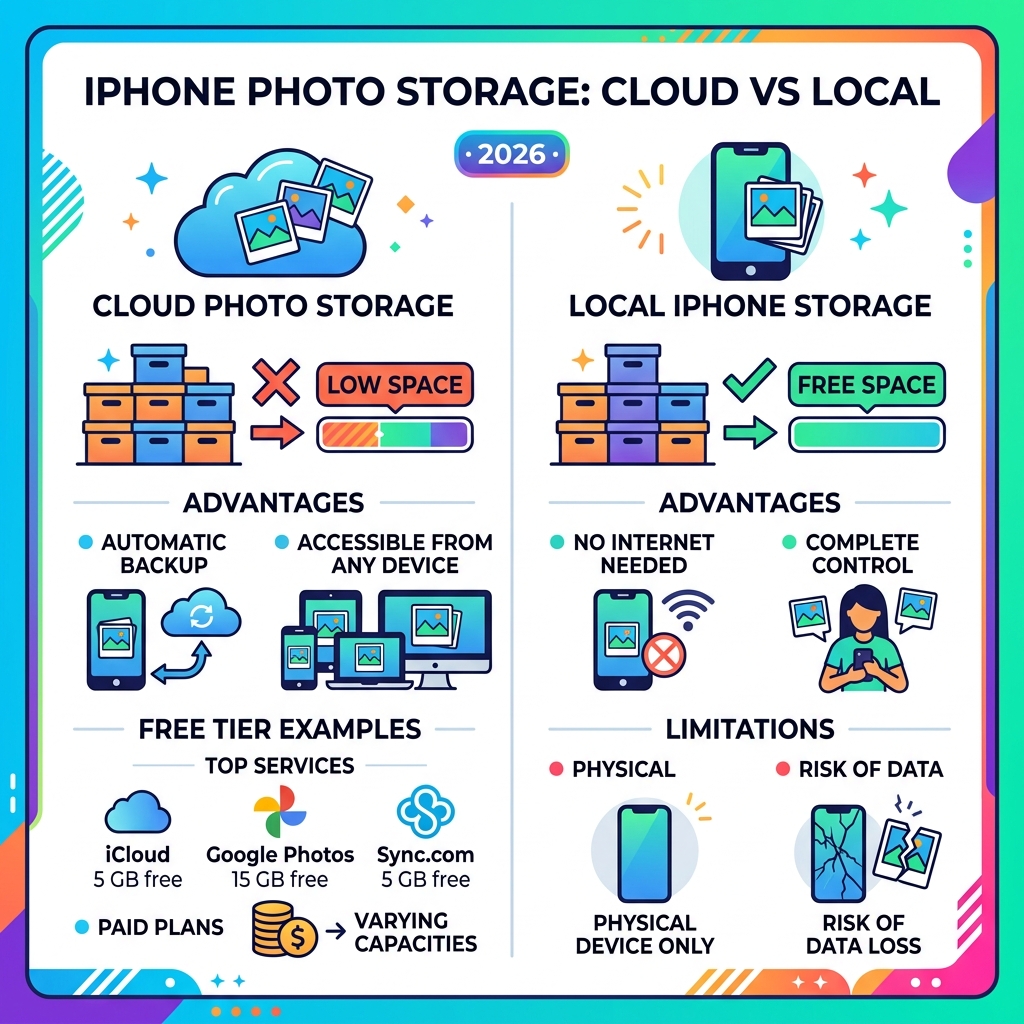
Cloud photo storage for iPhone is one of the smartest ways to free up your device without losing a single memory. Here’s a quick look at the top options:
| Service | Free Storage | Paid Plans (start at) | Best For |
|---|---|---|---|
| iCloud | 5 GB | $0.99/mo (50 GB) | Apple ecosystem users |
| Google Photos | 15 GB | $1.99/mo (100 GB) | AI search & organization |
| Sync.com | 5 GB | $2.65/mo (200 GB) | Privacy-focused users |
| pCloud | 10 GB | $4.17/mo (2 TB) | Lifetime plan buyers |
| Dropbox | 2 GB | $9.99/mo (2 TB) | Power users & teams |
| Icedrive | 10 GB | $4.92/mo (1 TB) | Secure, clean interface |
Every iPhone comes with just 5 GB of free iCloud storage. That sounds like a lot — until you realize a single minute of 4K video can eat up nearly 400 MB.
Most people hit that limit fast.
When your storage fills up, your phone stops backing up. Photos you took today could be gone tomorrow if something happens to your device. That’s not a risk worth taking.
The good news? You have more options than most people realize — and several of them are cheaper, more private, or more generous than iCloud.
This guide compares the best cloud photo storage services for iPhone users so you can find the right fit without paying for space you’ll never use.
Why Upgrading Your cloud photo storage for iphone is Essential
We have all been there: you are trying to capture a once-in-a-lifetime moment—a puppy’s first beach trip or a toddler’s first steps—and that dreaded “Storage Almost Full” notification pops up. It is the digital equivalent of running out of film in the 90s, only much more annoying.
Modern iPhones are equipped with incredible 12MP (and higher) sensors capable of capturing professional-grade images. While these photos look stunning, they are also data-heavy. If you enjoy shooting in 4K video or using ProRAW formats, your local device capacity will vanish before you can say “cheese.”
Upgrading your cloud photo storage for iPhone isn’t just about making room for new selfies; it is about data redundancy. Relying solely on your phone’s physical hardware is risky. Phones get dropped, lost, or dunked in pools. By using a cloud service, you ensure that even if your iPhone meets a tragic end, your memories remain safe.
According to iCloud – Official Apple Support, the system is designed to keep your most important files updated across all your devices. However, the basic 5GB tier provided by Apple is barely enough to back up your system settings and a handful of high-resolution videos. This “photo bloat” makes moving to a larger cloud plan a necessity rather than a luxury.
Furthermore, we must consider security. When you move your life to the cloud, you need to know it is protected. We recommend securing-cloud-storage-accounts/ by enabling two-factor authentication (2FA) and using strong, unique passwords. Security isn’t just about preventing hacks; it’s about ensuring that your private family moments stay private.
Top Alternatives to Standard iPhone Storage
While iCloud is the “default” choice, it isn’t always the best value. Many of us find that third-party apps offer better cross-platform support and more flexible pricing. If you use a Windows PC at work or a Mac at home, or if you share photos with family members who use Android, a cross-platform service might be your best bet.
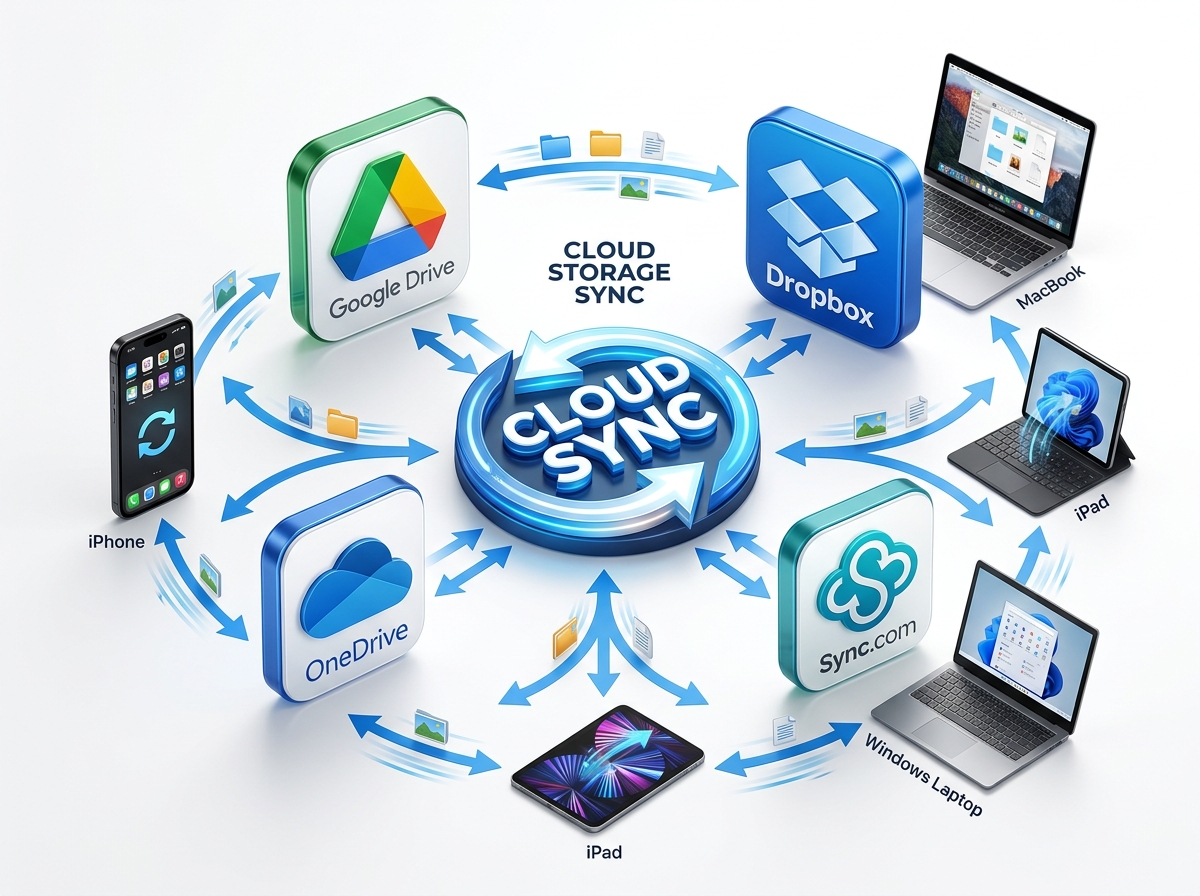
When we look at cost efficiency, the numbers tell a compelling story. While iCloud+ is affordable at the lower tiers, power users might find better deals elsewhere. For instance, some services offer “lifetime” plans where you pay once and own the storage forever—a concept Apple doesn’t currently support.
Below is a look at how some of the heavy hitters compare when you need a significant amount of space:
| Feature | iCloud+ | Google Photos | Dropbox | Sync.com |
|---|---|---|---|---|
| 2TB Pricing | $9.99/mo | $9.99/mo | $9.99/mo | ~$8.00/mo (annual) |
| Max Capacity | 12 TB | 30 TB | Unlimited (Business) | 6 TB (Personal) |
| Encryption | Standard (E2EE optional) | Standard | Standard | Zero-Knowledge |
| Family Sharing | Up to 5 members | Up to 5 members | Up to 6 members | Varies |
Choosing a backup app depends on your specific needs. Do you want the fastest upload speeds, or do you want the best organization? Let’s explore the categories that matter most.
Privacy-First cloud photo storage for iphone
For those of us who are particularly sensitive about data privacy, “Zero-Knowledge Encryption” is the gold standard. This means the cloud provider has no way to see your photos. They don’t have the key; only you do. If a government agency or a hacker approached the provider, all they would see is scrambled code.
Sync.com is a top contender here. It offers a secure, private vault for your iPhone photos. It doesn’t have the fancy AI “face recognition” that Google has, but it guarantees that nobody—not even the employees at Sync—can look at your vacation photos.
pCloud is another excellent choice based in Switzerland, a country known for its strict privacy laws. One unique feature we love is the ability to pay a one-time fee for a lifetime plan. It is a great way to “set it and forget it.” For more on keeping things tidy, check out our top-tips-for-effective-cloud-storage-management/.
High-Capacity cloud photo storage for iphone for Power Users
If you have hundreds of thousands of photos, you need a “powerhouse” service.
Google Photos is arguably the smartest app on the market. Its AI can find photos of “dogs,” “sunsets,” or even specific people without you ever having to tag them. It offers 15GB for free, which is triple what Apple offers. You can download it directly from the Google Photos: Backup & Edit App – App Store. It is perfect for those who want their library to organize itself.
Dropbox remains a favorite for professionals. If you are a photographer or a content creator, Dropbox’s integration with creative tools is second to none. It also offers a “block-level sync” feature, which means if you edit a large file, it only re-uploads the parts you changed, making it incredibly fast.
To help you decide which app feels right in daily use, we’ve put together a list of the best-photo-organizing-apps-for-iphone that focuses on the user interface and ease of use.
Essential Features for Seamless iOS Integration
Using a third-party app on an iPhone used to be a clunky experience, but things have changed. To get the best cloud photo storage for iPhone experience, you need to look for a few specific technical features.
- Background Uploads: You don’t want to have to keep the app open for your photos to back up. Look for apps that use “Background App Refresh” to sync your photos while your phone is charging.
- HEIC and Live Photos Support: Apple uses a space-saving format called HEIC. Some older or cheaper cloud services convert these to JPEGs, which can actually take up more space and strip away the “Live” animation. Ensure your chosen provider supports these natively.
- Metadata Retention: Your photos contain “EXIF data”—info about where the photo was taken, the date, and the camera settings. A good service preserves this so your timeline stays accurate.
- Optimized Storage: Just like iCloud’s “Optimize iPhone Storage” feature, some apps (like Google Photos) allow you to “Free up space” by deleting the local copy of a photo once it is safely in the cloud.
For a deeper dive into keeping your digital life tidy, read our guide on organizing-photos-on-smartphone-and-cloud/.
Frequently Asked Questions about iPhone Photo Backups
We get a lot of questions about how these services actually work in the real world. Let’s clear up some of the most common points of confusion.
Can I share my cloud storage plan with family members?
Yes, most major providers offer family plans.
- iCloud+: You can share your 200GB or 2TB plan with up to five other family members. Everyone gets their own private space; they can’t see your photos unless you explicitly share them.
- Google One: Similar to Apple, you can share your storage quota with your “Google Family.”
- Dropbox Family: This plan offers 2TB of shared space for up to six users and includes a “Family Room” folder for shared memories.
Sharing a plan is often the most cost-effective way to manage storage for a whole household. Just be sure to check our guide on decluttering-cloud-storage-step-by-step/ to make sure you aren’t paying for space filled with accidental screenshots and blurry duplicates!
How do I move photos from iCloud to another service?
This is the “million-dollar question.” Since Apple likes to keep you in their ecosystem, moving out can take a bit of effort.
- The Manual Way: Download your photos to a Mac or PC using the iCloud desktop app, then drag them into the folder of your new service (like Dropbox or pCloud).
- The Privacy Tool: Apple now offers a “Data and Privacy” portal where you can request a transfer of your photo library directly to Google Photos. It takes a few days to process but is much easier than manual downloading.
- Third-Party Tools: Apps like MultCloud or AnyTrans can help bridge the gap, though they often require a subscription.
Does third-party storage affect photo quality?
Generally, no—as long as you choose the right settings.
- Google Photos offers a “Storage Saver” option that slightly compresses images to save space. While the quality is excellent for most people, professional photographers should choose “Original Quality” to ensure every pixel is preserved.
- iCloud, Sync.com, and pCloud typically store the “Original” file by default.
- RAW Formats: if you shoot in ProRAW on your iPhone 13 Pro or later, make sure your cloud provider doesn’t convert these to standard JPEGs, as you will lose the ability to edit the deep data in the file.
Conclusion
At Tamba Tech, we believe that technology should serve you, not the other way around. You shouldn’t feel tethered to a single service just because it came pre-installed on your phone. Whether you choose the seamless integration of iCloud, the AI brilliance of Google Photos, or the ironclad privacy of Sync.com, the best cloud photo storage for iPhone is the one that fits your budget and your values.
If you are feeling overwhelmed by a messy digital library, start with our cloud-storage-management-tips/ to get a handle on your files. The goal is to stop paying for what you don’t need and start protecting what you can’t replace.
For more expert advice on navigating apps and data, Manage your files effectively with our latest reviews and guides. Happy snapping!
