
Why Managing iCloud Drive Storage Is Worth Your Time
Managing iCloud Drive storage is one of the easiest ways to stop those annoying “iCloud storage is full” notifications and keep your iPhone running smoothly.
Here’s a quick overview of how to free up space right now:
- Check what’s using space — Go to Settings > [Your Name] > iCloud > Manage
- Delete old device backups — Remove backups from devices you no longer own
- Clean up iCloud Drive files — Delete unused files and empty the Recently Deleted folder
- Optimize Photos — Turn on “Optimize iPhone Storage” to store smaller versions on-device
- Trim Messages — Delete large attachments from group chats and old conversations
- Turn off iCloud for unused apps — Stop apps you don’t use from eating into your quota
- Upgrade your plan — If you need more room, iCloud+ starts at just $0.99/month for 50 GB
Every Apple user starts with just 5 GB of free iCloud storage. That sounds reasonable — until you realize it has to cover your photos, device backups, iCloud Drive files, Messages, and Mail all at once.
For most people, that 5 GB fills up fast.
When it does, the consequences are real. Your iPhone stops backing up. New photos stop syncing. iCloud Drive falls out of date across your devices. And if you use an iCloud email address, you can lose the ability to send and receive messages entirely.
The good news? You don’t always need to pay for more storage. A bit of targeted cleanup can recover a surprising amount of space — and this guide walks you through exactly how to do it.
Understanding Your iCloud Storage Usage and Limits
Before we dive into the “how-to” of cleaning, we need to understand the playing field. Apple’s default offering of 5 GB is, frankly, a bit of a digital shoebox in an era of 4K video and high-resolution selfies. It’s the “starter home” of cloud storage—fine for a few contacts and notes, but it quickly becomes cramped once you start living in it.
If you hit that 5 GB ceiling, your digital life hits a standstill. Not only do backups fail, but you also lose the seamless “handoff” experience between your Mac, iPad, and iPhone. This is why we recommend securing-cloud-storage-accounts and regularly auditing what you’re actually keeping in the cloud.
If you decide the 5 GB isn’t enough, Apple offers iCloud+ tiers:
- 50 GB: $0.99/month
- 200 GB: $2.99/month
- 2 TB: $9.99/month
- 6 TB: $29.99/month
- 12 TB: $59.99/month
Each of these paid plans includes extra perks like iCloud Private Relay and “Hide My Email,” but the primary draw is the breathing room. However, even a 2 TB plan can fill up if you’re a digital hoarder. Learning to Manage your iCloud storage on your Apple device is a skill every user needs, regardless of their plan size.
Identifying space-consuming categories
We’ve all been there: looking at the storage bar and wondering what on earth “System Data” or “Other” is. To get a clear picture, you need to head to your settings.
On an iPhone or iPad, go to Settings > [Your Name] > iCloud. Here, you’ll see a color-coded bar graph. Usually, Photos (yellow) and Backups (blue) are the biggest “storage vampires.”
If you are running iOS 17 or later, Apple has introduced a helpful “Recommended for You” section. This tool acts like a digital Marie Kondo, pointing out large videos, old backups, or unused files that you can delete with a single tap.
On a Mac, the process is similar:
- Click the Apple Menu > System Settings.
- Click your name, then click iCloud.
- Click Manage to see a detailed list of every app and how many megabytes (or gigabytes) it’s currently occupying.
By identifying the biggest offenders first, you can manage icloud drive storage much more efficiently than by randomly deleting small files.
How to manage iCloud Drive storage and free up space
iCloud Drive is the “catch-all” folder for your documents, PDFs, and app data. Unlike Photos, which has its own management system, iCloud Drive requires a bit more manual labor.
One of the most important things to remember is the 30-day safety net. When you delete a file from iCloud Drive, it isn’t gone forever immediately. It moves to a “Recently Deleted” folder. While this is great if you accidentally delete your tax returns, it means that the storage isn’t actually “freed up” until those 30 days pass or you manually empty that folder.
If you’re feeling overwhelmed, our guide on decluttering-cloud-storage-step-by-step offers a great roadmap for tackling this systematic cleanup.
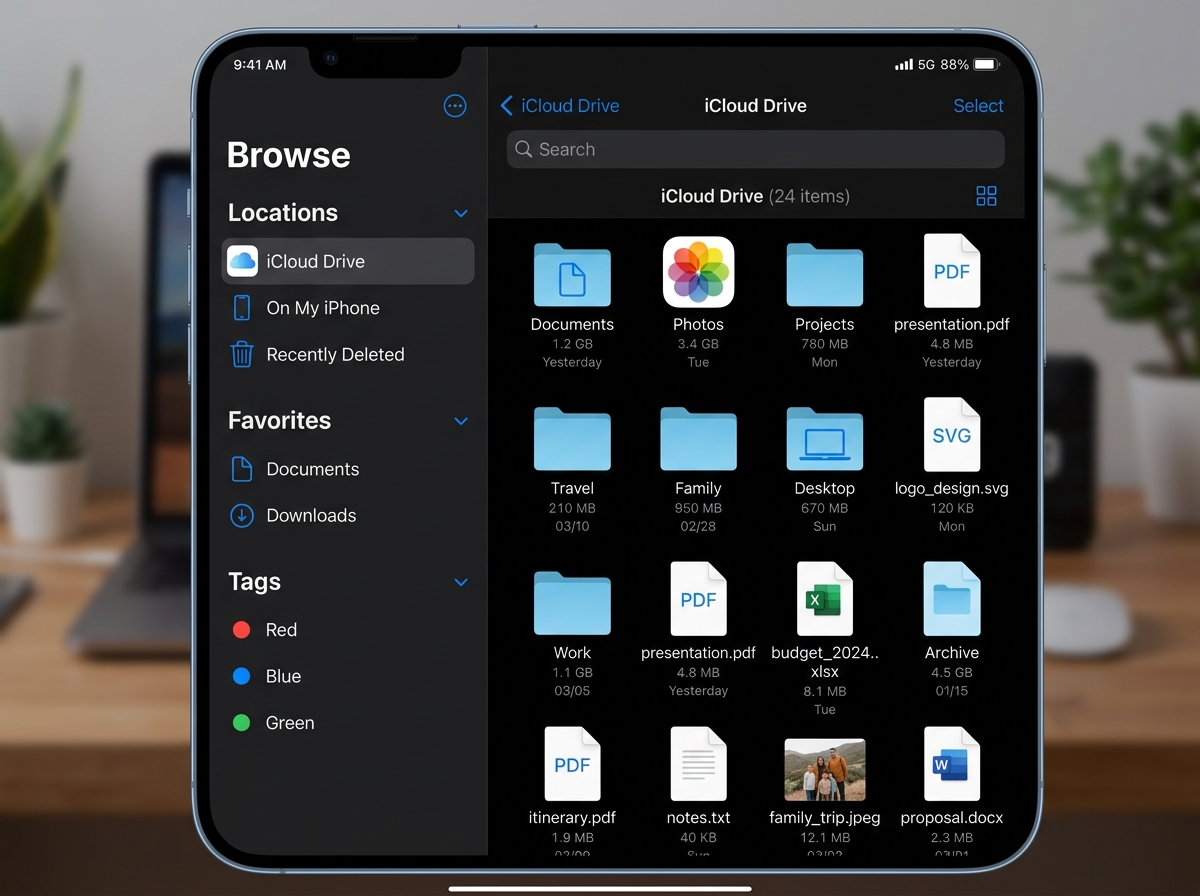
Steps to manage iCloud Drive storage on iPhone and Mac
Managing your files across different devices requires different approaches.
On iPhone and iPad: Open the Files app. Tap the Browse tab and select iCloud Drive. From here, you can long-press on folders or individual files to delete them. To truly clear the space, go back to the “Browse” main screen, tap Recently Deleted, and choose Delete All.
On Mac: The Mac offers a more powerful way to manage icloud drive storage because you can sort by file size.
- Open Finder and click iCloud Drive in the sidebar.
- If you don’t see a “Size” column, right-click the header bar and select Size.
- Click the Size header to sort from largest to smallest.
- Drag those massive, forgotten PowerPoints or DMG installers to the Trash.
For more platform-specific tips, check out the official guide to Manage iCloud storage on Mac. It details how to handle system-specific data that might not show up in the standard Files app.
How to manage iCloud Drive storage for specific apps
Sometimes, it’s not your files causing the bloat—it’s the apps themselves. Many third-party apps (and even Apple’s own apps like Siri) store data in iCloud to keep your experience consistent across devices.
To audit this:
- Go to Settings > [Your Name] > iCloud > Manage Account Storage.
- Scroll through the list. You might find a “Sketch Pad” app you used once in 2019 that is still holding onto 500 MB of doodles.
- Tap the app and select Delete Data from iCloud.
A note on Siri: Siri learns your voice and preferences, and this data is synced via iCloud. If you want to start fresh or save a bit of space, you can go to the iCloud settings on your Mac or iPhone, find Siri in the list, and select “Turn Off and Delete.” It’s a small gain, but every megabyte counts when you’re on the 5 GB plan! For more granular advice, see our cloud-storage-management-tips.
Optimizing Photos and Reducing Backup Sizes
For 90% of users, Photos are the primary reason they need to manage icloud drive storage. High-definition videos of your cat’s birthday party are wonderful, but they are also massive.
The single most effective tool Apple provides is “Optimize iPhone Storage.”
- How it works: When enabled, your iPhone keeps full-resolution originals in iCloud while keeping smaller, space-saving versions on your device. If you want to view a photo from three years ago, your phone downloads the full version on the fly.
- The Benefit: You can fit a 100 GB photo library onto a 64 GB iPhone.
To enable this, go to Settings > Photos > Optimize iPhone Storage.
If you’re looking for more advanced strategies, we have compiled top-tips-for-effective-cloud-storage-management that go beyond just flipping a switch.
Managing iCloud Photos and Shared Libraries
With the introduction of iCloud Shared Photo Library, management got a little more complex. Here is the golden rule: The person who creates the Shared Library pays for the storage.
If you are a member of a shared library created by your spouse, those photos don’t count against your 5 GB or 50 GB limit—they count against theirs. However, if you are the “host,” you need to be extra vigilant.
Pro-tip for Photo Cleanup:
- Delete Duplicates: In the Photos app, scroll down to Utilities > Duplicates. Apple’s AI is surprisingly good at finding nearly identical shots. Merging them keeps the highest quality version and tosses the rest.
- Empty the Trash: Just like iCloud Drive, deleted photos stay in the “Recently Deleted” album for 30 days. If you need space now, go to that album and hit “Delete All.”
Reducing the size of iCloud Backups
Your iCloud Backup is a “snapshot” of your device. It includes app data, device settings, and message history. Many users are surprised to find they are still paying to store a backup of an iPhone 8 they traded in years ago.
1. Delete Old Backups: Go to Settings > [Your Name] > iCloud > Manage Account Storage > Backups. If you see a device you no longer own, tap it and select Delete & Turn Off Backup. Apple keeps these for 180 days after you stop backing up, but you can clear them instantly.
2. Choose Which Apps to Back Up: Do you really need to back up the data for a casual puzzle game or a food delivery app? Probably not.
- In the Backups menu, tap your current device.
- Tap Show All Apps.
- Toggle off apps that don’t contain vital information. This can shrink your backup from 10 GB down to 2 GB in minutes.
For home and work environments where data is even more critical, check out our list of cloud-backup-apps-for-home-and-work to see if a secondary backup solution is right for you.
Cleaning Up Messages and iCloud Mail Attachments
Messages and Mail are the “silent killers” of iCloud storage. We often forget that every GIF, meme, and “Happy Birthday” video sent via iMessage is stored in the cloud if “Messages in iCloud” is turned on.
If you’ve been in a group chat for five years, that chat alone could be taking up several gigabytes. You can find more details on setting up these services in this guide on Setting Up and Managing iCloud+ Storage.
Removing large files from Messages and Mail
To tackle Messages:
- Go to Settings > General > iPhone Storage > Messages.
- Tap Review Large Attachments.
- Here, you’ll see a list of the biggest files sorted by size. You’ll likely find long-forgotten screen recordings or videos that can be deleted immediately.
iCloud Mail Cleanup: Apple recently introduced “iCloud Mail Cleanup” to help manage the clutter. You can find this on iCloud.com or within the Mail settings on your device. It helps you identify and bulk-delete old newsletters, promotional emails, and transaction receipts that are just taking up space.
For a more granular approach, follow our step-by-step-guide-to-decluttering-cloud-storage to ensure you aren’t leaving any digital crumbs behind.
Choosing an iCloud+ Plan and Sharing with Family
If you’ve optimized your photos, cleared your backups, and deleted your old emails, but you’re still out of space, it’s time to consider an upgrade. Managing icloud drive storage isn’t just about deleting; it’s about having the right amount of space for your needs.
| Plan Tier | Monthly Cost | Best For… |
|---|---|---|
| 5 GB | Free | Light users with minimal photos/backups. |
| 50 GB | $0.99 | Single users who want to back up one iPhone and a modest photo library. |
| 200 GB | $2.99 | Small families or heavy users with lots of 4K video. |
| 2 TB | $9.99 | Large families or professionals using iCloud Drive for work files. |
| 6 TB / 12 TB | $29.99+ | Professional photographers or families with massive shared libraries. |
One of the best ways to save money is through Family Sharing. You can share a 200 GB or 2 TB plan with up to five other family members. Everyone gets their own private storage space, but it all comes out of one shared “pool.” It’s much cheaper than everyone paying for their own individual 50 GB plans.
If you are a Windows user, don’t feel left out. You can also Manage iCloud storage on your Windows computer using the iCloud for Windows app, which allows you to upgrade or downgrade your plan directly from your PC.
Best practices for long-term storage maintenance
The secret to never seeing a “Storage Full” notification again is digital minimalism. We recommend setting a calendar reminder once every three months to do a “digital sweep.”
- Offload to External Drives: If you have 50 GB of old college projects in iCloud Drive, move them to a physical external hard drive. You’ll save money on your monthly subscription and still have the files.
- Use Third-Party Tools: While Apple’s built-in tools are great, some users prefer cloud-storage-apps-for-digital-minimalists to help automate the organization process.
- Auto-Delete Messages: Set your messages to delete after 30 days or one year (Settings > Messages > Keep Messages) to prevent the “silent bloat” from returning.
Frequently Asked Questions about iCloud Storage
What happens if my iCloud storage is full?
If your storage is full, your device will stop backing up to the cloud. This means if you lose your phone, you lose your data. Additionally, you won’t be able to send or receive emails using your @icloud.com or @me.com address, and photos won’t sync between your iPhone and Mac.
Can I share my iCloud+ plan with family members?
Yes! If you subscribe to the 200 GB plan or higher, you can use Family Sharing to invite up to five other people. They won’t be able to see your files or photos (unless you explicitly share them), but they will use the same storage quota.
How do I recover deleted files from iCloud Drive?
You have 30 days to recover any file deleted from iCloud Drive. On an iPhone, go to the Files app > Browse > Recently Deleted. On a Mac, check the Trash or the “Recently Deleted” section on iCloud.com.
Conclusion
At Tamba Tech, we believe that technology should work for you, not the other way around. Managing icloud drive storage might feel like a chore, but it’s the key to a stress-free digital life. By auditing your usage, optimizing your photos, and choosing a plan that actually fits your lifestyle, you can ensure your memories are safe and your devices stay fast.
Digital tidiness isn’t a one-time event; it’s a habit. Whether you’re sticking with the free 5 GB or power-using a 12 TB plan, staying organized will save you time, money, and a whole lot of frustration.
Ready to take your organization to the next level? Explore more about effective file management and keep your digital world in tip-top shape!
