
Why Automatic Photo Upload on iPhone Is Worth Setting Up Right
Automatic photo upload iPhone features let you back up every photo and video you take — without lifting a finger. Here’s the fastest way to get started:
Quick setup options:
- iCloud Photos — Go to Settings > [Your Name] > iCloud > Photos, then turn on Sync this iPhone. Your photos upload automatically in the background.
- Google Photos — Download the app, grant photo access, and turn on Backup in the app settings.
- OneDrive — Open the app, tap your account icon, go to Settings > Camera Upload, and toggle it on.
Think about how many photos are sitting on your iPhone right now. Hundreds? Thousands? Now imagine losing them all because your phone was lost, stolen, or damaged.
It happens more than people expect.
The good news: your iPhone can back up every photo automatically, so you never have to think about it. Whether you use Apple’s built-in iCloud, Google Photos, or Microsoft OneDrive, there’s a solution that fits how you work.
But the options can feel confusing fast. iCloud syncs across devices — meaning a deletion on one device deletes everywhere. OneDrive uploads one way only. Google Photos has its own file size limits. Getting this wrong can cause more headaches than it solves.
This guide breaks it all down simply, so you can pick the right setup and stop worrying about lost memories.
Setting Up Automatic Photo Upload on iPhone with iCloud
When we talk about the most seamless way to handle an automatic photo upload iphone users have access to, iCloud Photos is the heavy hitter. It isn’t just a backup; it’s a synchronization service. This means it keeps your entire library—every selfie, slow-mo video, and Live Photo—in the cloud and updated across your Mac, iPad, and even your PC.
The beauty of iCloud is that it stores your media in its original resolution and full-quality format (HEIF, JPEG, RAW, PNG, GIF, etc.). If you edit a photo on your iPhone, like cropping out a photobomber, that edit shows up instantly on your iPad. It’s like having one giant, invisible photo album that follows you everywhere. To dive deeper into the official mechanics, you can check out how to Back up and sync your photos with iCloud.
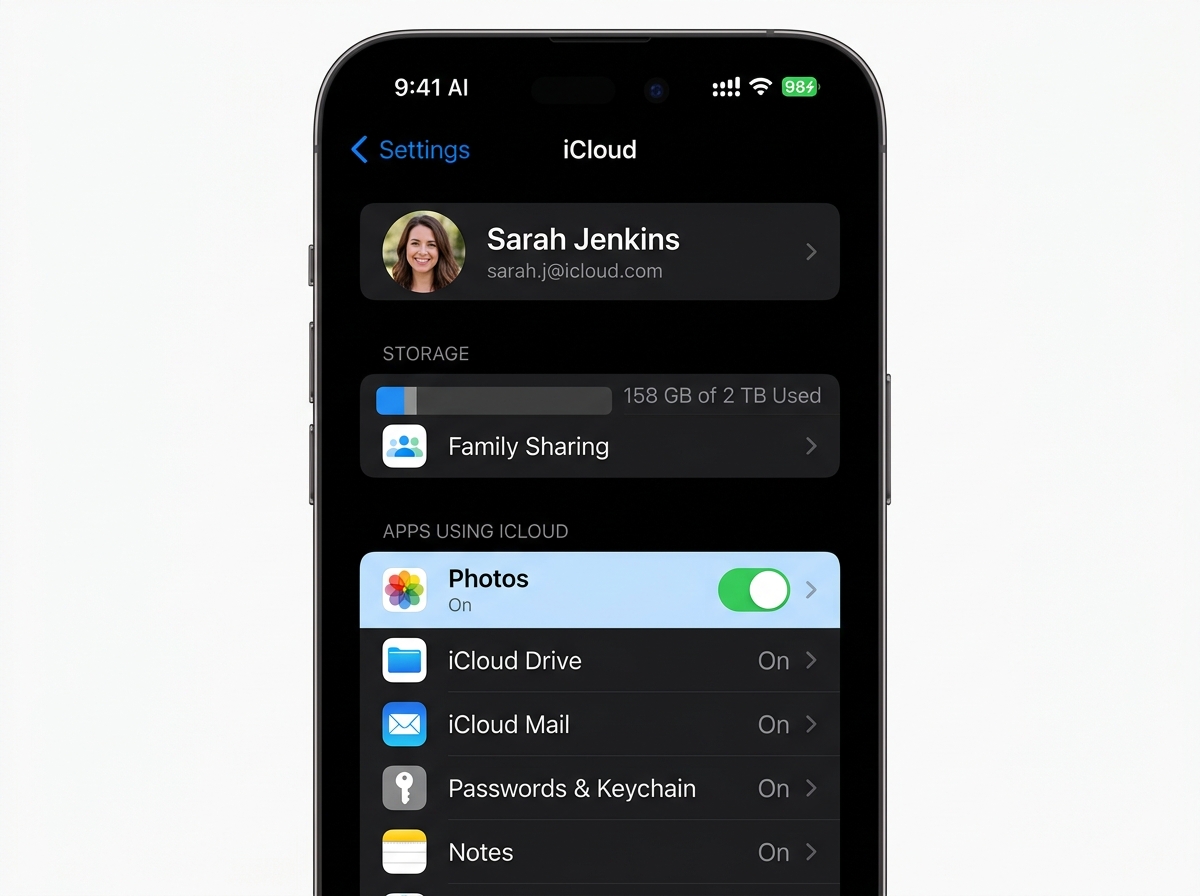
How to Enable Automatic Photo Upload on iPhone via Settings
Ready to flip the switch? Here is how we get it done:
- Open the Settings app on your iPhone.
- Tap your name at the very top (your Apple Account/Apple ID).
- Tap iCloud, then tap Photos.
- Toggle on Sync this iPhone.
Once this is on, your iPhone handles the rest in the background. It usually waits until you are on Wi-Fi and have enough battery life to start the heavy lifting. For those of us trying to simplify our digital lives, this is a cornerstone step. If you’re looking for more ways to streamline your digital footprint, our guide on cloud-storage-apps-for-digital-minimalists offers some great perspective.
Managing Storage and the Optimize iPhone Storage Feature
One common fear we hear is: “Won’t my phone run out of space if I keep every photo on it?” This is where the Optimize iPhone Storage feature becomes a lifesaver.
When enabled, your iPhone keeps the full-resolution, high-quality originals safely in iCloud. On your actual device, it keeps smaller, space-saving versions. If you want to open a photo from three years ago, your phone downloads the high-res version from the cloud instantly.
That Apple gives you 5GB of free storage. In today’s world of 4K video, that fills up faster than a stadium at a free concert. You’ll likely need to look at iCloud+ upgrades (50GB, 200GB, or 2TB plans). Managing this space effectively is key to a stress-free experience, so be sure to read our top-tips-for-effective-cloud-storage-management to avoid the dreaded “Storage Full” notification.
Using Third-Party Apps for Automatic Photo Upload on iPhone
While iCloud is the “native” choice, many of us live in a multi-platform world. Maybe you use a Windows PC for work or an Android tablet at home. In these cases, third-party apps like Google Photos and Microsoft OneDrive offer fantastic automatic photo upload iphone capabilities.
These apps often provide a “one-way” upload experience, which is different from iCloud’s mirroring. If you delete a photo from your phone to save space, it stays safe in Google Photos or OneDrive (depending on your settings). For a curated list of tools to help you manage these files, check out our review of the best-photo-organizing-apps-for-iphone.
Comparison of Popular Backup Services
| Feature | iCloud Photos | Google Photos | Microsoft OneDrive |
|---|---|---|---|
| Free Storage | 5 GB | 15 GB (shared with Gmail) | 5 GB |
| Max Photo Size | No specific limit | 200 MB / 200 MP | No specific limit |
| Max Video Size | No specific limit | 10 GB | 250 GB |
| Primary Logic | Two-way Sync (Mirror) | Sync / Backup | One-way Upload |
Troubleshooting Automatic Photo Upload on iPhone Background Sync
We’ve all been there: you open your backup app only to realize it hasn’t uploaded anything in three weeks. iOS is very protective of your battery life, which can sometimes hinder background sync.
Here are the “golden rules” we’ve found to keep things moving:
- Background App Refresh: Ensure this is ON for your chosen app (Settings > General > Background App Refresh).
- The 20% Rule: iOS often kills background tasks if your battery drops below 20% or if Low Power Mode is active.
- Location Services “Always”: This is a clever workaround for Google Photos. By setting location access to “Always,” the app is triggered to wake up and check for new photos whenever you move to a new location.
- Stay Plugged In: Large backups happen most reliably when the phone is charging and connected to Wi-Fi.
If your cloud storage is getting messy during these backups, our guide on decluttering-cloud-storage-step-by-step can help you clean house.
OneDrive Camera Upload and Bedtime Backup
Microsoft OneDrive has a specific feature called Camera Upload. It’s incredibly reliable for those who use Microsoft 365 for work or school. One unique quirk of OneDrive on iOS is that it can’t upload “iCloud-optimized” photos easily. If you use both, you might need to set your iPhone to “Download and Keep Originals” in your iCloud settings.
For massive libraries, OneDrive offers Bedtime Backup. Because iOS puts apps to “sleep” after a few minutes of inactivity, Bedtime Backup keeps the app active while you sleep—provided the phone is charging and on Wi-Fi—to finish those giant 4K video uploads.
Advanced Automation and Wireless Transfers with PhotoSync
Sometimes, you don’t want your photos on a giant corporate cloud. Maybe you’re a privacy enthusiast or a professional photographer who wants photos sent directly to a Network Attached Storage (NAS) device or a specific folder on your PC.
This is where PhotoSync shines. It is widely considered a top-tier solution for wireless transfers. It doesn’t just “sync”; it automates. You can set it to transfer photos every time you arrive home or every time you plug your phone in to charge. For those managing massive amounts of media, check out our efficient-strategies-for-organizing-large-media-libraries.
Setting Up Location and Charging Triggers
The “Autotransfer” feature in PhotoSync is a game-changer. You can configure a “Fixed Time” trigger (like 2:00 AM) that only fires if the phone is charging. This bypasses many of the usual iOS background limitations because the system sees the phone is on power and idle.
To learn the specifics of this daily automation, you can read the guide on How do I automatically transfer photos once a day? – PhotoSync.
Disabling and Managing Manual USB Transfers
Believe it or not, some people find the automatic photo upload iphone prompts annoying. If you plug your phone into a Windows PC just to charge it, you might be greeted by a Windows Photo Import dialog box that tries to suck up every image on your device.
This isn’t actually the iPhone’s fault—it’s a Windows setting. When you connect via USB, Windows sees a camera device and tries to be “helpful.”
How to Stop Automatic Uploads to PC
If you want to take back control and handle your files manually, follow these steps:
- Connect your iPhone to your PC.
- When the “Import Photos and Videos” dialog appears in Windows, look for a checkbox that says “Always do this for this device” or “Sync automatically.” Uncheck it.
- If you want to stop iCloud from syncing to your PC, open the iCloud for Windows app and uncheck the “Photos” box.
If you are using iCloud, deleting a photo on your PC via the iCloud folder will delete it from your iPhone. It’s a mirror, not a separate closet! For more on managing this balance, see our step-by-step-guide-to-decluttering-cloud-storage.
Frequently Asked Questions about iPhone Photo Uploads
Why is my automatic photo upload not working?
Most often, it’s one of three things: your Wi-Fi is unstable, your battery is in Low Power Mode, or you’ve run out of cloud storage space. Check the status at the bottom of your “Library” or “All Photos” tab in the Photos app. If you see “Paused,” tap it to see why.
Does deleting a photo on iPhone delete it from the cloud?
- iCloud: Yes. It is a sync service.
- Google Photos: Usually yes, if you delete from within the Google Photos app. However, if you use the “Free Up Space” tool, it deletes the device copy but keeps the cloud copy.
- OneDrive: No. OneDrive is generally a one-way street from the camera roll to the cloud.
How do I pause an upload to save battery or data?
In the native Photos app, you can scroll to the bottom of your library and tap “Pause.” This will halt the automatic photo upload iphone process for one day. This is great if you’re using a weak hotel Wi-Fi or trying to save battery during a long day of travel. You can find more details on managing these pauses at Apple Support.
Conclusion
At Tambas Tech, we believe that technology should work for you, not the other way around. Setting up an automatic photo upload iphone routine is the single best thing you can do to protect your digital legacy. Whether you choose the seamless integration of iCloud, the cross-platform flexibility of Google Photos, or the robust automation of PhotoSync, the goal is the same: peace of mind.
Don’t wait until you see the “iPhone is Disabled” screen to think about your backups. Take five minutes today to check your settings, verify your storage, and ensure your memories are safe. For more expert advice on keeping your digital life in order, explore our more info about file management services.
