
Why Seamless Cloud Sync on Your iPhone Changes Everything
Seamless cloud sync iPhone users rely on means your photos, files, contacts, and more stay automatically updated across all your devices — no cables, no manual transfers, no headaches.
Here’s how to make it happen, fast:
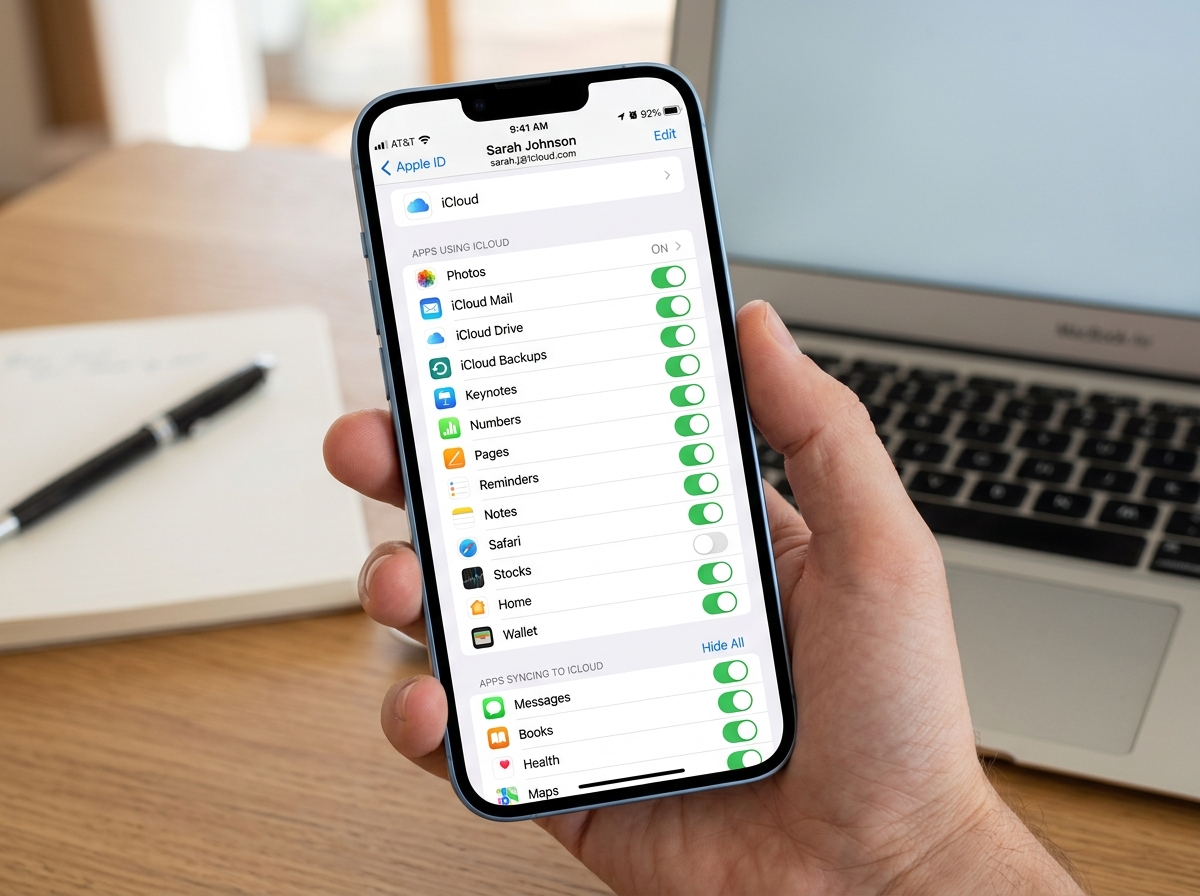
- Go to Settings > [Your Name] > iCloud on your iPhone
- Tap “See All” under Apps Using iCloud
- Toggle on the data types you want synced (Photos, Contacts, Drive, etc.)
- Ensure you’re on Wi-Fi and have enough iCloud storage
- Done — your data now syncs automatically across your iPhone, iPad, and Mac
Think about this scenario: you spend a week taking photos and notes on your iPhone, then open your iPad to share them — and the screen is completely empty. Nothing synced. That frustration is exactly what a proper cloud sync setup eliminates.
For busy iPhone users, scattered data across devices is a real problem. Your photos live on your phone, your documents are somewhere on your laptop, and your contacts may not match across devices. It’s exhausting.
The good news? Apple’s iCloud — along with some smart settings and third-party tools — can make your digital life feel genuinely effortless. Everything just shows up where you need it.
This guide walks you through exactly how to set that up, manage your storage, and keep your data safe.
The Benefits of a Seamless Cloud Sync iPhone Strategy
When we talk about a seamless cloud sync iphone strategy, we aren’t just talking about convenience; we’re talking about a fundamental shift in how you interact with your digital world. The primary benefit is data redundancy. If you lose your iPhone in a taxi or drop it in a lake, your data isn’t gone. It’s safely waiting for you in the cloud, ready to be beamed down to your replacement device.
Beyond safety, there is a massive productivity boost. Imagine starting a grocery list on your iPhone while waiting in line, and having your partner see those updates in real-time on their iPad at home. This instant accessibility means you never have to “send” a file to yourself again. Whether it’s a PDF, a photo, or a contact, if it’s on one device, it’s on all of them.
Automatic updates ensure that you are always looking at the most recent version of your work. You don’t have to worry about which device has the “final” version of a document. Furthermore, cross-device continuity allows you to start a task on your phone and finish it on your Mac without missing a beat. This harmony provides a level of peace of mind that is hard to overstate. Of course, with all this data flying around, you might wonder about More info about data privacy and how Apple keeps your information secure—rest assured, encryption is a core part of the experience.
Mastering the iCloud Ecosystem for Cross-Device Harmony
To achieve true harmony, we must first master the central hub: iCloud. To get started, you need a valid Apple Account (formerly Apple ID) signed in on all your devices.
The system requirements are generally straightforward, but for the best experience, we recommend running the latest version of iOS. For those using older hardware, checking the Official guide to using iCloud on iPhone can help clarify which features are supported on your specific model. One “secret” to keeping things snappy is Background App Refresh. This allows apps to check for new data even when you aren’t using them, ensuring that when you open your Mail or Photos, the new content is already there.
How to Enable Seamless Cloud Sync iPhone Features
Setting this up is a breeze. Open your Settings app, tap your name at the very top, and then tap iCloud. Here, you will see a “See All” button. Tapping this reveals every app on your phone that can use the cloud.
We suggest toggling on the switches for the essentials: Photos, iCloud Mail, Contacts, Calendars, and iCloud Drive. These triggers ensure that as soon as you add a phone number or snap a picture, the sync process begins. For more advanced setups, you can find More info about technology tips on our site. A stable Wi-Fi connectivity is your best friend here. While 5G is fast, iCloud often waits for Wi-Fi to perform heavy lifting—like syncing high-resolution videos—to save your battery and data plan.
iCloud Drive vs. iCloud Backup: Knowing the Difference
This is where many users get tripped up. It is vital to understand the distinction between these two features:
- iCloud Drive: Think of this as a “live” folder. It’s for file synchronization. If you delete a file in iCloud Drive on your iPhone, it disappears from your Mac too. It’s meant for active work and accessibility.
- iCloud Backup: This is a system snapshot. It’s for device restoration. It creates a copy of your entire phone’s settings, app data, and home screen layout. If your phone breaks, you use the Backup to make your new phone look exactly like the old one.
Managing your storage effectively requires knowing which is which. Backups can take up a lot of space, while Drive grows based on the files you manually save there.
Optimizing Data Types and Storage Efficiency
Apple provides 5GB of iCloud storage for free, but in today’s world of 4K video and high-res photos, that fills up fast. To maintain a seamless cloud sync iphone experience, you need to manage this space like a pro.
One of the best features is the “Optimize iPhone Storage” setting for Photos. When enabled, your iPhone keeps small, space-saving versions of your photos on the device, while the full-resolution originals are stored safely in iCloud. When you want to look at a photo, it downloads instantly. This allows you to have a 50,000-photo library on a phone with very little local storage.
| Service | Free Storage | Paid Tier Starts At | Best For |
|---|---|---|---|
| iCloud+ | 5GB | $0.99/mo (50GB) | Apple Power Users |
| Google Drive | 15GB | $1.99/mo (100GB) | Cross-platform flexibility |
| OneDrive | 5GB | $69.99/yr (1TB w/ M365) | Windows & Office Users |
Managing Photos, Contacts, and Documents
For families, Shared Libraries are a game-changer. You can set up an iCloud Shared Photo Library where photos of the kids or family vacations are automatically uploaded for everyone to see. No more asking your spouse to “text me that picture.”
Contacts are equally important. By syncing them, you ensure your VCF files and contact cards are consistent. If you update a friend’s email address on your Mac, it’s updated on your iPhone before you even pick it up. For documents, iCloud Drive allows for real-time collaboration. You can share a folder with a colleague and both work on the same files simultaneously. For a deeper dive, check out the Official instructions for syncing photos and videos.
Achieving a Seamless Cloud Sync iPhone Workflow on Windows
You don’t need a Mac to enjoy a seamless cloud sync iphone experience. Apple has significantly improved “iCloud for Windows,” available in the Microsoft Store. Once installed, it integrates directly into your Windows File Explorer.
This means your iPhone photos show up in the Windows Photos app, and your iCloud Drive folders look just like any other folder on your PC. You can even sync your Safari bookmarks with Chrome or Edge and use the iCloud Passwords extension to access your keychain on your PC. It bridges the gap between the two ecosystems beautifully, provided you have two-factor authentication enabled to keep the connection secure.
Beyond Storage: Continuity and Third-Party Integration
The “magic” of the Apple ecosystem goes beyond just files sitting in a cloud. It’s about “Continuity”—features that allow your devices to talk to each other in real-time.
- Handoff: Start an email on your iPhone and click the icon on your Mac dock to finish it there.
- AirDrop: The gold standard for quickly sending a file to someone standing next to you.
- Universal Clipboard: Copy text on your iPhone and “Paste” it on your Mac. It feels like sorcery the first time you try it.
- Continuity Camera: Use your iPhone’s incredible camera as a webcam for your Mac.
You can learn more about how to Use Continuity to work across Apple devices to supercharge your workflow.
How Third-Party Apps Leverage CloudKit
Many of your favorite apps use a developer framework called CloudKit to offer seamless cloud sync iphone functionality. Because CloudKit is a native Apple integration, these apps don’t need to manage their own servers or databases—they use your existing iCloud storage.
This is why apps like “Concepts” or various note-taking tools can sync your progress effortlessly. When you buy a new app, check if it supports iCloud sync; it’s a hallmark of high-quality mobile apps that respect your time and data. This serverless backend ensures that your app data is just as safe and synced as your photos.
Troubleshooting and Security Best Practices
Even the best systems have hiccups. If you see a yellow badge or a red exclamation mark in your Photos app, it’s a sign that something is wrong. Usually, it’s a “storage full” alert or a temporary network issue.
Here are our top troubleshooting tips:
- Check Sync Status: In the Photos app, scroll to the bottom of “All Photos” to see if it says “Synced” or “Paused.”
- Reset Network Settings: If sync is stuck, toggling Airplane Mode or resetting your Wi-Fi settings can often kickstart the process.
- Account Recovery: Always set up a recovery contact. If you get locked out of your Apple Account, this person can help you get back in without losing your cloud data.
From a security standpoint, iCloud uses end-to-end encryption for your most sensitive data (like Health and Passwords). And if you accidentally delete a file? Don’t panic. iCloud Drive has a “Recently Deleted” folder that allows for a 30-day file recovery window.
Frequently Asked Questions about iPhone Syncing
Why are my iPhone photos not appearing on my Mac?
First, ensure both devices are signed into the exact same Apple Account. Next, check your Wi-Fi connection and ensure “iCloud Photos” is toggled ON in the settings of both devices. Finally, check if your Mac has enough disk space to receive the photos.
How do I recover a document I accidentally deleted from the cloud?
On your iPhone, open the Files app, go to the Browse tab, and look for the Recently Deleted folder. You have 30 days to restore files from here. On a computer, you can also go to iCloud.com and use the “Data Recovery” tool in the account settings.
What is the best way to manage limited cloud storage space?
Start by deleting old device backups you no longer need. Then, use the “Optimize Storage” feature for photos. Finally, review large files in iCloud Drive and move them to a physical external drive if they aren’t needed for daily use.
Conclusion
Achieving a seamless cloud sync iphone experience is one of the best things you can do for your digital productivity. By leveraging iCloud, mastering Continuity features, and understanding how to manage your storage, you turn your iPhone from a standalone gadget into a powerful, integrated part of your life.
At Tambas Tech, we are dedicated to helping you navigate these digital waters with ease. Whether you’re looking for expert tech guides or the latest in digital lifestyle trends, Lucas Oliveira and our team of writers are here to provide comprehensive, user-friendly advice. Ready to take control of your digital clutter? Explore our comprehensive File Management guides to keep your synced world organized and efficient.
