
Your iPhone Photos Are One Dropped Phone Away From Gone
Backup iPhone photos free — here are the fastest ways to do it right now:
| Service | Free Storage | Compression? |
|---|---|---|
| Google Photos | 15 GB (shared) | Yes (by default) |
| iCloud | 5 GB (shared) | No |
| Flickr | 1 TB | No |
| Amazon Photos | 5 GB (non-Prime) / Unlimited (Prime) | No (photos) |
| Microsoft OneDrive | 5 GB | No |
| Dropbox | 2 GB | No |
| G Cloud Backup | 3 GB | No |
Your iPhone camera is incredible. It’s also quietly filling up with thousands of photos you’ll never sort through — until the dreaded “Storage Full” notification hits at the worst possible moment.
The scary part? One cracked screen, one stolen phone, one software glitch — and years of memories are gone.
The good news is you don’t have to pay a cent to protect them. There are solid free options available right now, from built-in Apple tools to third-party apps that give you far more space than you’d expect.
But not all free backup options work the same way. Some compress your photos. Some eat into storage shared with your email. Some back up everything automatically, while others let you choose exactly what gets saved.
This guide cuts through the noise so you can find the right fit — fast.
Top Cloud Services to Backup iPhone Photos Free
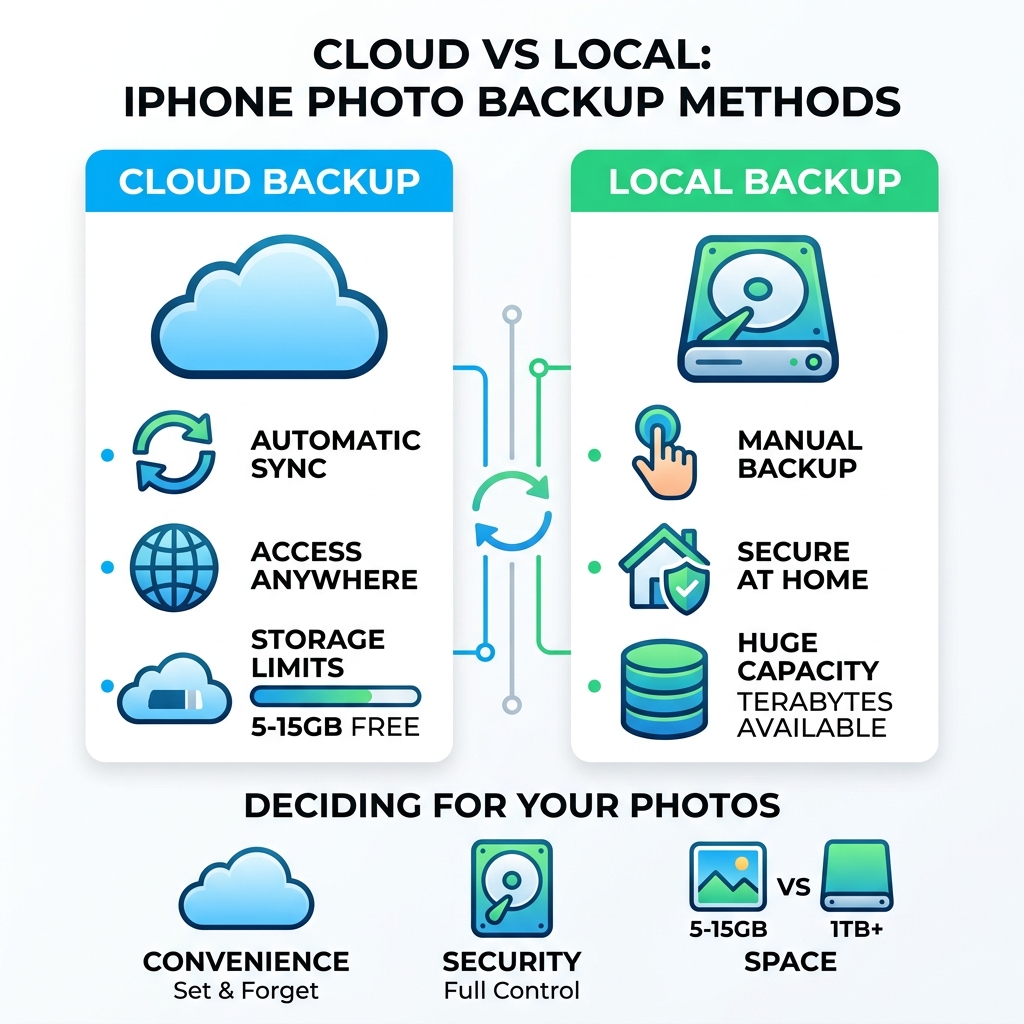
When we talk about a backup iphone photos free strategy, cloud services are usually the first port of call. They offer the convenience of “set it and forget it” automation. However, the “free” part often comes with strings attached, usually in the form of storage limits or data compression.
The heavy hitter in this space is undoubtedly Google Photos. While many users were saddened when Google ended its truly unlimited free storage era, it still offers a generous 15 GB of free cloud storage. This is three times more than what Apple provides out of the gate.
One thing to keep in mind: that 15 GB is shared across your entire Google Account. If your Gmail inbox is overflowing with newsletters from 2015 or your Google Drive is packed with heavy PDFs, you’ll have less room for your vacation snapshots.
Google Photos is particularly smart. It uses AI to help you find photos by searching for “dogs,” “sunsets,” or even specific people without you ever having to tag them. If you want to dive deeper into how to handle these files once they are in the cloud, check out our guide on organizing photos on smartphone and cloud.
To get started, you can download the Google Photos App Store version and toggle on the backup setting. For the best results, we recommend keeping the app open and your phone plugged in during the initial upload, especially if you have a massive library.
iCloud: The Native Way to Backup iPhone Photos Free
If you own an iPhone, you already have an iCloud account. It is the most seamless way to backup iphone photos free, but it’s also the most restrictive in terms of space. Apple gives every user 5 GB of free storage. In today’s world of 4K video and ProRAW photos, 5 GB can disappear in a single weekend.
It’s important to understand the difference between syncing and backing up. iCloud Photos is primarily a syncing service. This means if you delete a photo on your iPhone to save space, it disappears from iCloud too.
To actually save space on your device while keeping your photos safe, you should use the “Optimize iPhone Storage” feature. This keeps small, low-resolution versions on your phone and stores the full-resolution originals in the cloud. You can find more tips on this in our list of the best photo organizing apps for iPhone.
To turn this on, follow the official steps from Back up and sync with iCloud – Apple Support. Just go to Settings > [Your Name] > iCloud > Photos and toggle on “Sync this iPhone.” If you hit that 5 GB ceiling, your photos will stop backing up until you clear some space or upgrade.
Flickr and Amazon: High-Capacity Alternatives to Backup iPhone Photos Free
If the 5 GB or 15 GB limits feel like a joke to you, it’s time to look at the high-capacity alternatives.
Flickr is a legendary name in the photography world, and for good reason. They offer a staggering 1 TB (1,000 GB) of free storage space. This is a massive amount of room for photos and videos. Flickr is also a social network, so it’s a great place to show off your work, though you can keep your backups strictly private. It supports full-resolution uploads, making it a favorite for those who don’t want their image quality touched.
Amazon Photos is another powerhouse, especially if you are already an Amazon Prime member. Prime customers get unlimited free photo storage at full resolution. If you aren’t a Prime member, you still get 5 GB for free, similar to iCloud. The “Family Vault” feature is a nice bonus, allowing you to share your unlimited storage with up to five other people.
For those managing photos across both personal and professional lives, exploring cloud backup apps for home and work can help you decide which ecosystem fits your workflow best.
Specialized Apps for Selective and Private Backups
Sometimes, an “all-or-nothing” backup isn’t what you need. Maybe you have sensitive documents, medical photos, or just a few specific albums you want to keep extra safe without cluttering your main cloud library.
Documents by Readdle is a fantastic tool for those who want manual control. Unlike iCloud or Google Photos, which try to grab everything, Documents lets you choose exactly which files to move. You can connect it to various cloud services or even your computer to facilitate a manual backup iphone photos free process.
If your main problem is that your gallery is a mess of screenshots and WhatsApp memes, you should try Gallery Clean Sweep. Research shows that the average user frees up 2-5 GB of storage on their very first cleanup, and some power users have cleared over 10 GB. By deleting the junk first, your “free” backup space goes much further. You can grab the Free Clean Sweep App to start decluttering.
For those who prioritize original quality above all else, the IDrive Photo Backup App is a strong contender. It offers “Supercharged Backup” and “Supercharged Restore” features designed to move your entire gallery quickly while preserving the original resolution and metadata (like GPS and time stamps).
Local Storage and Privacy Considerations
Cloud storage is convenient, but it isn’t for everyone. If you are a digital minimalist or someone who is wary of big tech companies scanning your photos for AI training, local backup is the way to go.
PhotoSync is a versatile tool that allows you to wirelessly transfer your photos directly to your computer, a NAS (Network Attached Storage), or even a portable hard drive. This bypasses the internet entirely, keeping your data on your own hardware.
If privacy is your absolute top priority, look at Parachute Backup. This app is built for users who want to keep their data forever without subscriptions or “lock-in” fees. It supports backing up to various destinations like S3 buckets or local network drives.
Privacy-focused apps often use zero-knowledge encryption. This means the service provider doesn’t have the keys to your data—only you do. This prevents your personal photos from being used for AI training or being seen by anyone else. For more on how to manage these files securely, see our best practices for file backup and storage management.
Another solid option is G Cloud Backup. They offer a 3 GB free plan that is “Free Forever.” It’s a great “one-tap” solution that covers not just photos, but also contacts and messages. You can find more details at G Cloud Backup.
Common Questions About iPhone Photo Storage
Navigating file types and background settings can be a headache. Here are the answers to the questions we hear most often from users trying to backup iphone photos free.
One common point of confusion is file formats. iPhones typically use HEIC (High Efficiency Image Container) for photos and HEVC for videos. These files are smaller than standard JPEGs but retain high quality. Most modern backup services handle these just fine, but some might convert them to JPEG during the upload process.
If you are a pro or hobbyist, you might be shooting in RAW. These files are massive (often 25 MB+ per photo). Most free tiers will eat through their limit very quickly if you are backing up RAW files, so selective backup is key here.
Lastly, make sure “Background App Refresh” is turned on for your backup apps. If it’s off, the app might stop uploading the moment you lock your screen or switch to another app. For those looking to simplify their digital life, our guide on cloud storage apps for digital minimalists is a great resource.
Does free backup affect photo quality?
The short answer: It can.
Google Photos, for example, offers a “Storage Saver” mode. While it’s technically free, it compresses photos larger than 16 megapixels down to 16 MP and videos to 1080p. For most people viewing photos on a phone or sharing them on social media, the difference is invisible. However, if you plan on printing large posters of your photos, you’ll want a service that supports “Original Quality.”
iCloud, Flickr, and IDrive generally preserve the original quality, but they have much stricter storage limits on their free tiers.
What happens when I exceed my free storage limit?
When you hit your limit, the music stops.
- Syncing Pauses: New photos will stay on your phone but won’t be uploaded to the cloud.
- Email Issues: If you use Google or iCloud for email, you might stop receiving messages because your “shared storage” is full.
- Warnings: You will receive persistent notifications from iOS or the specific app.
Most services give you a grace period before they consider deleting old data, but you shouldn’t risk it. If you’re full, it’s time to either clean up the junk or move some files to a physical hard drive.
Can I choose which photos to back up for free?
With native services like iCloud, it’s usually an all-or-nothing deal. If iCloud Photos is on, it tries to sync everything in your library.
However, third-party apps like Google Photos allow you to turn off “Auto-sync” and manually select photos to “Back up now.” Apps like Documents by Readdle and PhotoSync are even better for this, as they function more like a file manager, allowing you to pick and choose specific folders or dates to move.
Conclusion
Backing up your iPhone photos doesn’t have to be a monthly expense. Whether you choose the massive 1 TB of Flickr, the AI-powered organization of Google Photos, or the privacy of a local transfer via PhotoSync, the best time to start is now—before that “Storage Full” alert appears.
At Tambas Tech, we pride ourselves on providing comprehensive, user-friendly app recommendations. Our expert writers, like Lucas Oliveira, spend hours testing these tools so you don’t have to. If you’re ready to take full control of your digital life, master your file management today by exploring our latest guides and reviews.
