
Your iPhone Is Full — Here’s How to Fix It Fast
Bulk delete photos iPhone is something millions of people need to do, but Apple makes it surprisingly non-obvious how to do it quickly.
Here’s the fastest way to bulk delete photos on your iPhone right now:
- Open the Photos app and go to Library > All Photos
- Tap Select in the top-right corner
- Press and hold a photo, then drag across a row to select multiple photos at once
- Keep one finger scrolling down while the other drags to select thousands rapidly
- Tap the trash icon and confirm deletion
- Go to Albums > Recently Deleted > Select > Delete All to free up storage immediately
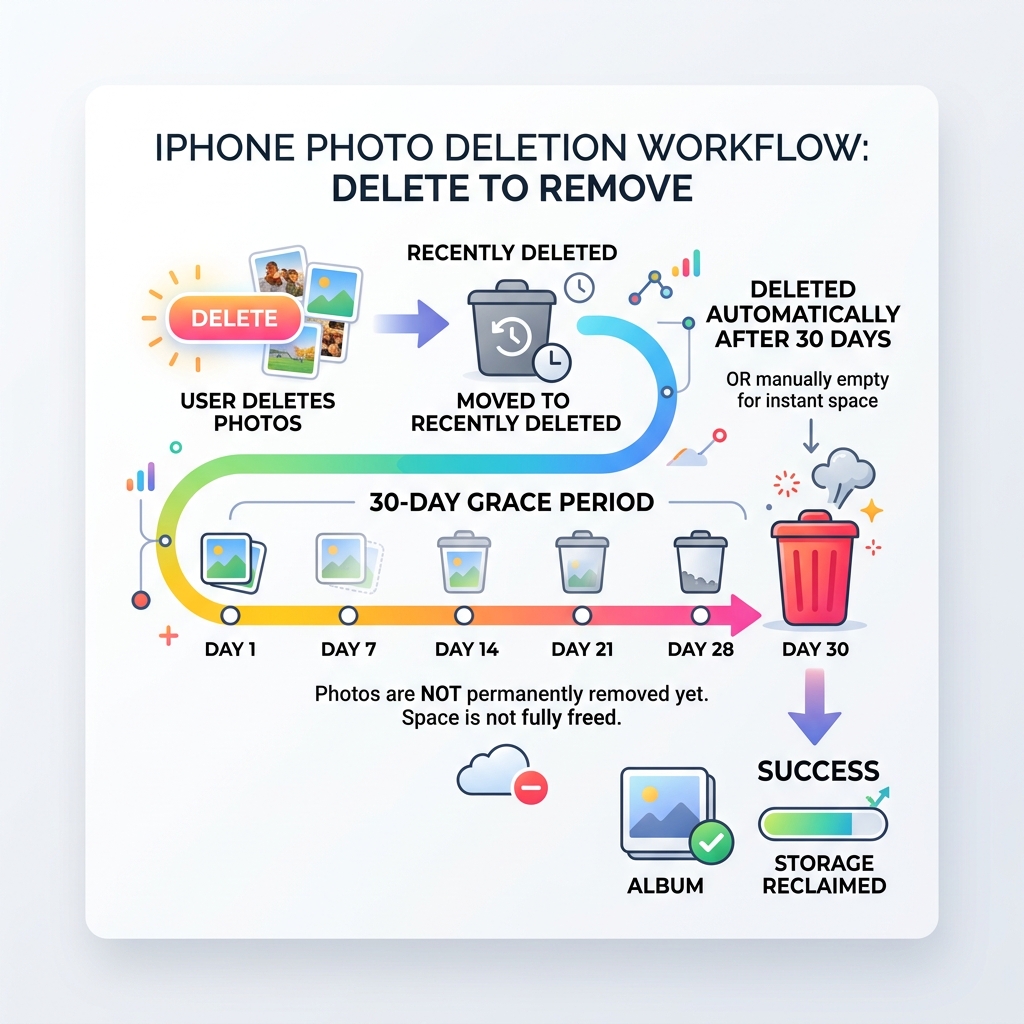
Important: Deleted photos are not gone right away. They sit in the Recently Deleted album for 30 days before being permanently removed — unless you manually empty it.
If iCloud Photos is turned on, deleting photos from your iPhone also removes them from every device signed into your Apple ID. Back up anything you want to keep before you start.
Still, most iPhone users don’t realize how fast this can go. One user reported clearing over 8,000 photos in under 10 minutes using the drag-and-scroll method in the Photos app — no computer, no extra apps needed.
This guide walks you through every method, from the fastest native tricks to computer-based tools and third-party apps — so you can reclaim your storage without losing anything important.
Master the Native Photos App: How to Bulk Delete Photos iPhone Style
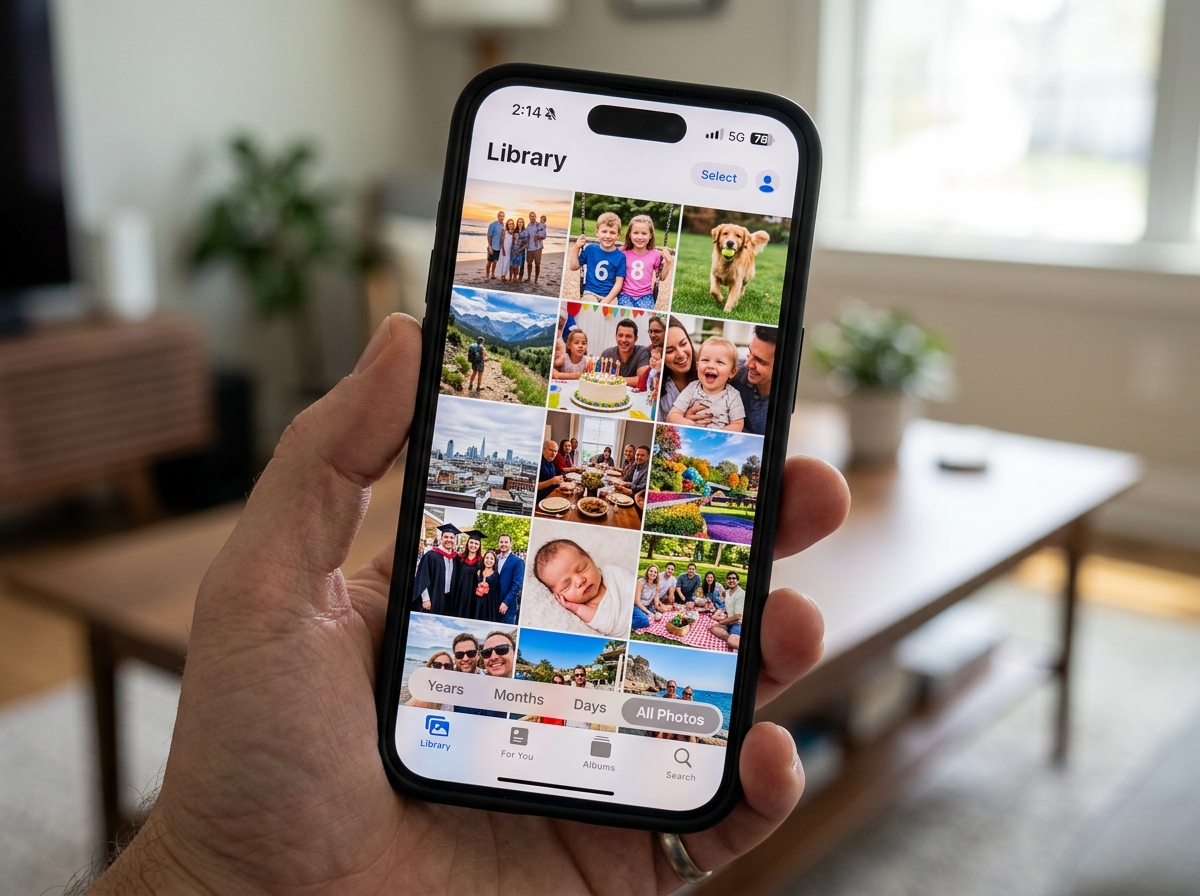
When we talk about a bulk delete photos iphone mission, our first stop is always the native Photos app. Most of us treat our camera roll like a digital junk drawer, but it’s actually equipped with some powerful (though hidden) selection tools.
To start your cleanup, we recommend heading to the Library tab and selecting All Photos. This gives you a birds-eye view of every single image and video on your device. Before you start purging, it’s worth brushing up on organizing-photos-on-smartphone-and-cloud to ensure you aren’t deleting something you’ll regret later.
The key to efficient media management is knowing that you don’t have to tap every single thumbnail. Apple has built-in gestures that allow for mass selection, but they require a bit of “finger gymnastics” to master.
The “Drag-and-Scroll” Trick to Bulk Delete Photos iPhone Fast
There is a “secret” gesture that many long-term iPhone users haven’t discovered yet. It’s the fastest way to select thousands of photos in seconds. Here is how we do it:
- Pinch to Zoom: In the “All Photos” view, pinch your fingers together until you see about 5 photos across the screen. This makes the thumbnails small enough to see a lot at once but large enough to keep the “Select” button visible.
- The Initial Swipe: Tap Select in the top right. Touch a photo and immediately drag your finger horizontally across the row.
- The Turbo Scroll: While keeping that first finger held down on the screen, use your other hand to swipe upward on the screen.
- The Result: The iPhone will begin to auto-scroll at high speed, selecting every single photo it passes. You can select 500, 1,000, or even 5,000 photos in less than a minute this way.
This user-discovered hack is a game-changer. Instead of mindlessly tapping, you are essentially “painting” your selection across your entire library. Once you reach the end of the batch you want to remove, just hit the trash icon.
Deleting by Date, Album, and Media Type
Sometimes you don’t want to delete everything; you just want to clear out a specific timeframe or category.
- The Date Trick: In the Library tab, you can view your photos by “Days.” iOS automatically groups photos by the date they were taken. If you tap Select at the top of a day’s collection, it will instantly highlight every photo from that specific day. This is perfect for deleting that accidental burst of 50 photos of your cat from last Tuesday.
- Media Types: Scroll down to the bottom of the Albums tab. You’ll see a section called Media Types. Here, you can find specific folders for Screenshots, Screen Recordings, and Videos. Deleting 500 screenshots in one go is often the quickest way to reclaim several gigabytes of space.
- Duplicates Album: If you are on iOS 16 or later, Apple has a “Duplicates” folder under the Utilities section. Instead of a bulk delete photos iphone approach here, you can choose to Merge. This keeps the highest-quality version of the photo and its metadata while deleting the redundant copies.
Managing iCloud Sync and External Backups
Before you go on a deleting spree, we need to talk about the “iCloud Trap.” Many users assume iCloud is a backup service where photos stay safe even if they delete them from their phone. This is not true.
iCloud is a sync service. If you delete a photo from your iPhone while iCloud Photos is enabled, it will vanish from your iPad, your Mac, and iCloud.com simultaneously.
To stay safe, check out our guide on the best-photo-organizing-apps-for-iphone to see which cloud providers offer true “one-way” backups. You can also refer to the Official Apple Support on Deleting Photos for their specific stance on sync behavior.
Why iCloud Sync Matters When You Bulk Delete Photos iPhone
When you perform a bulk delete photos iphone task, the sync engine goes to work immediately.
- Shared Libraries: If you use the iCloud Shared Photo Library (introduced in iOS 16.1), anyone in the group can delete photos. However, only the person who added the photo can permanently delete it from the “Recently Deleted” folder.
- Storage Optimization: If your goal is just to save space, you might not need to delete anything. Go to Settings > Photos and turn on Optimize iPhone Storage. This keeps small, low-resolution versions on your phone while the massive, high-res originals stay in iCloud.
Safe Backup Strategies Before You Purge
We always recommend a “safety net” before a mass purge. Here are the best methods:
- Google Photos: This is a favorite among our team. Once you upload your photos to Google Photos, you can use the “Free Up Space” button. This tool identifies which photos are safely backed up in the cloud and deletes only the local copies from your iPhone.
- Computer Transfer: Connect your iPhone to a Mac or PC via USB. On a Mac, use Image Capture to drag all photos into a folder on your desktop. On Windows, you can use File Explorer to copy the DCIM folders.
- External Drives: Modern iPhones with USB-C (iPhone 15 and later) can plug directly into external SSDs. You can select all your photos and “Save to Files” directly onto the drive.
Advanced Deletion: Computers, Files, and Third-Party Tools
If you have 50,000+ photos, doing a bulk delete photos iphone session on a small screen can be exhausting. Sometimes, you need the “big guns”—a computer.
Using Mac, Windows, or iCloud.com
- iCloud.com: This is often the cleanest way to delete. Log in on a desktop browser, go to Photos, and use Command + A (Mac) or Ctrl + A (Windows) to select massive chunks. Click the trash icon, and the command will sync down to your iPhone.
- Windows File Explorer: When you plug your iPhone into a PC, it appears as a digital camera. You can navigate to the Internal Storage > DCIM folders. While this is great for copying, deleting from here can sometimes be buggy or lead to “grayed-out” icons on the phone.
- Mac Photos App: If you sync your Mac and iPhone via iCloud, deleting on the Mac is significantly faster. You can use a mouse to click and drag over thousands of items much more precisely than using a finger.
Cleaning the Files App and iMessage Attachments
Photos aren’t just in the Photos app. They hide in two other major places:
- The Files App: If you’ve downloaded images from Safari or received them via AirDrop, they might be in your Downloads folder in the Files app. To bulk delete here, tap the three dots in the top right, hit Select, then Select All, and tap the trash can.
- iMessage Attachments: This is a huge storage hog. Go to Settings > General > iPhone Storage > Messages. You’ll see a section for Photos and Videos that were sent to you. You can bulk delete these high-res attachments without deleting your actual text conversations.
Troubleshooting and Permanent Removal
You’ve hit the trash icon. You’re done, right? Not quite. Your storage won’t actually change until you complete the final step.
Emptying the Recently Deleted Album
Apple provides a 30-day safety net. Deleted photos are moved to the Recently Deleted album (found at the bottom of the Albums tab). They still take up exactly the same amount of space on your phone as they did before.
To free up space immediately:
- Open Recently Deleted.
- Unlock it with Face ID or your passcode.
- Tap Select.
- Tap the three dots (More) and select Delete All.
Once you confirm this, the photos are gone forever from the device and iCloud.
Why Some Photos Won’t Delete
We often hear from users who see a “grayed-out” trash icon. This usually happens for one of two reasons:
- Synced from a Computer: If you used iTunes or Finder to sync photos from a computer to your iPhone years ago, you cannot delete them on the device. You must reconnect the phone to that computer and “un-sync” them through the Finder/iTunes interface.
- iCloud Syncing in Progress: If your phone is currently uploading or downloading a massive batch of data, it might temporarily lock the deletion function to prevent database corruption. Wait for the progress bar at the bottom of the library to finish.
Frequently Asked Questions about Bulk Deleting iPhone Photos
Can I recover photos after emptying the Recently Deleted album?
Generally, no. Once you empty the Recently Deleted folder, the files are marked as “deleted” in the storage system. While professional data recovery services might sometimes be able to find fragments, for the average user, they are gone. This is why we stress backing up to a secondary service like Google Photos or an external drive first.
Does deleting an album remove the photos from my Library?
No. Think of an Album like a “playlist.” If you delete a song from a playlist, it’s still in your music library. To actually delete the photo, you must delete it from the All Photos tab or the Recents album. If you delete an entire album folder, the photos simply return to being “unorganized” in your main library.
Why do my deleted photos keep reappearing on my iPhone?
This is usually an iCloud sync conflict. If you delete photos while you have a poor internet connection, the “delete” command might not reach the iCloud server. When your phone reconnects, iCloud sees the photos are still in the cloud and “pushes” them back down to your device. Always ensure you have a stable Wi-Fi connection when doing a major bulk delete photos iphone session.
Conclusion
Managing a bloated photo library doesn’t have to be a weekend-long chore. By using the “drag-and-scroll” gesture and targeting specific media types like screenshots and duplicates, you can clean up your device in minutes.
At Tamba Tech, we believe that digital organization is the key to a stress-free tech life. Whether you’re following the expert advice of Lucas Oliveira or exploring our latest app reviews, our goal is to help you master your devices. For more tips on keeping your digital life tidy, check out our More info about file management services section. Now, go empty that Recently Deleted folder and enjoy your newfound storage space!
