
Why Tagging Photos on iPhone Is the Smartest Thing You Can Do for Your Library
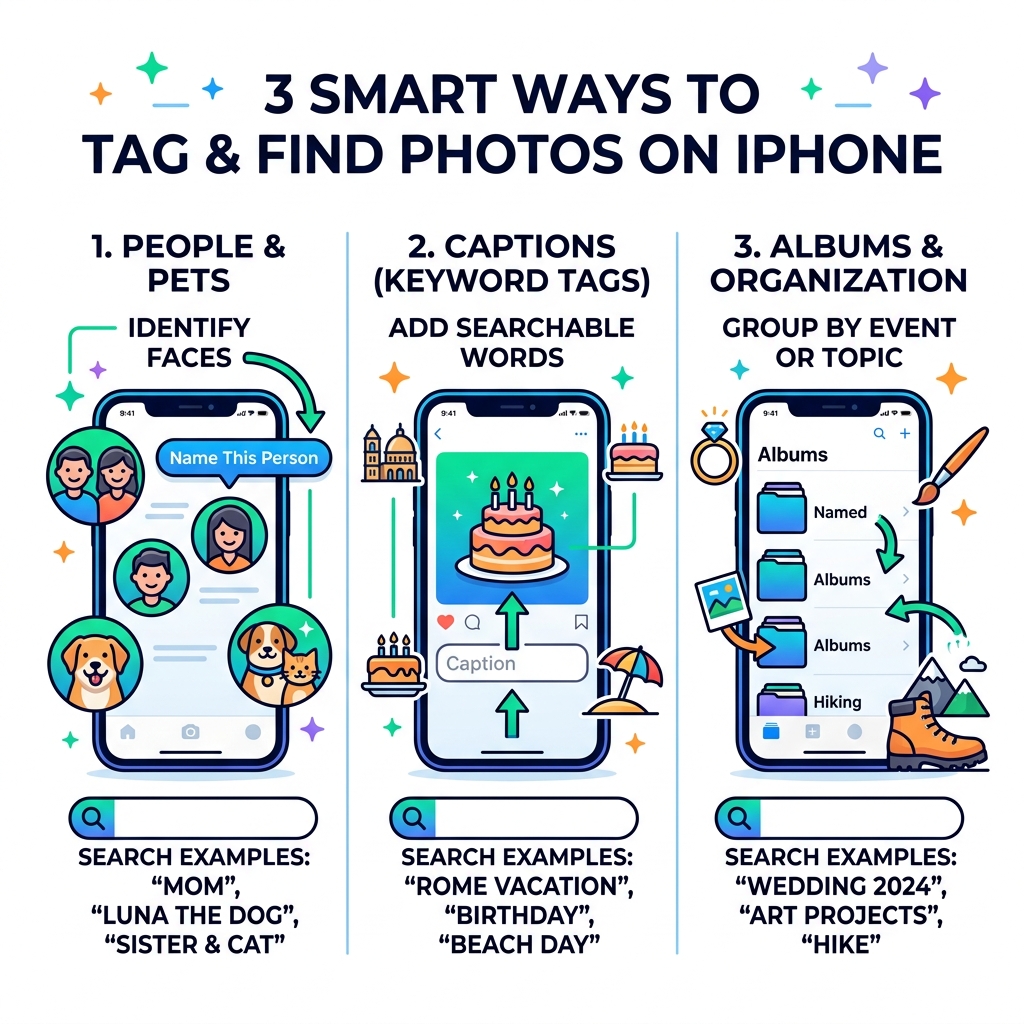
Tag photos iPhone style — here’s the fastest way to get started:
- People & Pets — Open the Photos app, scroll down to “People & Pets,” tap a face, and select “Name This Person.”
- Captions — Open any photo, swipe up, tap “Add a Caption,” and type a searchable keyword like “birthday” or “Rome.”
- Albums — Group photos manually into named albums as a simple workaround for events or objects.
One photographer shared that they shot over 22,000 images in a single year on their iPhone alone. That’s a lot of memories — and a lot of chaos if nothing is labeled.
Most iPhone users are in the same boat. Photos pile up fast. Finding a specific shot from two years ago — say, your dog at Christmas — can take longer than the moment itself lasted.
The good news? Your iPhone already has powerful tagging tools built right in. You just need to know where they are and how to use them.
The Photos app can recognize faces, store searchable captions, and organize by location — all without downloading anything extra. And for more advanced needs, a handful of third-party apps can go even further.
This guide covers everything, from the basics to the stuff most people never discover.
Mastering the People and Pets Feature
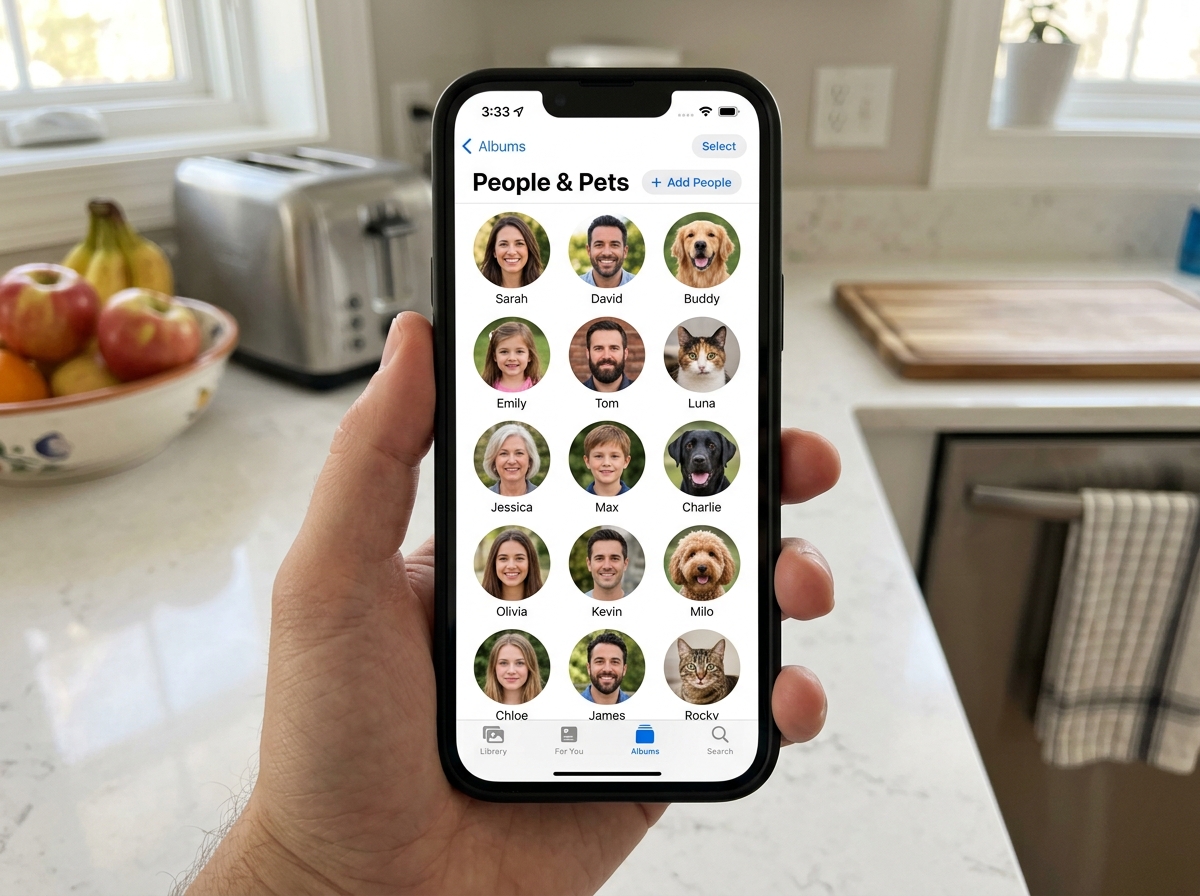
The cornerstone of how we tag photos iphone users love most is the “People & Pets” album. This isn’t just a simple folder; it’s a high-tech gallery powered by Apple’s CoreML (Machine Learning) framework.
When your iPhone is charging and the screen is locked, it works hard behind the scenes to scan your library. It uses on-device AI to detect facial features, hair patterns, and even body shapes to group photos of the same person together. Because this happens locally on your device, your privacy remains intact while your library gets smarter.
This feature is a game-changer for efficient strategies for organizing large media libraries. Instead of scrolling through thousands of shots to find your daughter’s graduation, you simply tap her face in the People album. You can even personalize your memories in Photos on iPhone by choosing favorite photos to represent each person or setting custom music to the slideshows the app generates for them.
Step-by-Step: How to Tag Photos on iPhone with People and Pets
Ready to put a name to a face? Here is the manual process to ensure every important person in your life is searchable:
- Open the Photos App: Navigate to the photo of the person you want to tag.
- Swipe Up: Swipe up on the image (or tap the “i” info icon). You will see a small thumbnail of the person’s face in the bottom-left corner of the photo.
- Tap the Face: Tap the thumbnail with a question mark or a generic “unidentified person” label.
- Tag with Name: Tap “Tag with Name” at the top.
- Select Contact: Start typing. Your iPhone will suggest names from your Contacts app. Selecting a contact link is best, as it merges their contact photo and info, but you can also enter a custom name.
- Finish: Tap “Done” or “Next.”
You can create groups of up to 32 people or pets within this feature. If the iPhone recognizes someone but hasn’t prompted you for a name, you can always use the “Add Name” feature within the People & Pets album itself to start the process for a new individual.
Managing Accuracy and Pet Recognition
Apple’s AI is impressive, but it’s not perfect. Sometimes it thinks your brother is a stranger because he grew a beard, or it creates two separate entries for the same person.
- Merging Duplicates: If you see two separate albums for the same person, tap “Select,” choose both, and then tap “Merge.” The iPhone will learn that these two faces belong to the same individual.
- Confirming Additional Photos: To sharpen the AI’s accuracy, go to a person’s album, tap the three dots (More) in the top right, and select “Confirm Additional Photos.” The app will show you images it thinks are that person, and you just tap “Yes” or “No.”
- Pet Support: Officially, Apple supports tagging dogs and cats. However, users have reported “unofficial” success tagging other animals like raccoons. Unfortunately, the AI currently struggles with birds, fish, hamsters, or lizards—so your pet iguana might have to wait for a future update!
- Correcting Misidentifications: If the app tags your friend “Steve” as “Dave,” swipe up on the photo, tap the face, and select “This is Not [Name]” to remove the tag.
How to Tag Photos on iPhone Using Captions
While facial recognition is great, it doesn’t help you find a photo of your “blue car” or “wedding cake.” For years, over 1,339 users on Apple support forums requested a keyword tagging system. Apple finally listened in iOS 14 by introducing the “Add a Caption” field.
Adding a caption effectively acts as a searchable tag. Anything you type in that field becomes indexed by the Photos app search engine. This is a vital part of organizing photos on smartphone and cloud ecosystems because these captions sync across your devices via iCloud.
Captions vs. Albums: Which is Better?
| Feature | Captions (Tags) | Albums |
|---|---|---|
| Searchability | High (search any keyword) | Medium (search album title) |
| Organization | Flexible (one photo, many tags) | Rigid (manual sorting) |
| Effort | Low (type and go) | High (create and drag) |
| Syncing | Metadata stays with photo | Album structure stays in app |
Using Captions for Non-Human Subjects
Since the native tag photos iphone features for objects are limited to Apple’s automatic scene recognition (which can be hit-or-miss), captions are your best friend for custom organization.
- Object Tagging: Want to track your receipts? Swipe up and caption them “#receipts” or “#work-expenses.”
- Event Labeling: For a specific event like “Summer 2024 Roadtrip,” add that exact phrase to the caption of the best shots.
- Search Power: Once captioned, you can go to the Search tab and type “Roadtrip.” Every photo with that caption will appear instantly.
- Sharing: A cool pro tip—when you share a photo via the Share Sheet, you can tap “Options” at the top and toggle on “Captions” so the recipient sees your tags/descriptions too.
Advanced Organization: iOS 18 Redesign and Third-Party Apps
With the release of iOS 18, the Photos app received its biggest redesign in years. The interface is now a single-view scroll. To find your tags, you no longer tap a “People” tab at the bottom. Instead, you scroll down past your main grid to reach “Collections.”
In this new layout, the “People & Pets” section is a “Pinned Collection.” You can modify these pins to keep your most-tagged people right at the top of the app. This redesign makes it easier to see your “Memories” and “Recent Days” alongside your tagged individuals.
If you find the native tools too limiting, you might want to look at the best photo organizing apps for iphone. While Apple is great for casual users, professionals often need more.
Professional Metadata and IPTC Tagging
For the power users who shot those 22,000 images, standard captions might not be enough. Professional photography relies on IPTC (International Press Telecommunications Council) and XMP metadata standards. These allow you to embed copyright info, detailed keywords, and creator data directly into the file’s “DNA.”
Native iOS doesn’t allow you to edit these deep metadata fields directly. To do that, you’ll need third-party apps like:
- Adobe Lightroom Mobile: Excellent for batch tagging and professional keyword hierarchies.
- Photosmith: Built specifically for heavy-duty metadata management.
- Pixelgarde: Useful for cleaning up or adding hidden metadata to your shots.
These apps allow for batch tagging, where you can select 100 photos at once and apply the tag “Italy Vacation” to all of them in one second, rather than swiping up on each individual image.
Accessibility and VoiceOver Support for Tagging
At Tamba Tech, we believe technology should be accessible to everyone. For users with visual impairments, tagging isn’t just about organization—it’s about knowing what’s in the frame. Apple’s VoiceOver screen reader provides incredible support for this.
VoiceOver can use AI to describe an image (e.g., “A man and a woman standing on a beach”), but as many users note, AI can get it wrong. One user jokingly recalled an AI identifying a drawing of Mario as a “dog with a red bandana.” This is why manual descriptions (alt-text) are so important.
Adding Image Descriptions for Visually Impaired Users
To help VoiceOver users (or to ensure your own photos are accessible when shared), you can add detailed “Image Descriptions.”
- Select a Photo: Open the image in Photos.
- Edit Mode: Tap “Edit” in the top right.
- Markup: Tap the “Markup” icon (it looks like a pen tip).
- Add Description: Tap the “+” button and select “Description.”
- Type Alt-Text: Enter a detailed description. This is different from a caption; it’s meant to describe the visual elements of the photo.
For VoiceOver users, the “Show Details” command in the actions rotor is the fastest way to hear these tags and descriptions. This allows for a much more inclusive way to tag photos iphone users can rely on. You can also learn more about how Apple handles tags in other apps through their guide on how to organize your notes with tags on iPhone – Apple Support (UK).
Frequently Asked Questions About How to Tag Photos on iPhone
Can I tag objects like “cars” or “mountains” with custom keywords?
The native Photos app does not have a dedicated “Keyword” button for objects. However, you can use the Caption feature as a workaround. By typing “Mountain” in the caption field, that photo will now show up whenever you search for that word.
How do I access the People and Pets album in the new iOS 18 layout?
In iOS 18, you no longer have an “Albums” tab at the bottom. Instead, open the Photos app and scroll down. You will find the “People & Pets” section under your Pinned Collections. You can tap the title to see everyone you have tagged.
Does tagging a photo on my iPhone sync to my iPad and Mac?
Yes! As long as you have iCloud Photos enabled in your Settings, all your People tags, pet names, and captions will sync across all your Apple devices. If you tag a face on your iPhone, your Mac will recognize that person too.
Conclusion
Mastering how to tag photos iphone users take every day is about more than just being tidy; it’s about preserving your digital legacy. By taking five minutes a week to name a few faces or add a caption to a special memory, you ensure that your library remains a searchable treasure trove rather than a digital junk drawer.
Don’t forget to set up a Legacy Contact in your Apple ID settings. This ensures that if anything happens to you, your loved ones can access these beautifully tagged memories. Whether you are using the native iOS 18 features or diving into professional apps, the key is consistency.
Start small: tag your five favorite people today. You’ll be amazed at how much easier it is to find that “one photo” next time you need it. For more expert advice on the latest mobile tools, check out more info about photo app services here at Tamba Tech. Happy organizing!
