
Your Photos Deserve Better Than “Hope Nothing Goes Wrong”
A wireless photo backup drive is one of the smartest tools you can own if you take a lot of photos — especially on your iPhone or camera. Here’s a quick look at the top options to help you decide fast:
Top Wireless Photo Backup Drives at a Glance:
| Drive | Best For | Capacity | Standout Feature |
|---|---|---|---|
| Synology BeeDrive | iPhone + desktop users | Up to 4TB | AI file finder, no subscription |
| IDrive Wi-Fi | Multi-device households | 1TB or 2TB | Cloud + local hybrid backup |
| RAVPower Filehub | Travel photographers | Pairs with any SSD | One-touch SD card backup |
| Clickfree Ultra | Casual users | 256GB | Universal trident connector |
| PhotoStick Omni | Non-tech users | Up to 512GB | Auto duplicate removal |
Think about how many photos are sitting on your iPhone right now. Some are on your phone. Some are in iCloud. Maybe a few are on an old laptop you barely open. And if any of it disappeared tomorrow — a cracked screen, a failed hard drive, a lapsed cloud subscription — a big chunk of your memories would be gone too.
That’s the problem most people don’t think about until it happens.
A wireless photo backup drive solves this by giving you a physical, local copy of your photos and videos — without needing a laptop, cables, or an internet connection. You can back up directly from your iPhone, SD card, or computer, often with a single tap.
It’s not cloud storage. It’s not a regular external hard drive you plug into your laptop. It sits in your bag, connects over Wi-Fi, and quietly does the work for you.
What is a Wireless Photo Backup Drive?
At its core, a wireless photo backup drive is a portable storage device that creates its own Wi-Fi network. Unlike a traditional hard drive that requires a USB cable and a computer to function, these smart devices allow your smartphone, tablet, or camera to “talk” to the storage directly through the air.
Most of these drives are designed with photographers and mobile users in mind. They often feature built-in SD card slots, allowing you to offload high-resolution RAW files and 4K video directly from your camera without ever touching a laptop. This local storage approach is a cornerstone of Best Practices for File Backup and Storage Management, as it ensures you have a physical copy of your data that you own and control.
For many, the integration with smartphone apps is the real “magic.” You open an app, hit “Backup,” and your phone’s gallery begins flying over to the drive. This is a massive leap forward in Data Protection Tips for Beginners, making it easier than ever to secure memories before a “digital disaster” strikes.
Why You Need a Wireless Photo Backup Drive for Travel
If you’ve ever been on a once-in-a-lifetime trip and seen the dreaded “Storage Full” notification on your phone, you know the pain of having to delete old memories to make room for new ones. A wireless photo backup drive eliminates this stress.
Because these devices don’t require an internet connection to work, they are the perfect companion for field photography or remote travel. Whether you are in a national park with zero bars or on a long-haul flight, you can back up your day’s shoot. Devices like the BeeDrive Automatic Backup | Computer Phone Photos iCloud Photos SD Cards External Drives even allow for automatic syncing, meaning your photos are tucked away safely the moment you get back to your hotel or even while you’re still on the move.
Comparing SSD vs HDD in a Wireless Photo Backup Drive
When shopping for a wireless photo backup drive, you’ll encounter two main types of storage: Solid State Drives (SSD) and Hard Disk Drives (HDD).
- SSDs (Solid State Drives): These are the gold standard for travelers. They have no moving parts, making them incredibly rugged. Many SSD-based wireless drives carry an IP65 rating, meaning they can survive dust and water splashes. They are also incredibly fast; for example, high-end portable setups can transfer about 1GB per minute. While they have a “write endurance” limit (the number of times you can save data), modern SSDs offer over 1000 TBW (Terabytes Written), which is more than enough for a lifetime of photography.
- HDDs (Hard Disk Drives): These use spinning magnetic disks. They are much cheaper and offer massive capacities, but they are fragile. A single drop while the disk is spinning can be fatal for your data.
If you are Reducing Digital Storage Overload: A Simple Guide for Beginners, we usually recommend an SSD for your “working” backup and an HDD for long-term archiving at home where the drive won’t be moved.
Choosing the Right Wireless Photo Backup Drive
Selecting the right drive isn’t just about picking the biggest number on the box. You need to balance capacity with how you actually use your gear.
Capacity and Real-World Usage
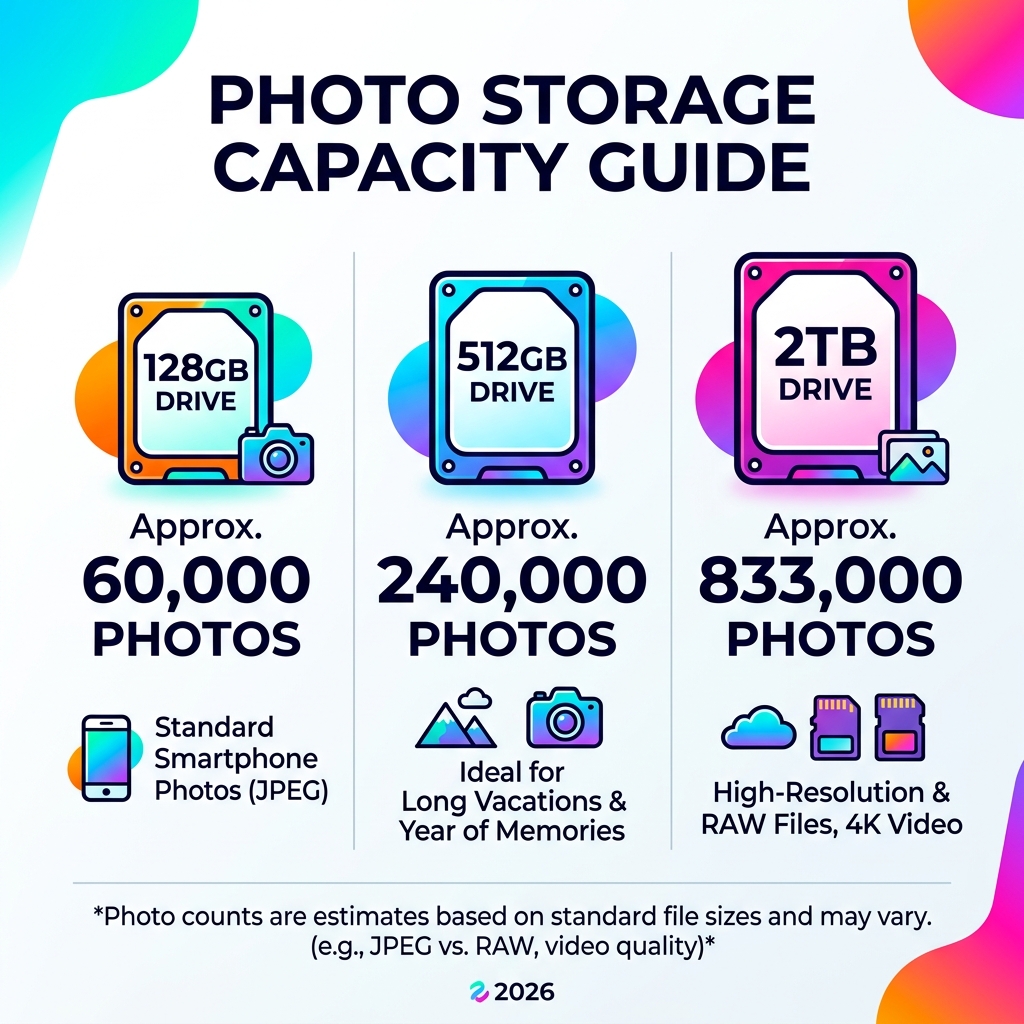
How much space do you actually need? To give you an idea of the scale, a 2TB drive (like the BeeDrive) can store approximately 833,000 photos or 5,700 videos based on standard iPhone 4K settings. On the other hand, a smaller device like the Clickfree Ultra 256GB Universal Photo & Video Backup Device with AI Ed can hold roughly 60,000 photos—perfect for a single long vacation or a year of casual family memories.
Battery Life and Portability
Since these drives are wireless, they need their own power. Most portable wireless hubs, like the IDrive Wi-Fi, feature a battery (often around 3000 mAh) that provides several hours of continuous streaming or backup time. Some even double as power banks to charge your phone in an emergency!
Essential Features for a Wireless Photo Backup Drive
To get the most out of your investment, look for these key features:
- One-Touch Backup: The ability to plug in an SD card and press one button to start the transfer is a lifesaver when you’re tired after a long day of shooting.
- AI De-duplication: Some “smart” sticks, like the PhotoStick Omni | Backup Photos & Videos Without Cloud, include software that automatically finds and removes duplicate photos. This prevents your drive from filling up with five copies of the same sunset.
- Security and Encryption: If you are carrying your entire life’s history on a drive, you want it protected. Look for drives offering 256-bit AES encryption. Solutions like the Wireless local backup for All your devices even allow for private encryption keys, ensuring that even if the drive is stolen, your photos remain private. This is a must-have for those seeking Encrypted Storage Solutions for Minimalists.
Top Benefits of Laptop-Free Photo Backups
The biggest shift in modern photography is the move away from the laptop. For years, if you wanted to back up an SD card, you had to carry a heavy laptop, a charging brick, and an external drive.
With a wireless photo backup drive, that workflow is dead.
- Privacy: Unlike cloud storage, your photos never sit on someone else’s server. They go from your device to your drive. No subscriptions, no monthly fees, and no “big tech” scanning your family albums.
- Offline Security: You don’t need a Wi-Fi hotspot to make this work. The drive is the hotspot. This is vital for international travelers who don’t want to rack up massive data roaming charges just to secure their photos.
- Immediate Verification: Most wireless drives allow you to “peek” at the backup via your phone. You can verify that all 500 RAW files from your morning shoot are safely on the drive before you format your SD card for the afternoon.
If you’re already using the Best Photo Organizing Apps for iPhone, adding a physical wireless drive is the final piece of the puzzle for a professional-grade mobile workflow.
How to Set Up Your Wireless Backup Workflow
Setting up your wireless photo backup drive for the first time is usually a straightforward process, but doing it right will save you headaches later.
- Initial Configuration: Most drives require you to download a proprietary app. Connect your phone to the drive’s built-in Wi-Fi network (usually labeled with the product name) and set a strong password.
- Choose Your Network Speed: If your drive supports it, always opt for the 5GHz Wi-Fi band. It has a shorter range but much faster transfer speeds than the older 2.4GHz band.
- Enable Delta Sync: High-end drives use “Delta Sync” technology. This means that if you modify a file, the drive only backs up the changes rather than the whole file again, saving massive amounts of time and battery life.
- Version History: Check if your drive supports versioning. The BeeDrive, for instance, can keep up to 5 past versions of a file. This is a lifesaver if you accidentally save a bad edit over an original photo.
By following these steps, you can Archive Old Files Without Losing Data: A How-To Guide and ensure your digital life is organized. If you are an Android user, this hardware works perfectly alongside The Ultimate Guide to Taming Your Android Gallery Chaos.
Frequently Asked Questions about Wireless Backups
Do I need an internet connection to use a wireless backup drive?
No! This is the most common misconception. A wireless photo backup drive creates its own local Wi-Fi signal. Your phone connects to the drive just like it would connect to your home router, but there is no “internet” required to move files from your phone to the drive. However, you will need internet if you want to use “hybrid” features, like automatically pushing those local backups to a cloud service later.
How many photos can a 2TB wireless drive hold?
A 2TB drive is massive. You can store roughly 833,000 photos or 5,700 videos. This estimate is based on the standard iPhone HEIF/HEVC settings at 4K/30fps. If you shoot in RAW format on a professional DSLR, that number will drop significantly because RAW files are much larger (about 30MB each vs 2MB for a JPEG), but even then, 2TB can hold over 60,000 professional RAW images.
Can I back up my iCloud or Google Photos library wirelessly?
Yes, but it usually happens in two steps. Most apps for these drives can be set to “Watch” your camera roll. When you open the app, it will trigger your phone to download the full-resolution version from iCloud/Google and then immediately beam it to the wireless drive. It’s a great way to get a local copy of your cloud-only memories. For more on this, check out our Top Tips for Effective Cloud Storage Management.
Conclusion
At Tamba Tech, we believe in digital sovereignty—the idea that you should have total control over your most precious data. While cloud storage is convenient, a wireless photo backup drive offers a level of privacy, speed, and reliability that the internet simply can’t match, especially when you’re on the move.
Whether you’re a professional photographer needing to offload SD cards in the desert or a parent wanting to ensure your baby photos are safe from a phone crash, there is a wireless solution that fits your life. By embracing digital minimalism and local storage, you can stop worrying about “what if” and get back to capturing the moment.
For more expert hardware reviews and guides on keeping your digital life in order, check out More info about file management services right here on Tamba Tech.
