
Your Android Gallery Is a Mess — Here’s How to Fix It
Android photo management is the process of organizing, backing up, searching, and decluttering photos on your Android device. If you want a quick answer, here are the best ways to take control:
Top methods for managing Android photos:
- Use Google Photos — 15 GB free cloud storage, AI-powered search, automatic organization
- Try Slidebox — swipe to sort or delete photos fast
- Use Utiful — create real folders and move photos out of your camera roll
- Try Mylio — privacy-first, works offline, no cloud lock-in
- Use Gallery by Google — lightweight, offline-ready, automatic category sorting
Sound familiar? You open your gallery to find one photo and end up scrolling through thousands of blurry duplicates, random screenshots, and forgotten memes. It’s digital chaos.
The average smartphone user takes hundreds of photos a month. Without a system, that library grows into something almost impossible to navigate.
The good news? You don’t need to be a tech expert to fix it. The right app — and a simple workflow — can turn that mess into something you can actually search, enjoy, and share.
This guide walks you through the best tools and techniques to get your Android photo library under control, fast.
Top-Rated Apps for Organizing Your Media
When it comes to android photo management, the “default” app on your phone isn’t always the best tool for your specific needs. While most of us stick with whatever came pre-installed, the Google Play Store is home to specialized power tools that can do everything from AI-driven sorting to physical file movement.
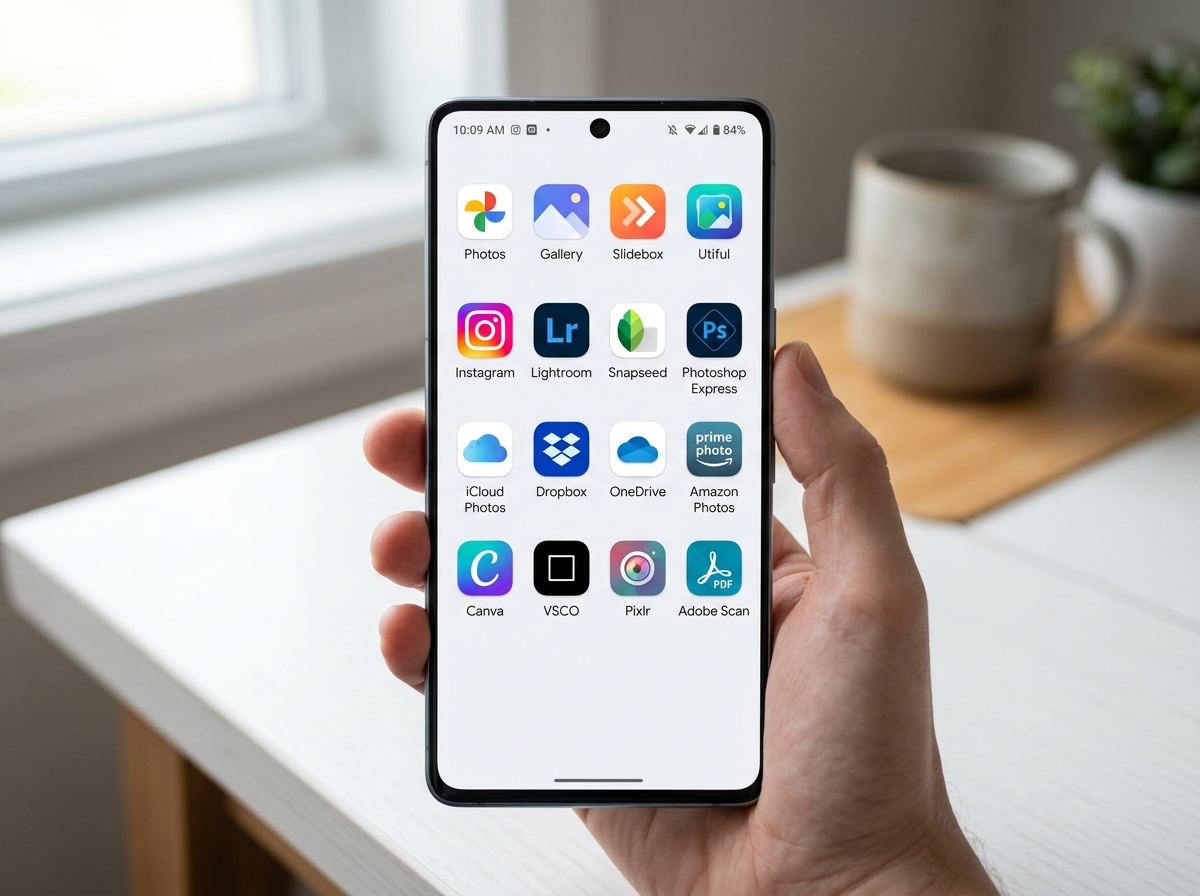
- Google Photos: The heavyweight champion. With over 10 billion downloads and a 4.5-star rating, it’s the go-to for most users. It offers 15 GB of free storage shared across your Google account, which is three times more than what many competitors provide.
- Gallery (by Google): Don’t confuse this with the main Photos app. This is a lightweight, offline-first alternative designed for speed and simplicity. It’s perfect if you have a budget device or want to save on data.
- Utiful: This app takes a unique approach by allowing you to move photos out of the main camera roll and into a real folder system. It’s great for separating work photos from personal memories.
- Slidebox: If you find manual organizing boring, Slidebox makes it a game. You use gestures to sort your library, making it one of the fastest ways to declutter.
- Mylio: A powerhouse for those who value privacy. It connects all your devices (Android, iOS, PC, Mac) into a single library without requiring you to store everything in a third-party cloud.
If you are also an iOS user or have family members on iPhones, you might want to check out our guide on the Best Photo Organizing Apps for iPhone to see how the ecosystems compare.
Gesture-Based Decluttering
Most of us avoid organizing our photos because the “tap-select-move” process is tedious. This is where gesture-based apps like Slidebox change the game. Instead of menu diving, you use intuitive swipes: swipe up to trash a photo, or tap a folder at the bottom to file it away instantly.
This “Tinder-style” interface for photos is surprisingly addictive. It allows you to compare similar shots side-by-side to pick the winner and discard the rest. By the time you’re done with a five-minute bus ride, you could have deleted fifty blurry screenshots. Managing your trash is also easier here; the app gathers everything you’ve swiped up, letting you do one final review before purging them for good. For more tips on keeping your storage lean, see our advice on Deleting Duplicate Files Quickly.
Folder-Based android photo management
One of the biggest complaints about modern gallery apps is that they feel like one giant “bucket.” Even when you create an “album,” the photo often stays in your main camera roll, leading to visual clutter.
Utiful solves this by providing a “real folder” system. When you move a photo into a Utiful folder, it is physically moved out of the Android camera roll. This is a lifesaver for professionals who use their phones for work. You can keep your “Receipts” or “Project X” photos completely separate from your family vacation pictures. Over 250 million photos have been organized this way, proving that many users still prefer a traditional file structure. If you’re looking to set up a logical system from scratch, we recommend reading about the Best Folder Structure for Digital Documents to apply those same principles to your media.
Cloud vs. Local Storage: Finding the Right Balance
Choosing between cloud and local storage is the most important decision in android photo management. Each has distinct advantages depending on whether you value convenience or privacy.
| Feature | Cloud Storage (e.g., Google Photos) | Local/Offline Storage (e.g., Gallery, SD Cards) |
|---|---|---|
| Free Tier | 15 GB (Google) | Limited by device/SD card size |
| Accessibility | Any device with internet | Only on the physical device |
| Privacy | Data sits on company servers | Data stays in your hand |
| Backup | Automatic and seamless | Manual or peer-to-peer |
| Cost | Monthly subscription for more space | One-time hardware cost |
Google Photos is the king of cloud convenience. Every Google account includes 15 GB of storage shared across Photos, Gmail, and Drive. If you hit that limit, you can upgrade via Google One plans. However, if you are a “digital minimalist” who prefers not to have your entire life synced to a server, you might prefer Cloud Storage Apps for Digital Minimalists or sticking to local management.
Privacy-First android photo management
For users who are wary of big tech’s AI scanning their personal photos, Mylio offers a compelling middle ground. It isn’t a cloud service in the traditional sense. Instead, it uses your own devices to create a private network. Your photos sync between your phone, tablet, and computer directly.
Mylio uses Local AI for face recognition and tagging. This means the “magic” of searching for “dogs” or “birthdays” happens on your device’s processor, not in a data center. It also offers encrypted storage options like Mylio SecureCloud, where photos are encrypted before they ever leave your device. This is a top-tier choice among Android Apps for Decluttering Digital Life because it keeps your data under your total control.
Mastering android photo management with AI and Folders
Modern android photo management relies heavily on AI to do the heavy lifting. Gone are the days of manually tagging every person in a photo.
Semantic Search allows you to find photos using natural language. Instead of searching by date, you can type “Alice laughing” or “Kayaking in the mountains.” Google Photos and even some offline apps now use AI to group similar photos into “Photo Stacks,” which hides duplicates and bursts, leaving your main view much cleaner.
For those who still prefer the “old school” way, many Android devices still offer SD card support. Apps like Google’s lightweight Gallery app allow you to view, copy, and transfer photos directly to an SD card. This is essential for managing large libraries without paying for cloud subscriptions. You can learn more about these manual techniques in the official Manage your photos with Gallery – Android Help documentation. Combining AI search with a solid folder structure is one of our favorite Efficient Strategies for Organizing Large Media Libraries.
Google Photos vs. Gallery: Which Google App Wins?
Google actually offers two distinct paths for android photo management. Choosing the right one depends on your hardware and your internet habits.
- Google Photos: This is the feature-rich, AI-heavy powerhouse. It offers Magic Eraser to remove photobombers, Photo Unblur, and automatic movie creation. It’s designed for users who are always connected and want their memories synced everywhere.
- Gallery: Previously known as Gallery Go, this app is tiny and fast. It works entirely offline and is optimized for “Android Go” (budget) phones. It still offers automatic organization (sorting photos into People, Selfies, Nature, and Documents) and a one-tap “Auto-enhance” tool, but it lacks the heavy cloud features.
According to user reviews on the Google Photos – Apps on Google Play page, the main Photos app is praised for its search but sometimes criticized for its complex interface. Gallery, on the other hand, is loved for its speed but criticized by power users for lacking advanced album customization features like renaming folders easily.
Essential Steps for Backing Up and Transferring Photos
No android photo management strategy is complete without a solid backup plan. If you lose your phone today, would your photos be gone forever? We hope not!
- Enable Automatic Cloud Backup: In Google Photos, go to Settings > Backup and turn it on. This ensures every photo you take is instantly saved to your Google Account.
- Use a Secondary Backup: Don’t rely on just one cloud. Consider using Amazon Photos (free unlimited photo storage for Prime members) or a physical backup to a PC.
- Manual Transfers: For maximum security, connect your phone to a computer via USB and copy the “DCIM” folder to an external hard drive once a month.
- Use the “Free Up Space” Tool: Once your photos are safely in the cloud, use the “Free up space” button in Google Photos. This deletes the local copies from your phone while keeping them accessible in the app, instantly giving you gigabytes of storage back.
- Device Migration: When moving to a new Android phone, use the “Google One” backup or the manufacturer’s transfer tool (like Samsung Smart Switch) to bring your local folders and settings along.
For a deeper dive into protecting your data, see our Best Practices for File Backup and Storage Management.
Frequently Asked Questions about Android Photo Management
How much free storage does Google Photos offer?
Google Photos offers 15 GB of free storage per Google Account. This storage is shared across Google Photos, Gmail, and Google Drive. This is significantly more than the 5 GB offered by some other major cloud providers.
Can I organize photos on an SD card?
Yes! Many Android gallery apps, including Google’s Gallery app, fully support SD cards. You can view, copy, and move photos between your phone’s internal memory and the external SD card to save space.
What is the best app for deleting duplicate photos?
Slidebox is excellent for manually reviewing and deleting similar photos. For a more automated approach, Google Photos uses AI to “stack” similar images, while Mylio has built-in tools to identify and remove true duplicates across your entire library.
Conclusion
Taming the chaos of your Android gallery doesn’t have to be a weekend-long project. By choosing the right tool—whether it’s the AI-powered search of Google Photos, the gesture-based speed of Slidebox, or the privacy-first approach of Mylio—you can turn a cluttered mess into a curated collection of memories.
At Tamba Tech, we believe that digital zen starts with organization. Once you’ve mastered your phone’s gallery, you might want to look into broader Top Tips for Effective Cloud Storage Management to keep your entire digital life running smoothly. Happy organizing!
