
Why Knowing How to Remove Hidden Photos on iPhone Matters
To remove hidden photos on iPhone, follow these steps:
- Open the Photos app
- Scroll down to Utilities and tap Hidden
- Authenticate with Face ID, Touch ID, or your passcode
- Tap Select, choose your photos, then tap the trash icon
- Go to Recently Deleted and tap Delete to remove them permanently
Your iPhone’s Hidden album is easy to overlook — but it can quietly eat up storage space and keep old private photos you no longer need. Whether you’re doing a digital cleanup or just want to make sure sensitive images are truly gone, knowing how to manage this album is worth a few minutes of your time.
The Hidden album has been part of iOS since iOS 8. It was designed to let you move photos out of your main library without deleting them. But hiding isn’t the same as deleting — those photos still take up space on your device and in iCloud.
Since iOS 16, Apple added a layer of protection: the Hidden album is now locked by default and requires Face ID, Touch ID, or a passcode to open. That’s great for privacy, but it also means some users forget the photos are even there.
This guide will walk you through everything — deleting, unhiding, and permanently removing photos from your Hidden album — in plain, simple steps.
Understanding the Hidden Album and Privacy Features
Before we dive into the “how-to,” let’s chat about what exactly the Hidden album is. Think of it as a digital safe within your Photos app. When you hide a photo, it disappears from your main Library, your “Recents” album, and even the Photos widgets on your home screen. It’s perfect for keeping those receipts you need for taxes or photos of a surprise gift away from prying eyes.

The feature has evolved significantly since its debut in the iOS 8 era (back when the iPhone 4s was the cool kid on the block). Originally, the Hidden album was just a folder anyone could open. Today, it’s a high-security vault. If you have a modern iPhone, your remove hidden photos iphone mission will involve biometrics. By default, the album is locked with Face ID, Touch ID, or your device passcode.
One crucial thing we need to remember is how iCloud Photos plays into this. If you have iCloud Photos enabled, any photo you hide or delete on your iPhone will also be hidden or deleted on your iPad, Mac, and even your Apple Vision Pro. This synchronization is great for consistency, but it means you need to be careful—deleting a hidden photo on your phone removes it from the cloud entirely.
For those of us trying to keep our digital lives tidy, we often recommend looking at the Best Photo Organizing Apps for iPhone to help manage the chaos.
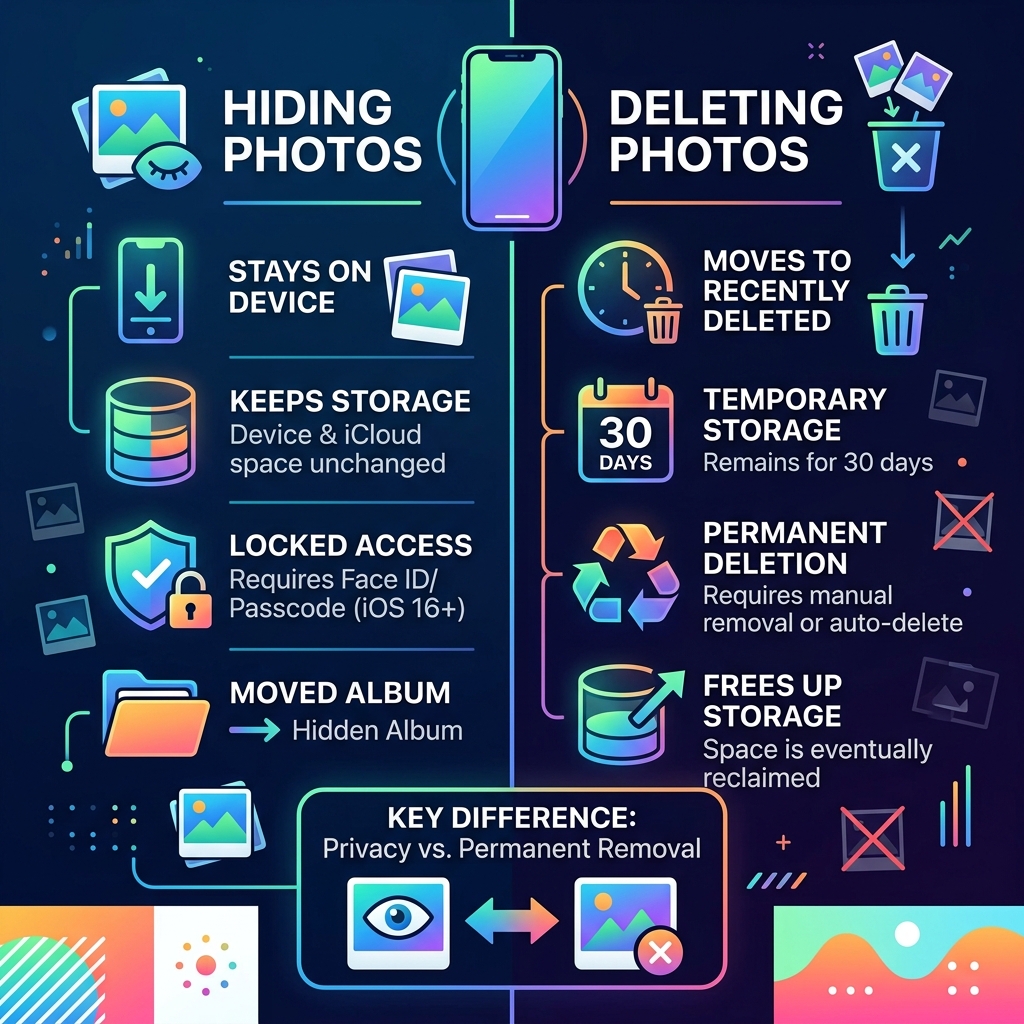
To help clear up any confusion, here is a quick breakdown of the differences:
| Feature | Hiding a Photo | Deleting a Photo |
|---|---|---|
| Visible in Library? | No | No |
| Takes up Storage? | Yes | Yes (for 30 days) |
| Password Protected? | Yes (iOS 16+) | Yes (iOS 16+) |
| Permanent? | No, can be unhidden | No, can be recovered for 30 days |
| iCloud Sync? | Yes | Yes |
As you can see, the Hidden album is more about visibility than storage management. According to Hide photos on your iPhone, iPad, Mac, or Apple Vision Pro with the Hidden album – Apple Support, hidden media stays on your device until you take further action.
Step-by-Step Guide to Remove Hidden Photos iPhone
Ready to clear out the clutter? Let’s get into the nitty-gritty of how to remove hidden photos iphone. Whether you have one embarrassing selfie or five hundred blurry screenshots to get rid of, the process is straightforward.
Accessing the Vault
First, we need to find the album. In the latest versions of iOS (like iOS 18), Apple has moved things around a bit.
- Open your Photos app.
- Tap the Albums tab at the bottom (or scroll to the bottom of the home screen in iOS 18).
- Look for the Utilities section.
- Tap on Hidden.
- Your iPhone will ask for Face ID, Touch ID, or your passcode. Once you’re in, you’ll see everything you’ve tucked away.
Deleting a Single Photo or Video
If you just want to get rid of one item:
- Tap the photo to open it.
- Tap the Trash Can icon in the bottom corner (or tap the three dots “…” and select Delete).
- Confirm by tapping Delete Photo.
Deleting Multiple Photos at Once
If you’re doing a deep clean, deleting one by one is a nightmare. Here’s how we do it faster:
- Inside the Hidden album, tap Select in the top-right corner.
- Tap each photo you want to remove, or slide your finger across rows to select them quickly.
- Once you’ve made your selection, tap the Trash Can icon.
- Tap Delete [Number] Photos to confirm.
Managing your library this way is a key part of Organizing Photos on Smartphone and Cloud. It keeps your storage lean and your most important memories easy to find.
How to Remove Hidden Photos iPhone Permanently
Here is the “gotcha” that catches many users off guard: when you delete a photo from the Hidden album, it isn’t actually gone yet. It simply moves to another folder called Recently Deleted.
Apple keeps these files for 30 days just in case you change your mind. If your goal is to free up storage space immediately, you have to take one extra step.
- Go back to the Albums (or Utilities) screen.
- Tap on Recently Deleted.
- Authenticate again (yes, this folder is also locked!).
- Tap Select.
- You can either choose specific photos or tap Delete All at the bottom to wipe the slate clean.
- Confirm the permanent deletion.
Once you do this, the photos are gone for good and the storage space is reclaimed. This is the only way to truly remove hidden photos iphone and ensure they aren’t lingering in the background. If you’re running low on space, checking this folder is often the quickest fix. For more official details on this, check out Delete or hide photos and videos on iPhone.
The “Date Change” Workaround (For Tech Detectives) In older versions of iOS, there was a known bug where photos would stay on the device even after being “deleted.” If you see that your storage is still full but your Recently Deleted folder is empty, some users have found success by manually changing the iPhone’s date (Settings > General > Date & Time) to a few years in the past. Sometimes, this “tricks” the phone into showing old “phantom” photos in the Recently Deleted folder that were supposed to have been purged long ago. Just remember to set the date back to “Automatic” when you’re done!
How to Unhide or Remove Hidden Photos iPhone from the Private Collection
Sometimes, you don’t want to delete a photo; you just want it back in your main library. Maybe you hid a photo of a document and now you need to see it regularly.
- Open the Hidden album and authenticate.
- Tap the photo you want to move.
- Tap the More (…) button or the Share icon (the square with the arrow pointing up).
- Scroll down and tap Unhide.
The photo will immediately jump back to its original place in your Library, sorted by the date it was taken. It’s like it never left! If you’re looking to make your restored photos look their best, you might want to check out From Drab to Fab: The Best Apps for Aesthetic Photos You Need Now for some editing inspiration.
Advanced Privacy: Hiding the Hidden Album Itself
If you are a true privacy enthusiast, you might find it annoying that the “Hidden” folder is sitting right there in the Utilities menu for everyone to see. Even if they can’t open it without your face or thumbprint, the mere existence of the folder suggests you have something to hide!
Apple thought of this. You can actually hide the Hidden album itself from the Photos app.
- Open the Settings app on your iPhone.
- Scroll down and tap on Photos.
- Find the toggle for Show Hidden Album.
- Switch it OFF (so it turns grey).
Now, when you go back to the Photos app, the Hidden album will be completely gone from the Utilities list. To see your hidden photos again, you’ll have to come back to Settings and toggle it back on. It’s an extra layer of “digital camouflage” that makes Decluttering Smartphone Apps: A Guide for Beginners even more effective.
Frequently Asked Questions about iPhone Photo Privacy
We get a lot of questions about how to remove hidden photos iphone and keep things secure. Here are the most common ones we hear at Tambas Tech.
Can I recover accidentally deleted hidden photos?
Yes, but you have a ticking clock! When you delete a photo from the Hidden album, it goes to the Recently Deleted folder. You have 30 days to go into that folder, select the photo, and hit Recover. After 30 days, Apple permanently purges the file from its servers and your device to save space. If you have iCloud sync on, recovering it on your iPhone will also bring it back to your other Apple devices.
Does hiding a photo remove it from iCloud storage?
No, it does not. This is a common misconception! Hiding a photo only changes its visibility in the app. The file is still backed up to iCloud (if enabled) and still counts against your storage limit. If you are trying to free up iCloud space, you must delete the photo and then clear it from the Recently Deleted album.
Why can’t I see the Hidden album in my Utilities?
There are usually two reasons for this. First, check your Settings (Settings > Photos) to see if Show Hidden Album is toggled off. Second, if you are on iOS 18, the layout has changed—you may need to scroll to the very bottom of the Photos home screen to find the “Utilities” section. Also, if the album is empty, it might not show up at all on some older versions of iOS.
Conclusion
Managing your digital footprint doesn’t have to be a headache. Whether you wanted to remove hidden photos iphone to save storage or simply to keep your private life private, we hope this guide made the process clear. Hiding is for privacy, but deleting is for storage!
At Tambas Tech, we’re dedicated to helping you master your devices. If you found this helpful, you might enjoy our other guides, like The Ultimate Guide to Taming Your Android Gallery Chaos if you use multiple devices, or check out More info about file management services to keep your digital life running smoothly.
Happy decluttering!
