
Why Your iPhone Photo Library Needs a Better System
How to organize photo albums on iPhone comes down to a few core steps:
- Create albums – Open Photos > tap Albums > tap the + icon > select New Album
- Add photos – Select images and assign them to your album
- Use folders – Group related albums into folders for a cleaner hierarchy
- Sort and filter – Arrange photos by date, name, or custom order within each album
- Sync with iCloud – Keep everything consistent across your Apple devices
You’ve probably taken thousands of photos with your iPhone over the years. Most people have. And without a system, finding that one photo from two summers ago feels like searching for a needle in a haystack.
The problem isn’t just volume. It’s structure. Or the lack of it.
One longtime Apple Photos user described accumulating 84 photo albums over 16 years — all sitting in one flat, unorganized list with no way to group them. That’s a common experience. The Photos app has powerful organization tools built right in, but many of them aren’t obvious.
The good news? Once you know how the system works — albums, folders, sorting, filtering, and syncing — organizing your photo library becomes straightforward. Even if you’re starting with thousands of scattered images.
This guide walks you through everything, step by step.
Getting Started: How to Organize Photo Albums on iPhone
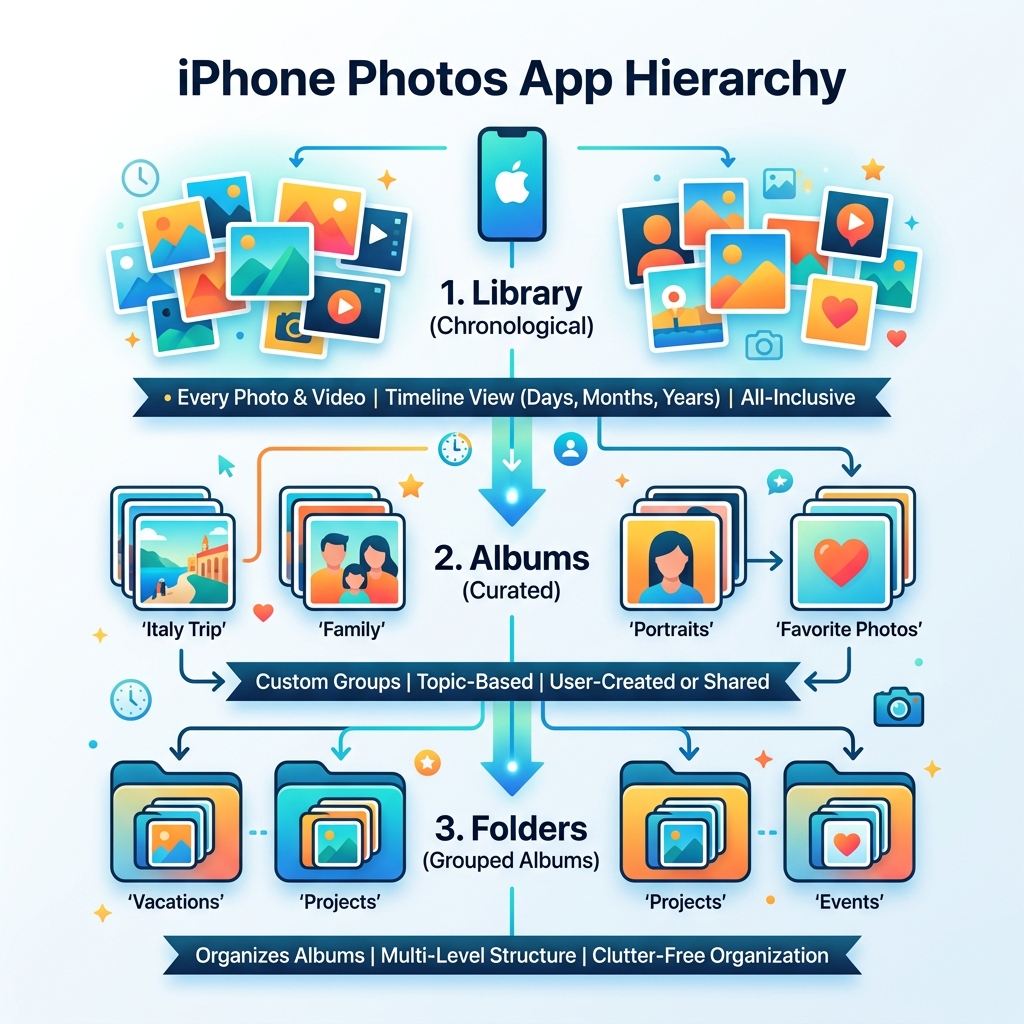
Before we dive into the deep end of folders and subfolders, we need to master the basics of the Photos app. Your iPhone organizes media into two primary views: the Library and Collections. The Library is your chronological stream of every photo and video you’ve ever taken. Collections, on the other hand, are curated groups like “Days,” “Trips,” or “People & Pets.”
However, to truly take control, you need to use the Albums tab. This is where you move from being a passive viewer to an active curator. If you are feeling overwhelmed, we recommend checking out our more tips on organizing photos on smartphone and cloud to get a broader perspective on digital decluttering.
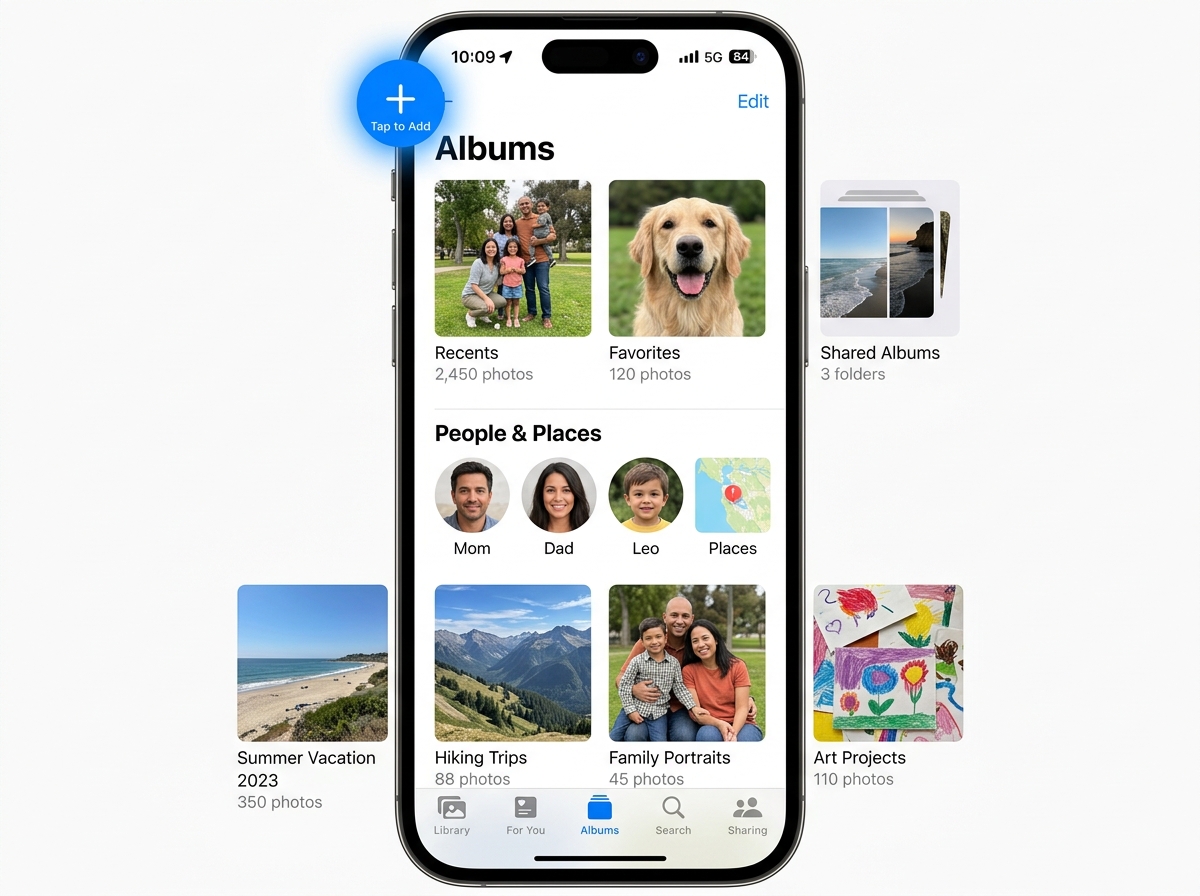
The first step in learning how to organize photo albums on iphone is understanding the “Plus” (+) icon. This small button is the gateway to all your organizational power. According to Apple’s official documentation on how to create and work with photo albums on iPhone, this is where you initiate new projects.
Creating Your First Album
If your “My Albums” section is currently empty or a chaotic mess, creating a themed album is the best way to start. Whether it’s for a specific vacation, a hobby like “Home Renovation,” or just “Best Family Pics,” a dedicated album makes sharing much faster.
- Open Photos and tap the Albums tab.
- Tap the Plus (+) button in the top corner.
- Select New Album.
- Enter a name: Use clear naming conventions. Instead of “Beach,” try “Malibu Trip 2024.”
- Select Media: Your library will appear. Tap the photos and videos you want to include.
- Tap Add or Done.
Once created, you can always view photos and videos on iPhone within that specific album without having to scroll through your entire 20,000-photo camera roll.
Adding and Removing Media Without Deletion
One of the biggest points of confusion for iPhone users is the relationship between an album and the main library. We often hear users ask: “If I delete this from the album, is it gone forever?”
The answer is no—as long as you choose the right option. When you “Remove from Album,” the photo stays in your main Library. If you “Delete,” it goes to the Trash and eventually disappears from your device entirely.
| Action | Result in Album | Result in Library |
|---|---|---|
| Remove from Album | Disappears from the specific album | Remains safe in “All Photos” |
| Delete from Library | Disappears from the album | Deleted from the device and iCloud |
To add more photos later, simply open the album, tap the ellipsis (…) menu, and select Add Photos. To remove items, tap Select, highlight the photos, tap the Trash icon, and specifically choose Remove from Album.
Advanced Hierarchy: Using Folders for Better Structure
If you’ve been using an iPhone for years, you might relate to the “84 albums” anecdote mentioned earlier. Having a flat list of nearly 100 albums is just as messy as having no albums at all. This is where the “hidden” feature of Apple Photos comes in: Folders.
Folders do not hold photos directly; they hold albums. Think of a Folder as a filing cabinet and an Album as a folder inside that cabinet. This hierarchical organization is the secret to a professional-grade photo library.
How to Organize Photo Albums on iPhone Using Folders
Creating a folder is very similar to creating an album, but it changes your workflow significantly. Instead of scrolling through a list of 20 different trips, you can have one folder named “Vacations” that contains 20 individual albums.
- In the Albums tab, tap the Plus (+) icon.
- Choose New Folder.
- Name it (e.g., “Work,” “Family,” “Projects”).
- Tap Save.
- Open your new folder, tap Edit, then tap the Plus (+) icon inside the folder to create a new album or another subfolder.
By nesting albums this way, you reduce visual clutter and make your library much more navigable. You can even use the filter and sort photos and videos in albums on iPhone features within these nested albums to find specific media even faster.
Moving and Nesting Albums
On an iPhone or iPad, you cannot always “drag” an existing album into a folder easily from the main view. The most reliable way to organize them is to create the album inside the folder from the start. However, you can rearrange the order of your albums to suit your preference.
To rearrange:
- Tap See All next to your albums.
- Tap Edit.
- Touch and hold the center of an album and drag and drop it to a new location.
- You can also tap the More (…) icon to sort your albums alphabetically (Sort by Name) or by Date Modified.
Customizing and Managing Your Collections
Once your photos are in the right place, you can make them look and feel more personal. Apple provides several tools to change how an album is presented, from the “Key Photo” that represents the album to the music that plays during a slideshow.
Sorting, Filtering, and Key Photos
By default, Apple sorts photos within an album by the date they were added. But what if you want to see the oldest first? Or what if you want to see only the videos in that album?
- Sorting: Tap the Sort button (the three-lined or three-dotted icon). You can choose Oldest to Newest, Newest to Oldest, or Custom Order. In Custom Order, you can manually drag thumbnails around.
- Filtering: Tap the Sort/Filter button and select Filter. You can choose to show only Favorites, Edited photos, Photos, or Videos. This is incredibly helpful for finding that one specific clip in a sea of stills.
- Key Photo: Don’t like the random photo Apple chose to represent your album? Open the album, find the photo you love, long-press it, and select Make Key Photo.
For those who love a cinematic experience, you can also personalize your memory movies in Photos on iPhone by tapping the Play button on an album. You can adjust “Memory mixes,” which change the photographic look and the background music to match the mood.
How to Organize Photo Albums on iPhone for Sharing and Syncing
The beauty of the Apple ecosystem is that your hard work doesn’t just stay on your phone. If you have iCloud Photos enabled, every folder and album you create will automatically sync to your iPad and Mac.
To ensure this is working:
- Go to Settings.
- Tap [Your Name] > iCloud > Photos.
- Ensure Sync this iPhone is turned on.
Sharing is just as easy. You can share an entire album via AirDrop or create a Shared Album. Shared Albums are perfect for family events because everyone can contribute their own photos to the same collection. You can manage Shared Album Details to invite new people, allow subscribers to post their own photos, or even create a public website link for non-iPhone users to view the gallery.
Beyond the Basics: Utilities and Third-Party Tools
Sometimes, the native Photos app needs a little help, especially if you’re dealing with a massive influx of data. We often take about 20,000 photos a year, and let’s be honest—most of those are screenshots, blurry duplicates, or “just in case” shots we never look at again.
Cleaning Duplicates and Using Search
Before you spend hours organizing, you should clean. Apple’s Duplicates utility is a lifesaver. Scroll to the bottom of the Albums tab to the Utilities section. Tap Duplicates to see where you’ve accidentally saved the same meme five times. One user found 36 duplicates instantly! Merging these saves storage and reduces clutter.
Don’t forget the power of Smart Search. You don’t always need an album if you’re looking for something specific. You can search for “Beach,” “Dog,” “Cake,” or even specific text found within a photo. If you’re looking for more aesthetic ways to manage your shots, see our guide from drab to fab with aesthetic photo apps.
Enhancing Organization with External Apps
While the native app is great, power users often turn to third-party solutions for specific needs. At Tamba Tech, our expert writers, including Lucas Oliveira, have spent years testing these tools.
- Adobe Lightroom: Excellent for those who want to sort and edit professionally before moving photos to long-term storage.
- Dropbox: A fantastic “all-in-one” cloud storage center if you want to keep your photos alongside your work files.
- Daily Delete or Slidebox: These apps turn cleaning your camera roll into a game, allowing you to swipe through photos to keep or trash them.
If you are curious about how the other side lives, you can read about taming gallery chaos on other devices, but for the best iOS experience, check out our curated list of the best photo organizing apps for iPhone.
Frequently Asked Questions about iPhone Photo Organization
Does deleting a photo from an album delete it from my library?
No. If you select a photo within an album and tap the trash icon, you will see an option for “Remove from Album.” This removes the photo from that specific collection while keeping it safe in your main Library (All Photos). However, if you select “Delete,” it will be removed from your entire device.
Can I put an album inside another album on iPhone?
Technically, no. Albums can only contain photos and videos. However, you can put Albums inside Folders, and you can even put Folders inside Folders. This allows you to create a deep hierarchy (e.g., Folder: Vacations > Folder: 2023 > Album: Italy).
How do I alphabetize my photo albums automatically?
Go to the Albums tab and tap See All. Tap the More (…) icon in the top right corner and select Sort by Name. Your iPhone will instantly rearrange your albums into alphabetical order.
Conclusion
Mastering how to organize photo albums on iphone is the difference between a digital junk drawer and a curated gallery of your life’s best moments. By using a combination of albums for events, folders for hierarchy, and the built-in utilities for cleaning, you can transform your iPhone into a powerful memory machine.
At Tamba Tech, we believe that technology should serve you, not overwhelm you. Whether you’re managing 84 albums or 84,000 photos, these steps will help you find what you need in seconds. Ready to take your digital organization to the next level? Explore more file management guides on our site for expert tips and app recommendations.
