
Your Wrist Knows Your Schedule: The Apple Watch Calendar Explained
The calendar in Apple Watch lets you view, manage, and respond to events directly from your wrist — no phone needed.
Here’s a quick overview of what you can do:
- View events — See your schedule in Up Next, List, Day, Week, or Month view
- Add events — Use Siri or tap the “+” button to create new events
- Edit or delete events — Tap any event to modify or remove it
- Respond to invitations — Accept, Decline, or select Maybe right from a notification
- Get directions — Tap an event’s address to open Maps instantly
- Sync Google Calendar — Connect via iPhone settings or the Google Calendar app (watchOS 11+)
- Fix sync issues — Restart devices, reset sync data, or toggle the Calendar app in the Watch app on your iPhone
The native Calendar app shows events from the past 6 weeks and up to 2 years in the future (in List and Day view). It syncs automatically with your iPhone, so whatever you schedule there shows up on your watch.
Whether you’re juggling back-to-back meetings or just want to check if your afternoon is free without pulling out your phone, Apple Watch makes it genuinely easy.
Let’s break down exactly how to make the most of it.
Mastering the Calendar in Apple Watch: Navigation and Views
Navigating your schedule on a small screen might seem daunting, but Apple has optimized the interface to be remarkably fluid. The primary tool at your disposal is the Digital Crown. By rotating it, you can scroll through your timeline without obscuring the display with your finger.
To get started, simply press the Digital Crown to see your app grid (or list) and tap the Calendar icon. Alternatively, if you have a calendar complication on your watch face, a single tap will take you straight into the app.
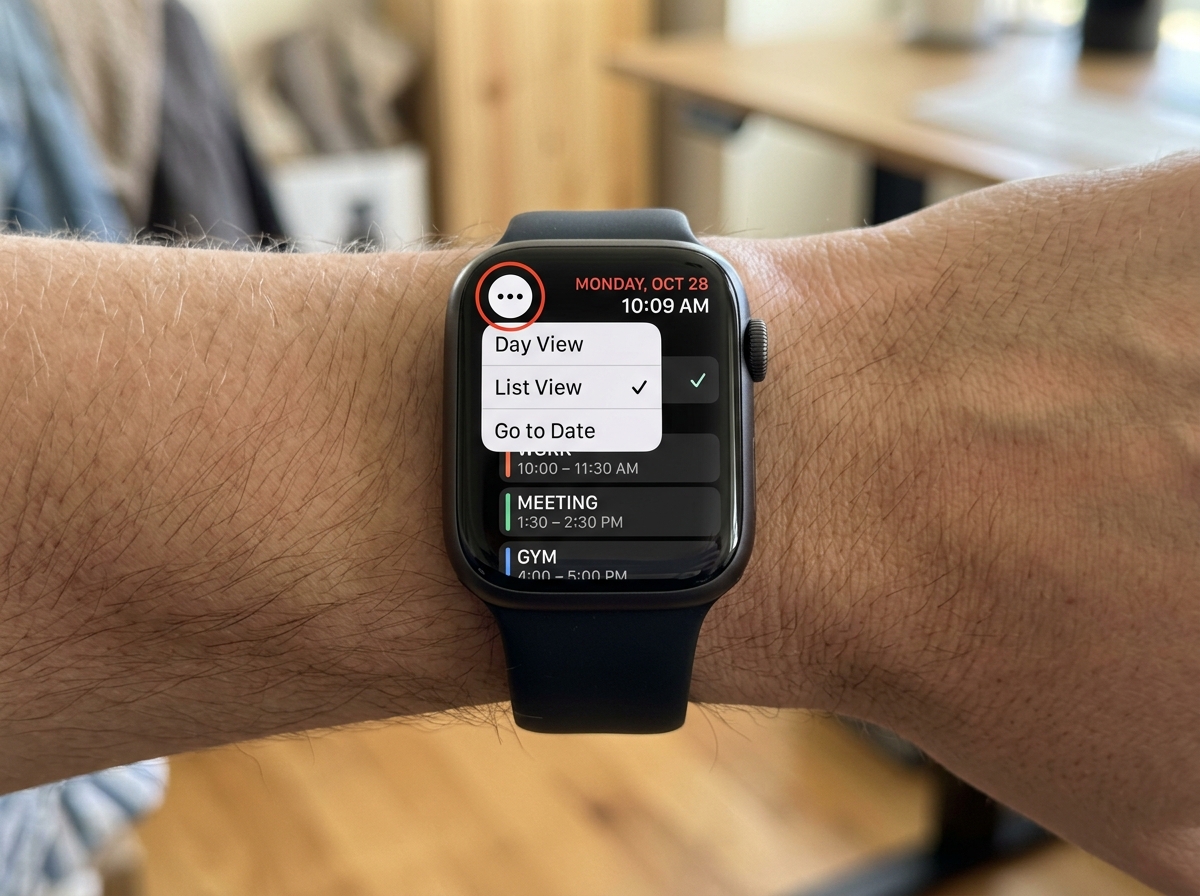
Once inside, you have several ways to visualize your time. You can switch between these views by tapping the “More” icon (three dots) in the top-left corner of the app:
- Up Next: This is the default view for many. It shows a scrollable timeline of your most immediate upcoming appointments.
- List View: A clean, vertical list of all events. This is excellent for seeing a high-density overview of your day or week.
- Day View: This mimics a traditional planner, showing your 24-hour day with blocks of time allocated to specific events.
- Week View: Shows a horizontal scroll of the current week.
- Month View: Provides a full grid of the current month. Tapping a specific day within this grid will drill down into that day’s specific schedule.
For more detailed technical navigation, you can always refer to the official Check and update your calendar on Apple Watch – Apple Support page.
Navigating the 2-Year Schedule Range
One of the most impressive statistics about the calendar in Apple Watch is its memory. In both List and Day views, the app stores and displays events from the past 6 weeks and allows you to look ahead for the next 2 years.
To move through time, use the Digital Crown to scroll. If you are in Month view, you can tap the “back” button to see previous months or scroll forward to plan your next vacation. If you ever get lost in the future, simply tap the current time in the top-right corner to instantly jump back to “Today.”
If you find that your schedule is becoming too cluttered, you might want to explore minimalist-calendar-apps-for-productivity to help streamline your digital life.
How to Add, Edit, and Manage Events on Your Wrist
You don’t have to reach for your iPhone every time you need to schedule a coffee chat. Adding an event to the calendar in Apple Watch is surprisingly fast, especially if you use voice commands.
Using Siri: This is the “Pro” way to do it. Raise your wrist and say, “Hey Siri, create a calendar event titled ‘Meeting with Lucas’ for tomorrow at 2 PM.” Siri will confirm the details and add it to your primary calendar instantly.
Manual Entry: If you prefer a silent approach:
- Open the Calendar app.
- Tap the “More” button (three dots) or, on older watchOS versions, use a firm press (Force Touch) on the screen.
- Tap the “+” (New Event) button.
- Enter the title (you can use the QWERTY keyboard on Series 7 and later, or Scribble/Dictation on older models).
- Add the location, start/end times, and even select which specific calendar the event belongs to.
- Tap “Done” or “Save.”
Responding to Invitations and Getting Directions
When someone sends you a calendar invite, it appears as a notification on your wrist. You don’t need to open the app to respond. Scroll to the bottom of the notification to find the Accept, Decline, or Maybe buttons. If you miss the notification, you can still find the invitation by tapping the event in your calendar; the response options will be at the bottom of the event details.
For events with locations, the calendar in Apple Watch integrates deeply with Apple Maps. Tap on an event to see its details, then tap the address. Your watch will immediately start turn-by-turn directions.
Furthermore, Apple Watch supports “Leave Now” alerts. These are haptic nudges that factor in real-time traffic and travel time to ensure you arrive on schedule. You can adjust these intervals in the Calendar app on your iPhone under the “Alerts” section of a specific event. This kind of automation is a cornerstone of workflow-optimization-for-beginner-minimalists.
Integrating Tasks and Reminders with the Calendar in Apple Watch
In recent watchOS updates, Apple has bridged the gap between “events” and “tasks.” You can now view your scheduled reminders from the Reminders app directly within your Calendar views.
This means if you have a task to “Pick up dry cleaning” at 5 PM, it will appear alongside your 5 PM meeting. You can tap the reminder within the Calendar app and even mark it as completed without switching apps. For those looking to master their to-do lists, checking out task-management-apps-for-minimalist-workflow can provide additional strategies for keeping your wrist-based schedule clean.
Customizing Your Experience with Complications and Smart Stack
The real power of the calendar in Apple Watch isn’t just in the app—it’s on your watch face. Complications are small snippets of data that live on your watch face, providing at-a-glance info.
We recommend using a “Modular” or “Infograph” face if you have a busy schedule. These faces allow for large complications that can display the title, time, and location of your next event.
The Smart Stack: Introduced in watchOS 10, the Smart Stack (accessed by turning the Digital Crown upward from the watch face) automatically surfaces a Calendar widget when you have an upcoming event. It’s a context-aware way to stay productive without cluttering your beautiful watch face.
Using Google Calendar and Third-Party Apps for the Calendar in Apple Watch
Many of us live in the Google ecosystem. While there isn’t a standalone Google Calendar app for older watchOS versions, watchOS 11 changed the game by allowing the official Google Calendar app to run natively on the watch.
However, there are some limitations to keep in mind with Google’s integration:
- 7-Day Limit: Google Calendar on Apple Watch typically only shows events and tasks for the next 7 days.
- Read-Only (Mostly): While you can view and get notifications, creating new Google events often still requires your iPhone or a browser.
- Sync Requirements: For Google events to show up in the native Apple Calendar app on your watch, you must first ensure the Google account is added to your iPhone (Settings > Mail > Accounts) and that the “Calendars” toggle is on.
For more details on this specific setup, see the guide on how to Use Google Calendar on your Apple Watch – Google Calendar Help. If you’re looking for other ways to boost your efficiency, our list of productivity-apps-for-minimal-tech is a great resource.
Advanced Customization for the Calendar in Apple Watch
You don’t have to see every calendar on your watch. If you have a “Work” calendar and a “Shared Family” calendar, you can choose which ones appear on your wrist to reduce noise.
- Open the Watch app on your iPhone.
- Tap “My Watch,” then “Calendar.”
- Tap Custom.
- Deselect any calendars you don’t want to see on your watch.
You can also customize haptic alerts here. If you find the standard “ding” too intrusive, you can set it to a subtle haptic tap. For users who want even more control, third-party apps like the Watch Calendar – Monthly App – App Store offer “Heat Maps” to show your busiest days and AI-generated color schemes to match your watch band.
Troubleshooting Sync Issues and Common Limitations
It is incredibly frustrating when your iPhone shows a meeting but your watch is blank. This is a common issue, often caused by a breakdown in communication between iCloud and your devices.
The “Magic” Fix: Reset Sync Data If your calendar in Apple Watch isn’t updating:
- Open the Watch app on your iPhone.
- Go to General > Reset.
- Tap Reset Sync Data. Note: Nothing will seem to happen when you tap this. However, in the background, your watch will erase its calendar database and re-download everything from your iPhone. Wait about 1-2 minutes for the data to reappear.
| Feature | Native Calendar App | Third-Party Apps (e.g., Google) |
|---|---|---|
| View Range | 6 weeks past / 2 years future | Often limited to 7 days ahead |
| Event Creation | Full Siri & Manual support | Often read-only on Watch |
| Task Integration | Integrated with Reminders | Varies by app |
| Sync Speed | Near-instant via iCloud | May have delays (minutes) |
Frequently Asked Questions about Apple Watch Calendars
Why is my Apple Watch calendar not syncing with your iPhone?
Most sync issues are resolved by the “Reset Sync Data” step mentioned above. Also, ensure both devices are on the same Wi-Fi network and that Bluetooth is enabled. Occasionally, signing out and back into your Apple ID on your iPhone can kickstart a stalled iCloud sync.
Can I create Google Calendar events directly on Apple Watch?
If you are using the native Apple Calendar app synced with Google, you can use Siri to create events. However, the official Google Calendar app for watchOS 11 is currently focused on viewing and notifications rather than complex event creation.
How do I see a full month view on my watch?
Open the Calendar app, tap the “More” button (three dots), and select Month. You can then use the Digital Crown to scroll through months. Tapping any day in the month grid will open the Day view for that specific date.
Conclusion
Mastering the calendar in Apple Watch is one of the fastest ways to reclaim your time and reduce “phone fatigue.” By utilizing complications, Siri, and the various viewing modes, you can stay on top of your professional and personal life with just a glance at your wrist.
At Tamba Tech, we believe that technology should serve you, not the other way around. If you’re looking to further simplify your digital habits, we recommend starting with a-minimalists-guide-to-tech-habits-where-to-start.
Ready to discover more ways to optimize your devices? Explore more expert app reviews at Tamba Tech and let us help you build a more productive digital workflow.
