
That “iCloud Storage Full” Message Is Fixable — Here’s How
iCloud photo storage full is one of the most common iPhone frustrations — and it usually hits at the worst time, like when you’re trying to capture a moment and your camera refuses to save it.
Quick fixes at a glance:
- Empty your Recently Deleted album — deleted photos still count toward storage for 30 days
- Turn on Optimize iPhone Storage — keeps full-res photos in iCloud, small previews on your device
- Delete old device backups — these quietly eat gigabytes in the background
- Clear out duplicate photos and large videos — often the single biggest space drain
- Upgrade to iCloud+ — if you genuinely need more room (starts at $0.99/month for 50 GB)
For most people, steps 1–4 alone can recover 2–15 GB without spending a cent.
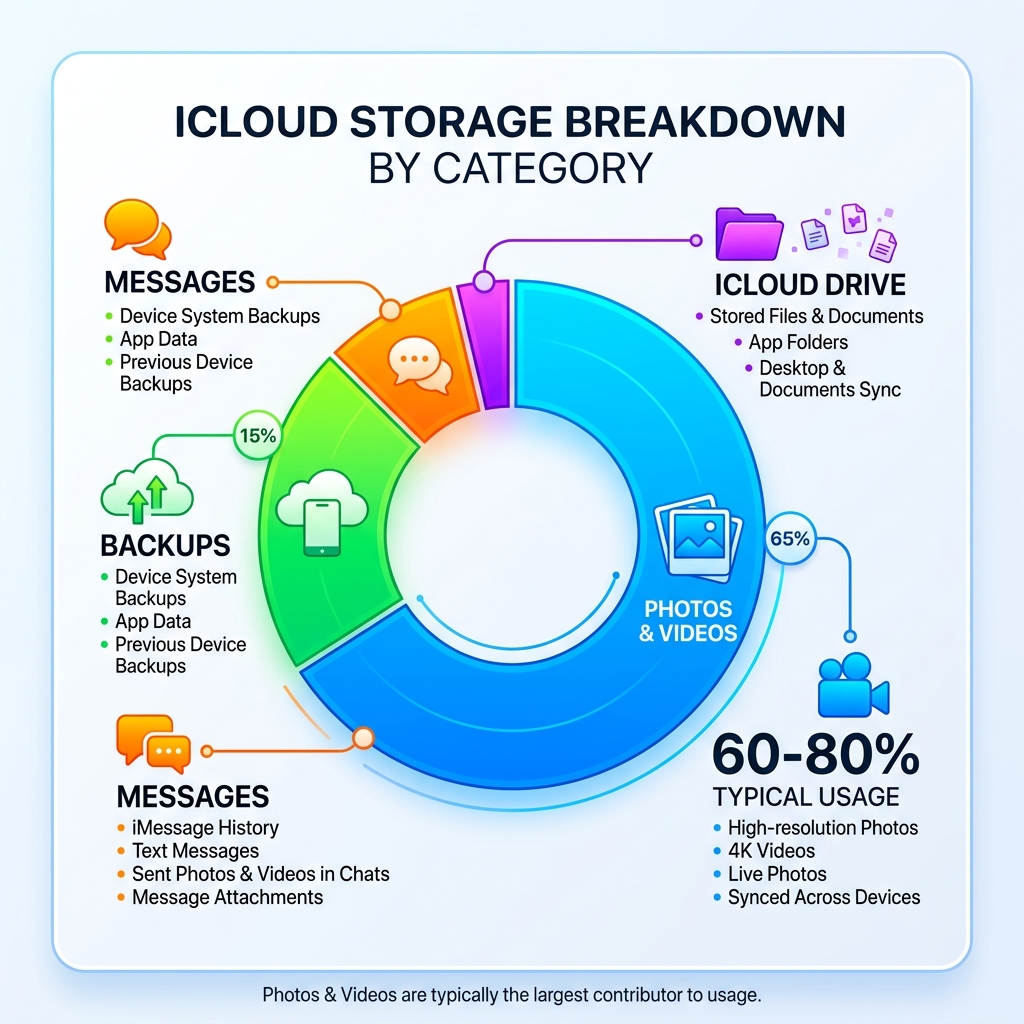
Here’s why this happens to almost everyone: Apple gives you just 5 GB of free iCloud storage when you sign up. That sounds fine — until you enable iCloud Photos. Photos and videos typically eat up 60–80% of a person’s total iCloud storage, and with modern iPhones shooting in high resolution and 4K video, that free 5 GB disappears fast.
The result? Backups stop running. New photos stop syncing. And that popup keeps coming back.
This guide walks you through exactly how to fix it — for free where possible, and with a clear upgrade path if you need it.
Understanding Why Your iCloud Photo Storage is Full
When we see that dreaded notification, our first instinct is often confusion. “I only have a few thousand photos,” we might think. But modern mobile photography has changed the math. We aren’t just storing small JPEGs anymore; we are storing high-resolution Live Photos, ProRAW files, and 4K videos that can consume hundreds of megabytes in just a few minutes of footage.
According to industry data, photos and videos typically account for 60–80% of iCloud storage usage for the average user. Because Apple’s ecosystem is built on seamless synchronization, every single blurry shot, accidental pocket video, and meme you’ve saved is being pushed to the cloud in full resolution.
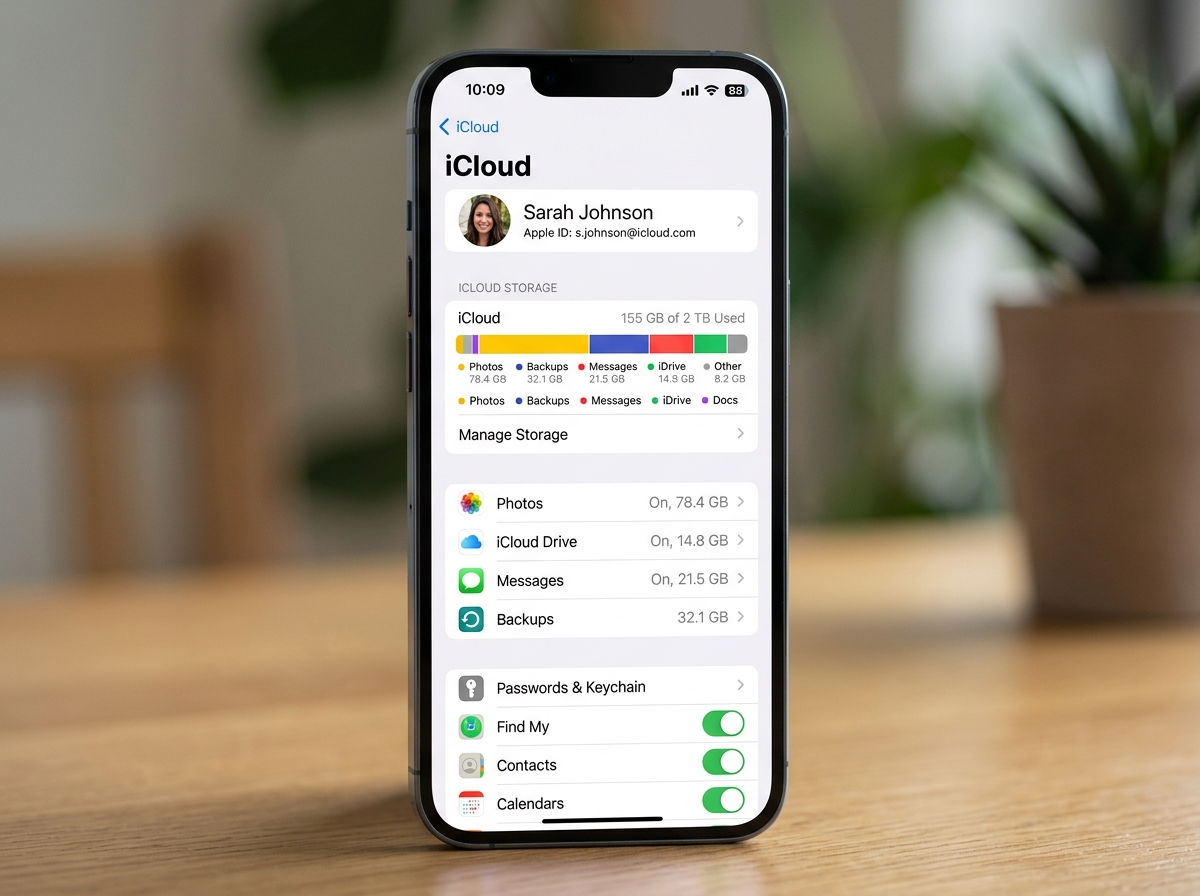
If you want to see exactly what is eating your space, head to Settings > [Your Name] > iCloud > Manage Account Storage. This screen is your command center for fighting back against the “storage full” monster. You’ll likely see that “Photos” is the undisputed heavyweight champion of your storage bar.
Understanding the difference between device storage and iCloud storage is the first step toward reducing digital storage overload. While your iPhone might have 128 GB of room, your free iCloud account only has 5 GB. Once that tiny cloud bucket is full, the syncing stops. For a deeper dive into how Apple manages these files, you can check out the official guide on how to manage your photo and video storage.
How to Fix iCloud Photo Storage Full with Optimize Storage
One of the most misunderstood features in the Apple world is “Optimize iPhone Storage.” Many users fear that turning this on will delete their precious memories. In reality, it is a brilliant bit of engineering designed specifically for when your icloud photo storage full alerts start appearing.
Here is how it works:
- Full-Resolution Originals: These are safely stored in iCloud at their highest quality.
- Space-Saving Versions: Your iPhone keeps tiny, lightweight versions of your photos for you to browse. When you tap on a photo to view it, your phone quickly downloads the full version from the cloud.
This single toggle can have a massive impact. We have seen 50 GB photo libraries shrink to just 5 GB of on-device usage. It’s like magic for your hardware, allowing you to keep your entire life’s history in your pocket without needing a 1 TB iPhone. You can enable this by going to Settings > Photos > Optimize iPhone Storage.
To make sure you’re setting this up correctly, refer to Apple’s instructions on how to set up and use iCloud Photos. If you’re looking for more ways to keep things tidy, our guide on organizing photos on smartphone and cloud offers additional pro tips.
Cleaning Up Your Library When iCloud Photo Storage is Full
Sometimes, optimization isn’t enough; you actually need to delete the digital “clutter.” We estimate that for most users, about 30% of their photo library consists of “junk”—accidental screenshots, blurry duplicates, and videos of the inside of a handbag.
Apple has recently made this much easier with built-in tools:
- Merge Duplicates: In the Photos app, scroll down to “Utilities” and tap “Duplicates.” Apple will identify identical photos and allow you to merge them into one high-quality file, deleting the extras.
- Recommended for You: If you are on iOS 17 or later, go to your iCloud settings to find “Recommended for You.” This feature highlights large files, old backups, and redundant photos that are safe to delete.
- Video Compression: Large 4K videos are the biggest space hogs. Compressing just 20 videos can often recover 5 to 10 GB of space—enough to drop down an entire storage tier and save money.
For those who want an even more automated experience, we have reviewed the best photo organizing apps for iPhone to help you find the perfect tool for the job. Regular maintenance is key, so don’t forget to check out our top tips for effective cloud storage management to keep that “full” message from returning.
Immediate Steps to Free Up Space
If you’ve started deleting photos but the icloud photo storage full message won’t go away, you are likely falling into the “Recently Deleted” trap.
Apple doesn’t actually delete your photos the moment you hit the trash can icon. Instead, it moves them to the Recently Deleted album, where they sit for 30 days. During these 30 days, they still count toward your iCloud storage quota. If you are in a storage emergency, you must manually empty this folder:
- Open Photos.
- Tap Albums.
- Scroll to the bottom and tap Recently Deleted.
- Tap Select, then Delete All.
This is the fastest way to see your storage bar actually move. If you’re looking for a more comprehensive plan to clear out the digital cobwebs, follow our step-by-step guide to decluttering cloud storage. For those considering a more permanent solution, you can find the current iCloud+ plans and pricing to see if a small monthly fee is worth the peace of mind.
Managing Non-Photo Data to Reclaim Quota
While photos are usually the main culprit, they aren’t the only ones. iCloud is a “shared bucket” for all your Apple data. If your photos aren’t “budging,” look at these other areas:
- iCloud Backups: Apple keeps backups of your devices for 180 days after you stop using them. If you have an old iPhone 11 backup sitting in your account while you’re using an iPhone 15, that’s several gigabytes of wasted space. Go to Manage Account Storage > Backups to delete old device data.
- Messages: Did you know that every meme and video sent to you via iMessage is stored in your iCloud? You can often save gigabytes by going to Settings > General > iPhone Storage > Messages and reviewing “Large Attachments.”
- iCloud Drive: Check for large PDFs or work files that you no longer need.
We’ve compiled more cloud storage management tips to help you navigate these menus. If you’re feeling overwhelmed, our decluttering cloud storage step-by-step guide breaks it down into manageable chunks.
When to Consider Upgrading to iCloud+
Sometimes, the truth is that your life is simply bigger than 5 GB. If you have children, pets, or a hobby that involves lots of photography, trying to stay under the free limit can become a stressful part-time job. In these cases, upgrading to iCloud+ is a “quality of life” improvement that costs less than a cup of coffee per month.
| Storage Tier | Monthly Price (USD) | Best For… |
|---|---|---|
| 5 GB | Free | Light users who don’t sync photos. |
| 50 GB | $0.99 | Individuals with a moderate photo library. |
| 200 GB | $2.99 | Families or power users with 10k+ photos. |
| 2 TB | $9.99 | Photography enthusiasts and large families. |
Upgrading doesn’t just give you more room; it unlocks iCloud+ features like Private Relay (which hides your IP address), Hide My Email, and Custom Email Domains. Furthermore, the 200 GB and 2 TB plans can be shared with up to five family members via Family Sharing, making it a very cost-effective choice for households.
If you decide to stick with your current library but want to make it fit better, you might need to adjust the size of your Photos library manually. And for those who prefer a “less is more” approach, we have a list of cloud storage apps for digital minimalists that might suit your lifestyle better.
Frequently Asked Questions about iCloud Storage
Why is my storage still full after deleting photos?
This is the most common complaint in the Apple forums. There are usually three reasons:
- Recently Deleted Folder: As mentioned, you must empty this folder manually for immediate results.
- Sync Lag: It can take several hours (and a solid Wi-Fi connection) for the servers to realize you’ve deleted files and update your storage status.
- iCloud.com Purge: Sometimes, the phone app gets “stuck.” Logging into iCloud.com on a computer and deleting items there often forces the system to refresh correctly.
Do Shared Albums count toward my storage limit?
Here is a “pro tip” we love: Shared Albums do not count toward your iCloud storage quota. You can create a Shared Album, invite yourself (or family), and add up to 5,000 photos or videos. While the quality is slightly compressed, it is an excellent way to offload photos from your main library without losing access to them. For more details on this, see Apple’s official page on how to manage your iCloud storage on your Apple device.
What happens to my data if I stop paying for iCloud+?
If you downgrade your plan or stop paying, your data isn’t deleted instantly. However, you will enter a “grace period” where syncing stops. You won’t be able to send or receive @icloud.com emails, your devices won’t backup, and new photos will stay only on your device. Eventually, Apple may remove data that exceeds the free 5 GB limit, so always download your originals before cancelling.
Conclusion
Managing an icloud photo storage full situation doesn’t have to be a headache. By understanding that iCloud is a syncing service rather than a simple backup, we can use tools like “Optimize Storage” and “Merge Duplicates” to keep our digital lives lean and mean.
At Tambas Tech, we believe in digital minimalism—keeping what matters and clearing out the rest. Whether you choose to meticulously clean your library every month or simply pay the $0.99 for the extra breathing room, the goal is to get back to using your phone for what it was meant for: capturing and enjoying memories.
If you need more help navigating cloud services, our expert writer Lucas Oliveira has put together plenty of resources to help. Check out more info about file management services to become a true master of your digital domain. Stop fighting the popups and start enjoying your iPhone again!
