
Why Sorting iPhone Photos by Date Taken Is Harder Than It Should Be
If you want to sort iPhone photos by date taken, here’s the quick answer:
- Open the Photos app on your iPhone
- Scroll up slightly on the photo grid to reveal the sort icon (two arrows)
- Tap it and select “Sort by Date Captured”
That’s it for most users on iOS 18. But if your photos still appear out of order after doing this, there’s more going on — and this guide covers all of it.
It’s a common frustration. You open your Photos app expecting a clean, chronological timeline of your life — and instead you see a jumbled mess. AirDropped photos buried in 2019. Imported vacation shots mixed in with last Tuesday’s selfies. Screenshots scattered everywhere.
The problem isn’t random. It comes down to one key distinction:
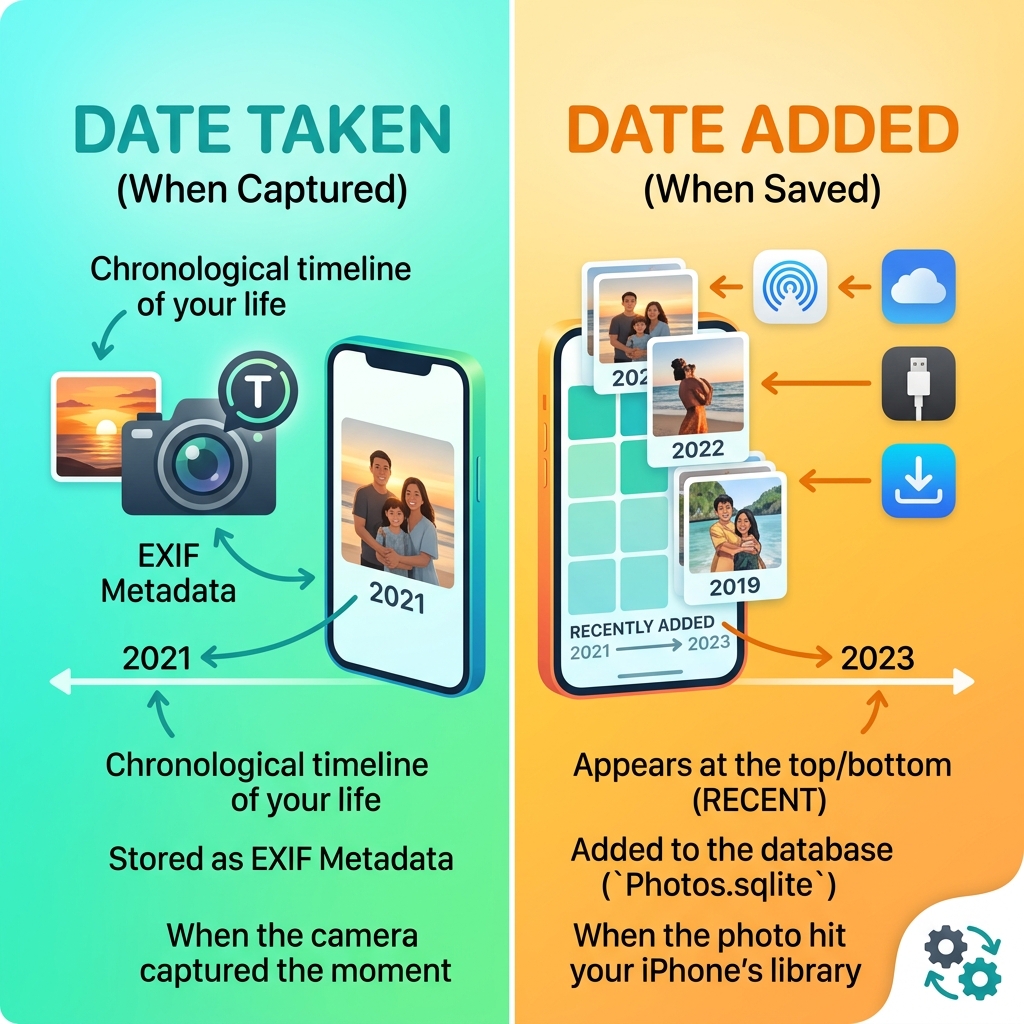
- Date Taken — when the photo was actually captured (stored in EXIF metadata)
- Date Added — when the photo was imported or saved to your iPhone’s library
These two dates are often very different. And the Photos app doesn’t always use the one you’d expect.
For example, a photo AirDropped to you last week might have been taken three years ago. If your library sorts by Date Captured, that photo disappears deep into your timeline — not at the top where you’ve naturally look for it.
Apple’s iOS 18 redesign actually changed the default sorting to Date Captured, which caught a lot of users off guard. Forum threads on Apple’s Community site have racked up thousands of views from people trying to figure out why their photos suddenly looked different.
This guide walks through everything: default sorting logic, the iOS 18 changes, metadata fixes, timezone issues, and advanced tools for stubborn cases.
Understanding the Default Sorting Logic in iOS
To truly master how to sort iPhone photos by date taken, we first need to look under the hood of how Apple handles your media. Your iPhone doesn’t just look at a file; it looks at a database.
In technical terms, iOS uses a database file called Photos.sqlite. Inside this database, every photo has multiple timestamps. The most important ones for our discussion are the “Date Created” (EXIF metadata from the camera) and the ZDATEADDED (the exact moment the file hit your iPhone’s storage).
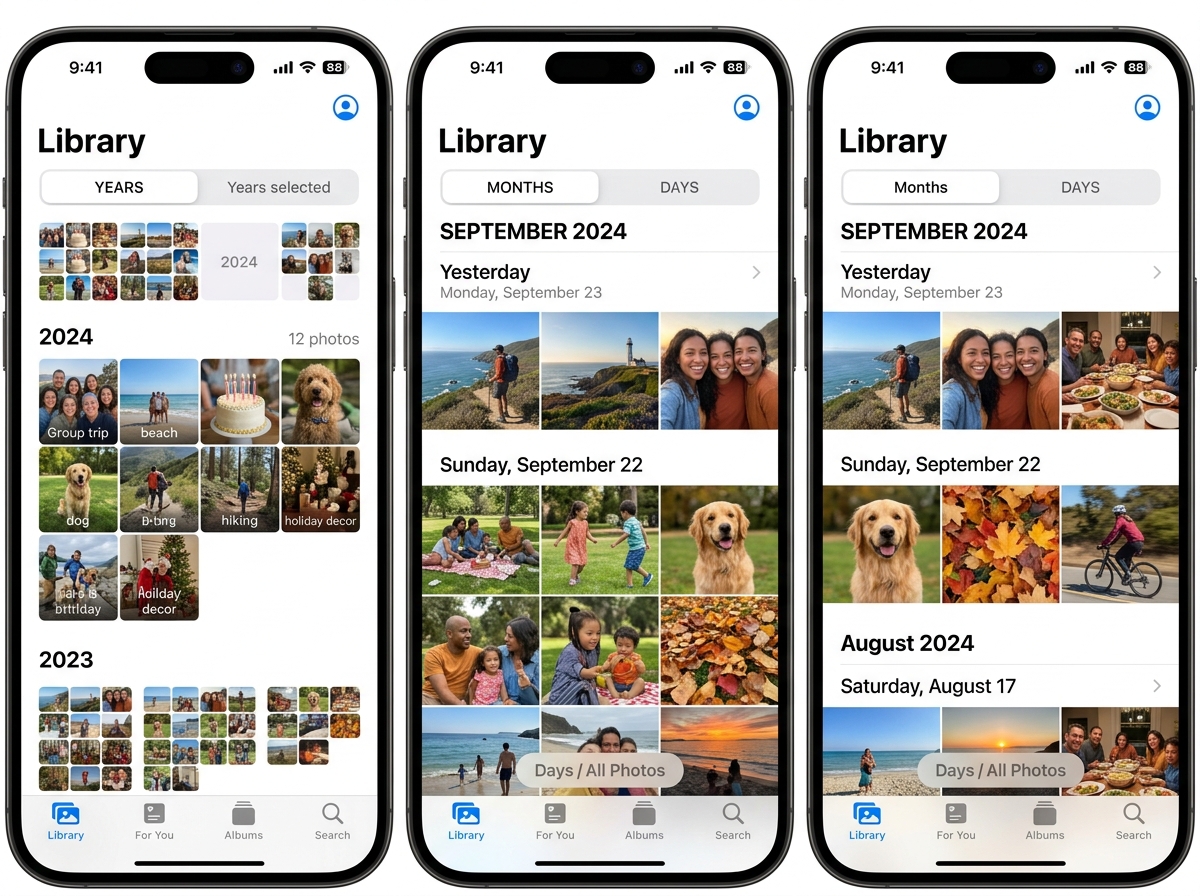
By default, the “Library” tab in your Photos app aims to be a chronological journey of your life. It uses the “Date Taken” metadata to place photos in the Years, Months, and Days views. However, other parts of the app, like the “Recents” album, ignore the capture date entirely and sort strictly by when the file was indexed. This is a vital part of Organizing Photos on Smartphone and Cloud because if you don’t know which view you are in, you’ll never find that photo you just saved from a text message.
The Difference Between Library, Albums, and Recents
One of the biggest sources of confusion is that “sorting” works differently depending on where you are standing in the app.
- The Library Tab: This is designed to be your “Life Review.” It primarily uses the capture date. In iOS 18, you can now toggle this view between “Date Captured” and “Recently Added.”
- The Recents Album: Located under the Albums tab, this is a “system collection.” It is hard-coded to sort by the date the photo was added to the device. You cannot change the sort order here.
- User-Created Albums: These are albums you make yourself. Historically, these sorted by “Date Added” (the order you put them in the album), which led to many users asking How do I sort photos by date added on iPhone? on support forums.
Why Your Photos Appear Out of Order
If you’ve tried to sort iphone photos by date taken and things still look messy, it’s usually due to one of three culprits:
- AirDrop and Downloads: When a friend AirDrops you a photo from a party three years ago, the “Date Taken” remains 2021. If your library is sorted by capture date, that photo will “disappear” into your 2021 archives rather than appearing at the bottom of your grid.
- Metadata Stripping: Some apps (like WhatsApp or certain web browsers) strip away EXIF data to save space or protect privacy. When the “Date Taken” is deleted, the iPhone defaults to the “File Creation Date,” which is often the moment you downloaded it.
- Inconsistent Indexing: If you are migrating a massive library from an old PC or a different cloud service, the indexing order might get scrambled. Learning about Reducing Digital Storage Overload: A Simple Guide for Beginners can help you clean up these imports before they clutter your timeline.
How to Sort iPhone Photos by Date Taken in iOS 18
The iOS 18 update brought the biggest redesign to the Photos app in years. For many of us, it felt like a “Who Moved My Cheese?” moment. Apple changed the default behavior of the main library grid to sort by “Date Captured” (the actual time the photo was taken) rather than “Recently Added.”
While this makes the library more of a true timeline, it made it very difficult to find that screenshot you just took or the photo your mom just texted you. Fortunately, Apple included a way to switch it back.
Step-by-Step: Enable Sort by Date Taken on iPhone
If you want to ensure your main library is strictly chronological based on the camera’s timestamp, follow these steps:
- Open the Photos app.
- In the main Library grid, scroll up just a tiny bit.
- Look for the bidirectional arrow icon (two arrows pointing up and down) usually located in the bottom left or top right depending on your view.
- Tap that icon to open the Sort & Filter menu.
- Select Sort by Date Captured.
By selecting this, your photos will align based on their EXIF data. If you prefer to see your most recent downloads and AirDrops at the bottom, you would choose “Sort by Recently Added” instead. For more official details on these toggles, you can check Sort and filter the photo library on iPhone – Apple Support (IS).
Navigating the iOS 18 Redesign
Beyond simple sorting, iOS 18 introduced “Pinned Collections” and a “Recently Saved” section. Because the main grid now defaults to capture date, Apple added a dedicated Recently Saved section under the Utilities area to help you find new additions that might be “buried” in the past.
We recommend using the Customize & Reorder button at the bottom of the Photos home screen to pin “Recently Saved” to the top. This gives you the best of both worlds: a perfectly sorted chronological library and quick access to your latest files. These Efficient Strategies for Organizing Large Media Libraries are essential for keeping your digital life sane.
Troubleshooting Metadata and Timezone Issues
Sometimes, even when you sort iphone photos by date taken, a photo from a 10:00 AM brunch in New York appears after a 1:00 PM lunch in London. This happens because of timezone discrepancies.
When you take a photo with an iPhone, it records the GPS location and the local time. However, when you import photos from a DSLR or a camera without GPS, the Photos app has to guess the timezone. If it guesses wrong, your chronological order is ruined.
Fixing Incorrect Sort iPhone Photos by Date Taken Results
If you find a group of photos that are “out of place” in your timeline, you can fix them directly on your iPhone using the “Adjust Date & Time” tool:
- Open the photo (or select multiple photos).
- Tap the three dots (…) or the “i” (Info) icon.
- Tap Adjust next to the date and time.
- Here, you can change the date, the time, and—crucially—the Time Zone.
- Tap Adjust to save.
Correcting the timezone often “snaps” the photos back into their rightful place in the library. This is a key part of Cloud Storage Management Tips, as these metadata changes will sync across all your devices via iCloud.
Handling Missing EXIF Data from External Imports
Photos imported from old digital cameras, scanned family prints, or saved from social media often lack “Date Taken” metadata. In these cases, iOS defaults to the file’s creation date.
To fix this for large batches, you might need to use a computer. Tools like ExifTool (for advanced users) or simple “Attribute Changers” allow you to batch-edit the “Date Time Original” field. Once the metadata is repaired, you can re-import them to your iPhone, and they will sort perfectly. Following Best Practices for File Backup and Storage Management ensures that once you fix this data, you never have to do it again.
For more help on finding specific dates, see Find photos and videos by date on iPhone.
Advanced Sorting Methods and Third-Party Tools
While Apple has improved the native app, it still has limitations. For instance, you cannot easily sort by file size, file type, or camera model within the standard library view. This is where third-party apps come in.
Limitations of Sorting in Custom Albums
A major “gotcha” for iPhone users is that user-created albums do not always follow the global library sort settings. In a custom album, you can manually drag and drop photos into any order you like. While this is great for storytelling, it’s a nightmare if you just want them in order of when they were taken.
In iOS 17 and 18, you can now tap the three dots in a custom album and choose “Sort” to select “Oldest to Newest” or “Newest to Oldest.” However, this is a per-album setting, not a global one. If you’re looking for a more automated way to handle this, check out our list of the Best Photo Organizing Apps for iPhone. These apps often provide more “power-user” features for Best Practices for Online File Management: A Beginner’s Guide.
Using Desktop Software for Bulk Metadata Edits
If you have thousands of photos that need sorting, doing it on a 6-inch screen is tedious. We often recommend using a Mac or PC to “prep” your photos before they ever touch your iPhone.
- On Mac: Use the native Photos app to “Adjust Date and Time” for hundreds of photos at once.
- On Windows: Use Windows Explorer. Right-click your photos, go to Properties > Details, and you can see the “Date Taken.” You can use third-party tools to bulk-rename files based on this date (e.g.,
2023-10-25_1430.jpg). - Rebuilding the Database: For the truly brave, advanced users sometimes delete the
Photos.sqlitefile on a jailbroken device to force the iPhone to re-index everything from scratch, though we generally recommend safer methods like Deleting Duplicate Files Quickly first to reduce the workload.
Filtering and Organizing Your Library for Better Navigation
Sometimes the best way to sort iphone photos by date taken is actually to filter out the noise. Your library is likely full of screenshots, memes, and receipts that clutter your chronological view.
How to Filter the Photo Library
Apple provides a robust filtering system that works alongside your sorting. To use it:
- Tap the three dots (…) or the Filter icon (the funnel or bidirectional arrows).
- Tap Filter.
- Choose what you want to see (e.g., only “Edited” photos or only “Favorites”).
- You can also go to View Options to hide “Screenshots” or “Shared with You” photos from your main grid.
This is a fantastic way to clean up your view without actually deleting anything. If you’re looking to actually clear out the junk, you might consider Free Apps for Cleaning Digital Files.
| View Type | Default Sort Logic | Can You Change It? | Best Use Case |
|---|---|---|---|
| Library Grid | Date Captured (iOS 18) | Yes (Toggle to Added) | Browsing your life story |
| Recents Album | Date Added | No | Finding the last file saved |
| Custom Albums | Manual / Custom | Yes | Project-specific organization |
| Shared Albums | Date Added | No | Seeing new family updates |
Using these filters effectively is one of our Top Tips for Effective Cloud Storage Management.
Frequently Asked Questions about iPhone Photo Sorting
Got a quick question? You’re not alone. These are the ones we see come up again and again from people trying to sort iPhone photos by date taken.
Why are my AirDropped photos not at the bottom of my library?
This one trips up a lot of people. The short answer: your library is probably set to Sort by Date Captured, which means the iPhone is placing that AirDropped photo where it actually belongs in your timeline — not where you last saw it.
So if a friend AirDrops you a photo from a beach trip three summers ago, it won’t show up at the bottom of your grid. It’ll quietly slip into 2022 where it chronologically belongs.
The fix is simple. Either switch your sort setting to Recently Added so new arrivals always appear at the bottom, or keep Date Captured on and check the Recently Saved utility folder, which Apple added in iOS 18 specifically for this situation.
Can I sort photos by date taken within a specific album?
Yes, you can — and it’s easier than you might think. Open the album, tap the three dots in the top right corner, tap Sort, and then choose either Oldest to Newest or Newest to Oldest. Done.
Just keep in mind that this is a per-album setting, not a global one. You’ll need to set it individually for each album you want sorted this way.
How do I fix photos that have the wrong year or time?
This is a surprisingly common problem, especially with photos imported from old cameras or shared via messaging apps. The good news is that iOS has a built-in fix.
Open the photo, tap the “i” (Info) icon, then tap Adjust next to the date. From there, you can manually correct the date, time, and — importantly — the timezone. Once you save it, the photo will automatically move to its correct spot in your chronological library. If you have a big batch to fix, it’s worth doing this on a Mac or using a tool like ExifTool on your computer before re-importing. You can find more detail on the metadata repair process in the Troubleshooting section above.
Conclusion
At Tamba Tech, we know that digital clutter can be overwhelming. Learning how to sort iphone photos by date taken is more than just a technical trick; it’s about reclaiming your memories and making your device work for you instead of against you.
Whether you are navigating the new iOS 18 redesign or fixing years of messy metadata from old camera imports, the tools are at your fingertips. By understanding the difference between “Date Captured” and “Date Added,” and utilizing the built-in “Adjust Date & Time” tools, you can transform a chaotic camera roll into a perfectly curated timeline.
Ready to take your organization to the next level? Master your digital files with our expert guides and discover the best ways to keep your digital life clean and accessible.
