
Your iPhone Is Full — But Which Photos Are Actually Eating the Space?
How to sort photos by size on iphone is something millions of users search for — and the frustration is real. Here’s the quick answer:
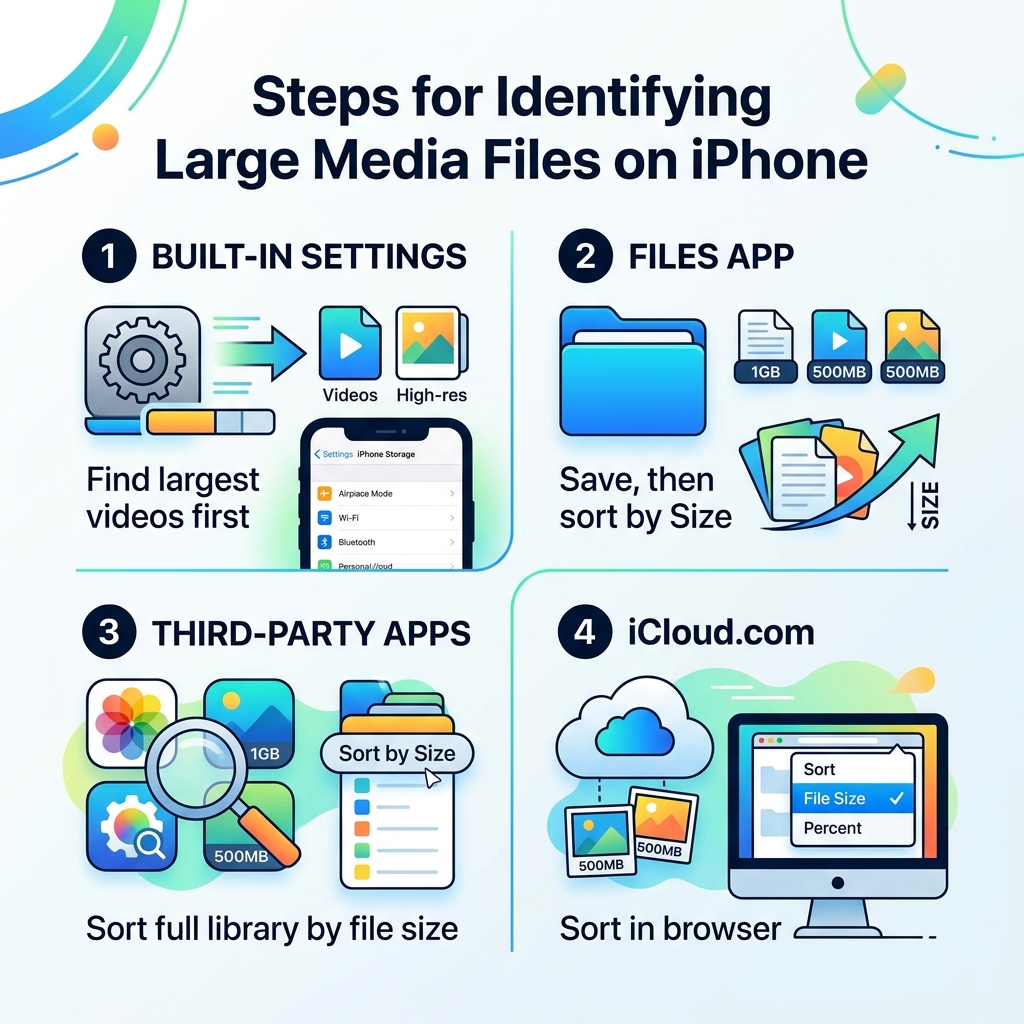
The fastest ways to find your largest photos and videos on iPhone:
- iPhone Settings → General → iPhone Storage → Photos → Review Personal Videos (shows videos largest-first)
- iPhone Settings → General → iPhone Storage → Recommendations (surfaces large files for review)
- Files app → save a video there first, then sort by Size
- Third-party apps like HashPhotos or Photo Cleaner (sort your full photo library by file size)
- iCloud.com in a browser → Photos → Sort by File Size
None of these are perfect. But they work. We’ll walk through each one below.
The native Photos app on iPhone lets you sort by Recently Added or Date Captured — and that’s basically it. There’s no “Sort by Size” button. There never has been.
That gap has frustrated a lot of people. One Apple Community thread asking how to sort photos by size has over 854 “Me too” votes. A related forum question has racked up nearly 59,000 views. This is clearly not a niche problem.
If your iPhone storage is constantly running low and you’re not sure which files are the real culprits, sorting by size is the most direct way to find out. A single 4K video can take up more space than hundreds of regular photos. Finding it — and deciding what to do with it — can free up gigabytes in minutes.
Native Limitations of the iOS Photos App
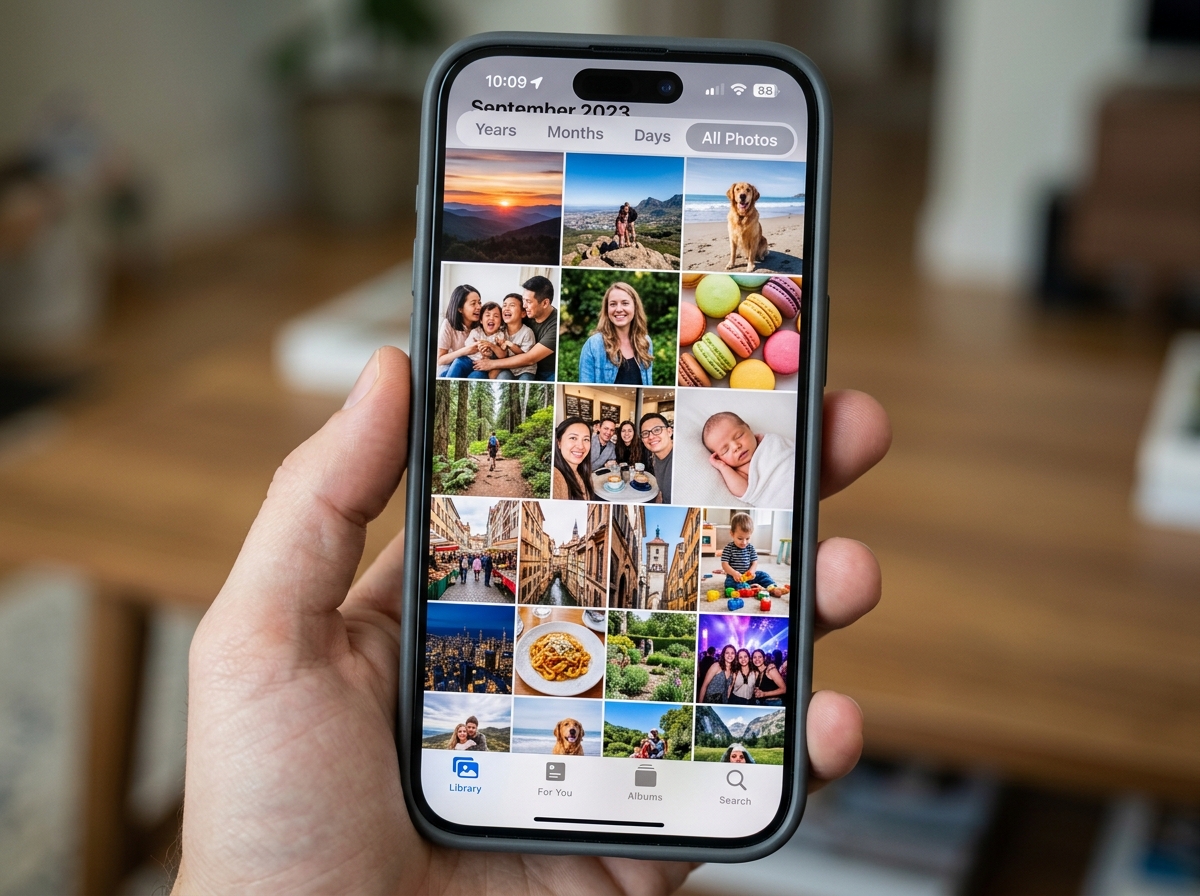
If you have spent any time poking around the “…” menu in your Photos app, you have probably realized that Apple likes to keep things simple—perhaps a bit too simple. According to Apple Support, the native app allows you to filter by Favorites, Edited, Photos, or Videos. You can also change the sort order between “Recently Added” and “Date Captured.”
However, there is a glaring omission: there is no option to how to sort photos by size on iphone directly within the library. This has been the case for over 16 years of the Photos app’s existence. Some users speculate that Apple omits this feature to encourage users to simply buy more iCloud storage rather than efficiently managing what they already have. Whether that’s true or just a conspiracy theory, the result is the same: we are left to do the detective work ourselves.
The app is excellent for viewing your memories, but as a file management tool, it’s a bit like trying to organize a library where the books are only sorted by the day they were bought, regardless of whether they are a thin pamphlet or a massive encyclopedia.
Viewing Individual File Sizes Manually
While you can’t sort the whole library by size, you can check individual files. If you find a photo or video that looks like it might be a “space hog” (usually long videos or high-resolution ProRAW shots), you can check its “weight” manually.
- Open a photo or video.
- Swipe up on the image or tap the “i” (Info) icon at the bottom.
- Look at the metadata section. It will show you the file dimensions (e.g., 12MP) and the file size in megabytes (MB).
This manual method is fine for checking one or two files, but if you have 10,000 photos, it’s about as efficient as checking every grain of sand on a beach with a magnifying glass. For a more systemic approach to organizing photos on smartphone and cloud, we need to look at the hidden corners of the iOS Settings.
How to Sort Photos by Size on iPhone Using Built-in Settings
The best-kept secret for finding large files isn’t actually in the Photos app—it’s in your Settings. Apple knows that storage management is a pain point, so they built a specific tool to help you find the biggest offenders.
To find your largest videos (which are almost always the biggest space-eaters):
- Go to Settings.
- Tap General.
- Tap iPhone Storage.
- Scroll down and tap Photos.
- Tap Review Personal Videos.
This screen is a lifesaver. It automatically lists your videos in descending order, with the largest files at the very top. We have seen 5-minute 4K videos topping 2GB here, which is often more than an entire year’s worth of screenshots!
Additionally, if your storage is nearly full, Apple might show a “Recommended for you” or “Recommendations” section at the top of the iPhone Storage screen. This often includes a “Review Large Attachments” or “Review Large Videos” link. Clicking this will take you straight to a list of files that are prime candidates for deletion.
| Method | Can Sort Photos? | Can Sort Videos? | Pros | Cons |
|---|---|---|---|---|
| Photos App | No | No | Easy to access | Only sorts by date |
| Storage Settings | No | Yes | Shows exact file size | Doesn’t show individual photos |
| Files App | Yes* | Yes* | Real file management | Files must be moved there first |
| Third-Party Apps | Yes | Yes | Most powerful sorting | Often requires a subscription |
Using the Files App for Media Sorting
The Files app is much more powerful than the Photos app when it comes to organization. While the Photos app is a “gallery,” the Files app is a true “file manager.”
If you have a handful of videos or photos you suspect are huge, you can “Share” them to the Files app:
- Select the items in Photos.
- Tap the Share button.
- Select Save to Files.
- Open the Files app and navigate to the folder where you saved them.
- Tap the “…” icon and select Sort by Size.
This will give you a clear, descending list of those specific files. It’s a bit of a workaround, but it works perfectly for managing specific batches of media without needing to download extra software.
Third-Party Apps and Shortcuts for Advanced Sorting
When the built-in tools aren’t enough, we turn to the App Store. There are several high-quality apps designed specifically to bridge the gap Apple left behind. If you want to know how to sort photos by size on iphone across your entire library (not just videos), these are your best bet.
One popular option is PhotoSort: Size & Quality Sort App. This app doesn’t just look at size; it uses AI to judge the “quality” of your photos, helping you separate the blurry “junk” from the high-resolution “gems.”
Other notable mentions include:
- HashPhotos: A powerful alternative gallery that lets you sort by size, search using specific file size filters (like
#filesize > 100mb), and even view file sizes directly on the thumbnails. - Photo Cleaner: This app categorizes your media into “Huge,” “Big,” and “Regular” sizes, making it very easy to target the biggest files first.
- Photos Search by Fluntro: Excellent for searching your library using EXIF metadata, including file size.
That while some of these apps offer free versions, many use a subscription model or a one-time in-app purchase to unlock the full sorting features. However, if you’re trying to avoid a $2.99/month iCloud bill, a one-time $5.00 app might actually save you money in the long run.
Is there a shortcut for how to sort photos by size on iPhone?
For the tech-savvy users, Apple’s Shortcuts app offers a way to automate this process. While Shortcuts can’t easily “re-sort” your main library view, it can generate a list of your largest files.
You can build a shortcut that:
- Finds Photos where the media type is Video or Photo.
- Gets Details of Images (specifically the File Size or Duration).
- Filters/Sorts the results by size in descending order.
- Shows the Result in a quick-look window.
Because video file size is almost always tied to length, sorting by “Duration” in a Shortcut is a very effective proxy for sorting by size. It’s a fun way to use Apple’s own automation tools to solve a problem they haven’t addressed in the main OS.
Mac and iCloud Solutions for Large Libraries
Sometimes, the best way to manage your iPhone is to get off the iPhone. If you use iCloud Photos, your entire library is accessible from a computer, where file management is much more robust.
According to users on the Apple Community, a reliable “Solved” method for sorting is to use iCloud.com.
- Log in to iCloud.com on a Mac or PC.
- Open the Photos app.
- While the web interface is still somewhat limited, it often provides better “Review” tools for large files than the mobile app.
On a Mac, you have even more power. If you connect your iPhone to a Mac via USB, you can open the Image Capture app. This app displays every photo and video on your device in a list view. You can click the Size column header to instantly sort your entire iPhone library from largest to smallest. This is arguably the cleanest way to find space hogs without installing any third-party apps on your phone.
How to sort photos by size on iPhone using iCloud?
If you don’t have a Mac, you can still use the browser on your iPhone or iPad to access the “desktop” version of iCloud.com. By requesting the desktop site, you can sometimes access sorting columns that aren’t visible in the mobile-optimized version.
Another “pro tip” found in community forums is the “Recommended for you” section within the iCloud settings on your device.
- Go to Settings > [Your Name] > iCloud.
- Tap Manage Account Storage.
- Look for a section called “Recommended for you.”
- This often has a “Review Photos & Videos” option that sorts the largest items for you to delete, helping you clear up cloud space and local space simultaneously.
Alternatives to Deleting Large Media Files
Before you start a mass deletion spree, there are ways to keep your memories without sacrificing all your storage. We often recommend these strategies in our guides on the best photo organizing apps for iphone.
- Optimize iPhone Storage: This is the single most effective setting. Go to Settings > Photos > Optimize iPhone Storage. This keeps full-resolution versions in iCloud and smaller, device-sized versions on your phone. It can turn 50GB of photos into 5GB of local storage usage.
- Use HEIC/HEVC Formats: Ensure your camera is set to “High Efficiency” in Settings > Camera > Formats. This uses Apple’s modern compression which can cut file sizes in half without losing quality.
- Video Compression: Apps like Clever Cleaner or iCompress can take a massive 1GB video and compress it down to 200MB. You might lose a tiny bit of 4K crispness, but for a video of your cat chasing a laser pointer, it’s usually worth the trade-off.
- Offload to Cloud/External Drive: Use services like Google Drive, Dropbox, or a physical lightning-connected thumb drive to move large videos off your device entirely.
Frequently Asked Questions
Why can’t I sort photos by size on iPhone natively?
Apple generally prioritizes “user simplicity” and a curated experience over technical file management. Their design philosophy suggests that users should find photos based on what is in them (faces, places, dates) rather than their technical metadata (file size, bitrate). While this makes the app pretty, it makes storage management difficult for power users.
Does the Files app show photo sizes?
Yes! If you move or save a photo to the Files app, you can switch to “List View” by tapping the icon with the four squares or the “…” menu. In list view, the file size is displayed right next to the file name. You can then tap the “Size” header to sort them.
Can I use a Mac to find large iPhone photos?
Absolutely. Using the Image Capture app or the Photos app for Mac (with your iPhone connected) allows you to see all media in a table format. From there, you can sort by the “Size” column. This is often much faster than trying to manage thousands of files on a small touch screen.
Conclusion
Managing a bloated photo library is a rite of passage for every iPhone owner. While Apple hasn’t made it easy to find how to sort photos by size on iphone with a single click, the tools are there if you know where to look. Whether you use the hidden “Review Personal Videos” setting, a desktop Mac, or a powerful third-party app, you can take control of your storage.
At Tamba Tech, we believe that technology should work for you, not the other way around. Digital decluttering doesn’t have to be a chore—it’s just about having the right roadmap. For more tips on keeping your digital life organized, check out our more info about file management services. Happy cleaning!
