
Why Your iCloud Space Runs Out Faster Than You Think
To manage iCloud space quickly, here are the most effective steps:
- Delete old device backups – Settings > [Your Name] > iCloud > Manage Account Storage > Backups
- Remove unwanted photos and videos – Open Photos app, delete, then clear Recently Deleted
- Trim Messages attachments – Open a chat thread, tap the contact name, then “See All” next to Photos/Videos
- Clean up iCloud Mail – Delete large emails and empty Trash
- Turn off iCloud sync for apps you don’t need – Settings > [Your Name] > iCloud > toggle off unused apps
- Upgrade to iCloud+ – Plans start at $0.99/month for 50GB
Every Apple device comes with just 5GB of free iCloud storage. That sounds reasonable — until you realize it has to cover your photos, device backups, messages, emails, and files all at once, across every Apple device you own.
That 5GB fills up fast. And when it does, the problems start piling up:
- Your iPhone stops backing up
- New photos won’t upload to iCloud Photos
- Files in iCloud Drive stop syncing across devices
- You can’t send or receive emails from your iCloud address
Sound familiar? You’re not alone. It’s one of the most common frustrations for iPhone users.
The good news: you don’t necessarily need to pay for more storage. In most cases, a bit of smart cleanup frees up significant space — often in under 10 minutes.
Before diving into the fixes, it helps to understand one key distinction that trips up a lot of people: device storage and iCloud storage are not the same thing.
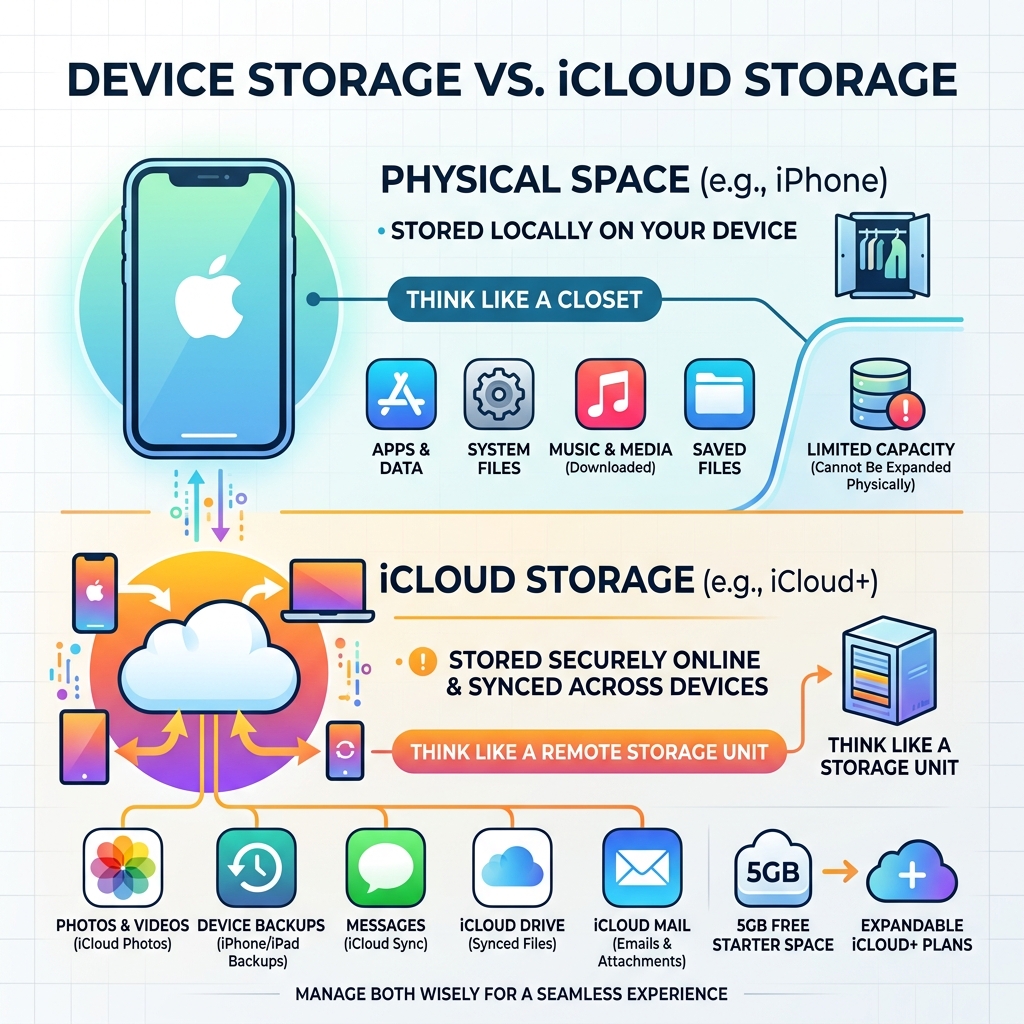
Understanding Your Storage: Device vs. iCloud Storage
One of the biggest hurdles we face when trying to manage iCloud space is confusing the storage on our phone with the storage in the cloud. Think of your iPhone storage like the physical closet in your bedroom; once it’s full, you can’t fit any more shoes inside. iCloud storage, on the other hand, is like a remote storage unit across town. You can move things from your closet to the unit to make room, but that unit has its own size limit too.
When you see a “Storage Almost Full” alert, you need to check which one is the culprit. If your device storage is full, your phone will feel sluggish. If your iCloud storage is full, your data isn’t being backed up or synced.
| Feature | Local Device Storage | iCloud Storage |
|---|---|---|
| Location | Physical chips inside your iPhone/Mac | Apple’s secure remote servers |
| Baseline | Varies (e.g., 128GB, 256GB) | 5GB (Free) |
| Primary Use | Running apps, OS, high-res local files | Syncing data, backups, Mail, Photos |
| Upgradable? | No (must buy a new device) | Yes (monthly subscription) |
To keep your digital life running smoothly, we recommend following best practices for file backup and storage management. By understanding that iCloud is primarily a synchronization service, you can be more strategic about what you store there. Furthermore, because this storage contains your most personal data, securing cloud storage accounts with two-factor authentication is an absolute must.
How to check and manage iCloud space on any device
Before you start deleting things in a panic, you need to know exactly what is eating up your megabytes. Apple provides a handy color-coded bar graph that breaks down your usage into categories like Photos, Backups, and Mail.

Here is how to find that breakdown on your specific hardware:
- On iPhone or iPad: Go to Settings > [Your Name] > iCloud. Tap Manage Account Storage (or iCloud Storage) for a deeper dive.
- On Mac: Click the Apple Menu > System Settings (or System Preferences) > [Your Name] > iCloud. Click Manage to see the specifics.
- On Windows: Open the iCloud for Windows app. You’ll see the storage bar right at the bottom.
- On the Web: Log in to iCloud.com and look for the “Storage” section in your account settings.
Checking these settings is the first step in our decluttering cloud storage step-by-step process. For more official technical details, you can also refer to the guide on how to manage your iCloud storage on your Apple device.
Using ‘Recommended for You’ to manage iCloud space
If you are running iOS 17 or later, Apple has made it much easier to manage iCloud space with a feature called “Recommended for You.” Think of this as your personal digital assistant that highlights the low-hanging fruit.
When you go to your iCloud settings, you’ll see this section at the top. It automatically identifies:
- Old backups from devices you no longer own.
- Large files sitting in iCloud Drive.
- Duplicate photos that are just wasting space.
- Inactive conversations with heavy attachments.
Following these suggestions is a fantastic step-by-step guide to decluttering cloud storage without having to hunt through every folder yourself.
Identifying the biggest storage hogs
In our experience, four main categories usually devour the 5GB free limit:
- Photos and Videos: These are almost always the #1 culprit. High-resolution 4K video can eat up hundreds of megabytes in seconds.
- Backups: Every time your phone backs up, it saves app data, settings, and more. If you have backups from an old iPhone 8 still lingering, that’s wasted space.
- Messages: We often forget that every meme, GIF, and video sent via iMessage is stored in the cloud.
- Mail: If you use an @icloud.com email address, every large PDF attachment you’ve ever received is counting against your limit.
To get a handle on these, check out these cloud storage management tips to prioritize your cleanup efforts.
Top strategies to free up iCloud storage immediately
Now that we know where the space went, let’s get it back. The most powerful tool in your arsenal for photos is the “Optimize Storage” toggle.
Reducing backup sizes and deleting old data
Did you know that iCloud backups are only kept for 180 days after you stop using the service? However, those 180 days can feel like an eternity when you’re out of space now.
To manage iCloud space effectively, you should:
- Delete old backups: If you see a backup for an “iPhone 12” but you’re currently using an iPhone 15, delete the old one. This can often free up 2-5GB instantly.
- Toggle off unnecessary apps: Go to Settings > [Your Name] > iCloud > iCloud Backup. Select your current device. You’ll see a list of apps being backed up. Do you really need your Candy Crush progress or that random photo editing app from 2019 taking up cloud space? Toggle them off.
For those looking for alternatives, there are many cloud backup apps for home and work that can handle your data if you decide to move away from iCloud.
Manage iCloud space by pruning Messages and Mail
Messages are “storage vampires.” To slay them, you don’t have to delete your entire chat history. Instead, go to a conversation, tap the person’s name at the top, and scroll down to Photos or Documents. Tap See All. From here, you can select and delete the massive video files while keeping the actual text messages intact.
For Mail, use the iCloud Mail Cleanup tool (available on iCloud.com or in newer iOS versions). It helps you find and delete old newsletters, promotions, and transactional emails that you haven’t looked at in years. This is a vital part of reducing digital storage overload.
Remember: when you delete emails, they go to the Trash. To actually reclaim the space, you must Empty Trash.
Managing Files, Voice Memos, and other hidden data
iCloud Drive is where your PDFs, Word documents, and app-specific folders live. It’s easy to let this become a digital junk drawer.
To manage iCloud space here, open the Files app and tap Browse > iCloud Drive. Check for large folders created by third-party apps. If you delete something, it stays in the “Recently Deleted” folder for 30 days. If you’re desperate for space, go into “Recently Deleted” and hit Delete All to wipe them permanently.
Don’t forget the “hidden” data:
- Voice Memos: High-quality recordings can be surprisingly large.
- FaceTime: Deleting FaceTime data from iCloud also removes video messages and voicemails.
- Apple Invites: If you host many events, the background images and guest RSVP photos count against your storage.
For those who prefer a minimalist approach, we’ve reviewed several cloud storage apps for digital minimalists that help keep your file count low. You can also implement these top tips for effective cloud storage management.
How to manage iCloud space for Family Sharing
If you’ve tried everything and still can’t squeeze your life into 5GB, it might be time to look at iCloud+. The best part of iCloud+ is Family Sharing. You can share one storage pool with up to five other people.
The current iCloud+ tiers are:
- 50GB: $0.99/month (Perfect for one person with a moderate photo library).
- 200GB: $2.99/month (The “sweet spot” for families).
- 2TB: $9.99/month (For power users and heavy video creators).
- 6TB & 12TB: For those who literally want to store their entire lives in 4K.
If you already pay for Apple Music or Apple TV+, check out Apple One. It bundles these services with iCloud storage, often saving you a few dollars a month. Combining an Apple One plan with an iCloud+ subscription can even net you a massive 14TB of space!
Frequently Asked Questions about iCloud Storage
What happens if my iCloud storage is full?
When you hit the limit, your “digital life” essentially pauses. Your iPhone will stop backing up, which is a major security risk if you lose your phone. New photos won’t sync to your Mac or iPad. Most importantly, you will stop receiving @icloud.com emails. Senders will receive a “mailbox full” bounce-back message.
How do I safely delete photos without losing them?
The “safest” way is to enable Optimize iPhone Storage. This keeps small, low-resolution versions on your phone while the full-resolution originals stay in iCloud. If you want to delete them from iCloud but keep them elsewhere, you must first download them to a computer or an external hard drive.
Check out our guide on organizing photos on smartphone and cloud for more advanced tips.
Can I recover files I accidentally deleted from iCloud?
Yes! Apple gives you a 30-day grace period. Whether it’s a photo, a file in iCloud Drive, or a Voice Memo, check the “Recently Deleted” folder within that specific app. After 30 days, however, the data is purged from Apple’s servers forever. Note: If your storage is completely full, Apple may delete “Recently Deleted” items immediately to make room.
Conclusion
Learning how to manage iCloud space is an essential skill for anyone in the Apple ecosystem. By regularly auditing your backups, pruning your message attachments, and utilizing features like “Optimize Storage,” you can often stick to the free or lower-cost plans without much trouble.
At Tamba Tech, we believe that digital organization shouldn’t be a chore. Whether you’re looking for the best apps to help you stay organized or need expert guides on hardware, we are here to help you navigate the ever-changing tech landscape. For more deep dives into keeping your digital life tidy, check out our more info about file management services.
Don’t let that “Storage Full” alert ruin your day—take ten minutes this weekend to give your iCloud a “Marie Kondo” moment. Your iPhone (and your sanity) will thank you!
