
Get Organized: Sorting Albums on Your iPhone
Many iPhone users want to know how to sort albums on iphone. If your photo collection feels like a mess, you’re not alone. Over the years, our iPhones gather thousands of pictures. Finding that one special memory can be a real headache.
But don’t worry! Your iPhone’s Photos app has powerful tools to help. You can easily organize your albums, making your digital life much simpler. This guide will show you how to take control of your photo library.
Here’s a quick guide to help you sort albums on your iPhone:
- Open the Photos app.
- Tap “Albums” at the bottom of the screen.
- Tap the “More” icon (three dots) in the top right corner.
- Choose a sorting option:
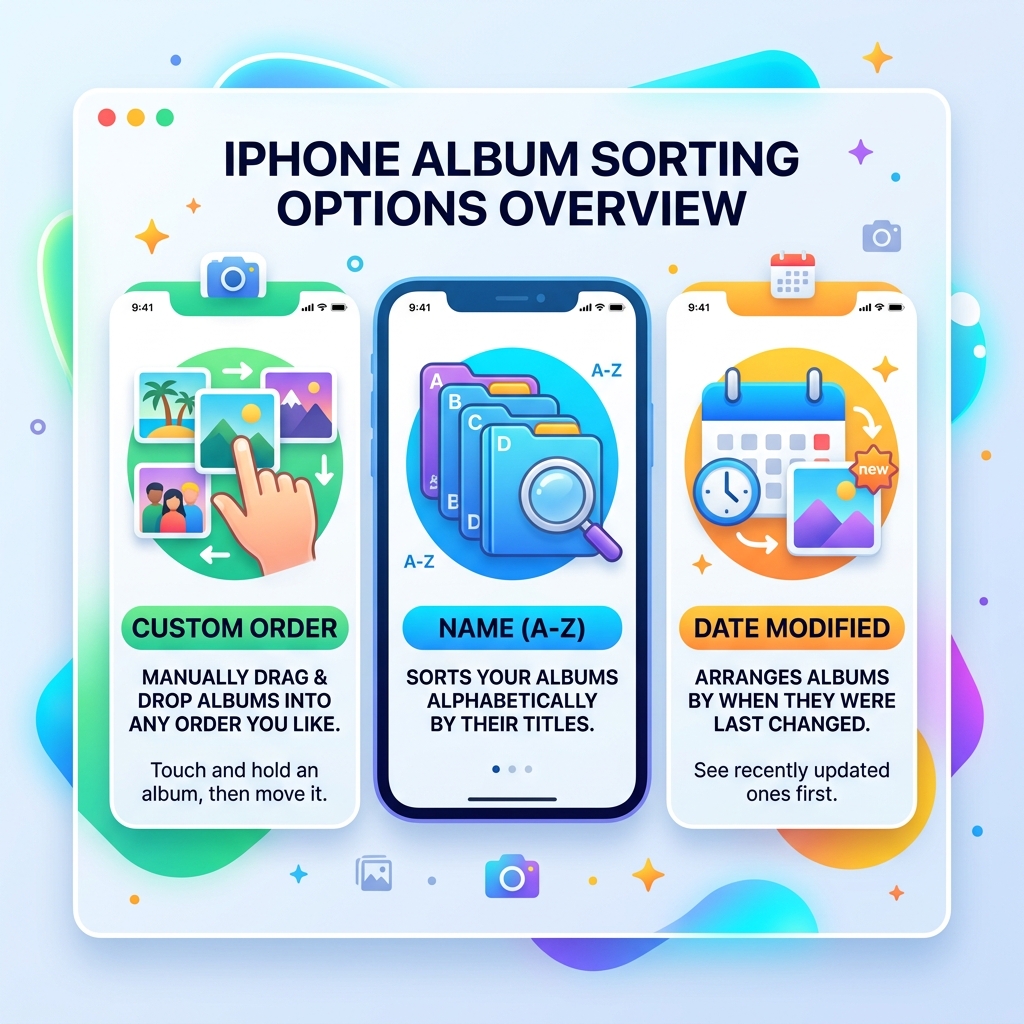
- Name: Sorts your albums alphabetically.
- Date Modified: Arranges albums by when they were last changed.
- Custom Order: Lets you manually drag and drop albums into any order you like.
- For Custom Order: Touch and hold an album, then drag it to its new position.
How to Sort Albums on iPhone by Name or Date
If you’ve ever found yourself scrolling endlessly through a long list of albums trying to find that one folder from your 2018 trip to the Grand Canyon, you know the struggle. By default, Apple’s Photos app often arranges things chronologically based on when the album was created. However, with recent updates like iOS 18.2, Apple has finally listened to our collective sighs of frustration and introduced more robust sorting tools.
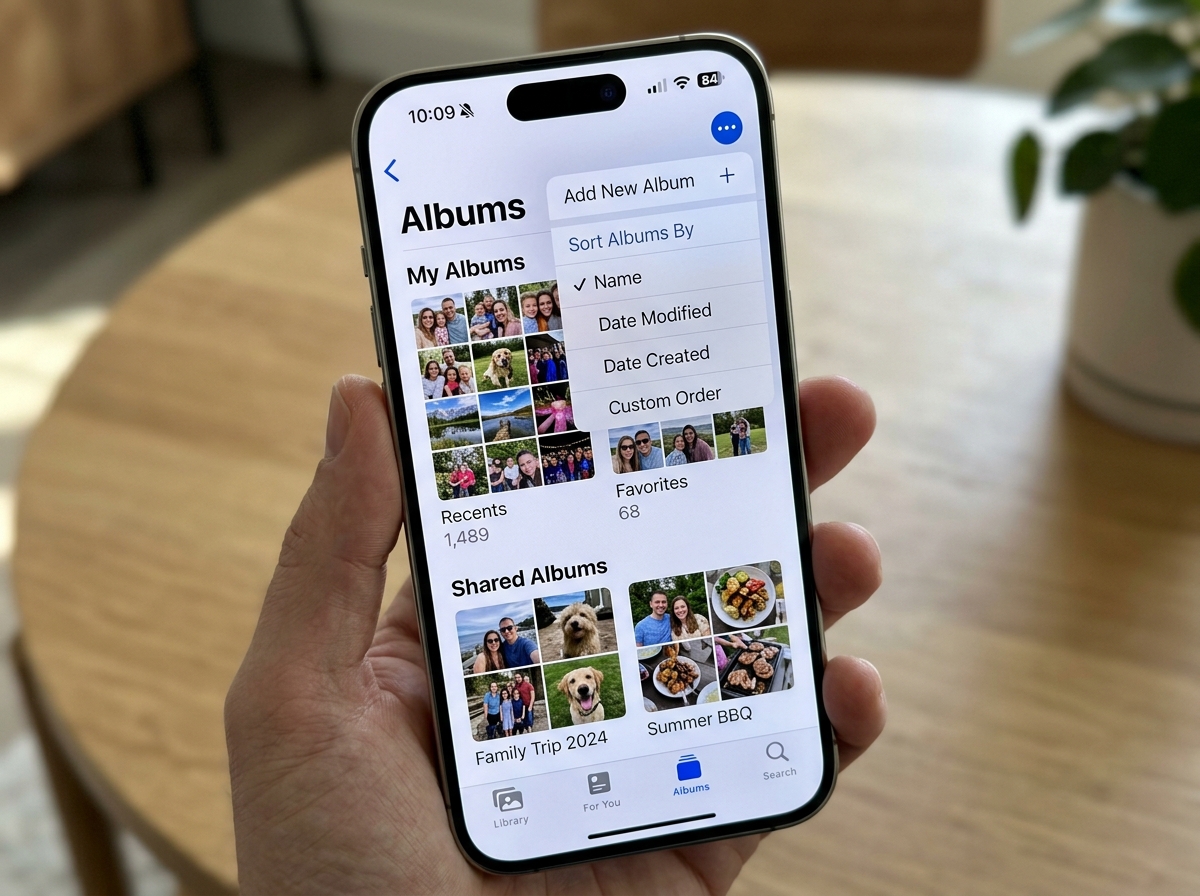
To access these tools, you need to head to the “My Albums” section within the Photos app. In the top-right corner, you’ll see the “More” icon—those famous three dots. Tapping this opens a menu that allows you to change the entire viewing logic of your album collection. Whether you want a strict alphabetical A-Z list or you want the albums you’ve recently added photos to (Date Modified) to jump to the top, this is your command center.
Using the Sort Menu for Quick Organization
The “Sort by” menu is the fastest way to bring order to the chaos. When we select “Sort by Name,” the app instantly alphabetizes every user-created album. This is a lifesaver for those of us who name albums by event type (e.g., “Birthdays,” “Christmas,” “Work”). On the other hand, “Date Modified” is perfect if you are actively working on a project, like a wedding album, and want it to stay at the top of your list for easy access.
| Sort Option | Best Use Case | Result |
|---|---|---|
| Sort by Name | Finding specific events by title | Alphabetical (A-Z) order |
| Date Modified | Quick access to current projects | Most recently updated appears first |
| Custom Order | Personal storytelling or priority | Manual placement of thumbnails |
According to official documentation on how to filter and sort photos and videos in albums on iPhone, these options provide a “global” sort for your album list, meaning it changes how the grid view looks every time you open the app. It’s a simple change that makes a massive difference in navigation efficiency.
Manually Rearranging Your Photo Album Order
Sometimes, logic doesn’t cut it. You might want your “Favorites” album at the top, followed by “Family,” and then “Screenshots” at the very bottom, regardless of their names or dates. This is where the “Custom Order” feature shines. It gives us total creative control over the visual layout of our library.
The beauty of the iPhone interface is its tactile nature. To manually move an album, you don’t need to dive into deep settings. You simply touch and hold the center of an album thumbnail until it appears to “lift” or grow slightly larger. Without letting go, drag the album to its new home in the grid. The other albums will politely move out of the way to make room. This is a core part of organizing photos on smartphone and cloud storage, ensuring your most important media is always front and center.
Using Custom Order to Sort Albums on iPhone
When you choose “Custom Order” from the sorting menu, the iPhone remembers exactly where you placed each item. This is particularly useful for users who think visually. We often recommend placing your most frequently used albums in the first row (the top three or four slots) so they are visible the moment you tap the Albums tab. This reduces the “friction” of finding your content and makes the app feel truly personalized to your lifestyle.
Organizing Albums into Folders and Pinned Collections
If you have dozens—or even hundreds—of albums, even a sorted list can become overwhelming. This is what we call “digital clutter.” The secret weapon that Apple has tucked away is the ability to create Folders. Think of an album as a drawer and a folder as a filing cabinet. You can put multiple “drawers” (albums) into one “cabinet” (folder).
To create a folder, tap the plus (+) icon in the Albums view and select “New Folder.” You can name it something broad like “Vacations” and then move your “Italy 2023,” “Tokyo 2024,” and “Beach Trip” albums inside it. This keeps your main Albums screen clean and manageable. Additionally, iOS 18 allows for “Pinned Collections.” By long-pressing an album, you can pin it to the top of your Photos app home screen, bypassing the need to even look at the Albums tab. This is one of the many ways to edit and organize albums on iPhone to fit a high-speed workflow.
Managing Large Libraries with Folder Structures
For those of us who have been using iPhones for over a decade, a “flat” structure (where every album is on the same level) is a nightmare. By using subfolders, you can create a hierarchy. For example:
- Folder: Family
- Subfolder: Kids
- Album: First Steps
- Album: School Photos
- Subfolder: Pets
- Album: Dog Park
This level of categorization is essential for shared albums as well. It ensures that when you’re looking for a specific photo to share, you aren’t hunting through a sea of unrelated thumbnails.
Filtering and Sorting Photos Within an Individual Album
Sorting the albums themselves is only half the battle. Once you click into an album, you might find five hundred photos in a jumbled mess. Thankfully, the Photos app allows us to sort and filter the content inside each individual album without affecting the rest of the library.
When you open an album, look for the icon that looks like two arrows (one up, one down) or the three dots in a circle. Tapping this reveals the “Sort” and “Filter” options. This is a great way to manage specific media types, and if you find you need even more power, you might check out our list of the best-photo-organizing-apps-for-iphone for advanced metadata management.
How to Sort Albums on iPhone Content Chronologically
Within an album, you generally have three main sorting choices:
- Oldest to Newest: The classic chronological view, perfect for reliving a trip from start to finish.
- Newest to Oldest: Puts your most recent shots at the top. This is the default for the main “Recents” folder.
- Custom Order: Just like with the albums themselves, you can drag individual photos around to tell a specific story.
To reorder photos manually, simply choose “Custom Order,” then touch and hold a photo thumbnail and slide it into its new position. This is fantastic for preparing a slideshow or making sure the “best” photo is the first one people see.
Applying and Removing Media Filters
Filters are different from sorting. While sorting changes the order, filtering hides things you don’t want to see. Within an album, you can filter by:
- Favorites: Only show the photos you’ve “hearted.”
- Edited: Only show photos you’ve tweaked or cropped.
- Videos: Hide all still photos to find a specific clip.
- Photos: Hide all videos to focus on prints.
Applying these filters doesn’t delete anything; it just cleans up the view. When you’re done, you can simply tap “Remove Filter” to go back to seeing “All Items.”
Frequently Asked Questions
How do I remove a filter from an iPhone album?
If you’ve applied a filter (like “Favorites Only”) and want to see all your photos again, look at the bottom or top of the album for a blue filter icon. Tap it, and a menu will appear. Select “Remove Filter” or “All Items,” and tap “Done.” Your full collection will reappear instantly.
Can I sort albums alphabetically when adding photos to a new album?
This is a common point of frustration. While iOS 18.2 allows you to sort the main album view alphabetically, many users notice that when they try to “Add to Album” from a specific photo, the list that pops up is still in chronological order. Currently, this is a limitation of the software. To find an album quickly in that view, it is often easier to use the search bar at the top of the “Add to Album” screen.
Which iOS versions support advanced album sorting?
Basic sorting (Oldest/Newest/Custom) has been available since iOS 15. However, the more advanced “Sort by Name” and “Sort by Date Modified” for the album list itself were significantly improved in iOS 18 and 18.2. If you don’t see these options, we highly recommend checking your Settings for a software update.
Conclusion
Mastering how to sort albums on iphone is one of the best things you can do for your digital well-being. By moving away from a messy, cluttered library and toward a structured, sorted system, you save time and reduce the stress of searching for your favorite memories. Whether you prefer a strict alphabetical list, a chronological timeline, or a manually curated custom order, the tools are right at your fingertips.
At Tamba Tech, our goal is to help you navigate the ever-changing world of personal technology. If you found this guide helpful, you might want to dive deeper into our more info about file management services to keep your entire digital life as organized as your photo library. Your photos are your history—take a few minutes today to give them the home they deserve!
