
Your iPhone Photos Deserve Better Than “I Hope They’re Saved Somewhere”
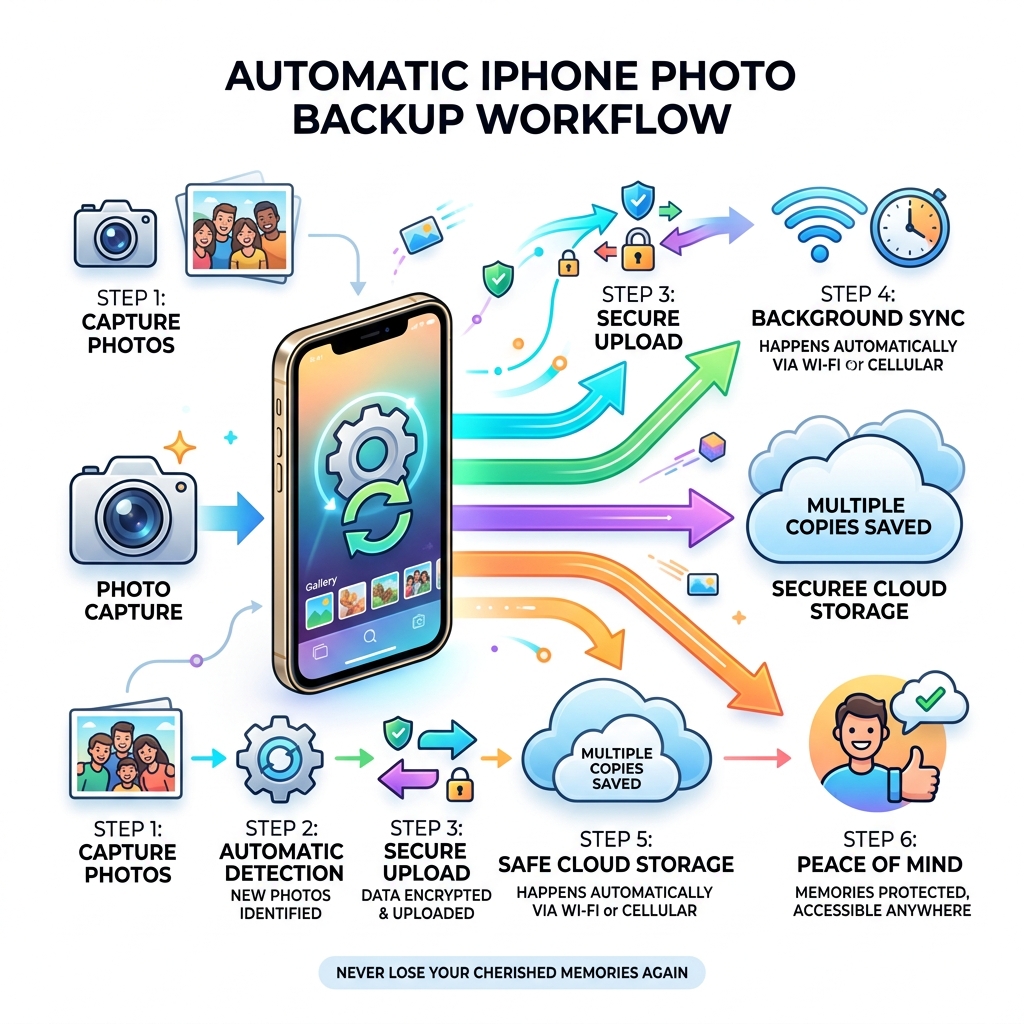
Automatic photo backup on iPhone is the process of continuously and silently saving your photos and videos to a secure location — without you having to think about it.
Here’s how to set it up in 60 seconds:
- iCloud Photos (built-in, easiest): Go to Settings > [Your Name] > iCloud > Photos and turn on Sync this iPhone
- Google Photos (15 GB free): Download the app, tap your profile picture, go to Backup, and toggle it on
- OneDrive (Microsoft): Open the app, go to Settings > Camera Upload, and flip the toggle on
Think about what’s on your camera roll right now. A child’s first steps. A last photo with someone you love. A trip you’ll never take again.
One cracked screen. One stolen bag. One software glitch. And it’s all gone.
That’s not a scare tactic — it’s just the reality of keeping irreplaceable memories on a single physical device with no backup. A device that can be lost, damaged, or stolen at any moment.
The good news? You don’t have to do anything manually. Modern iPhones can back up every photo and video you take — automatically, in the background, while you sleep.
This guide walks you through every option, from Apple’s built-in iCloud Photos to Google Photos, OneDrive, and beyond — so you can pick what works for you and never worry about losing a photo again.
Understanding Automatic Photo Backup on iPhone
When we talk about automatic photo backup iphone users often get confused by the terminology. Is it “syncing”? Is it “backing up”? In simple terms, it is the background automation that ensures every shutter click results in a copy being sent to a secure server.
The beauty of this system is that it preserves your metadata—the “who, what, where, and when” of your photos—and keeps them in full resolution. Instead of manually plugging your phone into a computer every Sunday (which, let’s be honest, none of us actually do), your phone handles the heavy lifting whenever it’s connected to Wi-Fi or charging.
By following Best Practices for File Backup and Storage Management, we can ensure that our digital lives aren’t just stored, but organized and protected. Local storage on your iPhone is finite; the cloud is virtually bottomless.
The Difference Between iCloud Photos and iCloud Backup
This is the “Aha!” moment for many users. We often see people assume that because they have an “iCloud Backup,” their photos are safe. While that’s technically true, there’s a massive catch.
- iCloud Photos: This is a syncing service. It takes your photo library and mirrors it in the cloud. If you take a photo on your iPhone, it appears on your iPad. If you edit a photo on your Mac, the edit shows up on your iPhone.
- iCloud Backup: This is a snapshot of your entire device (settings, app data, home screen layout).
Crucial Insight: If you turn on iCloud Photos, your photos are excluded from your general iCloud Backup. Why? Because they are already being stored in the iCloud Photos silo. Apple does this to save space. For more on keeping your data safe, check out our Data Protection Tips for Beginners.
Setting Up iCloud Photos for Seamless Syncing
Apple makes the automatic photo backup iphone experience very smooth because it’s baked right into the hardware. To get started, head to your Settings app, tap your name at the top, and select iCloud.
From there, follow these steps to Back up and sync your photos with iCloud :
- Tap Photos.
- Toggle on Sync this iPhone.
- Choose between Optimize iPhone Storage or Download and Keep Originals.
“Optimize Storage” is a lifesaver. It keeps the full-resolution versions in iCloud and leaves smaller, space-saving versions on your phone. If you have a 128GB iPhone but a 2TB photo library, this is how you make it fit! If you’re struggling with a messy cloud, our Step-by-Step Guide to Decluttering Cloud Storage can help you clear the digital cobwebs.
iCloud Storage Tiers and Pricing
Since Apple only gives us 5 GB of free storage (which lasts about three days if you take 4K video), you’ll likely need a paid plan.
| Plan Tier | Monthly Price | Best For |
|---|---|---|
| 5 GB | Free | Casual users with very few photos |
| 50 GB | $0.99 | The average user with a modest library |
| 200 GB | $2.99 | Families or heavy photo takers |
| 2 TB | $9.99 | Professional creators or lifelong archivists |
Monitoring Your Automatic Photo Backup iPhone Status
How do you know it’s actually working? You don’t want to find out it failed after you drop your phone in the ocean. Open the Photos app, go to the Library tab, and scroll to the bottom. You’ll see a status line.
- A green checkmark or “Synced with iCloud”: You’re golden.
- Yellow Pause Badge: Your backup is paused to save battery or because you’re on a slow connection.
- Red Exclamation Point: Your storage is full. The backup has stopped.
- Partial Blue Circle: An upload is currently in progress.
Monitoring these indicators is a key part of Cloud Storage Management Tips.
Alternative Cloud Solutions: Google Photos and OneDrive
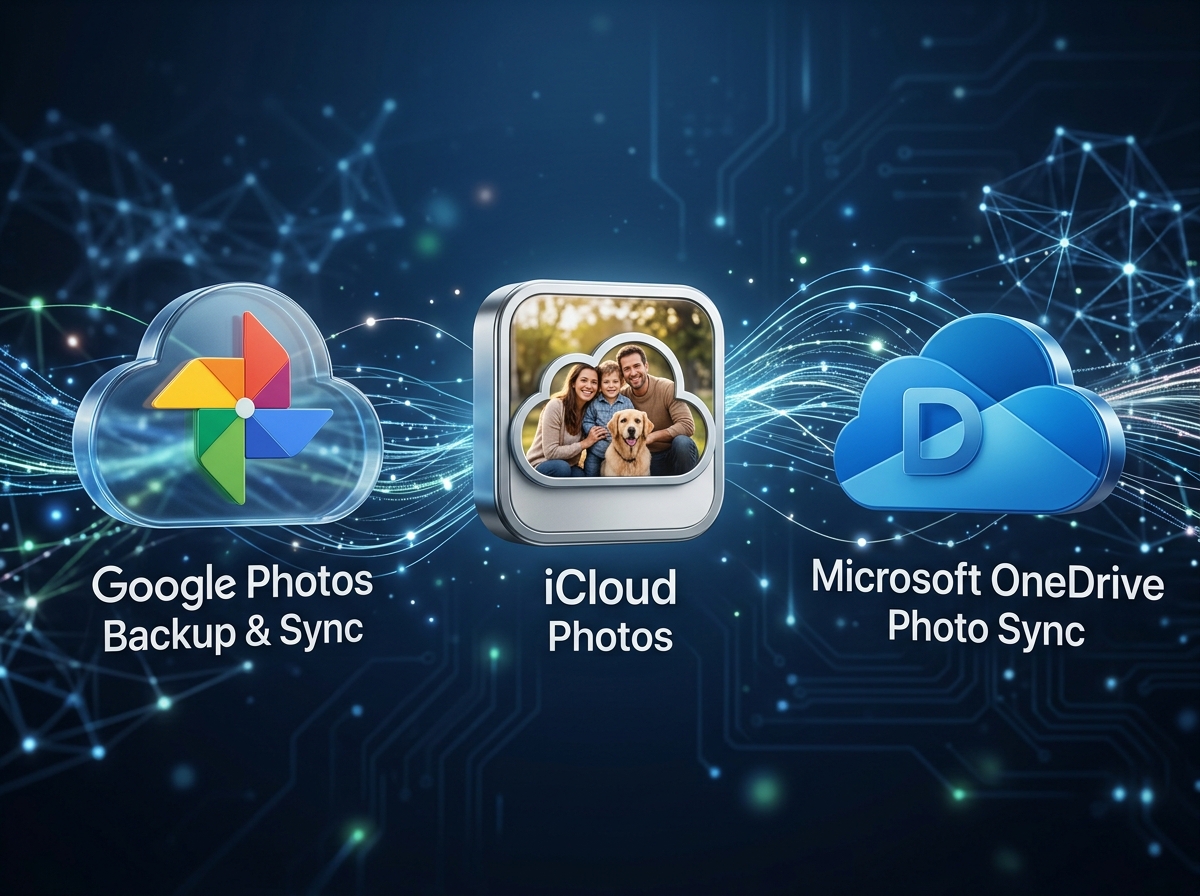
While iCloud is the default, many of us prefer the Google or Microsoft ecosystems. Google Photos is a powerhouse for automatic photo backup iphone because it offers 15 GB of free storage (shared with Gmail and Drive).
Google Photos supports advanced formats like Live Photos and even specific RAW files. Another heavy hitter is OneDrive, which features a “Bedtime Backup” mode. This allows the app to stay active while you sleep (and while the phone is charging) to push through massive amounts of data that iOS background limits might otherwise throttle. For those who want to keep their app list lean, check out these Cloud Storage Apps for Digital Minimalists.
Configuring Google Photos for Automatic Photo Backup iPhone
To set up Google Photos:
- Open the app and sign in to your Google Account.
- Tap your Profile Icon > Google Photos settings.
- Tap Backup and toggle it on.
- Select your quality: “Original quality” (counts more against storage) or “Storage saver” (slightly compressed but still great).
Using Google Photos is a smart way of Organizing Photos on Smartphone and Cloud simultaneously.
Advanced Backup Strategies and Third-Party Apps
For those of us who are “tech-obsessed” or professional photographers, a single cloud backup might not feel like enough. We often recommend the “3-2-1” rule: three copies of your data, on two different media, with one copy off-site.
Third-party apps like PhotoSync offer incredible granularity. You can set an “Autotransfer” trigger based on your home Wi-Fi SSID. The second you walk through your front door and your phone hits the home Wi-Fi, it can automatically start dumping photos onto a NAS (Network Attached Storage) or a computer.
We’ve curated a list of the Best Photo Organizing Apps for iPhone that can help you manage these advanced workflows. If privacy is your top concern, look into Encrypted Storage Solutions for Minimalists to ensure your private moments stay private. Using these tools is one of the most Efficient Strategies for Organizing Large Media Libraries.
Troubleshooting Common Backup Failures
Even the best systems hit a snag. If your automatic photo backup iphone seems stuck, check these common culprits:
- Low Power Mode: iOS will often kill background uploads to save juice. Turn this off in Settings > Battery.
- Storage Full: If your iCloud or Google account is at 99%, the upload will simply stop. See our guide on Reducing Digital Storage Overload: A Simple Guide for Beginners.
- App Permissions: Ensure the backup app has “Background App Refresh” enabled in Settings.
- Cellular Data Restrictions: By default, many apps won’t back up over 5G/LTE to save your data plan. Check the app’s settings to enable “Use Cellular Data” if you have an unlimited plan.
- Duplicate Files: Sometimes a backup hangs on a corrupted file. Try Deleting Duplicate Files Quickly to clean up the library.
Frequently Asked Questions about iPhone Backups
Will deleting a device backup remove my iCloud photos?
No! As we mentioned earlier, iCloud Photos and iCloud Backups are separate. If you delete an old device backup to save space, your photos in the iCloud library remain untouched—provided you have the “Sync this iPhone” toggle turned on. For more on long-term storage, read how to Archive Old Files Without Losing Data: A How-To Guide.
Can I back up to multiple services simultaneously?
Absolutely. You can have iCloud Photos, Google Photos, and OneDrive all running at once. While this provides amazing redundancy, be aware that it will drain your battery faster and use more data. It’s a great strategy for Cloud Backup Apps for Home and Work.
How do I pause backups without losing data?
If you’re on a vacation with expensive roaming data, you can pause backups. In iCloud, go to Settings > Photos and toggle off iCloud Photos. Your photos stay on the phone and in the cloud; they just stop talking to each other until you turn it back on. Always remember the importance of Securing Cloud Storage Accounts before performing major sync changes.
Conclusion
At Tamba Tech, we believe that technology should work for you, not the other way around. Expert writers like Lucas Oliveira spend hundreds of hours testing these workflows so you don’t have to. Whether you choose the simplicity of iCloud or the power of a third-party app, the most important step is to start today.
Don’t wait for the “Storage Full” notification or a shattered screen to take action. Set up your automatic photo backup iphone now and give yourself the gift of digital security. Ready to take the next step in your digital journey? Master your files with our comprehensive File Management Guide.
