
The Best Photo Organizing Software for Mac: Top Picks at a Glance
The best photo organizing software mac users rely on most comes down to a handful of standout tools, each built for a different type of person:
| Software | Best For | Price Model |
|---|---|---|
| Mylio Photos | Privacy-first, no-cloud library | Free + paid plans |
| Excire Foto | AI-powered search and keywording | One-time purchase |
| Adobe Lightroom Classic | Professional organization and editing | Subscription |
| PhotoKit | Batch processing and automation | One-time purchase |
| Apple Photos | Built-in macOS ecosystem use | Free |
| Adobe Bridge | Free image browsing and metadata | Free |
| DigiKam | Open-source, large collections (100,000+ photos) | Free |
| ACDSee Photo Studio | All-in-one DAM with perpetual license | One-time purchase |
Sound familiar? Your photos are scattered across your iPhone, an old laptop, three external drives, and maybe iCloud. You scroll for five minutes just to find one picture from last summer.
You’re not alone. This is one of the most common frustrations for Mac users today.
The average person’s photo library spans multiple devices, years, and formats — and most built-in tools just weren’t designed to handle that kind of chaos.
Some users want to ditch the cloud entirely and keep full control. Others just want a fast way to search, tag, and browse without learning complex software. A few need serious tools to manage tens of thousands of RAW files.
The good news? There’s a solution for every one of those situations — and most of them work without a monthly subscription.
This guide cuts through the noise and shows you exactly which tools are worth your time.
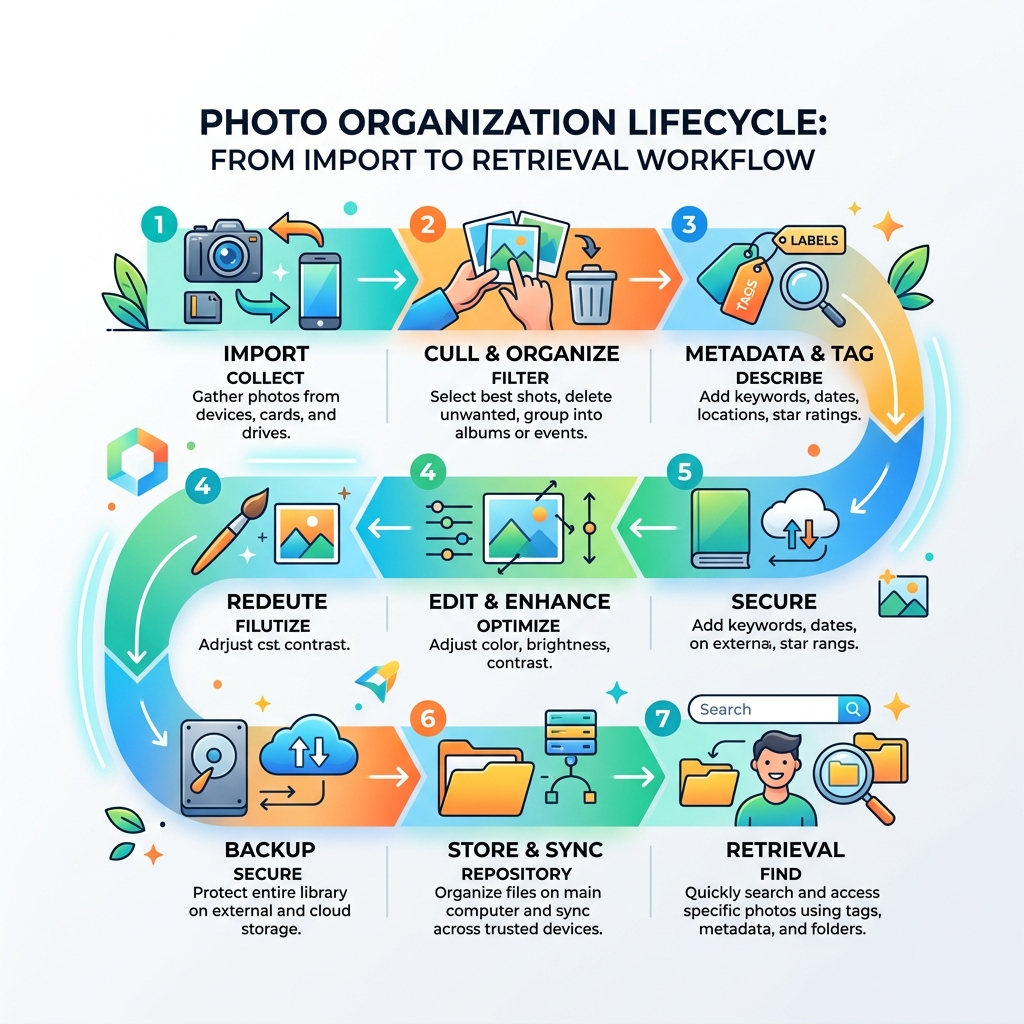
Essential Features of the Best Photo Organizing Software for Mac
When we look for the best photo organizing software mac has to offer, we aren’t just looking for a pretty gallery. We need tools that solve the “digital hoarding” problem. For many of us at Tamba Tech, the priority is moving away from forced cloud curation and back to local storage and manual control.
Local Storage and Manual Control
A common frustration among Mac users is the feeling that their software is “hiding” their files in a proprietary database. The best tools allow you to maintain your own folder structures on your Mac’s hard drive or external SSDs. This ensures that if you ever stop using the software, your photos are still exactly where you left them.
Metadata Management
Metadata is the “brain” of your photo. It includes EXIF data (camera settings, date, time) and IPTC data (keywords, captions, copyright). Effective software lets you edit this data in bulk. For example, if you realize your camera’s clock was off by three hours during a vacation, you should be able to shift the time for 500 photos at once.
Batch Processing and Duplicate Detection
If you have a collection of 10,000+ images, you likely have duplicates. Whether they are accidental imports or different versions of the same edit, they eat up space. High-quality organizers include “DeDupe” tools to find and remove these. Batch processing is equally vital, allowing you to resize or rename hundreds of files in seconds. For those handling massive libraries, we recommend checking out these efficient strategies for organizing large media libraries to keep things snappy.
If you are looking for a comprehensive solution that respects your local file structure while providing modern features, you might want to explore this Photo Organizer for Mac | Image Management Software.
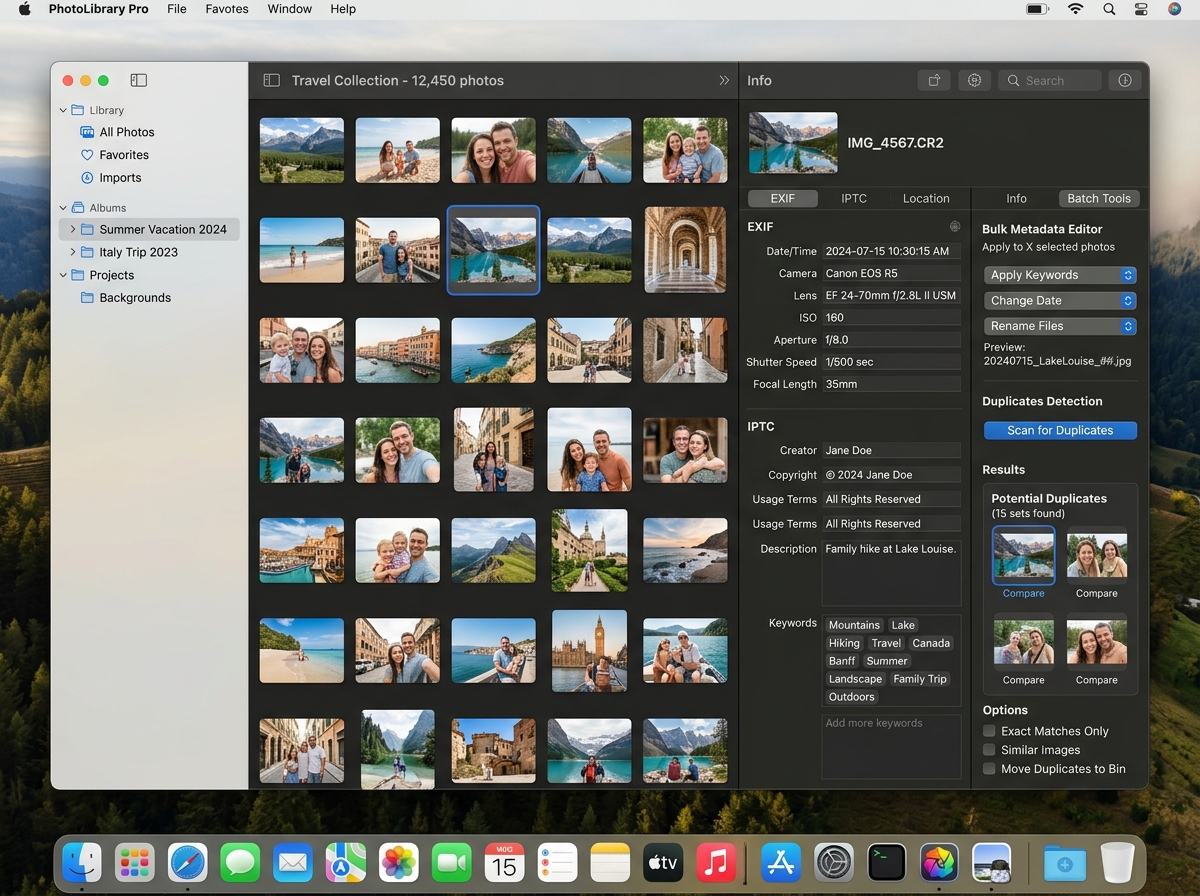
Top-Rated Local and User-Driven Photo Organizers
Many of our readers are moving toward “user-driven curation.” This means you decide what is important, not an algorithm that thinks a blurry photo of a receipt is a “memory.” These tools often focus on privacy-focused, offline processing and one-time purchase models.
By keeping your processing offline, you ensure that your facial recognition data and location history aren’t being uploaded to a corporate server. This approach pairs perfectly with a solid best folder structure for digital documents, which can be applied to your photography archives for maximum clarity.
Best Photo Organizing Software Mac for Privacy: Mylio
Mylio Photos is a game-changer for those who want a “universal library” without the cloud. It connects your Mac, iPhone, and external drives into a single, seamless timeline.
The standout feature here is peer-to-peer sync. Your devices talk to each other over your local Wi-Fi to keep your library updated, meaning your photos never have to touch a third-party server. We love the LifeCalendar feature, which maps your photos to significant life events, making it easy to find that one specific birthday photo from 2014. You can learn more about their cross-platform capabilities at Photo organizing software for Mac, Windows, Android, iOS.
Best Photo Organizing Software Mac for AI Search: Excire
If you hate manual tagging, Excire is your best friend. It uses powerful local AI to analyze your photos and automatically apply keywords. If you search for “dog” or “mountain,” Excire finds them instantly, even if you never typed those words.
Unlike other AI tools, Excire processes everything on your Mac’s own processor (it loves Apple Silicon!). It even includes an “Aesthetic Evaluation” tool that helps you find your best-composed shots. For users with massive Lightroom catalogs, Excire also offers a plugin version to supercharge your existing workflow. Check out their latest features here: Excire: AI-Powered Photo Management Software for Mac & PC | Try It Today!.
Professional Batch Management: PhotoKit
For the power users who need to “restructure” their entire library, PhotoKit is a professional-grade choice. It is built exclusively for macOS and focuses on automation.
We particularly like the Command Palette, which allows you to perform complex actions—like “rename all selected files to YYYY-MM-DD-Event”—with just a few keystrokes. It also offers smart search that uses fuzzy matching, so if you misspell a tag, it will likely still find the right image. Explore their professional tools at PhotoKit – Professional Photo Management for Mac.
Free and Budget-Friendly Management Tools
You don’t always have to break the bank to get organized. There are several high-quality file organization apps for mac and windows that are either built into your system or available for free.
Apple Photos: The Native Ecosystem Choice
Don’t dismiss the app that came with your Mac. Apple Photos has become quite powerful. It uses on-device machine learning to identify people, scenes, and objects. The Smart Albums feature is particularly useful; you can create an album that automatically gathers every photo taken with a specific lens or every photo that contains a specific person.
While it nudges you toward iCloud, you can keep your library entirely local by disabling iCloud Photos in the settings. For more details on the native features, visit macOS – Photos – Apple (CA).
Advanced Free Browsers: Adobe Bridge and DigiKam
If you prefer a “browser” style—where you just look at folders on your hard drive without importing them into a library—Adobe Bridge is a fantastic free option. It is a professional-grade digital asset manager that handles metadata and culling with ease.
For those with truly massive collections (we’re talking 100,000+ images), DigiKam is an open-source powerhouse. It’s a bit more technical to set up, but it offers features usually reserved for expensive professional software, such as advanced map views and sophisticated database management. It’s an excellent choice for apps for organizing digital documents and photos alike.
Choosing Between Folder-Based and Database-Driven Systems
One of the biggest decisions you’ll make is choosing between a folder-based system and a database-driven one.
- Folder-Based (e.g., Adobe Bridge, Finder, Lyn): These tools look directly at your hard drive. If you move a file in the software, it moves on your disk. This is great for manual control but can be slower for searching.
- Database-Driven (e.g., Apple Photos, Lightroom, Mylio): These tools create a “catalog” of your photos. This allows for incredibly fast searching and “non-destructive editing” (where the original photo is never changed). However, if you move a file using the Finder instead of the app, the app might “lose” the connection to the file.
| Feature | Folder-Based Systems | Database-Driven Systems |
|---|---|---|
| File Location | Exactly where you put them | Often managed by the app |
| Search Speed | Depends on disk speed | Instant (via index) |
| Editing | Usually destructive (unless using sidecars) | Non-destructive (parametric) |
| Portability | Very easy; just move folders | Requires exporting the database |
| Risk | Low; files are always visible | Medium; database can become corrupt |
For those who want a middle ground, ACDSee Photo Studio for Mac offers a “Direct Connection” to your hard drive, skipping the slow import process while still offering powerful database features like AI facial recognition. You can see how it balances these two worlds at ACDSee Photo Studio for Mac | Master Your Photo Management & Editing Workflow. This is especially helpful when organizing photos on smartphone and cloud because it allows for a unified view of all your media.
Frequently Asked Questions about Mac Photo Management
How do I organize 10,000+ photos without using the cloud?
The key is a consistent date-based naming convention. We recommend a structure like YYYY/YYYY-MM-DD-EventName. Start by consolidating all your photos onto one large external drive (and then back that drive up to a second one!). Use a tool like Photo Mechanic or Adobe Bridge to cull the “junk”—the blurry shots and accidental pocket photos. Once you have your “keepers,” a local AI tool like Excire can help you tag them without ever needing an internet connection.
What is the best photo organizing software Mac for manual control?
If you want total control, stick to Finder-based browsing paired with a fast image viewer like Lyn or ApolloOne. These apps don’t try to “manage” you; they just provide a fast way to scroll through high-resolution images, view EXIF data, and move files between folders. This keeps your organization “old school” but efficient.
Do I need professional editing features in my organizer?
Not necessarily. Many users just want to find their photos, not spend hours retouching them. However, most modern organizers include “basic enhancements” like cropping, brightness, and auto-color. If you only need to fix the occasional dark photo, the built-in tools in Mylio or Apple Photos are plenty. If you are a pro, you’ll likely want something that supports RAW files and parametric corrections, like Capture One or Lightroom.
Conclusion
At Tamba Tech, we believe your digital legacy shouldn’t be a source of stress. Whether you choose the AI-powered speed of Excire, the privacy of Mylio, or the simplicity of Apple Photos, the best photo organizing software mac is the one that you actually enjoy using.
Once you have your desktop library under control, don’t forget about the device in your pocket! You can extend your organized workflow by checking out our guide on the best photo organizing apps for iphone.
Ready to tackle the rest of your digital life? Explore more file management guides and take back control of your data today!
