
The Fastest Way to Merge Duplicate Photos on iPhone
Merging duplicate photos on iPhone is easier than most people think — and you can do it right from the built-in Photos app in under a minute.
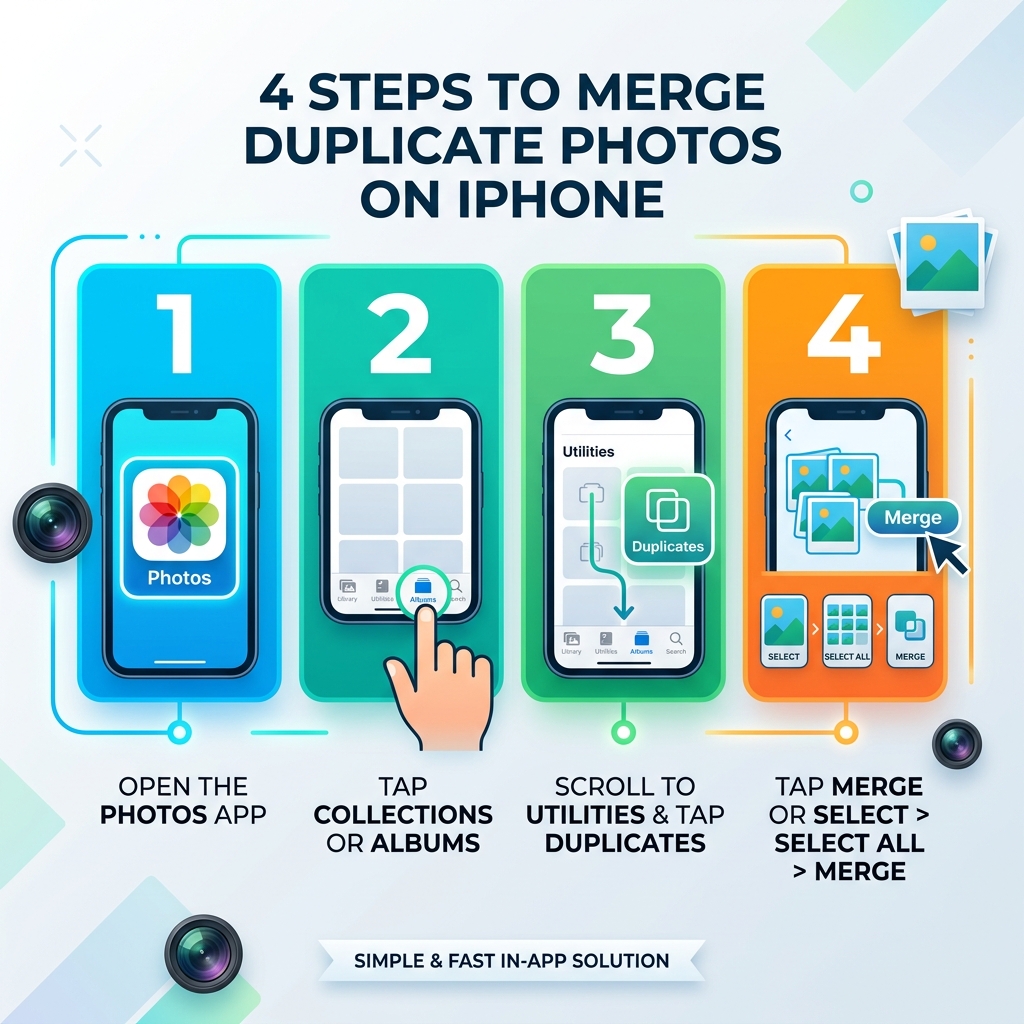
Quick answer — here’s how to do it:
- Open the Photos app
- Tap Collections (or Albums on older iOS)
- Scroll to Utilities and tap Duplicates
- Tap Merge next to any duplicate set — or tap Select > Select All > Merge to clear them all at once
That’s it. No extra apps needed for exact duplicates.
You’ve been there. You open your Photos app to find a specific memory, and instead you’re wading through the same image — three, four, sometimes five times over. One community member reported finding over 5,300 duplicate or similar photos sitting quietly in their library. Another had 1,800+ duplicates on their iPad alone.
It’s not just annoying. Those extra copies eat up real storage space and make your library genuinely hard to navigate.
The good news? Since iOS 16, your iPhone has a built-in tool to find and merge duplicates automatically. And for the trickier cases — like near-identical shots from a burst or slightly different versions of the same photo — there are simple solutions for those too.
This guide covers everything: finding duplicates, merging them one by one or all at once, handling near-duplicates, and making sure your best photos survive the cleanup intact.
Why Your iPhone Library Accumulates Duplicate Photos
We often wonder how our beautifully curated libraries turn into a cluttered mess. It rarely happens because of one big mistake; usually, it’s a slow accumulation of digital “dust.” Understanding why these duplicates appear is the first step toward deleting duplicate files quickly and keeping your phone lean.
Several common iPhone features and habits are the primary culprits:
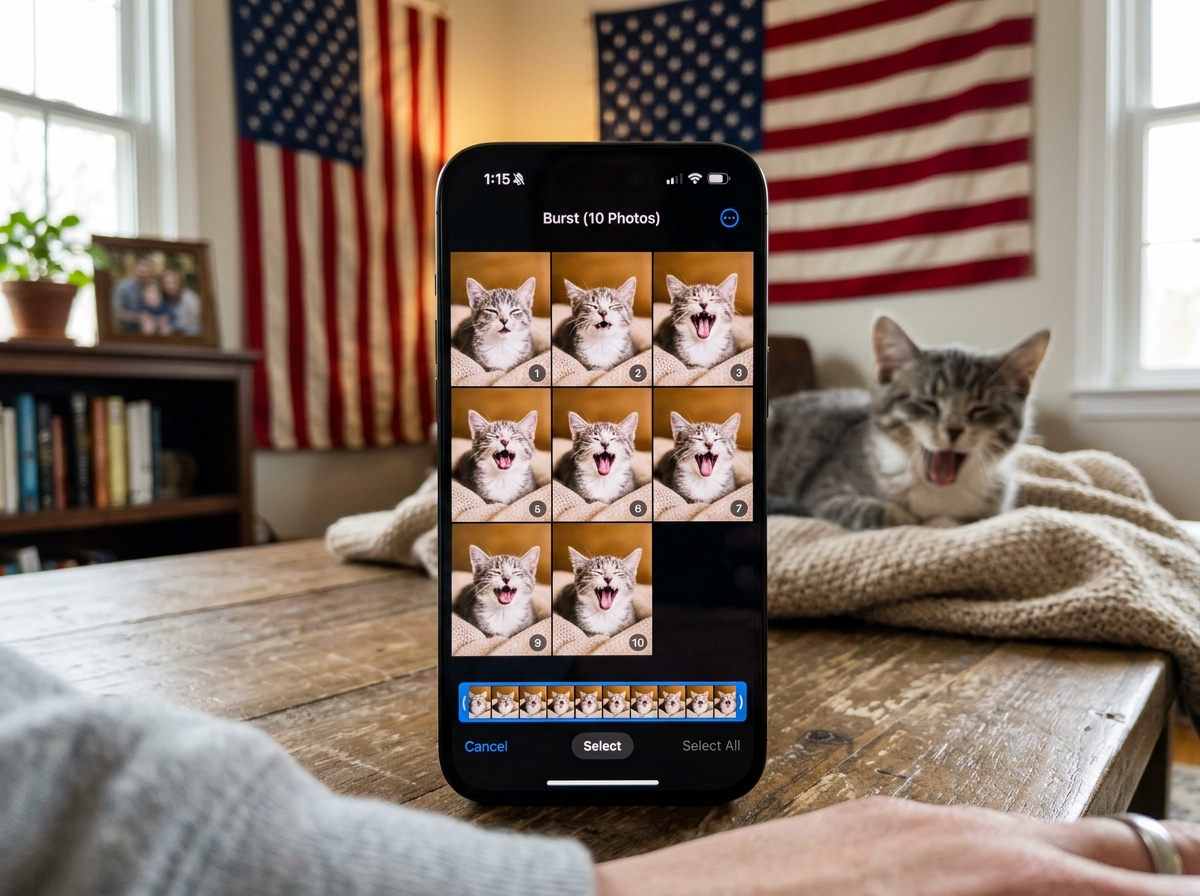
- Burst Mode: It’s easy to accidentally hold the shutter button a fraction of a second too long. Suddenly, you have 10 nearly identical photos of your cat yawning. While only one is the “perfect” shot, all 10 take up space.
- Live Photos: These are essentially tiny video files. If you save a still frame from a Live Photo or convert it, you often end up with both the original Live version and a static duplicate.
- Multiple Imports: If you import photos from a digital camera or an SD card multiple times, or if you sync your phone with a Mac and then again with iCloud, the system might not always realize it’s looking at the same file.
- AirDrop Transfers: Receiving the same photo from a friend via AirDrop multiple times (perhaps because the first one “didn’t seem to go through”) creates instant clones.
- Social Media and Messaging Downloads: Every time you save a photo from a WhatsApp group or download an image you already posted to Instagram, a new duplicate is born in your camera roll.
- iCloud Syncing Glitches: Sometimes, when a device is struggling with a low-bandwidth connection, the sync process can stutter, leading to “ghost” duplicates that appear across your devices.
How to Find and Merge Duplicate Photos on iPhone
Apple recognized that manual cleanup was becoming impossible for modern users. Starting with iOS 16, and continuing through the iOS 18 redesign, the Photos app includes a dedicated “Duplicates” utility. This tool doesn’t just look for identical filenames; it uses on-device machine learning to scan the actual visual data of your images.
According to Apple engineers, this is a “nuanced computer science problem.” The software has to decide if two images are truly the same or if they are just very similar. To see this in action, you can follow the official Merge duplicate photos and videos on iPhone – Apple Support (UK) documentation, or follow our simplified steps below.
In iOS 18, the Photos app layout changed significantly. The “Utilities” section, which houses the Duplicates album, is now found by scrolling down from the main library view rather than being tucked away at the very bottom of a long list of albums.
Steps to Merge Duplicate Photos iPhone Selectively
Sometimes you don’t want to trust the algorithm blindly. You might want to see which version of a photo has the better lighting or which one has the caption you wrote.
- Open Photos and navigate to the Duplicates album under Utilities.
- Scroll through the grouped sets. iOS will show you the duplicates side-by-side.
- Tap Merge next to a specific set.
- Confirm by tapping Merge [Number] Items.
The iPhone will then combine the best qualities of both — keeping the highest resolution and the most complete metadata (like GPS location and date) — into one single file.
How to Bulk Merge Duplicate Photos iPhone in One Tap
If you have a massive library, merging one by one is a chore. We’ve seen users successfully merge over 5,300 duplicates in a single session using the mass merge method. This is the ultimate time-saver.
- Inside the Duplicates album, tap Select at the top right.
- Tap Select All at the top left.
- Tap Merge at the bottom center of the screen.
- Confirm the action.
Your iPhone will then process the entire batch. It may take a few seconds (or a minute if you have thousands) to crunch the data, but once it’s done, your storage will thank you. Apple support has even assisted users in removing 900 duplicate photos at once using this bulk method to resolve storage warnings.
Beyond Exact Matches: Handling Near-Duplicates with Apps
Here is the catch: Apple’s built-in tool is very conservative. It primarily looks for exact duplicates—files that are virtually identical in every way. It often ignores “near-duplicates,” such as three shots of a sunset taken two seconds apart, or several photos from a burst where everyone’s eyes are closed except for one shot.
These near-duplicates often consume far more storage than exact copies because they are unique files. To tackle these, we often recommend looking at the best photo organizing apps for iPhone. These third-party tools use more aggressive AI to suggest which photo is the “best” (sharpest, best lighting, no blinking) and allow you to delete the rest.
| Feature | Built-in Photos App | Third-Party AI Apps |
|---|---|---|
| Detection Type | Exact or near-identical | Visually similar / Near-duplicates |
| Safety | High (conservative) | Moderate (requires review) |
| Speed | Fast for exact matches | Slower (deep AI scan) |
| Best For | Re-downloads, sync errors | Burst shots, similar poses |
| Cost | Free (Built-in) | Varies (Free to Paid) |
Using an external app can help you find those “similar” photos that Apple’s native tool misses. These apps can identify screenshots, blurry photos, and large videos, helping you perform a much deeper library “reset.”
Post-Merge: Quality, Metadata, and Recovery
A common fear when we merge duplicate photos iphone is losing the “good” version. Apple’s algorithm is designed to be “smart.” When you merge, the iPhone evaluates the resolution, file format, and metadata of all images in the set. It keeps the version with the highest quality and merges the unique metadata (like tags or locations) from the other copies into that primary file.
What happens to the “deleted” photos? They aren’t gone forever — at least not immediately. They are moved to the Recently Deleted folder. This is a safety net that holds your photos for 30 days. If you realize you accidentally merged a photo you wanted to keep separate, you can go there to recover it.
However, if your goal is to free up space right now, you must go to Recently Deleted and empty it manually. Otherwise, those duplicates will continue to occupy storage for another month. For more on managing your digital footprint, check out our guide on organizing photos on smartphone and cloud.
Frequently Asked Questions about Merging Photos
Can I undo a merge if I make a mistake?
Yes! As mentioned, merged photos are sent to the Recently Deleted album. Simply open that album, select the photos you want back, and tap Restore. You have a 30-day window before they are permanently purged from your device.
Does merging photos reduce the image quality?
No. In fact, it often ensures you keep the best quality. The iPhone’s “Intelligent Merging” logic selects the file with the highest detail and resolution to serve as the “survivor.” It then attaches any relevant metadata from the lower-quality copies to that high-res file.
Why don’t I see the Duplicates album on my iPhone?
There are three main reasons for this:
- No Duplicates Found: If your library is already clean, the album simply won’t appear.
- Indexing Time: After an iOS update or a large import, your iPhone needs time to “index” the library. This happens while the phone is locked and connected to power. It can take anywhere from a few hours to a couple of days.
- iOS Version: This feature requires iOS 16 or later. If you are on an older version, you’ll need to update your software or use a third-party app.
Conclusion
At Tamba Tech, we believe that your photo library should be a place of joy, not a source of storage anxiety. Regularly taking a moment to merge duplicate photos iphone is one of the simplest ways to maintain your device’s health. Whether you use the quick “Select All” method to wipe out thousands of copies or use specialized apps to prune your burst shots, a cleaner library is only a few taps away.
By staying proactive with your organization, you’ll spend less time managing files and more time enjoying your memories. For more expert tips on keeping your digital life in order, explore our more info about file management services and guides. Happy cleaning!
