
Why Your iPhone Needs a Screenshot Cleanup
Looking to remove screenshots iPhone easily? Here’s a quick guide to clear them out fast:
- Open Photos App: Tap on the
Albumstab. - Find Screenshots Album: Scroll down to
Media Typesand tapScreenshots. - Select & Delete: Tap
Select, choose the unwanted screenshots, then tap the trash can icon. - Permanently Remove: Go to
Utilities>Recently Deleted, unlock, and tapDelete Allto free space immediately.
We all do it. A quick screenshot to save a recipe, a funny message, or a piece of info. It seems harmless at the time. But before you know it, your iPhone is stuffed with hundreds, even thousands, of these digital snapshots.
This isn’t just a minor annoyance. This digital clutter is a real drag on your device. Most iPhone users carry around 300 to 500 screenshots. That can eat up a massive 2-5GB of your phone’s storage. The kicker? About 80% of these are never viewed again, often just sitting there for over six months.
This digital mess does more than just fill space. It slows down your phone, makes finding real photos a nightmare, and can even increase your iCloud storage costs. Nobody wants that dreaded “Storage Full” message when trying to snap a new memory.
Good news! You don’t have to live with this digital chaos. This guide from Tamba Tech will show you simple, step-by-step ways to quickly clean out your screenshot collection, free up valuable space, and keep your iPhone running smoothly.
How to Find and Remove Screenshots iPhone Easily Using Native Tools
For 99% of us, every screenshot we take lands directly in the Photos app. While it’s convenient for a quick look, it’s also where these files go to hide and multiply. If you’ve never looked, you might be shocked at how many “accidental” shots of your lock screen you’ve saved over the last year.
Finding them is the first step. Apple makes this relatively straightforward by categorizing your media automatically. You don’t have to scroll through your entire “All Photos” feed, which can be like looking for a needle in a haystack. Instead, you can go straight to the source.
To get started, open your Photos app and tap on the Albums tab at the bottom. Scroll down until you see the Media Types section. Here, iOS does the heavy lifting for you by grouping every single screenshot into its own dedicated album. Tap on Screenshots, and you’ll see the full extent of your collection.
If you find that your library is a bit of a mess beyond just screenshots, you might find our guide on Organizing Photos on Smartphone and Cloud helpful for a deeper clean. For the official word on managing these files, you can also check out Delete or hide photos and videos on iPhone – Apple Support (AM).
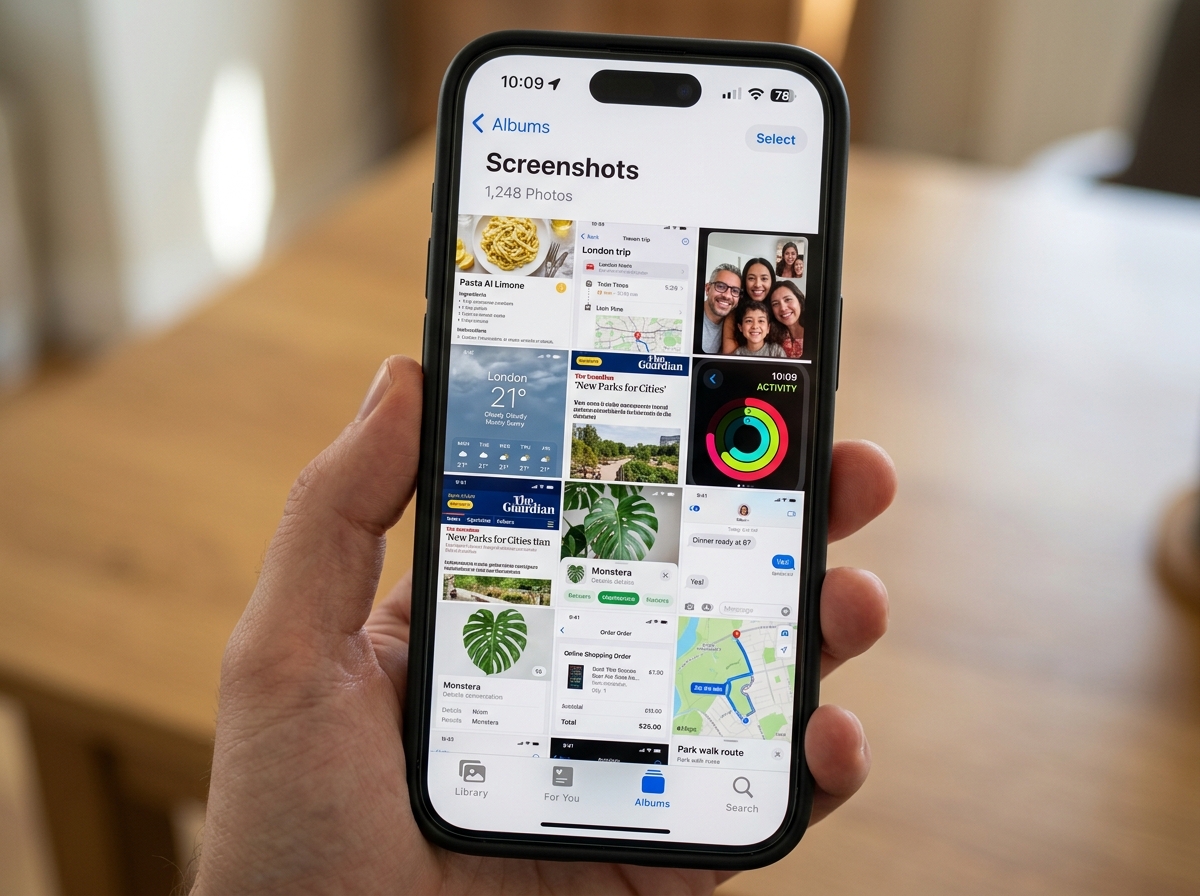
Step-by-Step: How to Remove Screenshots iPhone Easily (Single & Bulk)
Once you’re in the Screenshots album, you have two main ways to proceed: the surgical approach (one by one) or the “clear-cut” approach (bulk deletion).
Deleting a Single Screenshot: If you just want to get rid of one or two recent shots, simply tap the thumbnail to open it. Tap the Trash Can icon in the bottom right corner (or top right on iPad) and confirm by tapping Delete Photo.
Deleting Multiple Screenshots (The Bulk Method): This is where you’ll save the most time. Manually selecting 500 screenshots one by one can take upwards of 10 minutes because you can usually only see about 50 on the screen at once. However, there is a hidden gesture that makes this much faster.
- In the Screenshots album, tap Select in the top right corner.
- Tap the first screenshot you want to delete.
- The Pro Tip: Instead of tapping every single one, keep your finger pressed down and swipe across to the next photo, then drag your finger all the way up or down. This “swipe-to-select” gesture allows you to highlight dozens of photos in a single second.
- Once you’ve highlighted the clutter, tap the Trash icon.
- Confirm the deletion.
| Method | Best For | Speed |
|---|---|---|
| Manual Tap | 1-5 specific images | Slow |
| Swipe-to-Select | 10-100 images | Fast |
| Select All | Wiping the entire album | Instant |
If you are just starting your journey toward a cleaner digital life, we recommend checking out these Strategies for Beginners to Declutter Their Digital Life.
Using iOS 18 Filters to Remove Screenshots iPhone Easily
If you have updated to iOS 18, Apple has introduced a brand-new way to handle this. The Photos app has been redesigned, and one of the most powerful new features is the Filter button.
In the main Library view, you can now tap a small icon with two arrows (up and down) or the funnel icon to filter your view. You can select Screenshots directly from this filter menu. This allows you to stay within your main library timeline while isolating only the screenshots.
The beauty of iOS 18 is that it makes bulk selection even more intuitive. You can filter for screenshots, tap Select, and use the same swipe gestures to grab everything you see. This is particularly useful for those who want to see their screenshots in the context of when they were taken before hitting delete. For those managing massive libraries, these Efficient Strategies for Organizing Large Media Libraries can provide even more advanced tips.
Managing Recently Deleted and Permanent Removal
A common mistake we see is people thinking they’ve freed up space the moment they hit “Delete.” On an iPhone, hitting delete is more like moving a file to the trash can in your kitchen—it’s still in the house!
When you delete a screenshot, it moves to the Recently Deleted album. It stays there for 30 days (or 29, depending on the timing). This is a safety net in case you accidentally deleted a photo of your Wi-Fi password or a flight confirmation. However, while those files are in the “Recently Deleted” folder, they are still taking up storage space on your iPhone.
To truly remove screenshots iPhone easily and reclaim your storage, you need to empty that trash. Go to the Albums tab, scroll all the way to the bottom to the Utilities section, and tap Recently Deleted.
In newer versions of iOS, this folder is locked behind Face ID, Touch ID, or your passcode. This is a great privacy feature, ensuring that even if you delete sensitive screenshots, they aren’t easily accessible to others. Once you unlock it, you can see exactly how many days are left before each item is permanently purged.
To learn more about managing this storage, read our guide on Reducing Digital Storage Overload: A Simple Guide for Beginners.
Recovering or Permanently Erasing Media
Inside the Recently Deleted folder, you have two options:
- Recover: If you realize you actually needed that screenshot of your hotel booking, tap the photo and hit Recover. It will go right back to your main library.
- Delete All: If you are certain you want that space back now, tap Select and then tap Delete All.
Warning: Once you tap “Delete All” in this folder, those screenshots are gone forever. They are removed from your device and, if you use iCloud Photos, they are wiped from all your connected Apple devices as well. This is the most effective way to see an immediate jump in your available storage. If you’re dealing with more than just screenshots, you might also want to look into Deleting Duplicate Files Quickly.
Troubleshooting: Why Can’t I Delete My Screenshots?
Sometimes, things don’t go as planned. We’ve heard from users who try to delete a batch of screenshots only to be met with a “Server Unavailable” error or images that seem to reappear like ghosts.
Common Reasons for Deletion Issues:
- iCloud Syncing: If your phone is currently in the middle of a massive iCloud backup or sync, it might block deletion commands to prevent data corruption. Try waiting until you are on a stable Wi-Fi connection.
- Synced from a Computer: If you used iTunes or Finder (on Mac) to sync photos from an old computer to your iPhone, those photos are “read-only.” You cannot delete them directly on the iPhone. You have to connect your phone to the computer and un-sync them from there.
- Server Errors: Sometimes, if your iCloud storage is completely full, the “handshake” between your phone and the server fails, preventing you from deleting items because the server can’t update your account status.
If you’re having a lot of trouble with gallery management, you might find some interesting parallels in our guide to The Ultimate Guide to Taming Your Android Gallery Chaos, though the technical fixes differ.
Handling Full-Page Screenshots and Files
Not all screenshots live in the Photos app. If you’ve ever taken a Full-Page screenshot of a website in Safari, you might have noticed it asks if you want to save it as a PDF.
If you choose this, the screenshot won’t be in your Photos app. Instead, it’s saved in the Files app. These PDFs can be much larger than standard image screenshots (sometimes 5-10MB each). To find and delete these:
- Open the Files app.
- Tap the Browse tab.
- Search for the word “screenshot.”
- Select and delete any PDFs you no longer need.
Similarly, if you’ve dragged a screenshot directly into a Note and then deleted the original from Photos, that image still exists inside the Notes app. If you are really on a mission to declutter, don’t forget to check these locations!
Pro Tips to Prevent Screenshot Clutter in the Future
The best way to remove screenshots iPhone easily is to not have so many to delete in the first place! Here are our favorite tips for keeping the clutter at bay:
1. Use the “Delete After Sharing” Shortcut When you take a screenshot, a small preview appears in the bottom left corner. If you tap that preview, you can crop it or mark it up. Once you hit the Share icon and send it to a friend, tap Done. iOS will ask if you want to “Save to Photos” or “Delete Screenshot.” Choosing delete immediately keeps your library clean!
2. Turn Off “Raise to Wake” Do you find a lot of accidental screenshots of your lock screen? This often happens when “Raise to Wake” is on, and the phone buttons get squeezed in your pocket or bag. Go to Settings > Display & Brightness and toggle off Raise to Wake.
3. Stop WhatsApp from Auto-Saving Apps like WhatsApp are notorious for saving every single image sent to you into your Camera Roll. This includes screenshots your friends send you. To stop this, go to WhatsApp Settings > Chats and turn off Save to Camera Roll.
For more tips on keeping your device clean, check out our Decluttering Smartphone Apps: A Guide for Beginners.
Organizing the Screenshots You Want to Keep
We aren’t saying you should delete everything. Some screenshots are vital—like a digital receipt, a medical record, or a sweet message.
Instead of letting them sit in the main Screenshots folder, we recommend:
- Creating a Custom Album: Create an album named “Important Info” and move your keepers there.
- Using Apple Notes: For information you need to refer to often (like a recipe), share the screenshot to a specific Note and delete it from your Photos.
- Markup: Use the Markup tool to highlight the specific info you need so you don’t have to go searching through the image later.
If you want to take your organization to the next level, we’ve reviewed the Best Photo Organizing Apps for iPhone to help you find the perfect tool.
Frequently Asked Questions about iPhone Screenshot Management
How much storage do screenshots actually use?
On average, a screenshot on a modern iPhone uses between 700KB and 1MB. While that sounds small, it adds up fast. If you have 1,000 screenshots (which is common for long-time users), you’re looking at nearly 1GB of used space. On the iPhone 16 Pro, with higher resolutions, these files can be even larger. Deleting them is one of the fastest ways to get back 2-5GB of storage without losing your precious “real” photos.
Do third-party apps help with bulk deletion?
Absolutely. While the built-in tools are great, third-party “cleaner” apps can use AI to detect blurry screenshots, old memes, or duplicate images. Some users have reported deleting over 800 screenshots in under 15 seconds using these tools, freeing up over 3GB instantly. They process your photos locally, so your privacy remains intact. You can find some great options in our list of Free Apps for Cleaning Digital Files.
Does deleting a screenshot on iPhone remove it from iCloud?
Yes, provided you have iCloud Photos turned on. Apple’s ecosystem is designed to stay in sync. If you delete a screenshot on your iPhone, it will be removed from your iPad, Mac, and iCloud.com automatically. This is why it’s so important to check your “Recently Deleted” folder if you make a mistake—you have 30 days to save it across all your devices.
Conclusion
Managing your digital life doesn’t have to be a chore. By taking a few minutes to remove screenshots iPhone easily, you aren’t just freeing up storage space; you’re making your phone faster and your photo library more enjoyable to browse. Whether you use the new iOS 18 filters, the classic swipe-to-select gesture, or a dedicated cleaning app, the result is the same: a cleaner, more efficient iPhone.
At Tamba Tech, we believe that staying on top of your digital hygiene is the key to a stress-free tech experience. Now that your photos are organized, why stop there? Start managing your files better today and reclaim your digital space!
