
What It Means to Look Up Item by Picture (And Why It’s So Useful)
Want to look up item by picture right now? Here are the fastest ways to do it:
- Google Lens – Open the Google app, tap the Lens icon in the search bar, and point your camera or upload a photo
- Apple Visual Look Up – Open any photo on iPhone, tap the starred Info button, then tap “Look Up”
- Bing Visual Search – Go to Bing, click the camera icon in the search bar, and drag, drop, or upload your image
- Google Images – Go to images.google.com, click the camera icon, and upload your photo or paste an image URL
You see something you want to know more about — a plant on a friend’s shelf, a chair in a magazine, a dog at the park — but you have no idea what it is or where to find it. Typing a description into Google feels hopeless. What do you even call it?
That’s exactly the problem visual search was built to solve.
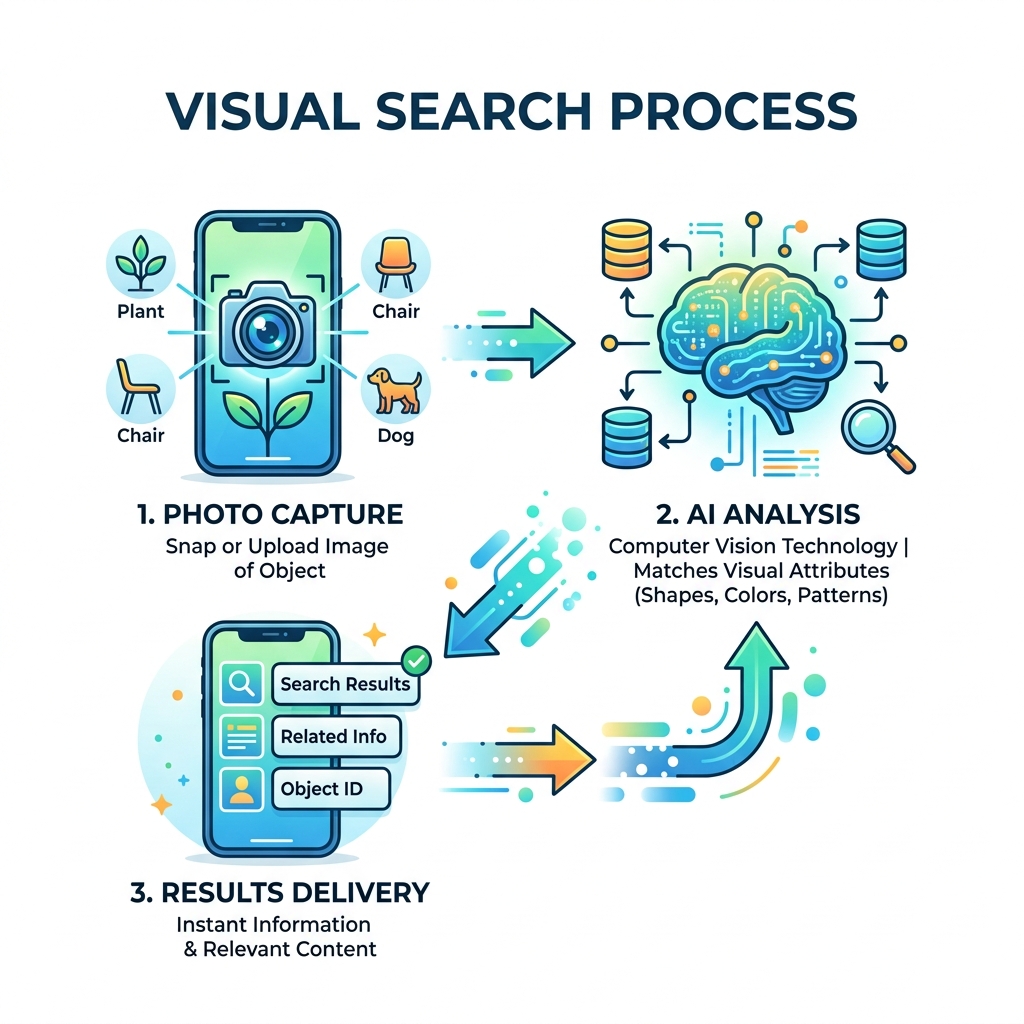
Instead of struggling to describe something in words, you simply take a photo and let AI figure it out. These tools use computer vision to analyze the shapes, colors, textures, and patterns in your image, then match them against millions of websites, products, and databases in seconds.
And the technology has gotten remarkably good. Google Lens alone has surpassed 1 billion downloads on Google Play — a clear sign that people everywhere are ditching text searches for picture-based ones.
Whether you’re on an iPhone, an Android, or sitting at your desktop, there’s a free tool ready to identify almost anything you can photograph.
How to Look Up Item by Picture Using Top Visual Search Tools
When we want to look up item by picture, we aren’t limited to just one “magic” app. Several tech giants have integrated visual search directly into the devices we use every day. The three heavy hitters are Google Lens, Bing Visual Search, and Apple’s Visual Look Up.
Each of these tools uses sophisticated AI to “see” the world. They don’t just look at the pixels; they understand the context. For example, Lens can distinguish between a specific breed of dog and a stuffed animal that looks similar. It does this by comparing your photo against a massive database of images, ranking results based on visual similarity and relevance.
If you are a mobile power user, you likely have hundreds of photos saved that you’ve been meaning to identify later. We’ve found that organizing photos on smartphone and cloud storage makes it much easier to go back and perform these searches when you actually have the time to shop or research.
Comparing the Major Visual Search Tools
To help you decide which tool to use, we’ve put together a quick comparison of the top contenders:
| Feature | Google Lens | Bing Visual Search | Apple Visual Look Up |
|---|---|---|---|
| Platform | Android, iOS, Web | Windows, iOS, Android, Web | iOS, iPadOS, macOS |
| Best For | General ID, Shopping, Homework | Microsoft Ecosystem, Shopping | Plants, Pets, Landmarks, Art |
| Special Skill | Real-time 100+ Language Translation | “Solve for Homework” steps | Recipe suggestions for food |
| Integration | Google App, Photos, Chrome | Edge, Windows Photos, Snipping Tool | Apple Photos, Safari, Mail |
Step-by-Step: Look Up Item by Picture on iPhone and Android
Whether you are using the latest Samsung or a classic iPhone, the process to look up item by picture is relatively seamless.
On Android (Using Google Lens):
- Open the Google App or the Google Lens app.
- Tap the Camera icon in the search bar.
- Point your camera at the object and tap the shutter button, or select a photo from your gallery.
- Drag the corners of the focus box to select a specific part of the image if there are multiple objects.
- Scroll through the results to find matches, prices, or information.
On iPhone (Using Apple Visual Look Up):
- Open the Photos app.
- Tap on any photo in your library.
- Look for the “i” icon at the bottom. If it has tiny stars next to it (like a magic wand), it means the AI has identified something.
- Tap that starred Info button, then tap “Look Up” at the top of the photo info pane.
- Apple will identify the plant, pet, or landmark and provide a Siri Knowledge link.
For those who take a lot of screenshots or photos specifically to search later, check out our guide on the best photo organizing apps for iPhone to keep your “search queue” tidy.
Using Desktop Browsers to Look Up Item by Picture
You don’t need a smartphone to use visual search. If you’re browsing the web on a laptop and see a pair of boots you love, you can identify them instantly.
Google Chrome Integration: In Chrome, you can right-click any image on a website and select “Search image with Google.” A side panel will open with Google Lens results, allowing you to find where that exact item is sold without ever leaving your current tab.
Microsoft Edge and Bing: Microsoft has gone all-in on integration. You can use the Free Visual Search Tool | Bing Visual Search by dragging and dropping an image directly into the Bing search bar. In the Edge browser, you can even use the “Sidebar” to search for items visually while you work.
One unique feature of Bing is its integration with the Windows Snipping Tool. If you take a screenshot of a portion of your screen, you can click the visual search icon to immediately identify whatever was in that snip.
Identifying Plants, Products, and Homework
What exactly can you do when you look up item by picture? The applications are broader than most people realize. It isn’t just for identifying a mystery bug in your garden (though it’s great for that).
The “Identify Anything” Checklist
Modern AI models are trained on billions of parameters, allowing them to recognize:
- Flora and Fauna: Identify over 100,000 species of plants and animals.
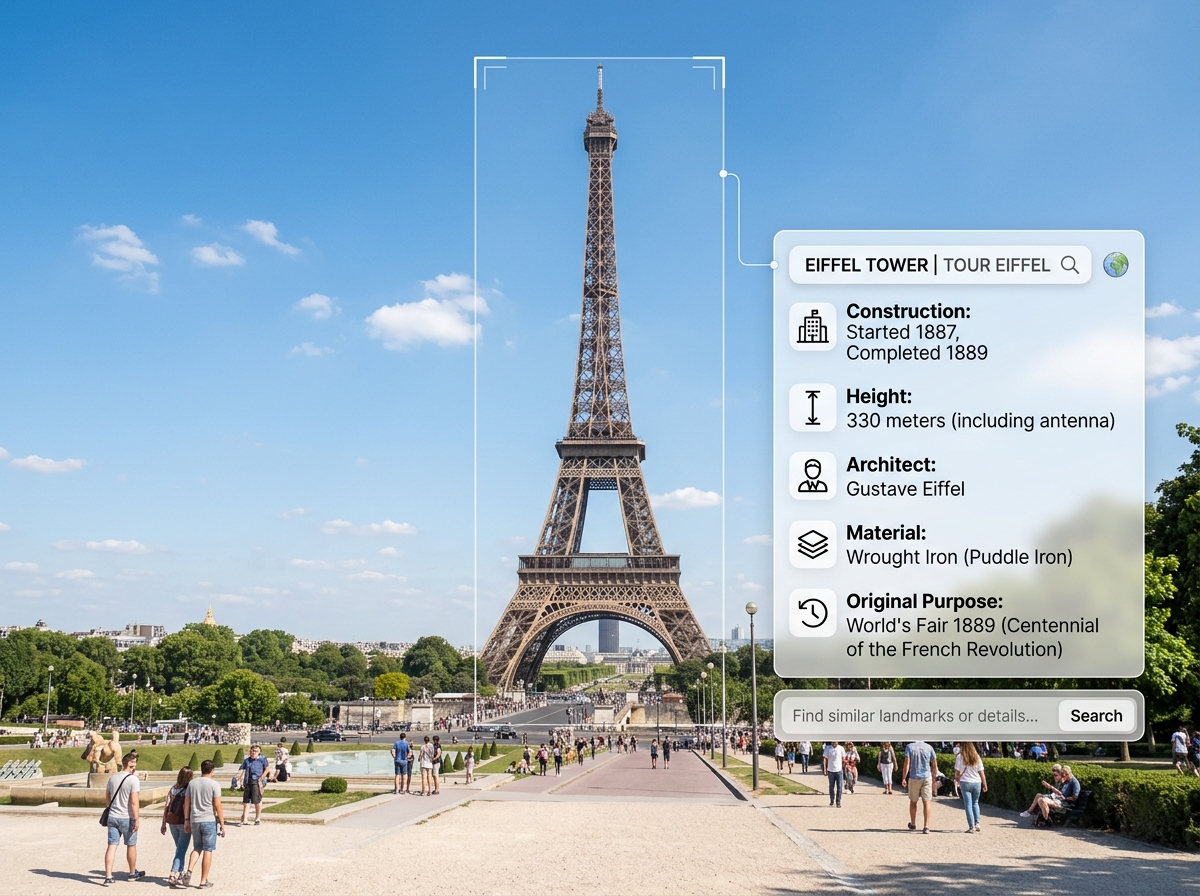
- Landmarks: Get the history, opening hours, and reviews for buildings and statues.
- Branded Products: Find the exact model of a toaster, a pair of sneakers, or a piece of furniture.
- Text and Documents: Copy text from a physical paper, translate a menu in real-time, or scan a QR code.
- Homework Help: This is a game-changer. Both Google and Bing offer specialized “Homework” modes. You can snap a photo of a complex math equation or a chemistry problem, and the AI will provide step-by-step explanations to help you learn the “how” behind the answer.
According to Google Lens – Search What You See, the tool can even help you identify popular dishes on a restaurant menu by cross-referencing the text with photos and reviews from Google Maps. It’s like having a local food critic standing right next to you.
Privacy and Best Practices for Better Results
To get the most accurate results when you look up item by picture, you need to think like a photographer. The AI is only as good as the data you give it.
Tips for High-Accuracy Searches
- Lighting is King: AI struggles with “noise” in dark photos. Try to use natural light or ensure the item is well-lit so the textures are visible.
- Isolate the Item: If you’re trying to identify a specific lamp in a crowded room, get close to it. Most apps allow you to “tap” the object to focus the AI’s attention.
- Check the Angle: For products like shoes or electronics, a three-quarter view (slightly from the side and front) usually provides the most identifying features for the AI to analyze.
- Keep it Clean: If you have thousands of blurry “test” photos, it can slow down your workflow. We recommend using efficient strategies for organizing large media libraries to ensure your best reference photos are easy to find.
Privacy and Data Usage
We know what you’re thinking: Is Google/Microsoft/Apple keeping all these photos? The short answer is yes, they use the data to improve their models, but there are safeguards. Most services encrypt your data in transit. Google, for instance, provides a detailed breakdown of how Lens works and how it uses location data to make landmark identification more accurate (e.g., knowing you’re in Paris helps it confirm that the tower you’re looking at is indeed the Eiffel Tower).
You can usually go into your account settings to delete your visual search history. It is always a good practice to avoid taking photos of sensitive documents (like bank statements or IDs) using visual search tools unless you are using a dedicated, secure document scanner.
Shopping and Productivity Benefits
One of the biggest reasons users look up item by picture is to save money or find a specific aesthetic. Visual search has revolutionized the way we shop for fashion and home decor.
Finding the Best Deals
If you see a designer jacket that costs $500, you can use a Product Search by Image | Free AI App to find “visually similar” items. The AI analyzes the cut, color, and fabric texture to suggest alternatives at various price points. This is particularly useful for:
- Furniture: Found a vintage mid-century chair at a flea market? Use visual search to find its original manufacturer and estimated value.
- Fashion: See a pattern you like? Search it to find shirts, skirts, or even curtains with that same design.
- Price Comparisons: Scan a barcode or a product in a retail store to see if it’s cheaper on a major e-commerce site.
Beyond shopping, the productivity benefits are massive. We use it to “copy-paste” text from the physical world. Imagine you need to get a long serial number off the back of a router. Instead of squinting and typing, you just snap a photo, highlight the text in Lens, and “Copy to Computer.” It’s magic for your workflow.
Frequently Asked Questions
Is visual search free to use?
Yes! The major tools we’ve discussed — Google Lens, Bing Visual Search, and Apple Visual Look Up — are completely free. Some third-party apps might offer a “freemium” model with a limited number of daily scans, but for the average user, the built-in tools on your phone are more than sufficient.
How accurate is AI-powered identification for generic items?
It is incredibly accurate for branded goods (like a Nike shoe) or distinct natural objects (like a Monstera plant). However, for “generic” items — like a plain white ceramic mug — the AI will likely return “visually similar” results rather than an exact match. The more unique the features (logos, patterns, specific shapes), the better the accuracy.
Can I search for items directly from my camera roll?
Absolutely. You don’t need to take a live photo. In Google Lens, you can tap the gallery icon to upload any saved image. On an iPhone, the “Visual Look Up” feature works exclusively on photos already saved in your library.
Conclusion
The ability to look up item by picture has turned our smartphones into the ultimate “everything encyclopedias.” Whether you are a student looking for homework help, a decorator hunting for the perfect rug, or just a curious hiker wondering about a wildflower, visual search provides answers in seconds.
At Tambas Tech, we are dedicated to helping you master the tools that make digital life easier. Our expert writers, including Lucas Oliveira, spend hours testing these features to ensure you get the best recommendations. If you found this guide helpful, we invite you to explore more app guides to level up your tech game.
Stop typing and start snapping — the world is waiting to be identified!
