
Your Photos Are Lying About When They Were Taken
To edit EXIF date information in your photos, here are the fastest ways:
- Online (no install): Upload your JPG to a free browser-based tool like BulkPicTools or image4resize, edit the date field, and download.
- Windows: Use EXIF Date Changer (free) to batch-adjust dates across entire folders.
- Mac/advanced: Use ExifTool in Terminal with a single command to shift timestamps on thousands of photos at once.
- Any platform: Exif Pilot (Windows) or EXIFdata.com let you view and edit dates without technical knowledge.
Picture this: you just got back from a two-week trip. You open your photo app, excited to relive the memories — and every single photo is sorted in the wrong order. Or worse, they’re all buried under photos from months ago because your camera clock was still set to your home timezone.
It’s one of the most common (and most annoying) photo problems out there.
EXIF data is hidden information stored inside every photo file. It records the date and time the shot was taken, the camera settings, and often your GPS location. Apps like Google Photos and Apple Photos rely on this data to sort and organize your library chronologically.
When that data is wrong, your whole photo library gets scrambled.
The good news? You can fix it — often in minutes, even across thousands of photos at once.
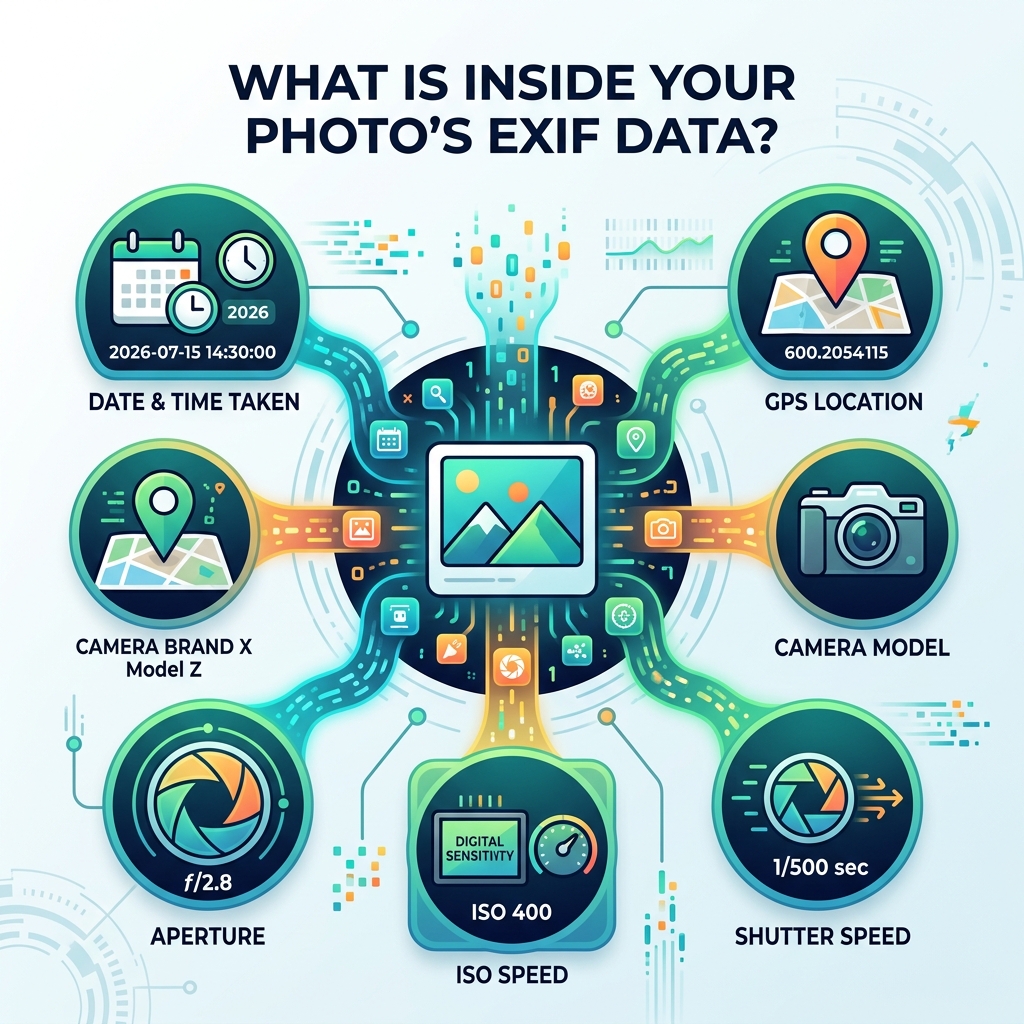
Why You Need to Edit EXIF Date and Metadata
We have all been there: you realize halfway through a vacation that your camera is still on “Home Time,” or you change your camera battery and the internal clock resets to January 1st, 2000. These “time travel” mistakes can turn a beautifully curated library into a disorganized mess.
Here are the most common reasons we find ourselves needing to edit EXIF date tags:
- Timezone Errors: If you travel from New York to Tokyo (a 14-hour difference) and forget to update your settings, your sunrise photos will be timestamped at dinner time.
- Battery Failure: When a camera battery dies completely or is replaced, many older models lose their date settings.
- Scanned Slides and Old Photos: When you scan a physical photo from 1985, the file’s “Date Created” becomes today’s date. To see that photo in its rightful place in your timeline, you must manually inject the historical date.
- Multi-Camera Syncing: If you and a friend are shooting the same event with different cameras, and one clock is two minutes faster than the other, your combined gallery will jump back and forth in time.
Proper metadata management is a cornerstone of efficient strategies for organizing large media libraries. Without accurate timestamps, chronological sorting becomes impossible in apps like Google Photos or Apple Photos. Beyond just organization, there is the matter of privacy. Many photos contain GPS coordinates that reveal exactly where you live or work. Learning to edit or strip this data is essential for the ultimate guide to taming your Android gallery chaos.
Best Tools to Edit EXIF Date on Windows and Mac
Choosing the right tool depends on how many photos you have and how comfortable you are with technology. We generally categorize these into “Power User” tools and “User-Friendly” GUI (Graphical User Interface) editors.
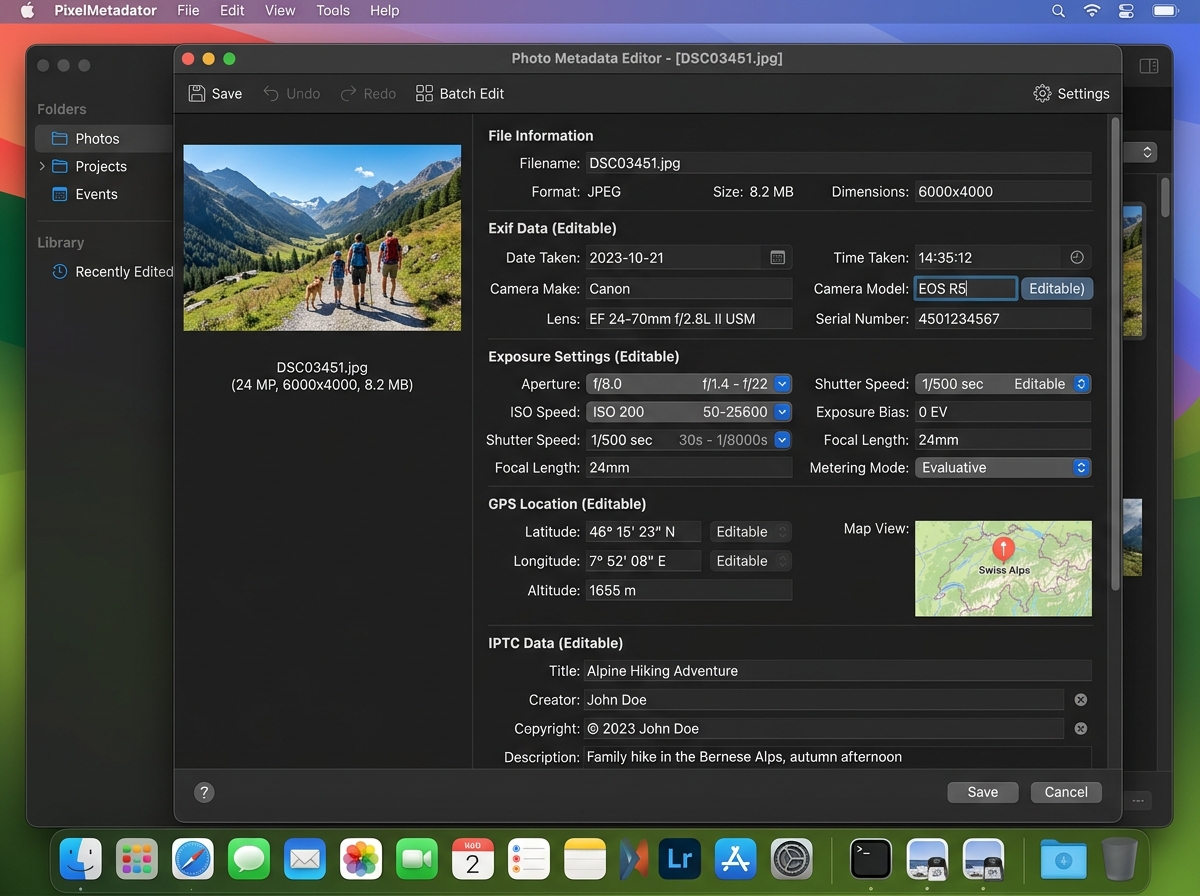
ExifTool by Phil Harvey
If you ask any professional photographer how they handle metadata, they will likely point you toward ExifTool. It is a free, open-source command-line application. While it doesn’t have buttons or menus (you type commands into a terminal), it is the most powerful tool in existence. It supports over 175 metadata tags and can process thousands of files in seconds.
EXIF Date Changer
For those who prefer a traditional window with buttons, EXIF Date Changer is a fantastic choice for Windows users. It is specifically designed to solve the “wrong time” problem. You can tell the software to “add 5 hours to all photos in this folder,” and it handles the rest. You can find the EXIF Date Changer – Download to get started on your PC.
Exif Pilot
Exif Pilot is another excellent Windows-based editor. It is particularly useful if you like working with spreadsheets, as it allows you to export metadata to Excel, edit the dates there, and then import them back into your photos. This is how one user famously processed over 37,000 scanned slides!
| Feature | Desktop Tools (ExifTool/EXIF Date Changer) | Online Tools (BulkPicTools/theXifer) |
|---|---|---|
| Privacy | 100% (Files never leave your computer) | High (If client-side/WebAssembly) |
| Batch Speed | Extremely Fast (Thousands of files) | Moderate (Limited by browser/upload) |
| Ease of Use | Varies (Command line vs GUI) | Very Easy (Drag and drop) |
| Installation | Required | None |
How to Use ExifTool for Advanced Batch Editing
For those of us on Mac or those who aren’t afraid of the Terminal, ExifTool is the gold standard. It allows for “recursive” editing—meaning it can dive into every subfolder in your library and fix everything at once. This is a key step in organizing photos on smartphone and cloud storage.
Step 1: Installation
On a Mac, download the .dmg installer from the official site. Run it, and then verify it by opening your Terminal and typing exiftool. If you see a wall of help text, you’re ready to go.
Step 2: The Command Syntax
Let’s say you went to Japan and your photos are 15 hours behind. You want to add 15 hours to the DateTimeOriginal tag for every photo in a folder named “JapanTrip.”
You would type:
exiftool "-DateTimeOriginal+=0:0:0 15:0:0" -r JapanTrip
- -DateTimeOriginal: This is the specific “Date Taken” tag.
- +=: This tells the tool to add time (use
-=to subtract). - 0:0:0 15:0:0: This follows the format
Years:Months:Days Hours:Minutes:Seconds. - -r: This is the “recursive” flag, telling the tool to look inside all subfolders.
Step 3: Handling Backups
By default, ExifTool is cautious. It creates a copy of your original file and adds the suffix _original to the filename. Once you’ve verified that your photos now show up correctly in the best photo organizing apps for iPhone, you can safely delete these backup files.
Quick Ways to Change Metadata Online for Free
If you only have a handful of photos to fix, you don’t need to install heavy software. Modern web tools use a technology called WebAssembly, which means the “editing” actually happens inside your own browser. Your photos aren’t necessarily “uploaded” to a server in the traditional sense, which is a massive win for privacy.
Top Online Editors
- BulkPicTools: This is a “local-first” tool. When you use their Online EXIF Editor: Change Date, GPS & Copyright (Private), the processing happens on your machine. It’s perfect for quickly fixing a “Date Taken” timestamp using the
YYYY:MM:DD HH:MM:SSformat. - image4resize: For a very simple interface, Change Photo Date Online – Free & Easy allows you to modify the date and time fields and download the corrected version instantly.
- theXifer.net: This tool is great if your photos are already in the cloud. It integrates with Flickr, Dropbox, and Google Drive, allowing you to edit metadata directly from those services.
Using these tools is a great way to take your images from drab to fab: the best apps for aesthetic photos often require a clean, organized library to help you find the shots you want to edit.
Frequently Asked Questions about Photo Metadata
Can I edit exif date for RAW or PNG files?
The short answer is: it depends on the tool. JPEG is the most “stable” format for metadata editing, meaning almost every tool supports it. RAW files (like .CR2, .NEF, or .ARW) are more complex. While ExifTool can handle almost any RAW format, many online editors only support JPEGs.
Interestingly, PNG files didn’t traditionally support EXIF data as well as JPEGs did, though modern standards have improved this. If you are struggling with a PNG or a HEIC file, we recommend converting it to a high-quality JPEG first. You can use an Online EXIF Viewer and Editor to check if your specific file type is readable before you start.
Does editing EXIF data affect image quality?
No. This is one of the best parts of metadata management. When you edit EXIF date info, you are only changing the “header” of the file—the text-based description hidden at the beginning of the code. You are not touching the actual pixels of the image. This is known as “lossless” or “non-destructive” editing. Your photo will look exactly the same; it will just have a different “birthday.”
How do I safely remove GPS data while I edit exif date?
Privacy is a major concern today. Every smartphone photo likely contains your exact latitude and longitude. Most of the tools we’ve mentioned, like the Free Online EXIF Metadata Editor, include a “Strip GPS” or “Remove Location” button.
When batch processing, you can often choose to “Clear All Metadata,” which wipes the slate clean, removing the camera model, serial number, and location tags, leaving only the image itself. This is highly recommended before posting photos of your home or children on public social media platforms.
Conclusion
At Tamba Tech, we believe that your digital legacy deserves to be organized. Whether you are a professional photographer or just someone trying to make sense of a decade’s worth of family vacation shots, knowing how to edit EXIF date tags is a superpower.
Lucas Oliveira and our team of experts always recommend starting with a backup. Metadata editing is generally safe, but when you’re dealing with thousands of precious memories, it never hurts to have a “just in case” copy. Once your timestamps are corrected, you’ll find that your photos finally stay in the right order, making it easier than ever to relive those moments.
Ready to take full control of your digital life? Master your files with our File Management Guide and stop letting your camera’s clock dictate your history!
