
Your iPhone Camera Roll Is Out of Control — Here’s How to Fix It
The best iPhone photo management app depends on what you need most:
| Goal | Best App |
|---|---|
| Quick cleanup (duplicates, blurry shots) | LuminaClean |
| Advanced organization (tags, folders, metadata) | HashPhotos |
| Cloud backup + cross-device sync | Google Photos |
| Real folder system (move, not just copy) | Utiful |
| Power editing + organization | Darkroom |
You take a photo of a receipt. Then your kid does something cute. Then a screenshot of directions. Then ten near-identical sunset shots.
Repeat that a few hundred times and you’ve got a camera roll that feels impossible to manage.
The average iPhone user now carries thousands of photos — many of them blurry, duplicated, or just plain forgettable. That pile grows faster than most people can deal with it. And when storage fills up, the stress sets in.
The good news? The right iPhone photo management app can cut through the chaos in minutes, not hours. Whether you want to bulk-delete junk, organize into real folders, or back everything up without paying for extra iCloud storage — there’s a tool built exactly for that.
This guide breaks it all down so you can stop scrolling and start organizing.
Why the Native Photos App Isn’t Always Enough
We love our iPhones, but let’s be honest: the built-in Photos App – App Store often feels like a giant bucket where everything is tossed and nothing is ever found. While Apple has made strides with features like “Utilities” for receipts and handwriting, many users find the native experience lacking when their library hits the “thousands” mark.
One major point of contention is the iOS 18 redesign. For many, it introduced more confusion than clarity, with some users reporting issues like excessive whitespace, tiny thumbnails, and a reset view that makes browsing a chore. Beyond the interface, there are functional gaps. For instance, Apple’s “Albums” are actually just pointers; if you delete a photo from your main library, it vanishes from the album too. This makes organizing photos on smartphone and cloud a bit of a headache for those who want a true file system.
Furthermore, the native app is conservative with duplicate detection. It might find two identical files, but it often misses “similar” shots—those five slightly different selfies where you only need one. Batch tagging, advanced metadata editing, and deep folder hierarchies are also missing or buried deep in menus. This manual effort is exactly what leads to “digital hoarding.”
Choosing the Right iPhone Photo Management App for Your Needs
When we look for the perfect iPhone photo management app, we evaluate them based on speed, intelligence, and privacy. Some apps are “cleaners” (meant to delete junk), while others are “managers” (meant to sort and tag).
| Feature | Cleanup Apps | Management Apps | Sync/Cloud Apps |
|---|---|---|---|
| Primary Goal | Freeing up space | Sorting & Metadata | Backup & Sharing |
| Interface | Swipe-based | Folder/Grid based | Timeline/Search |
| AI Detection | High (Blur/Duplicates) | Moderate (Tags) | High (Object/Face) |
| Privacy | Often On-device | Local/Encrypted | Cloud-dependent |
If you are feeling overwhelmed, we recommend starting with a cleanup app to trim the fat before moving into a long-term management strategy. You can find more detailed breakdowns in our guide on the best-photo-organizing-apps-for-iphone.
Best iPhone Photo Management App for Quick Cleanup
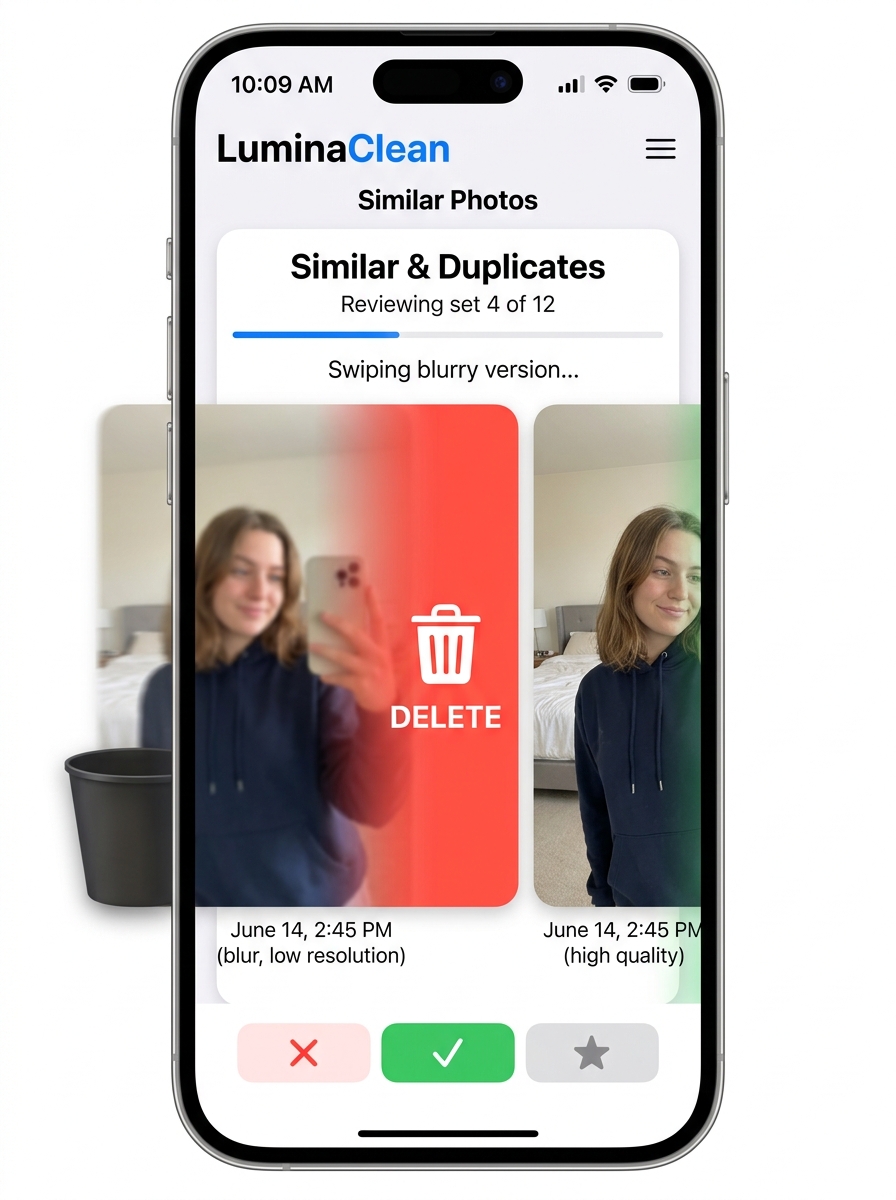
If your main goal is to reclaim gigabytes of storage without spending your entire Sunday afternoon doing it, LuminaClean is a standout choice. It uses a “Tinder-style” swipe interface: swipe left to trash a photo, swipe right to keep it. It’s surprisingly satisfying and turns a chore into a game.
LuminaClean excels at finding the “invisible” clutter. It uses on-device AI to group similar photos, identify blurry shots, and isolate old screenshots you forgot to delete. Because it processes everything locally on your iPhone, it works offline (even in airplane mode!) and never uploads your private memories to a server.
Other great options for quick cleanup include Slidebox, which also uses gestures for album sorting, and Clever Cleaner, known for its highly accurate AI that spots the “best shot” in a series of similar images.
Advanced iPhone Photo Management App for Power Users
For those who want granular control, a simple swipe isn’t enough. Power users need metadata editing, star ratings, and nested folders.
- HashPhotos: This is arguably the ultimate alternative to the native app. It allows you to add keywords (tags), view detailed EXIF metadata (like camera settings and location), and even has a “Private Vault” protected by Face ID. It’s perfect for people who want to treat their iPhone like a professional digital asset manager.
- Utiful: This app solves the “copy vs. move” problem. Unlike Apple Photos, Utiful allows you to move photos out of the camera roll and into real folders. This is a lifesaver for separating work photos from personal memories.
- Photo Manager Pro: If you need to transfer files via FTP or HTTP directly to your computer without relying on the cloud, this app is a powerhouse. It supports RAW formats and offers folder-level password protection.
- Darkroom: Photo & Video Editor App – App Store : While primarily an editor, Darkroom’s integration with the library is seamless. It allows for batch editing and hashtag management, making it a favorite for creators who need to organize and polish their content simultaneously.
Beyond iCloud: Syncing and Privacy-First Solutions
iCloud is convenient, but it isn’t the only way to keep your photos safe. In fact, many users prefer third-party solutions for better search capabilities or cross-platform flexibility.
Google Photos: Backup & Edit App – App Store remains the “gold standard” for smart search. You can search for “dog at the beach” or “Alice laughing,” and Google’s AI finds it instantly. With 15GB of free storage—triple what Apple offers—it’s a great secondary backup.
However, if you are privacy-conscious, you might prefer Mylio Photos. Mylio is unique because it creates a “mesh” between your devices (iPhone, Mac, PC, Tablet) and syncs them directly over your local Wi-Fi. Your data never lives on someone else’s server. It uses local AI to tag faces and objects, giving you the power of Google Photos without the privacy trade-offs.
Understanding Pricing Models and Value
The app market has shifted heavily toward subscriptions, but there are still plenty of ways to get value without a recurring bill.
- Free/Freemium: Apps like LuminaClean and Google Photos offer robust free versions. However, Google Photos will eventually require a subscription once you hit that 15GB limit.
- One-Time Purchases: Apps like HashPhotos and Photo Manager Pro often offer a “lifetime” license or a low one-time fee (often under $20). For a tool you’ll use every day, this is usually the best value.
- Subscriptions: Professional suites like Darkroom+ or Mylio Premium charge monthly or annually ($10–$50/year). These are generally worth it only if you are a professional creator or have a massive library (100k+ photos) that requires heavy-duty syncing.
Always check for “Family Sharing” support. Many of these apps allow you to share one purchase with up to five family members, which significantly lowers the cost per person.
Frequently Asked Questions about iPhone Photo Management
How do I find and delete duplicate photos on my iPhone?
While the native Photos app has a “Duplicates” folder under Utilities, it often misses “near-duplicates.” Using a dedicated iPhone photo management app like LuminaClean or HashPhotos allows you to see similar shots side-by-side. These apps use AI to analyze composition and lighting, helping you pick the sharpest image and delete the rest in bulk.
Are third-party photo organizer apps safe for my privacy?
Most modern, high-rated apps prioritize privacy by using on-device processing. This means the AI “looks” at your photos locally on your iPhone’s chip and never sends the data to the cloud. Always check the App Store privacy label; look for apps that state “Data Not Linked to You.”
Can I move photos into real folders instead of just albums?
In the native Apple app, you can’t. Apple uses a “Gallery” system where albums are just filters. If you want a true directory structure (where a photo is in Folder A but not in the main Camera Roll), apps like Utiful or Photo Manager Pro are your best bet. They function more like the “Finder” on a Mac or “File Explorer” on Windows.
Conclusion
Managing a digital life doesn’t have to be a source of anxiety. By picking the right iPhone photo management app, you can transform a cluttered mess into a curated library of your best memories. Whether you need the quick “swipe-to-clean” simplicity of LuminaClean or the professional-grade metadata tools of HashPhotos, the solution is just a download away.
At Tamba Tech, our expert writers like Lucas Oliveira are dedicated to helping you navigate these digital hurdles. We believe that technology should serve you, not the other way around. Don’t let your storage warnings stop you from capturing new moments—take ten minutes today to start your decluttering journey.
