
Why Your iPhone Photo Library Needs a Sorting System
How to sort photos on iPhone is something millions of people need help with — and for good reason. The average iPhone user takes between 200 and 500 photos every month. Without a system, that adds up fast.
Here’s a quick answer to get you started:
How to sort photos on iPhone (quick steps):
- Open the Photos app
- Tap the three dots (…) icon in the top right
- Tap Sort and choose either Sort by Recently Added or Sort by Date Captured
- To filter, tap … > Filter and pick a content type (Videos, Favorites, Edited, etc.)
- To sort within an album, open the album > tap … > choose Newest to Oldest, Oldest to Newest, or Custom Order
That covers the basics. But there’s a lot more you can do.
Think about it this way: one person who takes around 20,000 photos a year estimates that most of them aren’t worth keeping — blurry shots, duplicates, screenshots, forgettable moments. Without sorting, all of that piles up in one endless scroll.
The good news? Your iPhone already has powerful tools built in. And with the right workflow, you can go from a chaotic camera roll to a clean, searchable library — without spending money on apps.
This guide walks you through everything, from native sorting options to album management, duplicate removal, smart search, and third-party tools for when you need more control.
How to Sort Photos on iPhone Using Native Library Tools
When we talk about how to sort photos on iPhone, we have to start with the main Library. This is the “firehose” where everything you capture lands. Apple provides two primary ways to view this stream: Recently Added and Date Captured.
Sorting by Recently Added is perfect for finding that meme you saved five minutes ago or the AirDrop you just received. If you sort by Date Captured, the app uses the metadata (the digital fingerprint) of the photo to place it exactly when it was taken. This is better for chronological storytelling but can be annoying if an old photo you just imported disappears deep into your timeline.
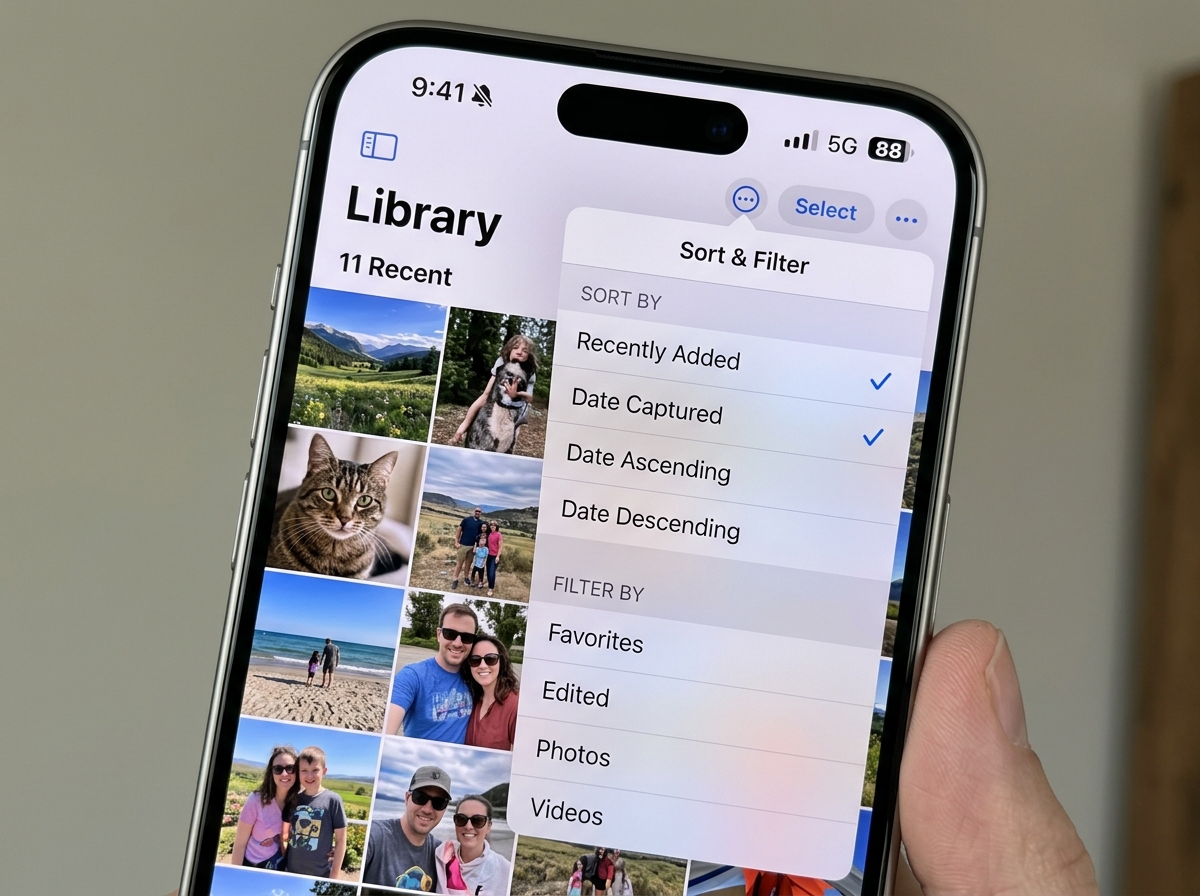
The Sort and filter the photo library on iPhone guide reminds us that these options are just a tap away. However, if you’ve updated to iOS 18, you might have noticed a “Who Moved My Cheese?” moment. The redesign changed the layout significantly.
In the iOS 18 redesign, the traditional tabs are gone, replaced by a unified scroll. To find your sorting options now, you often need to scroll up slightly in your camera roll to reveal a bidirectional arrow icon (two arrows pointing up and down) in the bottom left or right corner. Tapping this allows you to toggle between “Recently Added” and “Date Captured.” This small change has confused many users, but once you find that arrow, library navigation becomes much smoother.
Filtering Your Library for Specific Content
Sometimes sorting isn’t enough; you need to cut through the noise. This is where filters come in. By tapping the ellipsis (…) or the filter icon, you can narrow your view to:
- Favorites: Only those photos you’ve tapped the heart icon on.
- Videos: Perfect for when you’re trying to clear out large files.
- Edited photos: To see your artistic work without the “raw” versions.
- Screenshots: These are often the biggest source of digital clutter.
The best part? You can apply multiple filters at once. For example, you can filter for “Videos” and “Edited” to find that specific clip you color-corrected last week. If you want to declutter even further, use the View Options to hide items like “Shared with You” or “Screenshots” from your main grid entirely.
Customizing the Photos App Interface
Apple has finally given us the keys to the kingdom regarding the app’s look. You can Customize the Photos app on iPhone to match how your brain works.
Scroll to the very bottom of the main Photos view and tap Customize & Reorder. Here, you can hide sections you never use (like “Wallpaper Suggestions”) and move your most-used collections to the top.
We highly recommend using Pinned Collections. This allows you to pin specific albums—like “Family” or “Work Receipts”—so they are always one tap away. You can also toggle the Aspect Ratio Grid. By default, the Photos app shows perfectly square thumbnails. Switching to the Aspect Ratio view lets you see the photos in their original dimensions (portrait or landscape), which makes identifying specific shots much faster.
Managing and Sorting Photos in iPhone Albums
While the Library is for everything, Albums are for your curated collections. Creating an album is the first step in moving from a “messy stream” to an organized library.
To create a new album, go to the Albums tab, tap the plus (+) icon, and select New Album. Once you’ve named it and added your photos, you have specific controls within that album that don’t affect the main library. As noted in the official guide on how to Filter and sort photos and videos in albums on iPhone, you can sort within an album by:
- Oldest to Newest
- Newest to Oldest
- Custom Order
The Custom Order is our favorite feature for storytelling. By selecting this, you can touch and hold any photo thumbnail and drag-and-drop it into a new position. This is essential if you are preparing a slideshow or want a specific “cover photo” for your album.
How to Sort Photos on iPhone Albums by Name or Date
If you have dozens of albums, finding the right one can be a chore. You can actually sort the albums themselves. In the “See All” view of your albums, tap the three dots in the top right. You will see options to Sort by Name (alphabetical), Date Modified, or Custom Order.
Alphabetical sorting is a lifesaver if you use a naming convention (like “2023 – Summer Vacation”). For even better folder management, you can create Folders to hold multiple albums. For instance, you could have a folder named “Travel” containing separate albums for “Paris,” “Tokyo,” and “New York.”
Sharing and Presenting Your Organized Albums
Once you’ve done the hard work of sorting, it’s time to show it off. iCloud Shared Albums are the gold standard for collaboration. You can invite friends or family to an album, and everyone can contribute their own shots.
If you want to present your photos, tap the three dots in an album and select Slideshow. You can customize the transition style, the music (even picking songs from your Apple Music library), and the speed. For a quick transfer, AirDrop remains the fastest way to send high-quality, uncompressed versions of your organized photos to nearby Apple users.
Decluttering Your Library: Duplicates and Search Features
You can’t have an organized library if it’s stuffed with 40 copies of the same sunset. One of the best “hidden” features in recent iOS versions is the Duplicates utility.
Scroll down to the Utilities section at the bottom of the Albums tab. If your iPhone has detected identical or near-identical shots, a “Duplicates” folder will appear. Tapping Merge will keep the highest-quality version and all relevant metadata (like captions and favorites) while tossing the lower-quality copies into the trash. One user found 36 duplicates instantly—imagine how much space that saves over 20,000 photos per year!
For more tips on keeping things lean, check out our guide on organizing photos on smartphone and cloud. Regular monthly maintenance is the secret sauce to a stress-free digital life.
Using Smart Search to Find Specific Images
We often forget that the iPhone is a powerful AI computer. The Search tab is incredibly sophisticated. You don’t just have to search for dates; try typing:
- Objects: “Dog,” “Beach,” “Car,” “Cake.”
- People: If you’ve named people in the “People & Pets” album, just type their name.
- Text: Thanks to Live Text, you can search for words inside a photo, like a restaurant menu or a street sign.
- Location: Search for “Chicago” or even a specific park.
Visual Look Up also allows you to swipe up on a photo of a plant, landmark, or animal to identify it, which then makes those terms searchable in the future.
How to Sort Photos on iPhone by File Size and Type
The native app is great, but it has one major blind spot: it doesn’t easily show you which photos or videos are eating up your storage. While you can filter by “Videos,” you can’t natively sort them from largest to smallest.
| Feature | Native Photos App | Third-Party Apps (e.g., HashPhotos) |
|---|---|---|
| Sort by Date | Yes (Added/Captured) | Yes |
| Sort by File Size | No | Yes |
| Filter by Media Type | Yes | Yes (Advanced syntax) |
| Batch Rename | No | Yes |
| View Metadata (EXIF) | Basic | Advanced/Full |
To manage large files natively, you usually have to go to Settings > General > iPhone Storage > Photos, where iOS will sometimes suggest “Review Large Videos.”
Advanced Organization with Third-Party Apps
If you are a power user taking thousands of photos for work or a hobby, the built-in app might feel a bit limiting. This is where the best photo organizing apps for iPhone come into play.
Apps like Slidebox use a Tinder-like swiping gesture to help you sort photos into albums or the trash in seconds. HashPhotos is a favorite for those who need to sort by file size or view detailed technical data (EXIF) for every shot. These tools allow for batch processing—renaming or dating hundreds of photos at once—which is a massive time-saver for professional workflows.
How to Sort Photos on iPhone Using External Workflows
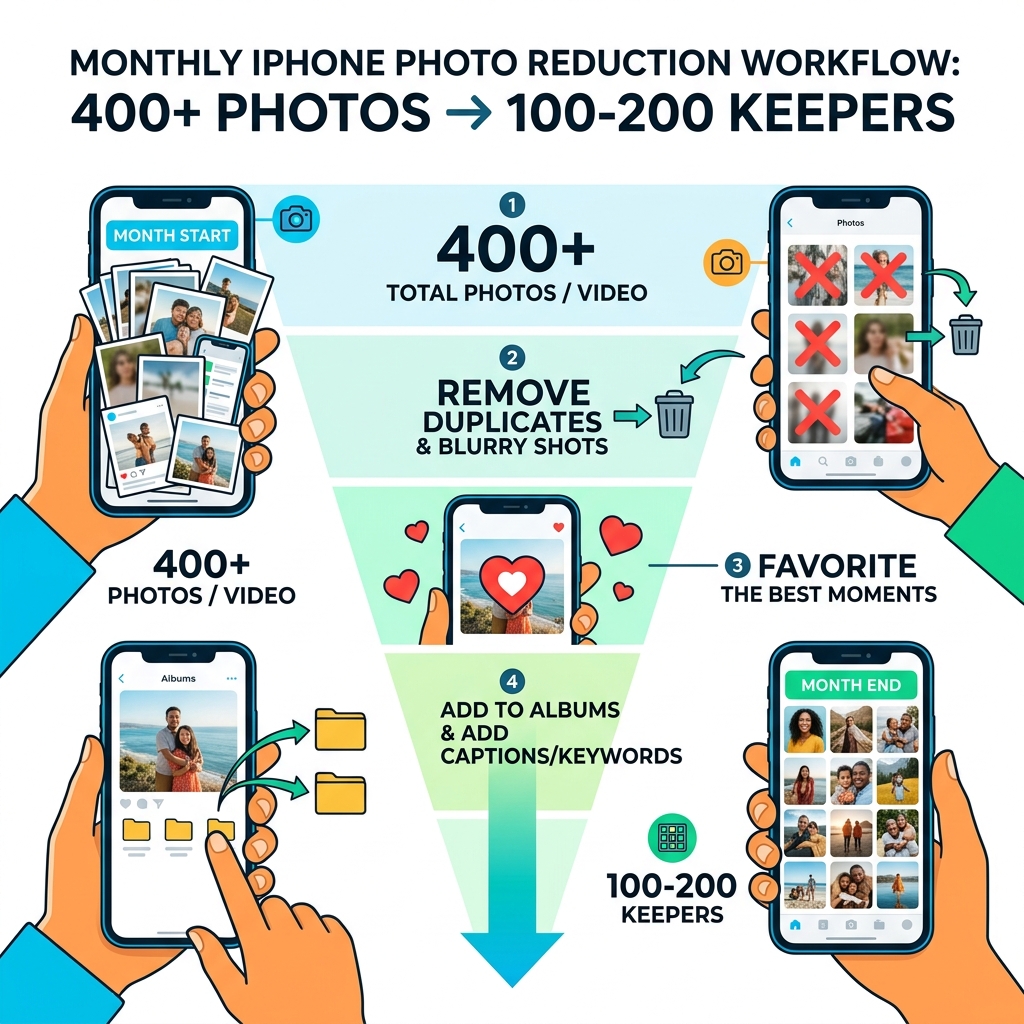
For the ultimate “clean” library, many experts recommend a hybrid approach involving a desktop. A popular workflow involves taking 400+ photos a month and using a monthly “culling” session.
- AirDrop or sync photos to a computer.
- Use professional software to apply presets for a consistent look.
- Be “ruthless” and delete anything that isn’t a 5-star shot.
- Export the “curated best” back to your iPhone and store the rest in a curated backup (like Dropbox or a dedicated hard drive).
This keeps your iPhone library high-quality and joyful to browse, rather than a graveyard of blurry “maybe” shots.
Frequently Asked Questions about iPhone Photo Organization
How do I find my most recently added photos in iOS 18?
In the new iOS 18 layout, scroll up in your Library to reveal the bidirectional arrow icon. Tap it and select Sort by Recently Added. This will move items you just saved or received via AirDrop to the bottom of your grid, regardless of when they were actually taken.
Can I sort photos by file size natively on iPhone?
No, the native Photos app does not currently support sorting by file size. To do this, you would need to use a third-party app like HashPhotos or check the “Review Large Videos” section in your iPhone’s Storage settings.
Does removing a photo from an album delete it from my library?
No. When you select a photo in an album and tap the trash icon, you are usually given two choices: Remove from Album or Delete. Removing it from the album keeps the photo safe in your main Library; deleting it moves it to the “Recently Deleted” folder for 30 days.
Conclusion
At Tamba Tech, we believe that digital hygiene is just as important as physical organization. Learning how to sort photos on iPhone isn’t just about saving storage space; it’s about making sure your most precious memories don’t get lost in a sea of screenshots and blurry duplicates.
By using the native sorting tools, mastering the iOS 18 redesign, and perhaps incorporating a few expert-level third-party apps, you can transform your phone into a beautifully curated gallery. As our expert writer Lucas Oliveira often says, the best time to organize your photos was the moment you took them—the second best time is today.
Ready to take full control of your digital life? Master your digital storage with our file management guides and never lose a “best shot” again!
