
How to See Shared Photo Albums on iPhone (Quick Answer)
how to see shared photo albums on iphone is simpler than most people expect — here’s the fastest way to find them:
- Open the Photos app
- Tap the Albums tab at the bottom
- Scroll down to the Shared Albums section
- Tap any album to view it — or tap a pending invite to accept it
Note: If you don’t see Shared Albums, go to Settings > [Your Name] > iCloud > Photos and make sure Shared Albums is turned on.
You’ve probably been there: someone says “I shared the photos with you!” — and you have no idea where to look. The Photos app on iPhone has two different sharing systems, a handful of settings that need to be enabled, and a “For You” tab that quietly hides your invitations.
It’s not obvious. But it is easy once you know where to look.
This guide walks you through everything — finding albums you’ve been invited to, enabling the feature, understanding the limits, and fixing it when something goes wrong.
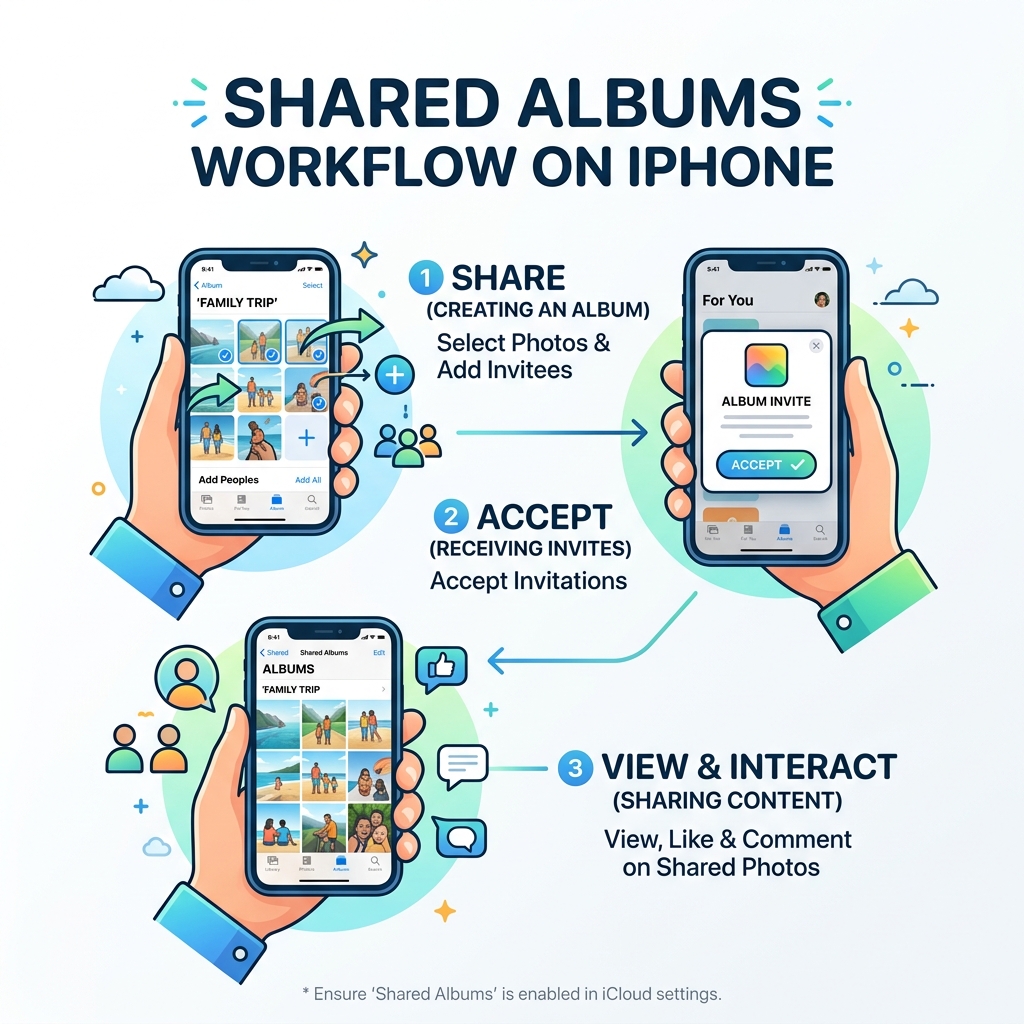
Shared Albums vs. iCloud Shared Photo Library
Before we dive into the “how-to,” we need to clear up a common point of confusion. Apple actually offers two distinct ways to share photos, and knowing the difference is the first step in learning how to see shared photo albums on iphone.
The classic feature is Shared Albums. This is great for events like weddings or vacations where you want to invite up to 100 people to see a specific set of photos. The newer, more robust feature is the iCloud Shared Photo Library (introduced with iOS 16.1), designed for families or very close groups of up to six people to merge their entire libraries or specific date ranges.
Here is a quick breakdown of how they differ:
| Feature | Shared Albums | iCloud Shared Photo Library |
|---|---|---|
| Participant Limit | Up to 100 people | Up to 6 people |
| Storage Impact | Does NOT count against iCloud storage | Counts against the creator’s iCloud storage |
| Best For | Events, friends, and specific trips | Families and household partners |
| Editing | Subscribers can add/comment | Everyone has equal rights to edit/delete |
| System Req. | Works on most older iOS versions | Requires iOS 16.1 or later |
If you are looking for a massive collection of family photos that everyone can edit, you are likely looking for the How to use iCloud Shared Photo Library on iPhone or iPad – Apple Support. However, for most social sharing, the standard Shared Albums feature is what you need. Understanding these distinctions is a core part of organizing photos on smartphones and cloud storage effectively.
How to Enable and How to See Shared Photo Albums on iPhone
If you’ve been told an album was shared with you but you can’t find it anywhere, the feature might be turned off in your system settings. We’ve found that this is the #1 reason users struggle with how to see shared photo albums on iphone.
Follow these steps to make sure everything is configured correctly:
- Open Settings: Tap the gear icon on your home screen.
- Access Your Apple Account: Tap your name at the very top of the menu.
- Navigate to iCloud: Tap on iCloud, then select Photos.
- Toggle the Switch: Scroll down until you see Shared Albums. Ensure the toggle is green (On).
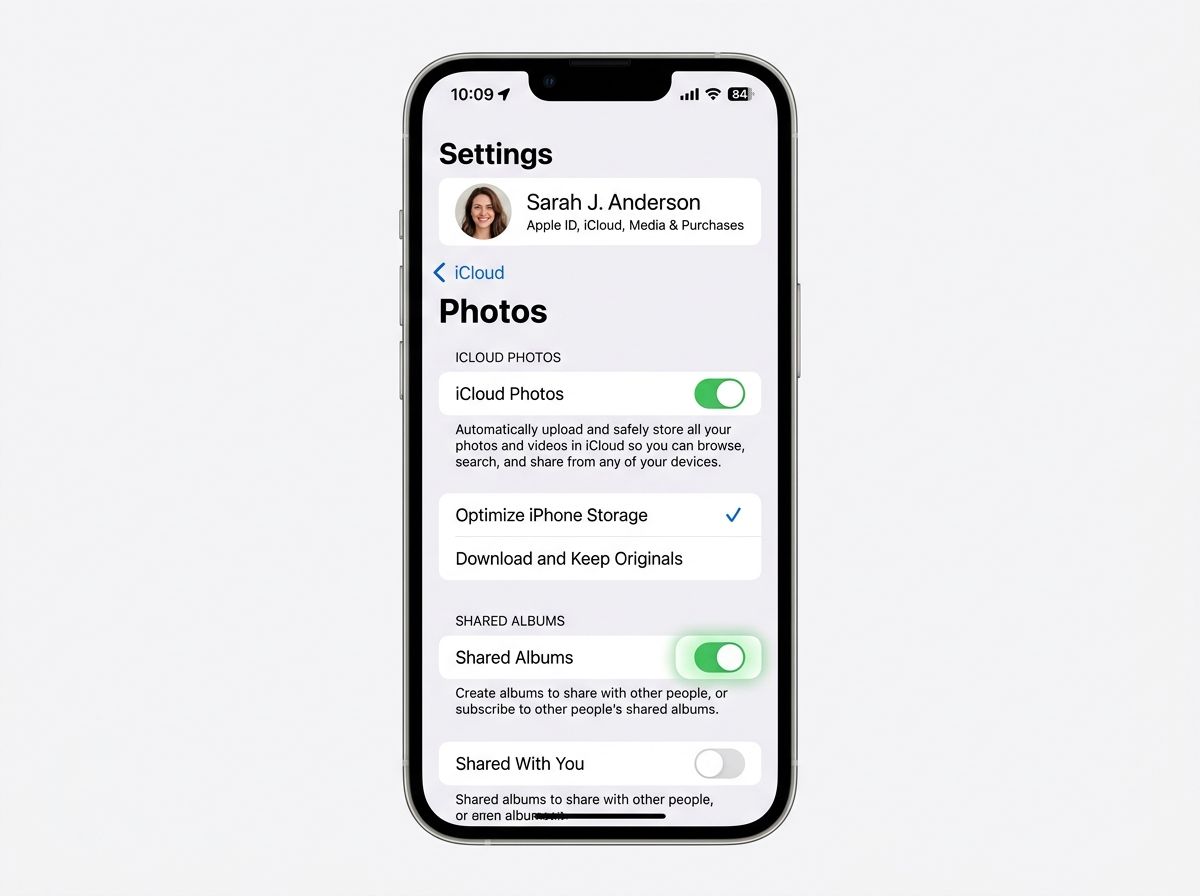
Once this is enabled, your iPhone will begin syncing any albums you’ve joined. That you must be signed in with your Apple Account for this to work. If you’re still having trouble organizing your media after enabling this, you might want to check out our list of the best photo organizing apps for iPhone to help keep your gallery tidy.
For more official technical details, you can also refer to How to use Shared Albums in Photos on your iPhone, iPad, or Apple Vision Pro – Apple Support.
Managing Media and Finding Your Albums
Once you’ve mastered how to see shared photo albums on iphone, you’ll want to know how to manage the content inside them. Shared Albums are incredibly convenient because they don’t eat up your personal iCloud storage quota, but that convenience comes with a few technical “catches.”
First, let’s talk about the limitations. Apple limits each Shared Album to a maximum of 5,000 photos and videos. If you hit that limit, you’ll need to delete older items before adding new ones. Additionally, to keep things running smoothly, Apple scales down the quality of the media:
- Photos: Reduced to 2048 pixels on the long edge (except for panoramas).
- Videos: Limited to a maximum length of 15 minutes and a resolution of 720p.
If you want to keep a high-quality version of a photo someone else shared, you must save it to your own library. To do this, tap the photo, tap the Share button (the square with an arrow), and select Save Image.
Where to See Shared Photo Albums on iPhone
Finding the actual albums involves two main areas of the Photos app:
- The Albums Tab: This is the primary home for your shared content. Open Photos, tap Albums at the bottom, and scroll down past “My Albums” and “Shared Library” until you reach the Shared Albums section. Tap “See All” to view every collection you’ve joined or created.
- The For You Tab: This is where invitations live. If someone just invited you to an album, you won’t see it in the Albums tab yet. You must go to For You, look under Shared Album Activity, and tap Accept.
Managing who can see these photos is just as important as viewing them. As the creator, you can add and remove people in a shared album in Photos on iPhone at any time through the “People” tab within the album. This is one of the efficient strategies for organizing large media libraries that we recommend for keeping your digital life secure.
Frequently Asked Questions about Shared Albums
Why Can’t I See Shared Photo Albums on iPhone?
It is incredibly frustrating when you know an album exists but it won’t show up. If you’ve followed the steps for how to see shared photo albums on iphone and still see nothing, try these troubleshooting tips:
- Check Your Connection: Shared Albums require an active internet connection to sync. If you are on weak Wi-Fi, the thumbnails might not load.
- Disable Low Power Mode: Sometimes, iOS pauses background syncing (including Shared Albums) to save battery. Turn off Low Power Mode in Settings > Battery.
- Toggle the Feature: Go back to Settings > [Your Name] > iCloud > Photos, turn “Shared Albums” off, wait a minute, and turn it back on.
- Resend the Invitation: If you never received the invite, ask the creator to delete your email from the invite list and re-add you. Sometimes the digital “handshake” fails the first time.
For a deeper dive into sync issues across all Apple devices, check out How to use Shared Albums in Photos on your iPhone, iPad, and Mac.
Can Android users contribute to an iPhone Shared Album?
This is a common pain point. The short answer is no, Android users cannot contribute photos to an iPhone Shared Album. They also cannot “join” the album in the traditional sense.
However, they can still view the photos if you enable the Public Website option.
- Open the Shared Album.
- Tap the People icon (or the three dots and then “Shared Album Details”).
- Toggle on Public Website.
- Share the generated URL with your Android friends.
They will be able to view and download photos from their mobile browser, but they won’t be able to like, comment, or upload their own images. If you are on the other side of the fence, you might find the ultimate guide to taming your Android gallery chaos helpful for managing your own device.
What are the storage limits and file restrictions for Shared Albums?
As we mentioned, the main limit is 5,000 items per album. But what about file types? Shared Albums are surprisingly flexible, supporting:
- Images: HEIF, JPEG, RAW, PNG, GIF, and TIFF.
- Videos: HEVC, MP4, QuickTime, and H.264.
Even though RAW files are supported, remember they will be compressed for the shared view. If you’re a professional photographer, you may want to create shared albums in Photos on iPhone specifically for previews, while keeping your high-res originals elsewhere.
Conclusion
Learning how to see shared photo albums on iphone is more than just a technical skill—it’s about staying connected with the people who matter most. Whether it’s a stream of baby photos for grandparents or a collaborative album for your best friend’s 30th birthday, these tools make sharing memories effortless.
At Tambas Tech, we believe that technology should serve your memories, not complicate them. By understanding the difference between Shared Albums and the Shared Photo Library, and knowing exactly where to look in your Photos app, you can ensure that no memory ever gets lost in a sub-menu again.
Our expert writers, including Lucas Oliveira, are dedicated to providing these kinds of comprehensive, user-friendly guides to help you master your devices. If you found this guide helpful, you can learn more about how to manage your mobile files effectively on our dedicated file management page. Happy sharing!
