
Why Managing Your Google Storage Subscription Matters
Managing your Google storage subscription is simpler than it sounds — here’s a quick overview of how it works:
Quick answer:
- Go to one.google.com or open the Google One app
- Sign in to your Google Account
- Select Settings to upgrade, downgrade, or cancel your plan
- To check usage, click Storage on the left panel
- Changes can take up to 24 hours to take effect
Every Google Account comes with 15 GB of free storage — shared across Gmail, Google Drive, and Google Photos. That sounds like a lot. But it fills up faster than most people expect.
Think about it: years of emails with attachments, thousands of phone photos, and document backups all pulling from the same 15 GB pool. For busy iPhone users juggling a growing photo library, that limit can sneak up on you.
When your storage is full, things stop working. Google Photos won’t back up new photos. Gmail won’t accept new messages. Google Drive blocks new file creation. And if you stay over your limit for 2 years, Google may permanently delete your content.
That’s why knowing how to manage your storage — whether that means upgrading, clearing space, or sharing a plan with family — is genuinely important.
This guide walks you through everything: plans, pricing, step-by-step subscription changes, freeing up space, and fixing common issues.
Understanding Google One and Your Free Storage Limits
We’ve all been there: you’re trying to send a critical email or save a once-in-a-lifetime photo, and a red bar appears telling you your storage is 99% full. It’s a digital heart attack. To effectively manage google storage subscription options, we first need to understand the sandbox we are playing in.
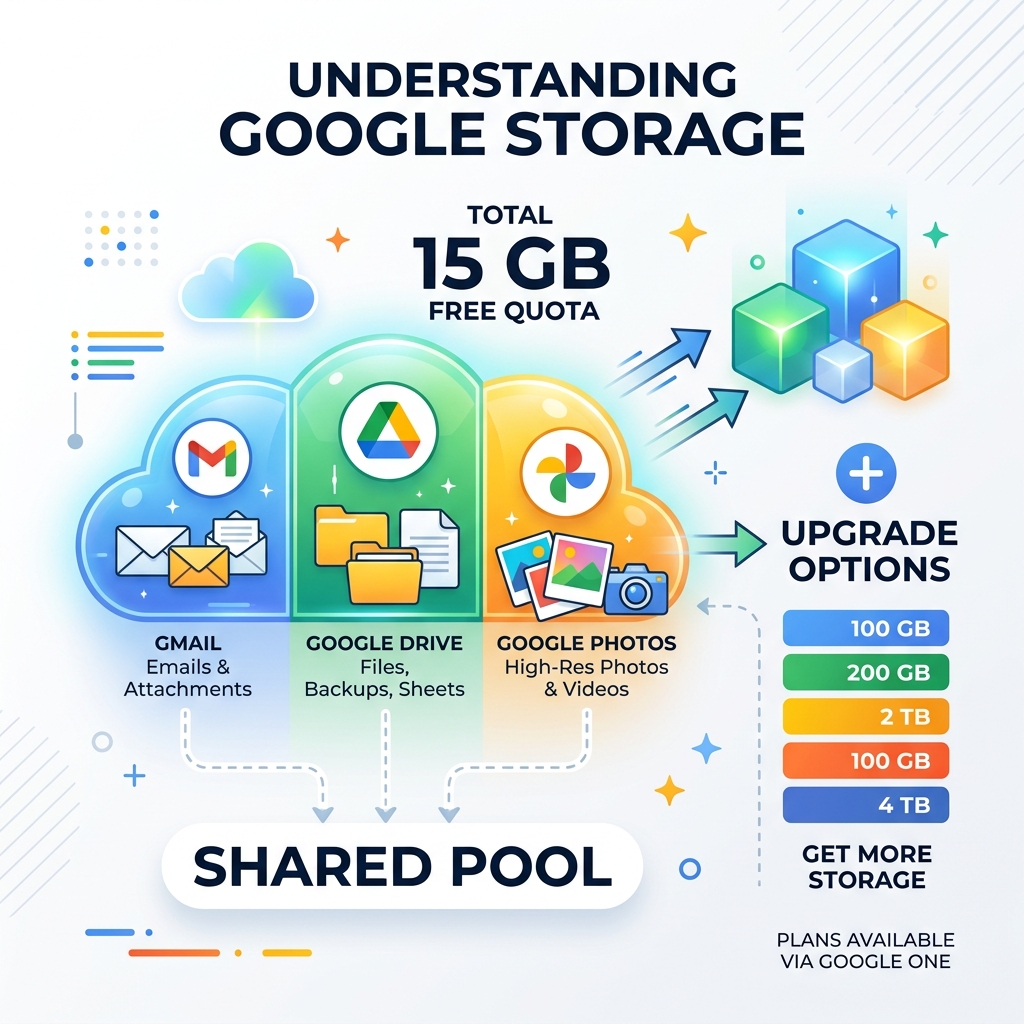
Every standard Google Account starts with a 15 GB free quota. While 15 GB was massive a decade ago, today’s high-resolution 4K videos and large email attachments eat through it like a hungry teenager. This storage is a shared pool used by:
- Google Drive: PDFs, zip files, and anything you manually upload.
- Gmail: Your messages and those massive slide decks your boss keeps emailing you.
- Google Photos: Every selfie and sunset shot you’ve backed up since 2021.
- WhatsApp Backups: For Android users, your WhatsApp chat history and media now count against this limit too.
One critical policy to remember: if you remain over your storage quota for 2 years, Google reserves the right to delete your content across Gmail, Drive, and Photos. It’s not an immediate “delete” button, but it is a ticking clock. For more on keeping your data safe, check out our guide on Securing Cloud Storage Accounts.
Google One vs. Basic Google Storage
You might hear the terms “Google Drive storage” and “Google One” used interchangeably, but they aren’t exactly the same. Think of Google Drive as the filing cabinet where you keep your stuff, and Google One as the subscription service that gives you a bigger room to put more cabinets in.
When you decide to manage google storage subscription upgrades, you are technically becoming a Google One member. This membership offers more than just raw gigabytes. Benefits include:
- Expanded Space: Moving from 15 GB to 100 GB, 2 TB, or even 30 TB.
- Expert Support: Direct access to Google experts for help with Google products.
- Family Sharing: The ability to share your storage plan with up to five additional family members.
- Extra Perks: Features like dark web monitoring and enhanced editing tools in Google Photos.
For those looking to optimize their digital life, we’ve compiled some excellent Cloud Storage Management Tips to help you decide if an upgrade is truly necessary.
What Happens When You Exceed Your Limit?
Running out of space is more than just an annoyance; it’s a functional shutdown of your Google ecosystem. Here is the “Full Storage” reality check:
- Email Disruption: You cannot send or receive emails. People trying to reach you will receive a “bounce-back” notification.
- Backup Pauses: Your phone will stop backing up new photos and videos. If you lose your phone, those memories are gone.
- File Restrictions: You won’t be able to create new Google Docs, Sheets, or Slides. Even existing files may become “read-only.”
- The 2-Year Rule: As mentioned, prolonged inactivity or being over-quota for 24 months puts your data at risk of deletion.
If you are feeling overwhelmed by files, our guide on Reducing Digital Storage Overload: A Simple Guide for Beginners can help you breathe a little easier.
How to Manage Google Storage Subscription Plans and Pricing
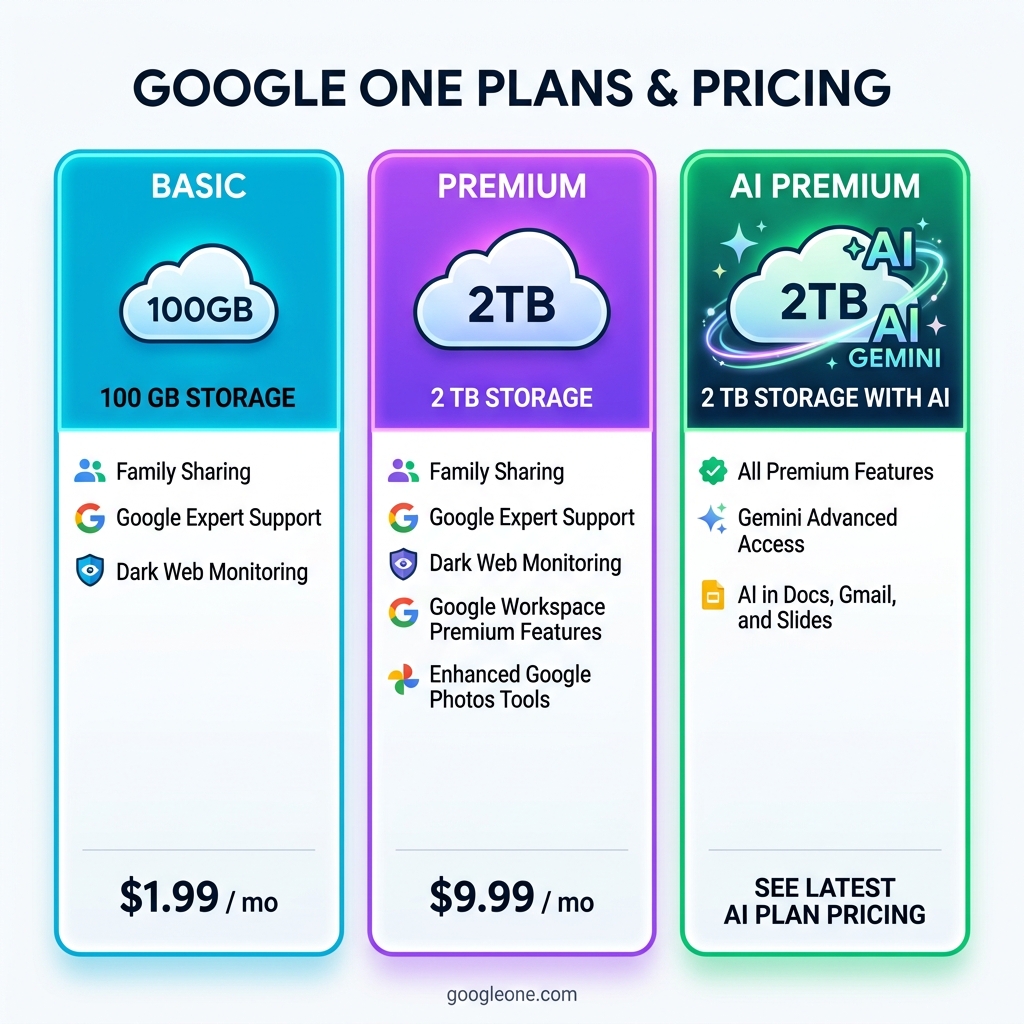
Choosing a plan is the most direct way to manage google storage subscription needs. Google has structured these plans to scale with your life, from the “I just need a little more room” Basic plan to the “I am a professional creator” AI Premium tiers.
Here is a breakdown of the most common consumer plans:
| Plan Tier | Storage Amount | Key Features | Pricing (Monthly) |
|---|---|---|---|
| Basic | 100 GB | Family sharing, expert support | $1.99 |
| Premium | 2 TB | 10% back in Google Store, Workspace features | $9.99 |
| AI Premium | 2 TB | Gemini Advanced, Gemini in Gmail/Docs | $19.99 |
Note: You can often save up to 16% by opting for annual billing. For the most up-to-date regional pricing, visit the official Plans & Pricing to Upgrade Your Cloud Storage – Google One page.
Personal Accounts vs. Google Workspace Storage
If you use Google for work or run an organization, your storage management looks a bit different. While personal accounts use Google One, businesses use Google Workspace.
In Workspace, storage is often pooled. This means if you have 10 users with 30 GB each, the organization has a total pool of 300 GB. Administrators can manage this through the Admin Console, assigning specific limits to different organizational units. If your company is hitting its ceiling, you can Buy more Google Workspace storage for your organization – Google Workspace Admin Help to add more TBs to the collective pool.
Advanced AI and Member Benefits
Google has recently pivoted to make Google One an “AI-first” subscription. The higher-tier plans now include Gemini Advanced, which is Google’s most capable AI model.
- Gemini Integration: Use AI directly inside Gmail and Docs to draft emails or summarize long documents.
- AI Credits: Some plans offer monthly credits for specialized AI tasks.
- Meet Enhancements: Premium members get longer group calls (up to 24 hours) and noise cancellation.
- NotebookLM: Access to advanced AI-powered research tools.
To keep track of all these various digital costs, we recommend using Apps to Track Digital Subscriptions so you never get surprised by a renewal.
Step-by-Step: How to Upgrade, Downgrade, or Cancel Your Subscription
Ready to make a change? Whether you’re moving up to the 2 TB tier or scaling back to the free version, here is how to manage google storage subscription settings across different devices.
Upgrading or Changing Your Plan (Web and Android)
- Go to one.google.com.
- On the left, click Settings.
- Select Change membership plan.
- Choose a new storage limit. For a downgrade, look under “Downgrade options.”
- Confirm the new price and payment date, then click Next.
Canceling Your Subscription
If you decide you no longer need the extra space:
- Open the Google One app or website.
- Navigate to Settings.
- Click Cancel membership.
- Confirm your choice. Important: Your files won’t be deleted immediately, but you will lose the ability to add new ones if you are over the 15 GB free limit.
For specific Android steps, see the Change or cancel storage plans – Android – Google One Help guide.
Managing Subscriptions Across Different Platforms
This is where it gets a little tricky. If you started your subscription on an iPhone, you likely did so through the Apple App Store.
- iOS Users: You must manage your subscription through your iPhone’s Apple ID settings, not the Google One website.
- Switching Platforms: If you signed up via the App Store and moved to Android, you still have to use an Apple device to cancel or change that specific billing.
- Pixel Pass: If you have a Pixel Pass, your storage is managed through the Google Store or your Pixel Pass dashboard.
If this sounds like a headache, there are many Subscription Management Apps for Beginners that can help centralize these tasks.
Important Policies on Refunds and Transfers
Before you click “Buy,” keep these three rules in mind:
- Non-Refundable: Generally, Google storage plans are non-refundable. Once you pay for the month or year, you have that storage until the period ends.
- Non-Transferable: You cannot move a storage plan from one Google Account to another. Make sure you are signed into the correct account before purchasing!
- Automatic Renewal: These plans renew automatically. If you don’t want to be charged next year, set a reminder to cancel at least 24 hours before the renewal date.
We always suggest following Best Practices for File Backup and Storage Management to ensure your data is safe regardless of your subscription status.
Optimizing Your Space: Proactive Steps to Manage Google Storage Subscription Usage
Sometimes the best way to manage google storage subscription costs is to simply use less space. You might not need to pay for 100 GB if you can clear out 5 GB of digital junk.
The Google Storage Manager Tool
Google provides a “Storage Manager” tool (available at one.google.com/storage/management) that highlights:
- Deleted Emails: Items in your trash or spam folder.
- Large Files: Files in Drive or Gmail that are over 10 MB or 100 MB.
- Blurry Photos: Google Photos can identify out-of-focus shots that are just wasting space.
For a deeper dive into cleaning up, follow our Step-by-Step Guide to Decluttering Cloud Storage.
Handling WhatsApp and Device Backups
For Android users, WhatsApp is often the silent storage killer.
- Exclude Videos: In WhatsApp settings, you can choose to back up chats and photos but exclude videos. This can save dozens of gigabytes.
- Storage Saver Mode: In Google Photos, use “Storage Saver” (formerly High Quality) instead of “Original Quality.” This compresses the files slightly so they take up much less room without a noticeable loss in quality for most users.
If you’re looking for alternatives to keep your phone slim, check out these Cloud Backup Apps for Home and Work.
Sharing Storage with Family Members
One of the best values in a Google One plan is Family Sharing.
- You can invite up to 5 other people.
- Everyone gets their own private space (you can’t see their files, and they can’t see yours).
- The 100 GB or 2 TB pool is shared among everyone.
- Pro Tip: If one family member is a “storage hog,” they might eat up the entire pool. Use the storage manager to see who is using what.
This is a great option for Cloud Storage Apps for Digital Minimalists who want to share resources efficiently.
Troubleshooting to Manage Google Storage Subscription Delays
“I just paid for 2 TB, why does it still say I’m full?!” Don’t panic. Technical delays are common when you manage google storage subscription changes.
- Activation Time: It can take up to 24 hours for a new storage plan to reflect in your account.
- Syncing Delays: If you deleted thousands of files, it can take 48–72 hours for the “Storage Used” meter to update.
- Payment Declines: If your storage hasn’t updated after 24 hours, check your email. Google may have had trouble processing your credit card.
For more technical help, the Update your Google One plan & troubleshoot upgrade issues – Computer – Google One Help page is an excellent resource.
What to Do if Storage Doesn’t Update
If you’ve waited 24 hours and your account still shows the old limit:
- Sign Out and In: Force a refresh by signing out of your Google Account and signing back in.
- Check Multiple Accounts: Ensure you didn’t accidentally buy the storage for your “junk” email account instead of your primary one.
- Browser Compatibility: Ensure you are using a supported browser like Chrome, Firefox, or Safari. Google One no longer supports Internet Explorer.
For more advice on keeping your cloud running smoothly, see our Top Tips for Effective Cloud Storage Management.
Frequently Asked Questions about Google Storage
How long does it take for storage changes to take effect?
Usually, it’s instant, but Google officially states it can take up to 24 hours for upgrades and 48–72 hours for the system to reflect deleted files.
Can I share my Google One storage with people outside my family?
Google’s “Family Group” is intended for people you live with or close family. While you can invite anyone with a Google Account, they must join your family group, which also affects things like your YouTube Premium or Google Play Family Library.
What happens to my files if I cancel my subscription?
Your files stay safe! However, you will be over your limit. You won’t be able to send emails or save new files until you either delete enough content to get under 15 GB or re-subscribe.
Conclusion
At Tamba Tech, we believe that technology should work for you, not the other way around. Learning to manage google storage subscription settings is a fundamental skill in our increasingly digital lives. Whether you are a minimalist trying to squeeze every byte out of the free 15 GB or a power user taking advantage of Gemini AI in the 2 TB plan, staying on top of your storage ensures your digital memories and work remain accessible.
Don’t wait for the “Storage Full” warning to appear. Take a moment today to check your usage, clear out those old “Trash” folders, and ensure your payment methods are up to date. For more guides on staying organized, Manage your files effectively with our latest expert reviews.
