
Your iPhone Camera Is Amazing — But It’s Eating Your Storage Alive
iCloud photo optimize storage is a built-in Apple feature that automatically replaces full-resolution photos and videos on your device with smaller, space-saving versions — while keeping the originals safely stored in iCloud.
Here’s how it works at a glance:
- What it does: Keeps lightweight “preview” copies on your device, full-resolution originals in iCloud
- Where to turn it on: Settings > [Your Name] > iCloud > Photos > Optimize iPhone Storage
- How much space it saves: Your local library can shrink to less than 20% of its original size
- What you need: An active iCloud account (5GB free; paid plans start at $0.99/month for 50GB)
- The catch: You need an internet connection to view or edit photos at full resolution
Think about what’s sitting on your iPhone right now. Every burst shot, every 4K video clip, every accidental duplicate. A single minute of 4K footage at 60fps takes up roughly 400MB — nearly half a gigabyte. It adds up fast.
For many iPhone users, this leads to the dreaded “Storage Full” notification at the worst possible moment — right before a software update, or mid-trip when you want to snap one more photo.
The good news? You don’t have to delete your memories to fix this. Apple’s Optimize Storage feature is designed to handle it automatically. But as many users discover, it doesn’t always behave the way you’d expect — and understanding why makes a big difference.
This guide walks you through everything: how the feature actually works, how to turn it on across all your devices, what kind of savings to expect, and what to do when it isn’t working.
What is iCloud Photos Optimize Storage and How Does It Work?
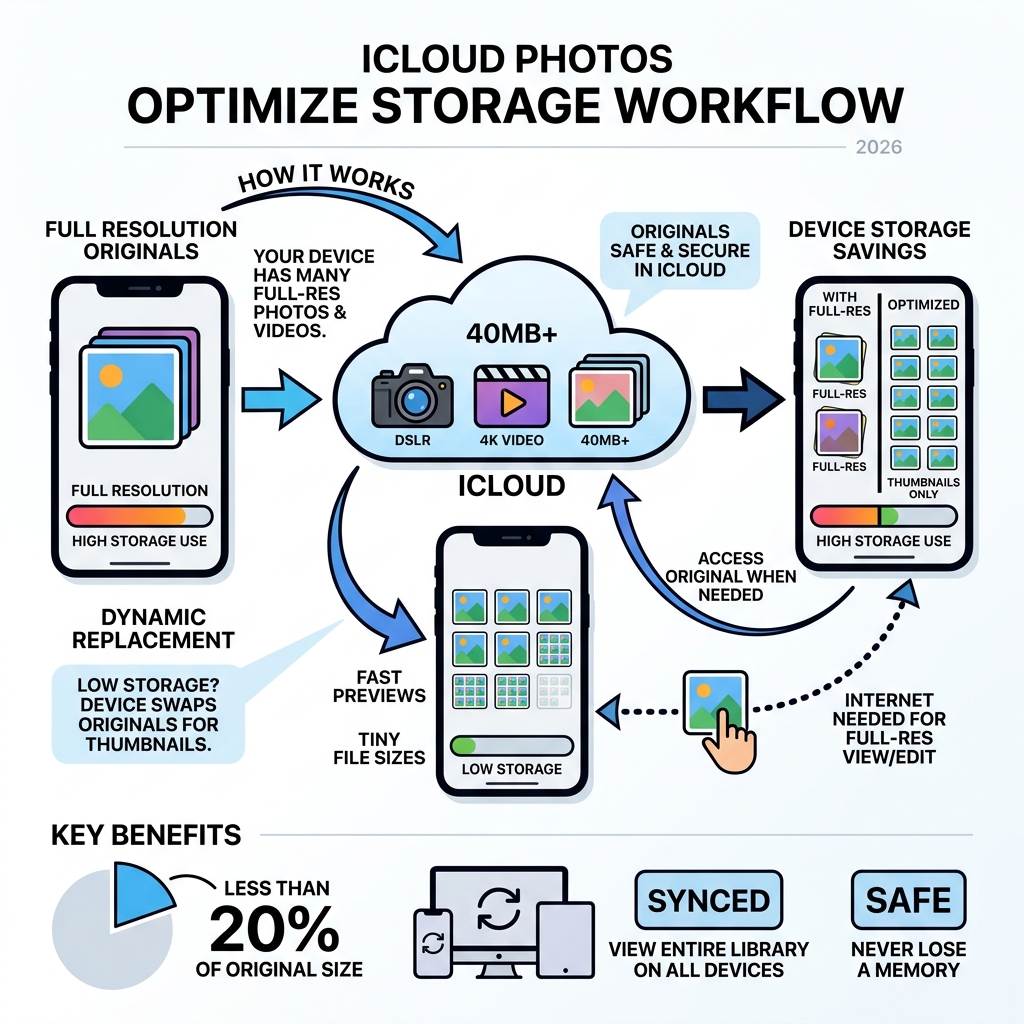
At its core, iCloud Photos is a synchronization service, not a traditional offline archive. This is a common point of confusion. When you delete a photo on your iPhone, it disappears from your Mac and iPad, too. icloud photo optimize storage is the “magic trick” Apple uses to let you keep your entire library visible on a device that doesn’t actually have the physical space to hold it.
When you enable this feature, your device keeps the full-resolution originals only as long as you have plenty of storage. As your “disk space” starts to dwindle, the Photos app begins a process of dynamic management. It swaps out those heavy, multi-megabyte files for tiny, screen-resolution versions (thumbnails).
The full-resolution originals—including RAW files, 4K videos, and Live Photos—stay securely stored in Apple’s cloud. If you want to zoom in on a photo, edit a video, or share a high-res file, your device silently reaches out to iCloud and downloads the original in the background. Once you’re done and space is needed again, it reverts back to the optimized version.
According to Manage your photo and video storage – Apple Support, this process is entirely automatic. The system prioritizes keeping photos you view frequently in higher quality while offloading the “hoarded” pet photos from three years ago to the cloud.
How to Enable iCloud Photo Optimize Storage on All Your Devices
Ready to stop the “Storage Full” madness? Enabling the feature is straightforward, but you must do it on a device-by-device basis. For example, you might want to optimize your 128GB iPhone but keep “Download Originals” active on your 2TB iMac so you have a local master copy.
Enabling on iPhone, iPad, and Apple Vision Pro
- Open the Settings app.
- Tap your Name at the very top.
- Tap iCloud, then tap Photos.
- Ensure Sync this iPhone (or iPad) is toggled ON.
- Select Optimize iPhone Storage. A blue checkmark will appear next to it.
Enabling on Mac
- Open the Photos app.
- In the menu bar at the top of the screen, click Photos > Settings (or Preferences on older macOS versions).
- Click the iCloud tab.
- Select the checkbox for Optimize Mac Storage.
That for this to work, you need enough iCloud storage to hold the full-resolution library. Apple gives everyone 5GB for free, but in 2026, that barely covers a few minutes of high-res video. Most users will need an iCloud+ plan.
As noted in Set up and use iCloud Photos – Apple Support, if you run out of iCloud space, your devices will stop syncing, and new photos won’t be protected in the cloud.
Managing iCloud Photo Optimize Storage on Mac vs. iPhone
The behavior on a Mac can be slightly different than on mobile. On an iPhone, the system is very aggressive about saving space because storage is soldered on and non-expandable. On a Mac, the Photos app might be more “lazy” about optimizing if you have a large boot drive.
We often recommend that users who are serious about their photography follow our top-tips-for-effective-cloud-storage-management/ to decide which device should be the “Master.” If your Mac has a small 256GB SSD, optimization is a lifesaver. However, if you have a massive desktop drive, keeping “Download Originals” selected on that one machine ensures you have a physical backup that Time Machine can actually see.
How iCloud Storage Plans Factor Into Optimization
Optimization only works if there is a “destination” for your full-resolution files. This is where iCloud+ tiers come in. Currently, the pricing typically looks like this:
- 50GB ($0.99/mo): Great for casual users or those with a single device.
- 200GB ($2.99/mo): The “sweet spot” for families using Family Sharing.
- 2TB ($9.99/mo) and up: Essential for 4K video creators and photography enthusiasts.
Upgrading your plan is often the first step in solving storage woes. If you’re struggling to decide which plan fits your lifestyle, our cloud-storage-management-tips guide breaks down the cost-to-benefit ratio of each tier.
Real-World Storage Savings and Performance Benchmarks
How much space will you actually save? It’s often more than people realize. In many cases, an optimized library takes up less than 20% of the space of the original files. In extreme cases involving lots of video, that number can drop to under 5%.
| Original Library Size (iCloud) | Local Optimized Size (Device) | Savings Percentage |
|---|---|---|
| 2.5 GB | 930 MB | ~63% Savings |
| 27 GB | 2 GB (iPad Example) | ~93% Savings |
| 30 GB | 11 GB (Partial Process) | ~37% Savings |
| 140 GB | 5 GB (iPhone Example) | ~96% Savings |
As these real-world statistics show, the savings are massive. One user reported a 140GB library taking up only 5GB on their iPhone. This is because the iPhone only stores what it absolutely needs to show you a clear thumbnail. Remember: 4K 60fps video consumes 400MB per minute. By offloading that minute of video, your phone gains enough space for hundreds of optimized photo thumbnails.
Troubleshooting iCloud Photo Optimize Storage Issues
“I turned on optimization, but my storage is still full!” This is the number one complaint we hear at Tamba Tech. It’s frustrating when you’re trying to install a 5GB iOS update and the phone refuses to budge.
The most important thing to know is that icloud photo optimize storage is not an “instant” button. It is a background process. Furthermore, the system is designed to keep your phone “comfortably full.” It usually doesn’t start aggressively purging local files until your free space drops below a certain threshold—often around 10% to 15% of total capacity.
If you’re stuck, you might need to look at decluttering-cloud-storage-step-by-step to see if other “System Data” or app caches are the real culprits.
Why iCloud Photo Optimize Storage Isn’t Freeing Space Immediately
There are a few technical reasons for the delay:
- Indexing: After toggling the setting, the Photos app has to index the entire library to decide what to offload.
- Power and Wi-Fi: Optimization is heavy on the processor. Apple usually waits until the device is plugged into power and connected to Wi-Fi to perform deep storage management.
- Background Processing: If you have 50,000 photos, the “handshake” between your device and iCloud takes time.
We’ve discussed the nuances of this synchronization in our guide on organizing-photos-on-smartphone-and-cloud/. Sometimes, the “System Data” on your iPhone is actually the temporary cache of photos it’s trying to optimize.
How to Speed Up the Optimization Process
If your storage is so full that your phone is glitching, you might need to “nudge” the system:
- The “Off and On” Trick: Some users find that toggling iCloud Photos off and then back on forces a fresh sync that prioritizes optimization. Warning: Do not do this if your photos haven’t finished uploading to the cloud yet!
- Check the Status: Scroll to the bottom of your “All Photos” tab. If it says “Syncing with iCloud…” or “Paused,” optimization won’t happen. Tap Resume to get it moving.
- Delete and Restart: Sometimes deleting a few large apps temporarily gives the OS enough “breathing room” to start the photo optimization process.
For a more detailed walkthrough, check our step-by-step-guide-to-decluttering-cloud-storage.
Limitations and Best Practices for Power Users
While optimization is great for mobile, it has limitations for “Power Users” (photographers, videographers, and those with 1TB+ libraries).
1. No Manual Limits: You cannot tell your iPhone, “Only use 10GB for photos.” Apple decides how much space to use. This can be annoying if you want that space for something else, like a large game. 2. Backup Vulnerability: If your only copy of a photo is the “optimized” version on your Mac, and you back up that Mac to a hard drive, you are only backing up the low-res thumbnails. To have a true backup, at least one device in your ecosystem should have “Download Originals” enabled.
Many pro users choose to store their primary Photos library on an external SSD. This allows you to keep full-resolution originals without clogging up your Mac’s internal boot drive. We recommend keeping at least 80GB to 100GB of free space on your Mac’s boot drive for optimal performance.
If you’re looking for better ways to sort through the clutter before you even sync to the cloud, see our list of the best-photo-organizing-apps-for-iphone.
Offline Access and Editing Optimized Media
What happens when you’re on a plane with no Wi-Fi?
- Viewing: You can still see the thumbnails of all your photos. They might look a bit blurry if you zoom in, but they are there.
- Editing: You generally cannot edit an optimized photo without an internet connection, as the device needs to download the full-resolution file to apply non-destructive changes.
- Sharing: If you try to text a photo to a friend while on a weak cellular connection, you might see a “Downloading…” progress bar.
As discussed in the How to optimize storage for iCloud photos? – Apple Community forums, this dependency on the cloud is the main trade-off for saving local space.
Frequently Asked Questions about Photo Optimization
Does optimization affect my photo backups?
Yes. If you use Time Machine to back up a Mac that has “Optimize Mac Storage” turned on, your backup will only contain the smaller, optimized versions of your photos. To ensure your backup has the full-quality originals, you must have “Download Originals” selected on that specific Mac.
Can I view my photos offline with optimization enabled?
You can view the low-resolution thumbnails that are cached on your device. However, you won’t be able to see the full-resolution version, zoom in deeply without pixelation, or edit the photo until you are back online.
What happens to my photos if I run out of iCloud storage?
Optimization stops working effectively. Your devices will stop uploading new photos to the cloud, meaning those new photos stay in full resolution on your device, quickly filling up your local storage. You’ll also lose the “safety net” of having your photos backed up if you lose your phone.
Conclusion
Managing your digital memories shouldn’t feel like a full-time job. By understanding how icloud photo optimize storage works, you can reclaim gigabytes of space without deleting a single precious memory. Whether you’re a casual snapper or a 4K video enthusiast, the key is finding the right balance between cloud convenience and local storage.
At Tamba Tech, we’re dedicated to helping you navigate these ecosystem hurdles. From expert guides by writers like Lucas Oliveira to our deep dives into app performance, we want to make sure your tech works for you—not the other way around.
Ready to take your file management to the next level? Check out More info about file management services for more tips on keeping your digital life organized.
