
Why Sharing Apple Calendar with Family Makes Life Easier
Sharing Apple Calendar with family is simpler than most people think. Here’s the fastest way to do it:
- Open the Calendar app on your iPhone
- Tap Calendars at the bottom of the screen
- Tap the info icon next to the calendar you want to share
- Tap Add Person and enter a family member’s email address
- Tap Done — they’ll get an invite and can view (or edit) your calendar
That’s it for the basics. Keep reading for step-by-step guides across every Apple device, plus tips on permissions, notifications, and sharing with non-Apple users.
Keeping a family’s schedule organized is genuinely hard. Between school pickups, doctor appointments, and weekend plans, things fall through the cracks constantly.
Apple Calendar has a built-in solution for this. You can share a calendar with your whole family so everyone sees the same events in real time — no group texts, no missed reminders.
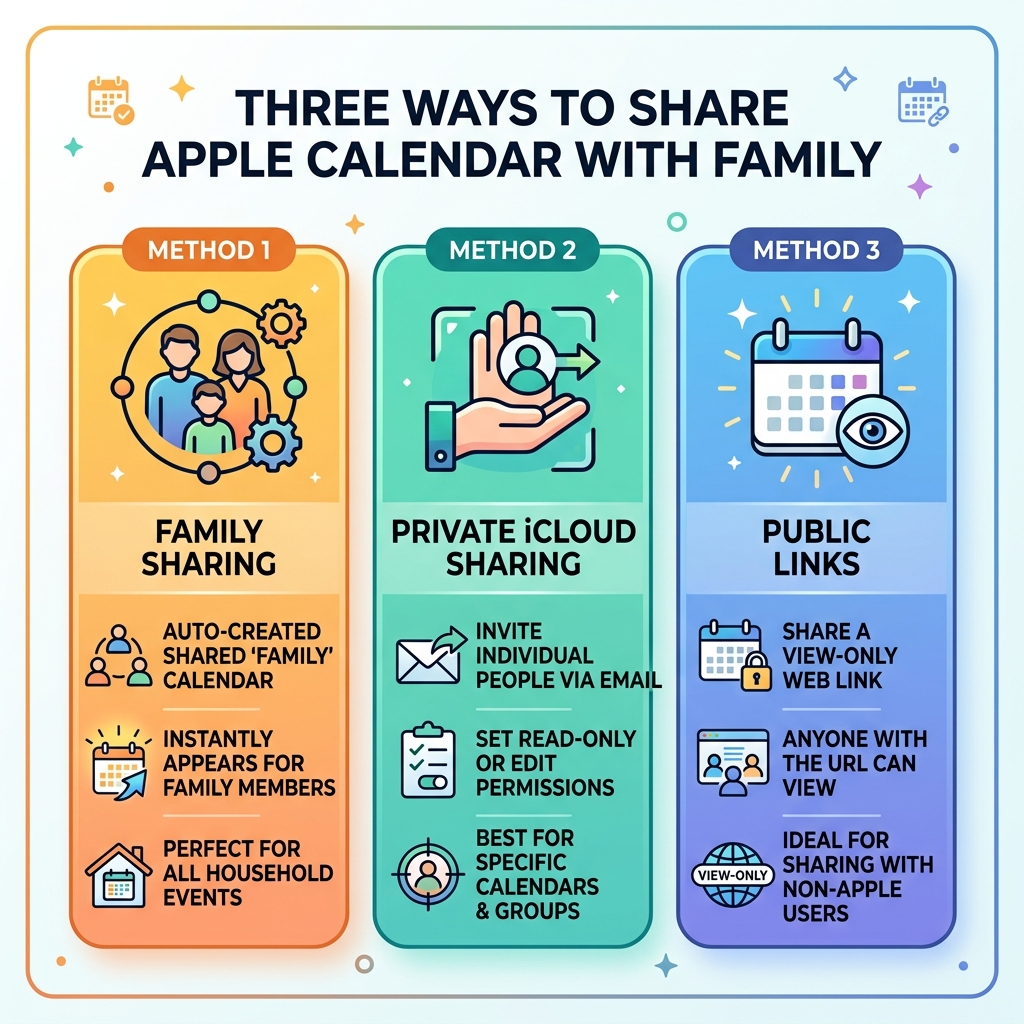
There are actually three ways to share Apple calendars with family:
- Family Sharing — Apple automatically creates a shared “Family” calendar for your group
- Private iCloud sharing — You invite specific people and control whether they can edit
- Public calendar links — Anyone with the link can view (but not edit) your calendar
Each method works differently, and picking the right one depends on your family’s setup. This guide walks you through all of them — on iPhone, iPad, Mac, and iCloud.com.
Understanding Family Sharing and the Automatic Family Calendar
Before we dive into the manual steps, we need to talk about Apple’s most powerful tool for households: Family Sharing. Think of this as the digital foundation for your home. When you set up a Family Sharing group, one person (the Organizer) invites up to five other family members to join.
The magic happens the moment the group is created. Apple automatically generates a shared calendar named “Family.” You don’t have to “invite” anyone to this specific calendar; if they are in your Family Sharing group, the calendar simply appears in their app.
How the Automatic Family Calendar Works
Every member of the group has equal rights to view, add, edit, or delete events on this specific calendar. It’s the ultimate “central hub.” When Dad adds a dentist appointment to the Family calendar, it pops up on Mom’s iPhone and the kids’ iPads instantly.
However, keep in mind that the group organizer has the ultimate control. According to Apple’s guide on how to Manage Family Sharing – Apple Support, the organizer is the only one who can add or remove members from the group. If you’re looking for something even more streamlined for your personal tasks before sharing them with the group, you might want to check out some minimalist-calendar-apps-for-productivity to keep your own side of the street clean.
Prerequisites for Family Sharing:
- Everyone needs an Apple ID (now often called an Apple Account).
- iCloud must be enabled on all devices.
- The Organizer must have a valid payment method on file (even for free sharing).
Step-by-Step: Sharing Apple Calendar with Family on All Devices
While the automatic Family calendar is great, sometimes you want to share a specific calendar—like one dedicated entirely to “Soccer Practice” or “Home Renovation”—without cluttering the main family schedule. This is where manual sharing apple calendar with family comes into play.
How to share Apple calendar with family on iPhone and iPad
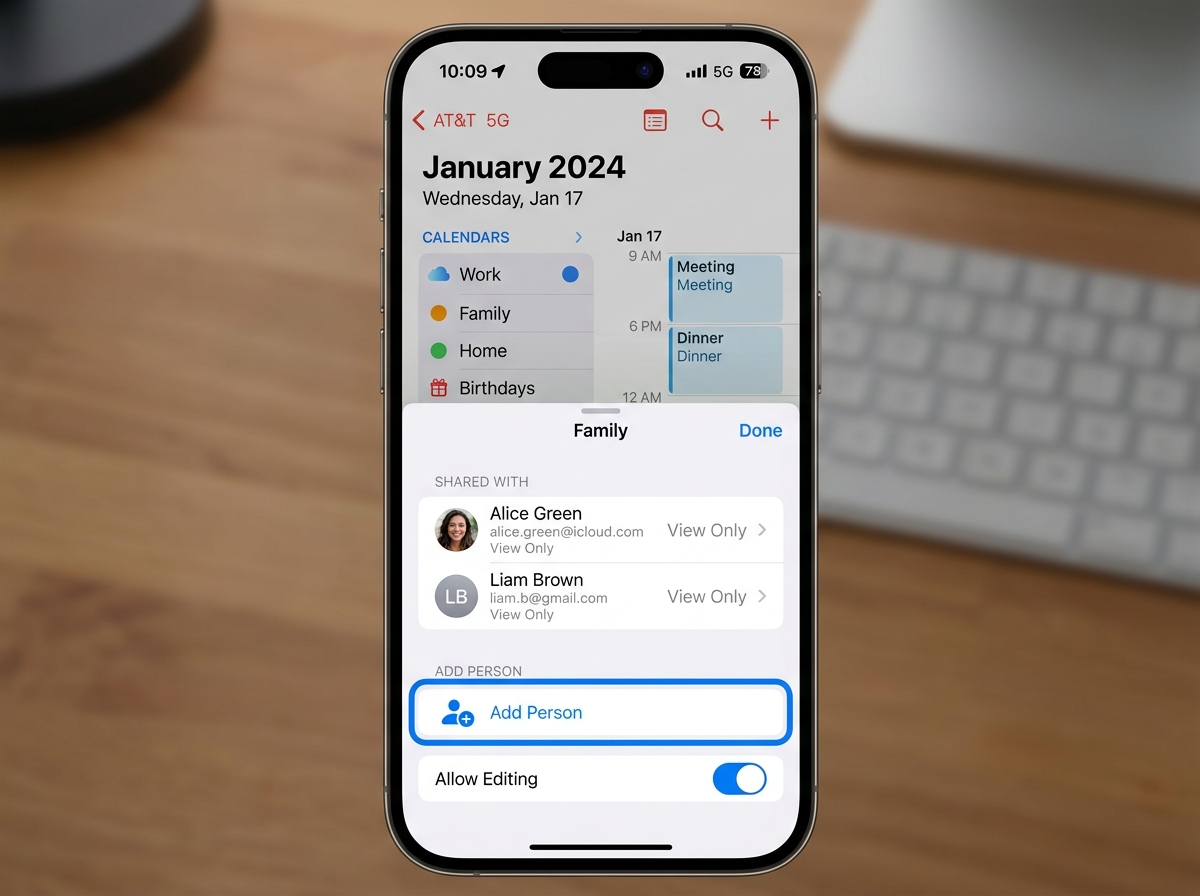
Most of us manage our lives from our pockets. Sharing a calendar on iOS or iPadOS is a breeze:
- Open the Calendar App: Launch the native Apple Calendar app.
- Access the Calendar List: Tap the Calendars button at the bottom center of the screen.
- Select Your Calendar: Find the iCloud calendar you want to share. Tap the info icon (the little “i” in a circle) next to its name.
- Add Your Family: Tap Add Person.
- Enter Details: Type in the name or email address of your family member. You can also tap the (+) plus icon to browse your contacts.
- Set Permissions: Before hitting “Add,” you can decide if they should have “View Only” access or if they can edit.
- Finalize: Tap Add, then Done.
The recipient will receive a notification. Once they accept, the calendar will appear in their list. If you find that managing these shared events is getting overwhelming, pairing your calendar with task-management-apps-for-minimalist-workflow can help you stay on top of the actual “to-dos” associated with those calendar events.
Managing sharing Apple calendar with family on Mac
If you’re sitting at your desk, the Mac interface offers a bit more screen real estate to manage permissions.
- Open Calendar: Launch the app from your Dock or Applications folder.
- Show Calendar List: If you don’t see your calendars on the left, go to the top menu and select View > Show Calendar List.
- Click the Share Icon: Hover your mouse over the calendar name in the sidebar. A small wireless-looking icon (the share icon) will appear. Click it.
- Invite Members: In the Share With field, enter the names or email addresses of your family.
- Adjust Access: Click the down arrow next to a person’s name to toggle between View Only and View & Edit.
- Check Status: You can see if they’ve accepted by looking at the icon next to their name (a green checkmark means they’re in!).
Using iCloud.com for sharing Apple calendar with family
Sometimes you’re on a public computer or a Windows PC and need to manage your family’s access.
- Log in to iCloud.com with your Apple Account.
- Click on the Calendar icon.
- In the sidebar, click the Share icon (it looks like a person in a circle) next to the calendar name.
- For Private Sharing, add the email addresses of your family members.
- Choose their access level and click Save.
iCloud.com is also where you can manage your notification preferences. If you don’t want an email every single time your teenager moves a “Cleaning Room” event, you can switch to “In-App Notifications” only.
Managing Permissions, Notifications, and Troubleshooting
Setting up the share is only half the battle. To keep the peace, you need to know how to manage what people can actually do. We always recommend being intentional with permissions. For example, you might want your kids to see the schedule but not be able to delete the “Final Exam” event by “accident.”
Comparison: View-Only vs. Allow Editing
| Feature | View-Only | Allow Editing |
|---|---|---|
| See Events | Yes | Yes |
| Add New Events | No | Yes |
| Delete Events | No | Yes |
| Edit Event Times | No | Yes |
| Invite Others | No | No (Only Owner) |
Managing these settings is easy. As noted in the Manage Calendar sharing settings on Apple devices – Apple Support (NZ) guide, you can change these permissions at any time by tapping the info icon next to the calendar and selecting the person’s name.
Troubleshooting Common Issues
- Invitation Not Received: Ensure the recipient has iCloud Calendar turned on in their device settings. Sometimes, the invite lands in the “Inbox” tab inside the Calendar app rather than as a standard notification.
- Sync Lag: If an event isn’t showing up, try pulling down on the Calendar list to refresh. Also, check that everyone is signed into the correct Apple Account.
- Reporting Junk: If you receive a calendar invite from someone you don’t know, Apple now allows you to “Report Junk” when you delete the invite, which helps keep your schedule clean.
Advanced Sharing: Public Links and Non-Apple Users
What if Grandma uses a Windows laptop or your cousin is strictly an Android user? You can still share your Apple Calendar with them using a Public Calendar link.
How to create a Public Link:
- Go to the sharing settings for your calendar (on iPhone or Mac).
- Toggle on the Public Calendar switch.
- Tap Share Link to copy a URL that starts with
webcal://.
The Catch: Public calendars are read-only. The recipient can see everything, but they cannot make changes. Also, be careful: anyone with that link can see your schedule, so don’t use this for calendars containing sensitive home security info or private addresses.
For non-Apple users, they can “Subscribe” to this link in Google Calendar or Outlook. In Google Calendar, they would click the “+” next to “Other calendars” and choose “From URL.”
Frequently Asked Questions about Family Calendars
What happens to my events if I leave a Family Sharing group?
If you leave a Family Sharing group, you immediately lose access to the shared “Family” calendar. Any events you personally created on that calendar stay with the group; you don’t “take them with you.” However, any private calendars you shared manually will still be shared unless you or the owner stops the share.
Can I share a specific calendar without joining Family Sharing?
Absolutely. Sharing apple calendar with family does not require the official “Family Sharing” feature. You can use the “Private iCloud Sharing” method (Add Person via email) for any iCloud calendar. This is great for sharing a calendar with a babysitter or a close friend who isn’t part of your official Apple family group.
How do I stop someone from editing my shared events?
If someone is getting a little too “creative” with your schedule, go to the calendar’s sharing settings, tap their name, and toggle off Allow Editing. They will immediately be demoted to View-Only status. If you want them gone entirely, tap Stop Sharing.
Conclusion
At Tamba Tech, we believe that technology should serve your life, not complicate it. Sharing apple calendar with family is one of those rare features that actually delivers on the promise of making life easier. By centralizing your family’s commitments, you reduce stress and ensure that everyone is literally on the same page.
Whether you use the automatic Family Sharing calendar or set up custom private shares, the key is consistency. Pick a method, set clear permissions, and enjoy a much more organized household. For more tips on mastering your digital life, Explore more app guides and tech reviews on our site. Happy scheduling!
