
Why So Many iPhone Users Struggle to Sort Photos by Date
How to sort iPhone photos by date is simpler than most people think — but the steps depend on where you’re sorting.
Here’s the quick answer:
- Open the Photos app
- Tap the Library tab
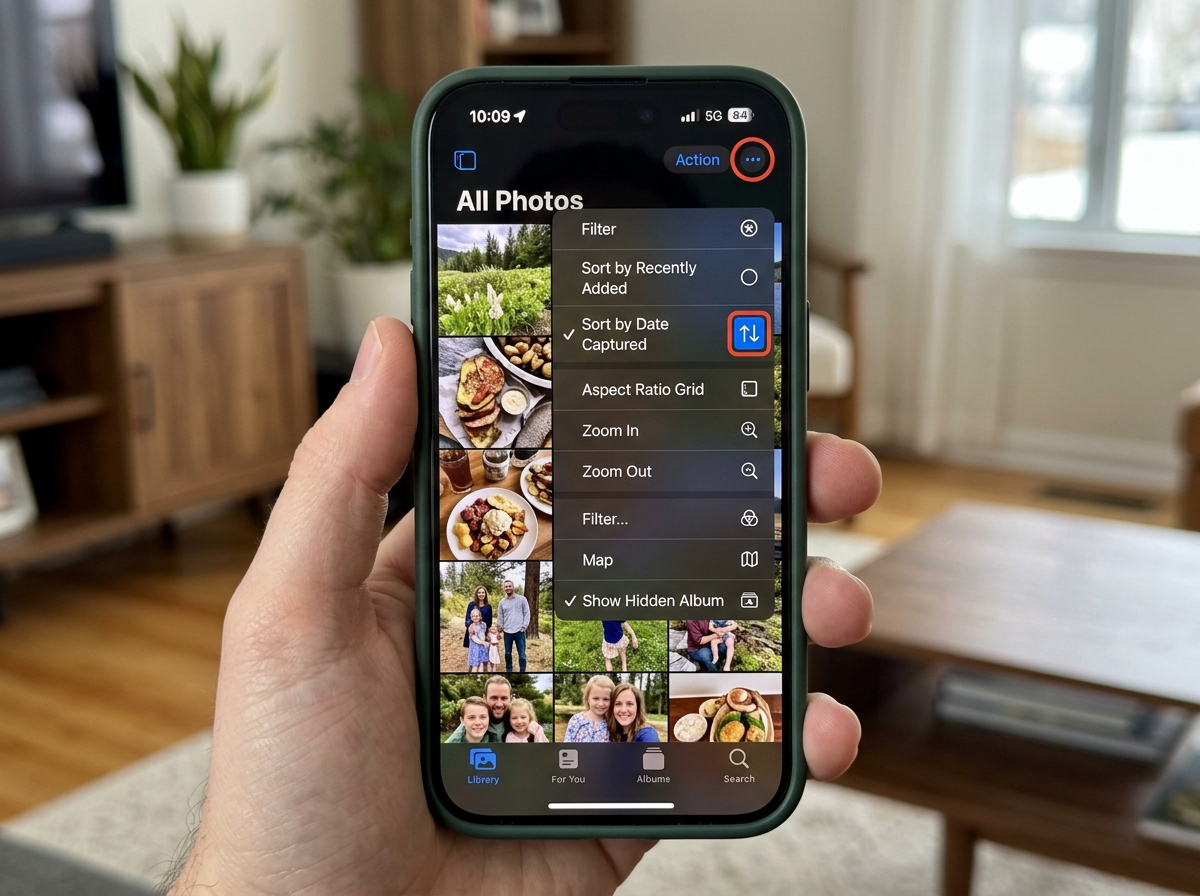
- Tap the “…” (three dots) icon or the bidirectional arrow icon
- Choose “Sort by Date Captured” to sort by when photos were taken, or “Sort by Recently Added” to sort by when they arrived on your phone
That covers the main library. Sorting inside albums works slightly differently — more on that below.
If you’ve ever saved a photo from a friend via AirDrop and then spent five minutes hunting for it, you’re not alone. One Apple Community thread on this exact problem racked up over 56,000 views — and similar questions have pulled in thousands more. It’s one of the most common iPhone frustrations out there.
The root cause? Your iPhone doesn’t always sort photos the way you’d expect. A photo taken in 2019 but added to your phone today won’t land at the bottom of your camera roll by default. It gets filed back in 2019, where you’d never think to look.
Understanding why this happens — and knowing the right steps to fix it — makes your photo library a lot easier to manage.
Understanding the Difference Between Date Captured and Date Added
Before we dive into the “how-to,” we need to clear up a major source of confusion: the difference between Date Captured and Date Added. These are two different types of metadata (hidden data about your files) that the iPhone uses to organize your media.
Date Captured (The “Birth Date”)
This is the moment the shutter clicked. When you take a photo with your iPhone, it embeds EXIF data into the file. This data includes the exact second the photo was taken, the GPS coordinates, and the camera settings used. When you Find photos and videos by date on iPhone, the system is usually looking at this “Birth Date.”
Date Added (The “Arrival Date”)
This is the moment the file landed in your specific library. Imagine a friend AirDrops you a photo they took three years ago.
- The Date Captured is three years ago.
- The Date Added is today.
If your library is sorted by Date Captured, that “new” photo will vanish into the depths of your 2021 archives. If it’s sorted by Date Added, it will appear at the very bottom of your recent photos.
| Feature | Date Captured | Date Added |
|---|---|---|
| What it measures | When the photo was actually taken. | When the photo entered your iPhone library. |
| Best for… | Reliving memories in chronological order. | Finding recently saved/AirDropped items. |
| Metadata Source | EXIF data embedded by the camera. | System timestamp created upon import. |
| Consistency | Stays the same regardless of when you import it. | Changes every time you move the photo to a new device. |
How to Sort iPhone Photos by Date in the Main Library
With the release of iOS 18, Apple introduced a significant redesign of the Photos app. While this was intended to make things more “intelligent,” it created a “Who Moved My Cheese?” moment for many of us. The app now defaults to a view that emphasizes “Date Captured,” which can make finding recent AirDrops a nightmare.
To fix this and how to sort iphone photos by date effectively in the main library, follow these steps:
- Open the Photos App: Ensure you are in the main “Photos” or “Library” view.
- Find the Bidirectional Arrow: In iOS 18, you may need to scroll up slightly in your grid to reveal a small icon with two arrows pointing in opposite directions (up and down) at the bottom left.
- Tap the Icon: This opens your sorting and view options.
- Choose Your Preference:
- Tap Sort by Recently Added if you want your newest arrivals (including old photos sent to you today) at the bottom.
- Tap Sort by Date Captured if you prefer a strict historical timeline.
According to Apple’s documentation on how to Sort and filter the photo library on iPhone, these options allow you to toggle between these two views instantly. If you find the redesign frustrating, switching to “Recently Added” usually resolves the most common complaints about “missing” photos.
How to sort iPhone photos by date in Shared Albums
Shared Albums behave a bit differently because they are collaborative spaces. When multiple people contribute to an album, the “Activity” is often more important than the capture date.
By default, Shared Albums are sorted by Date Added. This ensures that when a family member uploads 50 photos from last summer, they all appear at once in the subscriber feed.
To check or change this:
- Open the Shared Album.
- Tap the three dots (…) or the People icon.
- Look for sorting options. In many Shared Album views, the order is fixed to the “Activity Feed” style to keep everyone on the same page regarding new updates.
How to sort iPhone photos by date using third-party apps
Sometimes, the native Apple Photos app just doesn’t offer enough control. If you are a power user looking for advanced metadata editing or different viewing modes, you might look toward other ecosystems.
- Google Photos: Many users find that Google Photos handles chronological sorting more intuitively, especially when dealing with large cloud libraries. It allows for easy searching by date ranges and often handles “Date Taken” metadata more consistently across different device types.
- Metadata Editors: Apps like “Exif Editor” allow you to manually change the “Date Captured” on a photo. This is a great workaround if you scanned an old physical photo and want it to appear in 1985 rather than 2024.
- Advanced Workarounds: In technical circles, some users have even gone as far as manual database modification or jailbreaking to force the iPhone’s internal
Photos.sqlitedatabase to sort differently. However, for 99% of us, using the best-photo-organizing-apps-for-iphone is a much safer and more efficient route.
Sorting and Filtering Photos Within Custom Albums
While the main library has limited sorting options, custom albums (the ones you create yourself) offer much more flexibility. If you’ve been organizing photos on smartphone and cloud storage, you know that albums are the key to a tidy digital life.
According to Apple’s guide on how to Filter and sort photos and videos in albums on iPhone, you have three primary ways to sort within a custom album:
- Oldest to Newest: The classic chronological view.
- Newest to Oldest: Great for seeing your most recent additions to a project first.
- Custom Order: This is the “secret sauce” for organizers.
How to use Custom Order
In a user-created album, you aren’t stuck with what the computer thinks is right. You can drag and drop photos into any order you like.
- Tap and hold a photo thumbnail until it “lifts.”
- Drag it to the new position.
- Release to drop it.
This is perfect for creating a specific narrative for a vacation slideshow or a presentation.
Advanced Ways to Filter and Declutter Your Library
Sorting is only half the battle; filtering is the other. If your library is cluttered with 5,000 screenshots of recipes you’ll never cook, it’s time to use the built-in filters.
In the Library or any Album, tap the three dots (…) and select Filter. You can then choose to see only:
- Favorites: Only the photos you’ve “hearted.”
- Edited: Only images you’ve tweaked.
- Photos or Videos: To separate media types.
Hiding the “Noise”
One of the best ways to “sort” your view is to remove things you don’t want to see. In the View Options menu (under the three dots), you can toggle off:
- Screenshots
- Shared with You (Photos sent via iMessage that you haven’t saved yet)
- From My Mac
By hiding these, your main library becomes a pure stream of your personal photography. If you are still struggling with how do I sort photos by date added on iPhone?, check the Utilities section at the bottom of the Photos app. There is a “Recently Saved” folder that acts as a chronological catch-all for every new item that enters your phone, regardless of its original capture date. You can even “Pin” this collection to the top of your app for instant access.
Frequently Asked Questions about iPhone Photo Sorting
Can I sort the ‘All Photos’ view to show newest at the top?
Technically, no. Apple’s “All Photos” grid is designed to be a “bottom-heavy” experience, where the most recent items are at the bottom of the scroll. However, with the iOS 18 redesign, the app often opens to a “featured” or “recent” view. To quickly get to the very end of your library, you can tap the very bottom of the screen or use the “Recently Added” sort mentioned earlier to ensure the items you just saved are right there waiting for you.
Why are my AirDropped photos not showing up at the bottom of my library?
This happens because AirDrop preserves the original metadata. If your friend sends you a photo they took in February, your iPhone sees that February “Date Captured” and slots it into the February section of your library. To find these quickly, look in the Recently Saved utility or change your library sort to Recently Added.
How do I manually rearrange photos in an album?
You can only manually rearrange photos in albums you created. Predefined albums like “Recents,” “Favorites,” or “Selfies” have a fixed logic. In your own albums, simply tap the three dots, ensure “Sort” is set to Custom Order, and then use the tap-and-drag method to move thumbnails around.
Conclusion
Mastering how to sort iphone photos by date is the first step toward reclaiming your digital memories. Whether you prefer the strict timeline of “Date Captured” or the practical convenience of “Recently Added,” the tools are right at your fingertips—especially with the new flexibility offered in iOS 18.
At Tamba Tech, we believe that technology should work for you, not the other way around. Expert writers like Lucas Oliveira are dedicated to helping you navigate these updates with ease. If you’re looking for more ways to streamline your digital life, check out more info about file management services and our other curated guides. Happy organizing!
