
Your Photos Are One Broken Phone Away From Being Gone Forever
The best automatic photo backup service options in 2026 are:
- pCloud – Best overall; lifetime plans, fast speeds, strong security
- Google Photos – Best free option; 15 GB free, AI-powered search
- iCloud – Best for iPhone users; seamless Apple ecosystem integration
- IDrive – Best for large backups; up to 5 TB, fast transfer speeds
- Dropbox – Best for professionals; RAW file support, advanced sharing
- PhotoSync – Best for local/NAS backups; no cloud required
Think about how many photos are sitting on your phone right now. Hundreds? Thousands?
Most people never back them up — until it’s too late.
A cracked screen, a stolen bag, or a failed software update can wipe out years of memories in seconds. That’s the problem an automatic photo backup service solves. It runs quietly in the background, copying every photo you take to a safe location — no manual effort needed.
The tricky part is choosing the right one. Some services compress your photos. Some share your storage with email and documents. Others cost nothing upfront but charge more as your library grows. A 1 TB plan holds roughly 250,000 photos taken with a 12 MP camera — but not all services give you that much storage at a fair price.
We tested and ranked the top options so you don’t have to.
Essential Features of a Reliable Cloud Solution
When we look for a top-tier automatic photo backup service, we aren’t just looking at how much space it offers. We look at the “invisible” features that keep your memories safe and accessible. Reliability is the foundation of any backup strategy. If the service fails to trigger when you snap a photo, it isn’t a backup—it’s just a storage bin.

Key features to prioritize include:
- Transfer Speeds: High-resolution photos and 4K videos are large. You need a service that can handle gigabytes of data without crawling.
- Cross-Platform Compatibility: Your photos should follow you whether you switch from an iPhone to an Android or move from a Mac to a Windows PC.
- File Versioning: This is a lifesaver. If you accidentally edit a photo and save over the original, or delete a folder by mistake, file versioning allows you to “roll back” the clock (usually up to 30 days) to recover the original file.
- Data Redundancy: A professional service like pCloud stores five copies of each file on different servers. If one server fails, your photo remains safe.
For those looking to dive deeper into managing their digital assets, we recommend checking out these best practices for file backup and storage management to ensure your system is airtight.
Choosing the Right Automatic Photo Backup Service for Your Device
Your choice of hardware often dictates your software. If you are deep in the Apple ecosystem, iCloud is the most seamless automatic photo backup service because it is baked into the operating system. It handles background uploads efficiently without draining your battery.
However, Android users have a bit more “chaos” to manage due to the variety of folders apps create. We’ve put together the ultimate guide to taming your Android gallery chaos to help you navigate how different services interact with your device’s file structure. Most modern services now offer “Camera Upload” features that monitor your DCIM folder and push new images to the cloud the moment you connect to Wi-Fi.
Storage Capacity and Pricing Models
Understanding how much space you actually need is vital. As we mentioned, 1 TB can hold about 250,000 12MP photos. If you have a 3 TB plan, you’re looking at roughly 750,000 photos.
Pricing usually falls into two camps:
- Subscriptions: You pay monthly or annually (e.g., Google Photos, iCloud, Dropbox).
- Lifetime Plans: You pay once and own the storage forever. pCloud is the leader here, offering plans ranging from 500 GB to 10 TB. For long-term users, this is often the best value.
For a detailed look at how these plans stack up for professional use, you can explore the online photo storage and backup options provided by Dropbox, which specializes in large-scale storage.
| Service | Free Tier | Max Capacity | Best For |
|---|---|---|---|
| Google Photos | 15 GB | 30 TB+ | AI Search & Free Users |
| pCloud | 10 GB | 10 TB | Lifetime Value & Security |
| iCloud | 5 GB | 12 TB | Apple Users |
| IDrive | 10 GB | 100 TB+ | Large Volume Backups |
| Dropbox | 2 GB | Unlimited (Teams) | Professionals & RAW Files |
The Top-Rated Automatic Photo Backup Service Providers for 2026
We’ve spent months testing these platforms to see how they perform in real-world scenarios—from backing up vacation photos in a hotel with weak Wi-Fi to syncing massive RAW libraries for professional shoots.
pCloud: The Overall Winner
pCloud takes the top spot because it balances speed, security, and cost-effectiveness. Its “pCloud Crypto” feature offers zero-knowledge encryption, meaning only you have the key to your photos. Their lifetime plans are a game-changer for those tired of monthly bills.
Google Photos: The Smartest Assistant
Google Photos remains the king of convenience. Its AI can find a photo of “your dog at the beach” in seconds without you ever tagging a file. While it shares its 15 GB limit with Gmail and Drive, it offers a new kind of help from Google through Gemini integration, making it the most technologically advanced option.
iCloud: The iPhone Essential
For iOS users, iCloud is the default for a reason. It integrates with the native Photos app, allowing for features like “Optimize Storage,” which keeps high-res versions in the cloud and smaller versions on your device to save space.
High-Performance Options for Professional Photographers
If you are a professional or a serious hobbyist, your needs go beyond just “saving a selfie.” You need a service that supports RAW, TIFF, and DNG formats without stripping away metadata.
Photos Storage and Backup by IDrive® is an excellent choice for those with massive libraries. IDrive stands out because it doesn’t just back up your phone; it can handle your PC, Mac, and even external hard drives simultaneously. They even offer “IDrive Express,” where they ship you a physical hard drive to perform the initial multi-terabyte backup if your internet speed is too slow.
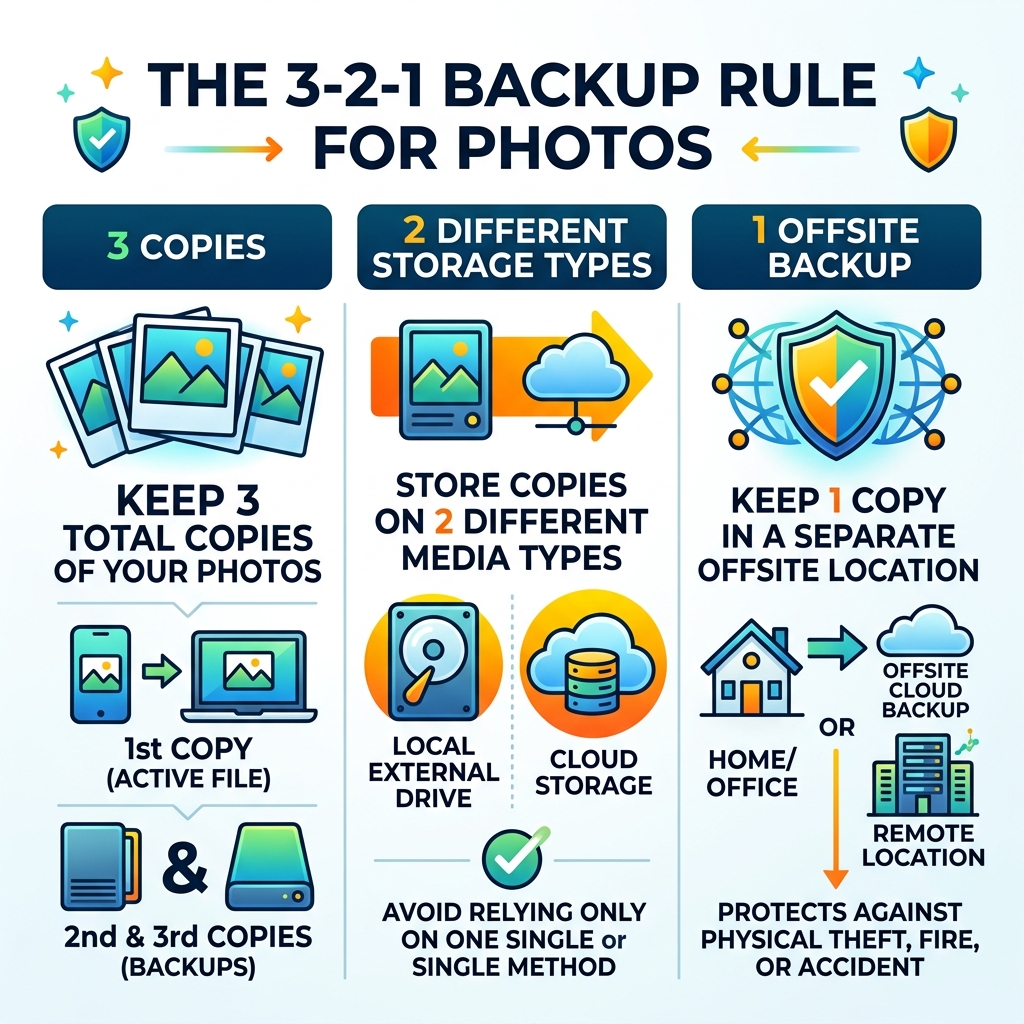
For those using a Network Attached Storage (NAS) device, services like PhotoSync and pCloud offer direct integration. This allows you to maintain a local copy of your photos while automatically mirroring them to the cloud for offsite protection.
Best Automatic Photo Backup Service for Mobile Users
Mobile users need three things: background syncing, battery efficiency, and ease of use.
- PhotoSync: This is the “power user” choice. It allows for incredibly specific triggers. You can set it to only back up when you plug your phone into a charger or when you arrive at a specific GPS location (like your home). You can learn more about its intelligent features at PhotoSync.pics | Intelligent Photo Organization & Sharing.
- Camera Roll Uploads: Most apps now feature a “Background App Refresh” setting. We recommend keeping this on so your automatic photo backup service can work while your phone is in your pocket.
If you’re looking for more ways to manage your mobile library, check out our list of the best photo organizing apps for iPhone.
Security Standards: Protecting Your Digital Memories
In 2026, privacy is more important than ever. When you upload your life’s memories to a server, you need to know who can see them.
The gold standard for security is AES-256 encryption. This is the same level of security used by banks and governments. However, the most important term to look for is Zero-Knowledge Encryption. This ensures that the service provider (like pCloud or Proton Drive) cannot see your photos even if they wanted to, as the encryption key never leaves your device.
We always recommend securing cloud storage accounts with Two-Factor Authentication (2FA) to prevent unauthorized access even if your password is leaked.
How an Automatic Photo Backup Service Protects Your Privacy
Privacy-focused providers like Proton Drive and Internxt are emerging as strong contenders for users who want to “DeGoogle” their lives. These services don’t scan your photos to train AI or sell data to advertisers.
When choosing a service, ask yourself:
- Does the company use my photos for ad targeting? (Google and Facebook do).
- Is the data encrypted before it leaves my phone?
- Do I own the rights to my data?
For more on maintaining your digital privacy, read our cloud storage management tips.
Reliability and Data Redundancy
What happens if a data center is hit by a natural disaster? This is where data redundancy comes in. Top-tier services use “file replication,” storing your photos across multiple geographic locations. If a server in New York goes offline, your photos are instantly served from a backup in London or Singapore.
Most services also offer a 30-day trash recovery. If you accidentally delete your wedding photos, you usually have a month to get them back before they are purged forever. This safety net is a key reason to use a professional service over a simple DIY hard drive setup. Check out our top tips for effective cloud storage management for more advice on keeping your library organized and safe.
Frequently Asked Questions
How do I migrate photos between different backup services?
Migrating thousands of photos can be a headache. Fortunately, many services now offer migration tools. For example, pCloud and PhotoSync.pics have built-in importers for Google Photos and iCloud. You simply link the accounts, and the servers handle the transfer in the background without using your phone’s data. If you’re doing it manually, we suggest decluttering cloud storage step-by-step first to avoid moving “junk” photos.
Can I back up photos from my DSLR or mirrorless camera automatically?
Yes! While phones are the most common source, you can use Wi-Fi enabled SD cards or desktop auto-uploaders. When you plug your camera’s SD card into your computer, apps like Dropbox and IDrive can be set to automatically detect the new files and move them to the cloud. For a more organized approach, see our guide on organizing photos on smartphone and cloud.
What happens to my photos if I stop paying for a subscription?
Most services offer a “grace period” (usually 15-30 days). After that, your account may enter “read-only” mode, where you can download your photos but cannot upload new ones. Eventually, if the account remains unpaid, the data will be deleted. This is why “Lifetime Plans” are so popular—they eliminate the risk of losing your memories due to a failed credit card payment. If you are looking to simplify your digital life, explore cloud storage apps for digital minimalists.
Conclusion
Choosing an automatic photo backup service is an investment in your future self. We’ve seen too many people lose irreplaceable memories because they relied on a single device.
At Tambas Tech, our expert writers like Lucas Oliveira are dedicated to testing these tools so you can make an informed choice. Whether you prioritize the AI-powered search of Google Photos, the seamless Apple integration of iCloud, or the long-term value and security of pCloud, the most important step is to start backing up today.
Our final recommendation for most users in 2026 is pCloud for its balance of privacy and price. However, if you have a massive library of over 5 TB, IDrive is the clear winner for bulk storage.
Don’t wait for a “device not found” error to take action. Set up your backup today and sleep better knowing your memories are safe. For more help with your digital files, visit our comprehensive guide to file management.
