
What the Hidden Photo Album iPhone Feature Does (and Where to Find It)
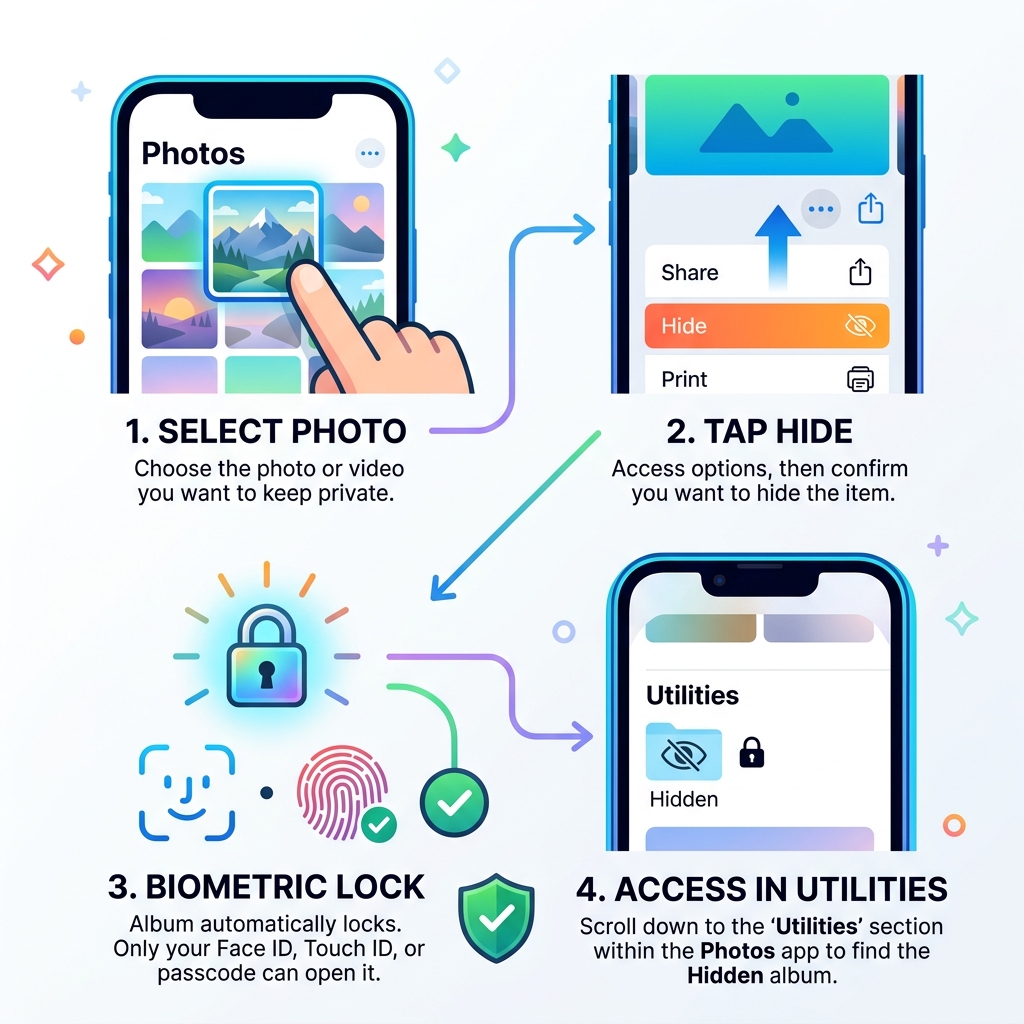
The hidden photo album iPhone feature is a built-in tool in Apple’s Photos app that lets you move photos and videos out of your main library into a private, locked folder.
Here’s how to find it in 30 seconds:
- Open the Photos app
- Scroll down to the Utilities section
- Tap Hidden
- Authenticate with Face ID, Touch ID, or your passcode
- Tap View Album to see your hidden photos
On iOS 18, the Photos app was redesigned. The Hidden album now lives under Utilities at the bottom of the home screen, not under “Other Albums” as in older versions.
Think of it like a locked drawer inside your phone. Photos you move there disappear from your main camera roll, your Memories, and even the Photos widget on your home screen. Nobody casually scrolling through your phone will stumble across them.
But there’s more to know. The feature has changed significantly across iOS versions – and it has real limitations that are worth understanding before you rely on it for anything sensitive.
This guide covers everything: how to hide photos, how to find and view the Hidden album, how to lock it down, and where the feature falls short.
What is the Hidden Photo Album iPhone Feature?
The hidden photo album iphone feature isn’t just about keeping secrets; it’s about control. We’ve all been there—you’re showing a friend a photo of your new puppy, they start swiping left, and suddenly they’re inches away from seeing a screenshot of a private medical result or a surprise gift you bought for your spouse.
The purpose of this feature is to provide a “safe zone” within the Photos app. Originally introduced back in iOS 8, the Hidden album has evolved from a simple folder that was actually quite easy to find into a sophisticated, biometrically protected vault. In its early days, “hiding” a photo simply meant it didn’t show up in the main “Moments” or “Years” view, but it was still sitting right there in an album labeled “Hidden” for anyone to see. We call that “privacy theater.”
Today, the feature is much more robust. When you hide a photo, it is removed from the Library grid, your curated Memories, and the People album. It effectively vanishes from the surface level of your device. This is a key part of Organizing Photos on Smartphone and Cloud because it allows you to separate your public-facing gallery from your private archives.
According to Apple Support, the Hidden album is now a standard utility across iPhone, iPad, Mac, and even the Apple Vision Pro. This cross-device functionality ensures that if you hide a photo on your phone, it won’t accidentally pop up on your iMac during a work presentation.
How to Manage Your Hidden Photo Album iPhone Content
Managing your private media shouldn’t feel like a chore. Apple has streamlined the process so that you can move items in and out of the shadows with just a few taps. Whether you are dealing with a single embarrassing selfie or a batch of sensitive documents, the tools are right at your fingertips.
When we talk about Efficient Strategies for Organizing Large Media Libraries, we often emphasize that “hiding” is a form of digital decluttering. By moving non-essential or private items out of your main view, you make your primary library more enjoyable to browse.
Step-by-Step: Hiding Photos and Videos
If you’re ready to sweep some digital dust under the rug, follow these steps. The process varies slightly depending on your iOS version, but the logic remains the same.
- Open the Photos App: Navigate to your library.
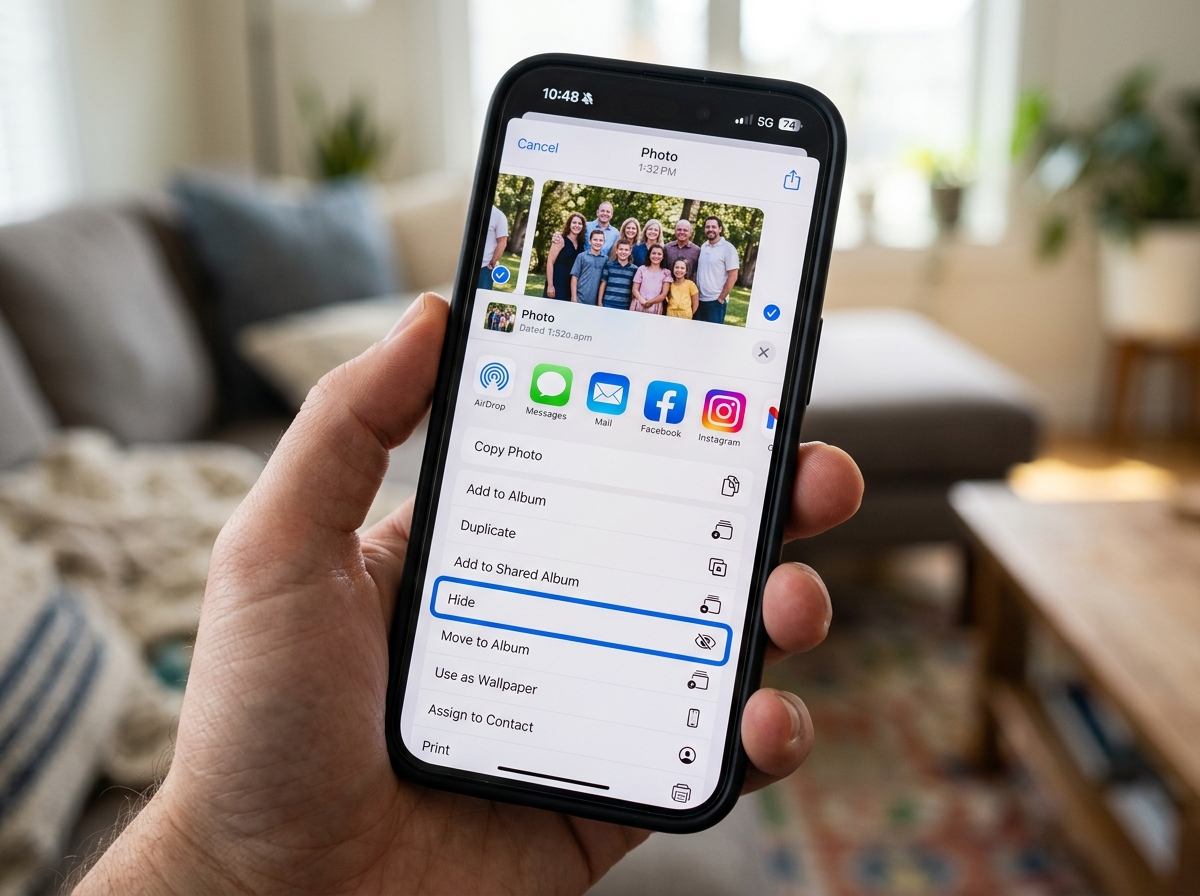
- Select Your Media: Tap “Select” in the top-right corner to pick multiple photos, or simply tap a single photo to open it.
- Find the “More” or “Share” Button:
- On newer iOS versions (iOS 16+), tap the three dots (…) in the corner.
- On older versions, tap the Share icon (the square with an arrow pointing up).
- Select Hide: Scroll through the action menu and tap “Hide.”
- Confirm the Prompt: A message will appear at the bottom of the screen asking if you want to hide the photo. Tap “Hide Photo” to confirm.
This simple workflow is a great first step in Reducing Digital Storage Overload: A Simple Guide for Beginners, as it helps you categorize what needs to stay visible and what should be tucked away.
How to Find and View Your Hidden Photo Album iPhone
Finding your hidden gems requires a bit more digging than a standard album.
- On iOS 18: Apple has moved things around. You need to scroll all the way to the bottom of the main Photos screen. Look for the Utilities section. You will see “Hidden” listed there.
- On iOS 16 and 17: Tap the Albums tab at the bottom. Scroll to the very bottom to find the Utilities section.
- The Unlock Step: Once you tap “Hidden,” the phone will immediately trigger a Face ID or Touch ID scan. If those fail, you can use your device passcode. Only after successful authentication will the album open.
Advanced Privacy: Locking and Hiding the Album Itself
For those of us who want our privacy “locked up like Fort Knox,” Apple offers an extra layer of security. Even if someone knows your phone passcode, you can make the Hidden album folder itself completely disappear from the Photos app. This prevents anyone from even knowing you have hidden photos.
This level of secrecy is a core component of Digital Security for Smartphone Users. If the folder isn’t visible, there’s no “Hidden” button for a curious person to tap on in the first place.
Securing the Hidden Photo Album iPhone with Biometrics
Starting with iOS 16, Apple finally fixed the biggest complaint about the Hidden album: the lack of a lock. Before this update, anyone who had your unlocked phone could simply scroll down and open the Hidden folder.
Now, the hidden photo album iphone is locked by default.
- Face ID/Touch ID: The primary way to get in.
- Passcode Fallback: If your face isn’t recognized (maybe you’re wearing a mask or a helmet), you can use your phone’s main passcode.
- Recently Deleted: It’s worth noting that the “Recently Deleted” folder is also now protected by the same biometric lock, ensuring that photos you’ve tried to get rid of stay private until they are permanently erased.
For those interested in Encrypted Storage Solutions for Minimalists, this native feature provides a basic but effective form of local encryption that doesn’t require extra software.
Disappearing Act: Removing the Folder from View
If you want to go full “secret agent” mode, you can hide the folder from the Photos app entirely. This is managed through the main Settings app, not the Photos app itself.
- Open Settings.
- Scroll down and tap Photos (or Apps > Photos on iOS 18).
- Find the toggle labeled Show Hidden Album.
- Switch it OFF (the toggle should turn grey).
Now, when you go back to the Photos app, the “Hidden” entry under Utilities will be gone. To see your photos again, you’ll have to return to Settings and toggle it back on.
A Word of Caution: While this hides the folder in the Photos app, research shows that hidden photos can still appear in the “image picker” of some third-party apps (like when you’re trying to attach a photo to a message in a non-Apple app). This is a common gap in Decluttering Smartphone Apps: A Guide for Beginners; always be aware of what permissions your apps have.
Evolution of Photo Privacy Across iOS Versions
Apple has come a long way since the days of iOS 8. Here is a quick look at how the hidden photo album iphone feature has evolved to meet modern privacy needs.
| iOS Version | Key Privacy Feature | Security Level |
|---|---|---|
| iOS 14 | Ability to hide the “Hidden” album from the folder list. | Moderate (No password lock) |
| iOS 16 | Automatic Face ID/Touch ID lock for Hidden and Deleted albums. | High (Biometric protection) |
| iOS 18 | Photos app redesign; Hidden album moved to Utilities; App Locking. | Very High (System-wide app locking) |
The latest update, iOS 18, introduces the ability to lock the entire Photos app behind Face ID, even before you get to the Hidden album. This is a game-changer for Best Practices for File Backup and Storage Management, as it adds a “double-lock” system to your most personal data.
Limitations and Advanced Privacy Considerations
We wouldn’t be doing our job at Tamba Tech if we didn’t point out the cracks in the armor. While the hidden photo album iphone feature is excellent for casual privacy, it isn’t foolproof.
- Metadata Risks: Hiding a photo doesn’t strip its metadata. If someone manages to export that photo, the GPS coordinates of where it was taken are still attached.
- iCloud Syncing: If you use iCloud Photos, your hidden photos are uploaded to Apple’s servers. While they are encrypted, they are accessible on any device logged into your Apple ID. If you have a shared iPad at home, your hidden photos might be accessible there too.
- Backup Inclusion: When you back up your iPhone to a Mac or PC using Finder or iTunes, your hidden photos are included in that backup. If that backup isn’t encrypted with a strong password, the photos are vulnerable.
- The “Shared” Problem: If you add a hidden photo to a Shared Album, it becomes visible to everyone in that shared group. Hiding only works within your personal library.
If these risks sound too high for your specific needs, you might want to look at the Best Photo Organizing Apps for iPhone or explore Cloud Storage Apps for Digital Minimalists that offer zero-knowledge encryption.
Frequently Asked Questions about iPhone Photo Privacy
Does the Hidden Album sync across all my Apple devices?
Yes, provided you have iCloud Photos turned on. When you hide a photo on your iPhone, it will also be hidden on your iPad and Mac. However, the setting to “Show” or “Hide” the album folder itself is device-specific. You might have the folder visible on your Mac but hidden on your iPhone. For more on managing these connections, check out Cloud Backup Apps for Home and Work.
Can third-party apps still see my hidden photos?
This is a tricky one. Generally, when an app asks for permission to access your photos, it can see your entire library. However, Apple’s modern “Limited Photos Access” feature allows you to pick exactly which photos an app can see. If you give an app “Full Access,” it may be able to see hidden photos through its own internal file browser. Always review your app permissions in Settings > Privacy & Security.
How do I recover photos from the Hidden Album?
If you want to bring a photo back to the main library, it’s easy:
- Open the Hidden album.
- Select the photo(s).
- Tap the three dots (…) or the Share button.
- Tap Unhide. The photo will return to its original place in your timeline based on the date it was taken. If you accidentally delete a hidden photo, you’ll find it in the “Recently Deleted” album (also locked!), where you can recover it within 30 days. This is much safer than Deleting Duplicate Files Quickly where you might lose things forever if you aren’t careful.
Conclusion
At Tamba Tech, we believe that digital privacy is a fundamental right, but it’s also a personal responsibility. The hidden photo album iphone feature is a powerful tool in your privacy arsenal, but it works best when you understand its settings and its limits.
The stakes for phone privacy are higher than most people realize. Statistics show that 58% of couples have fought about phone privacy, and 68% of couples have never actually discussed their boundaries regarding adult content. Interestingly, relationship experts have found that secret content use is one of the top five predictors of relationship breakdown.
Whether you’re hiding work secrets, surprise party plans, or personal photos, being transparent about your privacy needs with those close to you is often just as important as the passcode on your folder.
For more tips on keeping your digital life secure, visit our Privacy Category for the latest guides and expert recommendations. Stay safe, stay private, and keep your library organized!
